1. Introduction
Thank you for choosing the ANITECH DZ09 Smart Watch. This device combines the functionality of a smartphone with the convenience of a wearable, allowing you to make calls, send messages, monitor your fitness, and more, directly from your wrist. This manual provides detailed instructions on how to set up, operate, and maintain your smart watch to ensure optimal performance.
Please read this manual thoroughly before using the device and keep it for future reference.
2. Package Contents
Ensure all items are present in the package:
- 1 x ANITECH DZ09 Smart Watch
- 1 x USB Charging Cable
- 1 x User Manual (this document)
Note: SIM card and TF (Micro SD) card are not included and must be purchased separately.
3. Product Overview
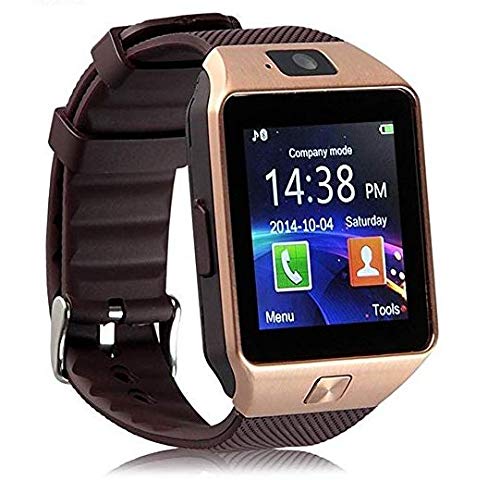
Figure 3.1: Front view of the ANITECH DZ09 Smart Watch, showing the display, camera, and side button.
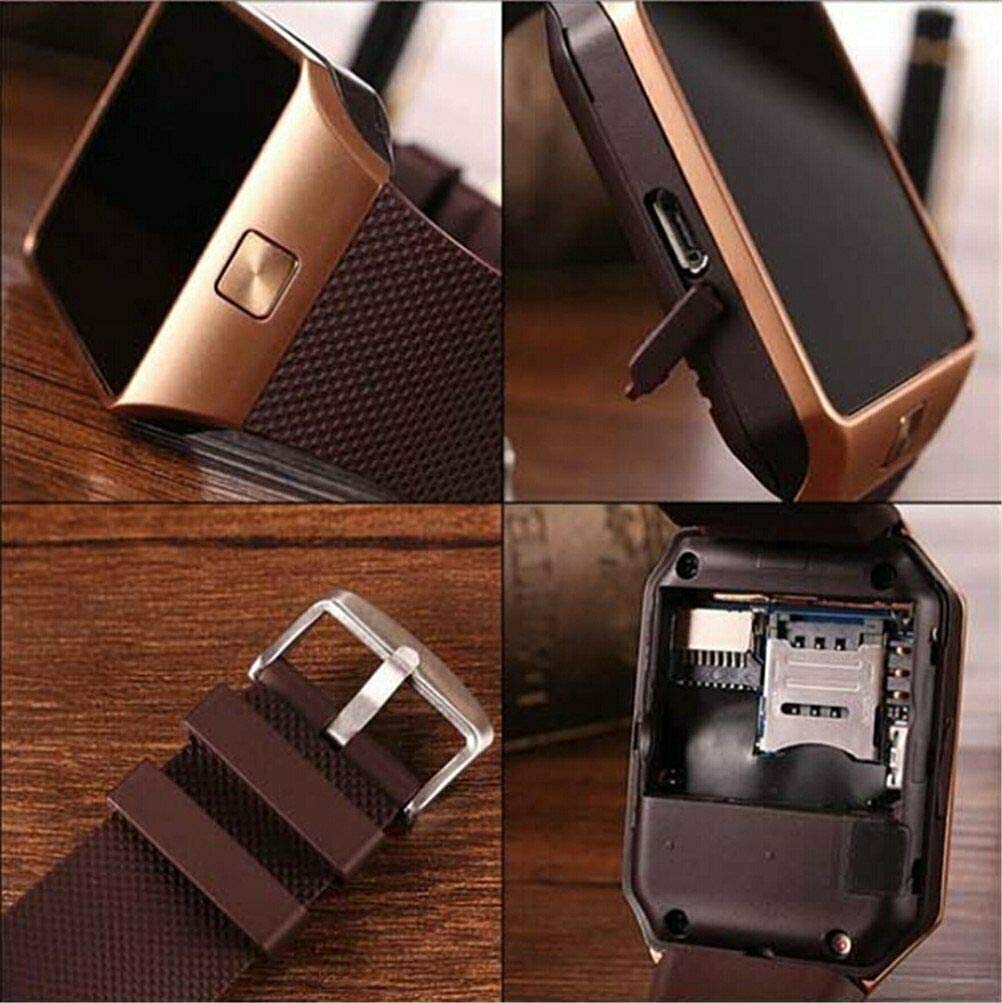
Figure 3.2: Close-up of the smart watch display and textured strap, highlighting the watch face.

Figure 3.3: The smart watch resting on its packaging box, showcasing its square design and display.

Figure 3.4: Detailed view of the smart watch's back panel, revealing the SIM card and TF card slots for expansion.
Key Features:
- High Sensitive Capacitive Touch Screen: 1.54" TFT HD LCD with 240x240 Pixel resolution.
- Phone Functionality: Make and receive calls directly from the watch with a Micro SIM card (GSM/GPRS 850/900/1800/1900).
- Sync Functions: Bluetooth synchronization for notifications (WhatsApp, Twitter, Facebook), time, schedule, and text messages.
- Health Monitoring: Pedometer for step counting, sleep monitoring, and sedentary reminders.
- Multimedia: Image viewer, sound recorder (requires SD card), audio player, remote capture for phone camera.
- Additional Tools: Alarm clock, calendar, calculator, 0.3M camera, two-way anti-lost function.
- Two Working Modes:
- Company Mode (Bluetooth): Connects to your smartphone via Bluetooth for calls, messages, and notifications.
- Network Mode (SIM Card): Functions as a standalone mobile phone with an inserted SIM card.
4. Setup
4.1. SIM Card and TF Card Installation
The ANITECH DZ09 supports a Micro SIM card for standalone phone functionality and a TF (Micro SD) card up to 32GB for storage.
- Power off the smart watch.
- Carefully remove the back cover of the watch.
- If installing a SIM card, gently lift the metal bracket for the SIM slot and insert the Micro SIM card with the gold contacts facing down, then close the bracket.
- Insert the TF card into its designated slot until it clicks into place.
- Replace the back cover securely.
Figure 4.1: Illustration of the SIM and TF card installation area on the back of the watch.
4.2. Charging the Device
Before first use, fully charge the smart watch.
- Connect the small end of the USB charging cable to the charging port on the side of the smart watch.
- Connect the other end of the USB cable to a USB power adapter (not included) or a computer's USB port.
- The watch display will indicate charging status. A full charge typically takes 1-2 hours.
- Once fully charged, disconnect the charging cable.
Note: Use a standard 5V/1A charger. Avoid using fast chargers as they may damage the device.
5. Operating Instructions
5.1. Power On/Off
- Power On: Press and hold the power button (usually on the side) until the screen lights up.
- Power Off: Press and hold the power button until the power off options appear, then select "Power Off".
5.2. Bluetooth Connection (Company Mode)
To use the watch with your smartphone for notifications and calls via Bluetooth:
- On your smart watch, go to the Bluetooth settings and ensure Bluetooth is enabled and discoverable.
- On your smartphone, enable Bluetooth and search for available devices.
- Select "DZ09" (or similar name) from the list of found devices on your smartphone.
- Confirm the pairing request on both devices.
- For full functionality (like SMS sync, notifications), you may need to install a companion app on your smartphone (e.g., BT Notification, FunDo Wear). Refer to the watch's manual or QR code on the watch for app download.
Note: All functions support Android 4.3 and up. For iPhone, it supports answer & call, phone book, music play, camera, clock, pedometer, anti-lost alert, radio, sleep monitoring. SMS functionality with iPhone is limited without a SIM card in the watch.
5.3. Phone Functions (with SIM Card)
- Making Calls: From the dialer app on the watch, enter the number and press the call icon.
- Answering/Rejecting Calls: Swipe to answer or reject incoming calls on the watch screen.
- Phone Book: Access your contacts (if synced or stored on SIM) to make calls.
5.4. Messaging (SMS)
- Local SMS: Send and receive SMS directly using the SIM card in the watch.
- Bluetooth Synchronization: View SMS messages from your connected smartphone (Android only, with companion app).
5.5. Health Monitoring
- Pedometer: Tracks steps, calculates calories burned, and records sports mileage. Activate from the Pedometer app.
- Sedentary Remind: Set reminders to move after periods of inactivity. Configure in settings.
- Sleep Monitoring: Monitors your sleep patterns. Activate before sleeping.
5.6. Camera and Remote Capture
- Watch Camera: Use the built-in 0.3M camera to take photos. Photos are stored on the watch (requires TF card).
- Remote Capture: Control your smartphone's camera remotely from the watch (Android only, with companion app). Photos are stored on the phone.
5.7. Anti-Lost Function
- Anti-Lost Remind: The watch will alert you if it loses connection with your paired smartphone (e.g., if you walk too far away).
- Two-Way Search: Use the watch to find your phone, or use your phone to find your watch (both will ring/vibrate).
5.8. Other Applications/Features
- Image Viewer: Browse photos stored on the watch.
- Sound Recorder: Record audio (requires TF card).
- Audio Player: Play music files stored on the TF card.
- Alarm Clock: Set multiple alarms.
- Calendar: View dates and schedule events.
- Calculator: Basic arithmetic functions.
- Stopwatch: Time events.
- Compass: Digital compass functionality.
- Bluetooth Push: Receive notifications from various apps (e.g., WhatsApp, Twitter, Facebook) on your watch (Android only, with companion app).
6. Maintenance
To ensure the longevity and optimal performance of your ANITECH DZ09 Smart Watch, follow these maintenance guidelines:
- Cleaning: Wipe the watch screen and body with a soft, dry, lint-free cloth. Do not use harsh chemicals or abrasive cleaners.
- Water Resistance: The watch is sweatproof, meaning it can withstand light splashes or sweat. It is NOT waterproof. Do not submerge the watch in water, wear it while swimming, or expose it to heavy rain.
- Temperature: Avoid exposing the watch to extreme temperatures (hot or cold) or direct sunlight for prolonged periods.
- Storage: When not in use for extended periods, store the watch in a cool, dry place.
- Charging: Use only the provided or recommended charging cable. Avoid overcharging.
- Impact: Protect the watch from drops and impacts, which can damage the screen or internal components.
7. Troubleshooting
If you encounter issues with your smart watch, refer to the following common problems and solutions:
| Problem | Possible Cause / Solution |
|---|---|
| Watch does not power on. | Battery is depleted. Charge the watch for at least 30 minutes. |
| Cannot connect to smartphone via Bluetooth. |
|
| Notifications are not received. |
|
| SIM card not detected. |
|
| Touch screen is unresponsive. |
|
8. Specifications
| Feature | Detail |
|---|---|
| Model | DZ09 |
| Brand | ANITECH |
| Display | 1.54 inch TFT HD LCD, 240x240 Pixel |
| Bluetooth Version | Ver. 3.0 |
| Camera | 0.3M |
| Memory | Supports max 32GB TF card |
| Network (SIM) | GSM/GPRS 850/900/1800/1900 (2G) |
| Battery | Lithium Ion (included), 380 Watt Hours |
| Acceleration Sensor | 3D acceleration, Step gauge analysis, Sedentary remind, Sleep monitoring, Anti-lost, Remote picture |
| G-sensor | Yes |
| Operating System | Android (compatible with Android 4.3+; limited iOS support) |
| Dimensions | Approx. 1.51 x 2.19 x 0.46 inches (3.84 x 5.56 x 1.17 cm) |
| Net Weight | 50g |
9. Warranty and Support
ANITECH provides a standard warranty for this product against manufacturing defects. Please retain your purchase receipt as proof of purchase for warranty claims.
For technical support, warranty inquiries, or service requests, please contact your retailer or the ANITECH customer service department through the contact information provided at the point of purchase or on the official ANITECH website.
Please note that the warranty does not cover damage caused by misuse, accidents, unauthorized repairs, or failure to follow the instructions in this manual.


