1. Product Overview
The Brandstand CubieTrio is a versatile device designed to simplify your charging and time-keeping needs. It integrates a digital alarm clock with Qi wireless charging, two 110V tamper-resistant power outlets, and two USB charging ports (one USB-A and one USB-C). This compact unit is ideal for bedside tables, desks, or any area where multiple charging options and a clock are desired.

Figure 1: Front view of the CubieTrio Wireless Charging Alarm Clock, showing the digital display, wireless charging pad, and power outlets.
2. Key Features
- Easy-to-Use Alarm Clock: Simple one-button press and turn design for setting time and alarms.
- Qi Wireless Charging: Conveniently charge compatible smartphones without cables.
- Dual 110V Power Outlets: Two tamper-resistant outlets with built-in shutters for enhanced safety.
- USB Charging Ports: One USB-A and one USB-C port for rapid charging of various devices.
- UL Spill Test Passed: Designed for enhanced safety, reducing the risk of electrical shock.
- Adjustable Display Brightness: Dimmable clock display for comfortable viewing in any lighting condition.
3. What's in the Box
Upon unboxing your CubieTrio, please ensure all components are present:
- CubieTrio Wireless Charging Alarm Clock Unit
- C-clamp (for securing the unit)
- Screws (for C-clamp installation)
4. Setup Guide
- Placement: Choose a stable, flat surface for the CubieTrio, such as a nightstand or desk. Ensure it is away from direct sunlight, heat sources, and moisture.
- Power Connection: Plug the CubieTrio's power cord into a standard 110V AC wall outlet. The clock display will illuminate.

Figure 2: Close-up of the robust power plug designed for the CubieTrio.
- Optional C-clamp Installation: For added security and to prevent accidental movement, you can use the included C-clamp.
- Attach the C-clamp to the underside of the CubieTrio unit using the provided screws.
- Secure the C-clamp to the edge of your furniture (e.g., nightstand) and tighten it to hold the unit firmly in place.
5. Operating Instructions
5.1 Setting the Time
- Press and hold the "Snooze/Dimmer" button (located on the top front) for approximately 6 seconds until the year flashes on the display.
- Rotate the large dial on the top of the unit to adjust the year.
- Press the "Alarm" button (located on the top) to confirm the year and move to setting the month.
- Repeat the rotation and "Alarm" button press for setting the month, day, and then the current time (hour and minute).
- Once the time is set, the display will stop flashing, indicating the time is saved.
5.2 Setting the Alarm
- Press the "Alarm" button once. The alarm time will flash on the display.
- Rotate the large dial to set the desired alarm hour.
- Press the "Alarm" button again to confirm the hour and move to setting the alarm minute.
- Rotate the large dial to set the desired alarm minute.
- Press the "Alarm" button a third time to activate the alarm. A small alarm icon will appear on the display.
- To turn off the alarm, press the "Alarm" button. Note: The alarm setting may reset to a default (e.g., 6:00 AM) after being turned off.
5.3 Adjusting Display Brightness
Press the "Snooze/Dimmer" button repeatedly to cycle through different brightness levels for the clock display, including an off setting.
5.4 Using Wireless Charging (Qi)
Place your Qi-compatible smartphone or device directly on the wireless charging pad located on the top surface of the CubieTrio. Ensure the device is centered for optimal charging. A charging indicator (often on your device's screen) will confirm charging has begun.

Figure 3: A smartphone and wireless earbuds case placed on the CubieTrio's wireless charging pad.
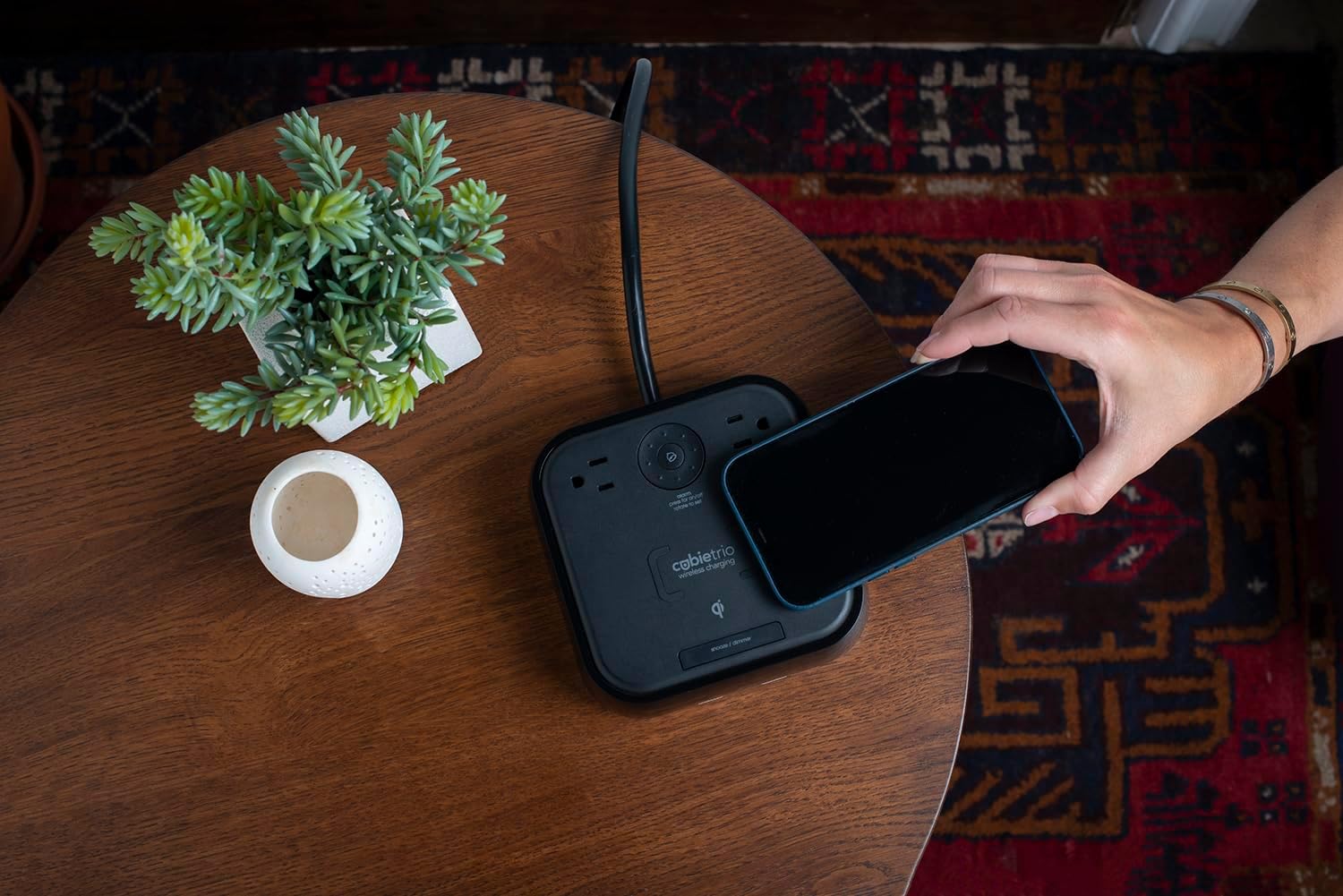
Figure 4: A hand demonstrating the placement of a smartphone onto the wireless charging surface.
5.5 Using USB Charging Ports
Connect your devices to the USB-A or USB-C ports located on the front of the unit using appropriate charging cables. These ports provide fast charging for a wide range of devices, including smartphones, tablets, and other USB-powered accessories.

Figure 5: The CubieTrio unit actively charging a smartphone via its front USB port, positioned on a book.
5.6 Using 110V Power Outlets
The two 110V tamper-resistant outlets on the top of the unit can be used to power or charge standard electrical devices such as laptops, lamps, or other small appliances. The tamper-resistant design includes internal shutters to prevent foreign objects from being inserted.
6. Maintenance
- Cleaning: Disconnect the CubieTrio from the power outlet before cleaning. Use a soft, dry cloth to wipe the surfaces. Do not use abrasive cleaners, solvents, or harsh chemicals.
- Battery Backup: The clock uses a coin battery for time retention during power outages. If the time consistently resets after a power interruption, the battery may need replacement. A small screwdriver is required to access the battery compartment.
- Ventilation: Ensure the unit has adequate ventilation and is not covered, as this can affect performance and safety.
7. Troubleshooting
| Problem | Possible Cause | Solution |
|---|---|---|
| Clock display is off or not working. | No power; display dimmed to off. | Check power connection. Press "Snooze/Dimmer" button to adjust brightness. |
| Wireless charging is not working. | Device not Qi-compatible; device not centered; phone case too thick; foreign objects on pad. | Ensure device is Qi-compatible and centered. Remove thick phone cases. Remove any metal objects from the pad. |
| USB ports are not charging. | Cable issue; device not compatible; power issue. | Try a different USB cable. Ensure the device is compatible with USB charging. Check power connection to the CubieTrio. |
| Alarm does not sound. | Alarm not set or activated; alarm volume too low. | Verify alarm is set and the alarm icon is visible. (Note: Alarm volume is fixed). |
| Time resets after power outage. | Backup battery depleted. | Replace the coin cell backup battery. |
8. Specifications
- Product Dimensions: 6 x 6 x 2 inches
- Item Weight: 2 pounds
- Model Number: BPETO
- Input Voltage: 110 Volts
- Connectivity Technology: USB, USB-C, Wireless (Qi)
- Power Outlets: 2 x 110V Tamper-Resistant
- USB Ports: 1 x USB-A, 1 x USB-C
- Manufacturer: Brandstand
- Country of Origin: China
9. Warranty and Support
Brandstand products are designed for durability and reliability. For specific warranty information, please refer to the documentation included with your purchase or visit the official Brandstand website. For technical support or customer service inquiries, please contact Brandstand directly.
You can also refer to the official Certificate of Compliance PDF for additional details: Certificate of Compliance (PDF)
10. Important Safety Information
- Do not expose the unit to water or excessive moisture.
- Do not disassemble or attempt to repair the unit yourself. Refer all servicing to qualified personnel.
- Ensure the power cord is not pinched or walked on.
- Do not overload the power outlets beyond their rated capacity.
- Keep out of reach of children.
11. Product Videos
No official product videos with "Seller" as creator type and specific filenames were provided in the input data to embed directly. Please refer to the product page for any available video content.


