
BOMAZ AXD7534, AXD7536, VSX-1023, VSX-1023-K, VSX-1029, VSX-519V, VSX-519V-K, VSX-519V-S
Replacement Remote Control User Manual
Model: AXD7534, AXD7536, VSX-1023, VSX-1023-K, VSX-1029, VSX-519V, VSX-519V-K, VSX-519V-S
Product Overview
This replacement remote control is designed for various Pioneer AV Receiver models, offering a slim and sleek design for comfortable handling. It provides stable performance and is ready for use without complex setup.
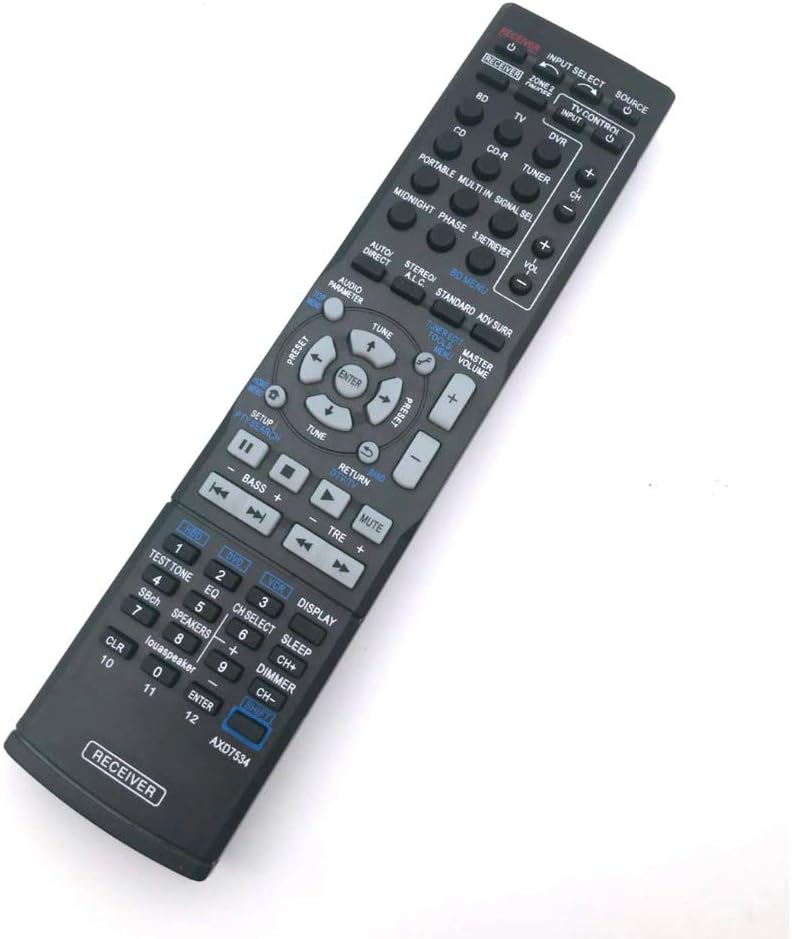
This image displays the front view of the replacement remote control, highlighting its button layout and overall design. The model number AXD7534 is visible at the bottom.

A side profile of the remote control, demonstrating its slim and ergonomic design for comfortable handling.

An illustrative image depicting the remote control's internal technology, emphasizing an upgraded chip, higher matching capability, and improved stability, labeled as "Powered By IR3.0* Technology".

The remote control is shown resting on an open book next to a small potted plant, providing a sense of its size and typical use environment.

A hand holding the remote control, demonstrating its comfortable grip and size relative to a user's hand, with a television screen in the background.
Setup
This replacement remote control is designed for immediate use with compatible Pioneer AV Receivers without requiring complex setup procedures.
Battery Installation
- Locate the battery compartment on the back of the remote control.
- Slide the battery cover downwards or outwards to open it.
- Insert two (2) AAA batteries, ensuring the positive (+) and negative (-) terminals align correctly with the markings inside the compartment.
- Close the battery cover by sliding it back into place until it clicks securely.
The remote is now ready for operation.
Operating Instructions
This remote control provides full functionality for your compatible Pioneer AV Receiver models, including AXD7534, AXD7536, VSX-1023, VSX-1023-K, VSX-1029, VSX-519V, VSX-519V-K, and VSX-519V-S.
Basic Functions
- Power On/Off: Press the RECEIVER ON/OFF button to power the receiver on or off.
- Input Selection: Use the INPUT SELECT buttons (e.g., BD, TV, CD, DVR, TUNER) to switch between different audio/video sources.
- Volume Control: Adjust the master volume using the MASTER VOLUME + and - buttons.
- Mute: Press the MUTE button to temporarily silence the audio output. Press again to unmute.
Advanced Functions
- Navigation: Use the directional arrow buttons (UP, DOWN, LEFT, RIGHT) and the ENTER button for menu navigation and selection.
- Menu Access: Press the BD MENU button to access the Blu-ray Disc menu or the SETUP button for receiver settings.
- Sound Modes: Cycle through various sound modes (e.g., AUTO/DIRECT, STEREO, STANDARD, ADV SURR) using the dedicated buttons.
- Tuner Control: Use TUNE + / - for manual tuning and PRESET + / - for cycling through saved radio presets.
- Playback Controls: Standard playback buttons like PLAY, PAUSE, STOP, FAST FORWARD, REWIND, SKIP are available for compatible devices.
For detailed information on specific receiver functions, please refer to your Pioneer AV Receiver's original user manual.
Maintenance
Proper maintenance ensures the longevity and optimal performance of your remote control.
Cleaning
- Wipe the remote control with a soft, dry cloth.
- For stubborn dirt, lightly dampen the cloth with water or a mild, non-abrasive cleaner. Ensure no liquid enters the remote.
- Avoid using harsh chemicals, solvents, or abrasive cleaning materials, as these can damage the surface or internal components.
Battery Care
- Replace batteries when the remote's response becomes sluggish or inconsistent.
- Remove batteries if the remote control will not be used for an extended period to prevent battery leakage, which can cause damage.
- Dispose of used batteries responsibly according to local regulations.
Troubleshooting
If you encounter issues with your remote control, refer to the following common solutions.
| Problem | Possible Cause | Solution |
|---|---|---|
| Remote is not responding. | Dead or incorrectly installed batteries. Obstruction between remote and receiver. Remote out of range. | Replace batteries with new AAA batteries, ensuring correct polarity. Remove any objects blocking the line of sight to the receiver's IR sensor. Move closer to the receiver (within 8 meters). |
| Buttons are sticky or unresponsive. | Dirt or debris under the buttons. | Clean the remote control surface as described in the Maintenance section. Avoid pressing buttons excessively hard. |
| Remote controls some functions but not others. | Specific function not supported by this replacement remote or receiver model. | Verify compatibility with your specific Pioneer receiver model and its functions. This remote is a direct replacement for the listed models and should support all original functions. |
If the issue persists after attempting these solutions, please contact customer support.
Specifications
- Operable Distance: More than 8 meters
- Material: ABS Material
- Power Source: 2 x AAA Batteries (not included)
- Connectivity Technology: Infrared (IR)
- Compatible Devices: Pioneer AV Receivers (Models: AXD7534, AXD7536, VSX-1023, VSX-1023-K, VSX-1029, VSX-519V, VSX-519V-K, VSX-519V-S)
- Max Number of Supported Devices: 1 (The specific receiver it's paired with)
- Item Weight: 3.38 ounces
- Package Dimensions: 9.45 x 5.24 x 1.14 inches
- Special Feature: Ergonomic design
Warranty and Support
Warranty Information
This product comes with a 120-day warranty from the date of purchase. This warranty covers manufacturing defects and ensures the remote control functions as intended under normal use. It does not cover damage caused by misuse, accidents, unauthorized modifications, or battery leakage.
Customer Support
If you experience any issues with your remote control or have questions not covered in this manual, please contact our customer support team. We test every remote before shipment to ensure quality. If the remote you receive has a problem, please feel free to contact us for assistance.
For support, please refer to the contact information provided by your retailer or on the product packaging.
Ask a question about this manual
Ask about setup, troubleshooting, compatibility, parts, safety, or missing instructions. Manuals+ will review the question and use this page’s manual context to help answer it.