1. Introduction
Thank you for choosing the VBESTLIFE Portable MP3 Player. This device is designed for convenient music playback and FM radio reception. It features a compact design, an LCD screen, and supports TF cards for expandable storage. This manual provides detailed instructions to help you get started and make the most of your MP3 player.
2. Package Contents
Please check the package for the following items:
- 1 x VBESTLIFE Portable MP3 Player
- 1 x Pair of Earphones
- 1 x User Manual
3. Product Overview
The VBESTLIFE MP3 Player features a sleek design with a wear-resistant mirror finish, making it both stylish and durable. Familiarize yourself with the device components:
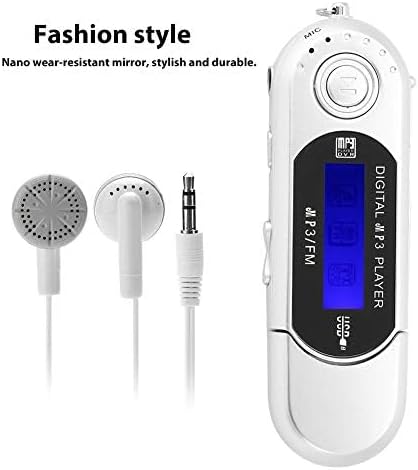
Figure 3.1: Stylish Design. This image displays the VBESTLIFE MP3 player alongside its included earphones, highlighting its compact and fashionable design with a nano wear-resistant mirror.

Figure 3.2: MP3 Player Components. This image shows a blue VBESTLIFE MP3 player with various parts labeled, including the USB interface, display screen, microphone, open key, headphone jack, lock key, and volume controls.
- USB Interface: For connecting to a computer for data transfer and charging.
- Display Screen: Shows playback information, menu options, and radio frequency.
- Microphone (MIC): For potential recording functions (if supported, not explicitly stated but visible).
- Open Key: Likely for accessing internal components or specific functions.
- Headphone Jack: 3.5mm port for connecting earphones.
- Lock Key (HOLD): Prevents accidental button presses.
- Volume +/-: Adjusts the audio output level.
- Play/Pause/Mode Button: Central button for playback control and mode switching.
- Forward/Backward Buttons: For navigating tracks or radio frequencies.
4. Setup
4.1. Inserting a TF Card
The MP3 player supports TF (MicroSD) cards up to 32GB for storing your music files. A TF card is not included and must be purchased separately.
- Locate the TF card slot on the side of the MP3 player.
- Gently insert the TF card into the slot until it clicks into place. Ensure the card is oriented correctly.
- To remove the TF card, push it gently inward until it springs out.
4.2. Powering the Device
The MP3 player requires one AAA battery (not included) for operation.
- Locate the battery compartment, usually on the back or side of the device.
- Open the compartment cover.
- Insert one AAA battery, ensuring correct polarity (+/-).
- Close the battery compartment cover securely.
4.3. Connecting to a Computer (Plug and Play)
The device supports USB 2.0 for high-speed data transfer and operates as a plug-and-play device, requiring no special software installation.
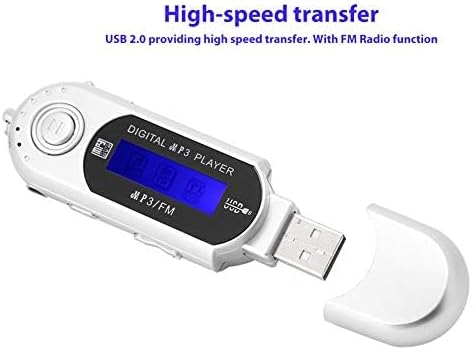
Figure 4.1: USB Connection. This image shows the VBESTLIFE MP3 player with its integrated USB connector exposed, ready to be plugged into a computer for high-speed data transfer.
- Remove the protective cap from the USB connector.
- Plug the MP3 player directly into an available USB port on your computer.
- Your computer should recognize the device as a removable disk. You can then drag and drop MP3 files onto the device's storage or the inserted TF card.
- Always safely eject the device from your computer before unplugging it to prevent data corruption.
5. Operating Instructions
5.1. Power On/Off
- To Power On: Press and hold the Play/Pause button (central button) for a few seconds until the screen lights up.
- To Power Off: Press and hold the Play/Pause button again until the screen turns off.
5.2. Music Playback
After powering on, the player will typically enter music playback mode if music files are present on the device or TF card.
- Play/Pause: Press the central Play/Pause button to start or pause playback.
- Next Track: Press the Forward button (usually labeled with a right arrow or >>).
- Previous Track: Press the Backward button (usually labeled with a left arrow or <<).
- Volume Adjustment: Use the Volume +/- buttons to increase or decrease the sound level.
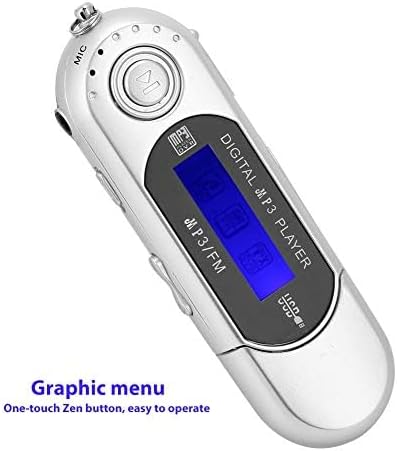
Figure 5.1: Graphic Menu. This image shows the MP3 player's LCD screen displaying a graphic menu, indicating ease of navigation with its one-touch Zen button.
5.3. FM Radio Function
The MP3 player includes an FM radio function.
- Switch to FM Mode: While the device is on, press and hold the Play/Pause button (or a dedicated Mode button if available) twice quickly to switch to FM radio mode.
- Tune Stations: Use the Forward or Backward buttons to scan for radio stations.
- Volume Adjustment: Use the Volume +/- buttons to adjust the radio volume.
5.4. Language Settings
The device supports multiple languages, including English (default), Spanish, and Portuguese.
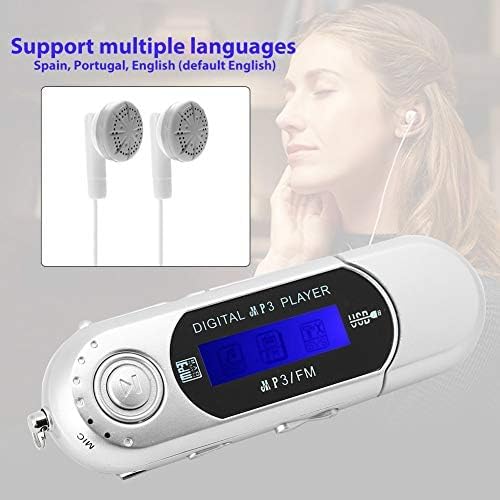
Figure 5.2: Language Support. This image highlights the MP3 player's capability to support multiple languages, including Spanish, Portuguese, and English (default).
To change the language, navigate through the device's menu using the Play/Pause and Forward/Backward buttons until you find the "Language" option. Select your desired language.
5.5. Automatic Shutdown
To conserve battery life, the player features an automatic shutdown function. You can set the automatic shutdown time through the device's settings menu.
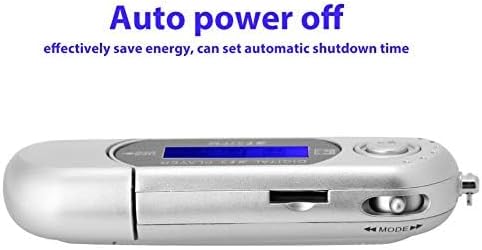
Figure 5.3: Auto Power Off Feature. This side view of the MP3 player illustrates its auto power-off capability, designed to save energy by allowing users to set an automatic shutdown time.
5.6. Lock Key (HOLD)
Slide the Lock key (HOLD) to prevent accidental button presses during playback or when carrying the device.
6. Maintenance
- Keep the device dry. Moisture can damage electronic components.
- Clean the device with a soft, dry cloth. Do not use harsh chemicals or abrasive cleaners.
- Avoid dropping the device or subjecting it to strong impacts.
- When not in use for extended periods, remove the AAA battery to prevent leakage.
7. Troubleshooting
| Problem | Possible Cause | Solution |
|---|---|---|
| Device does not power on. | Battery is dead or incorrectly inserted. | Replace the AAA battery with a new one, ensuring correct polarity. |
| Computer does not recognize the device. | Loose USB connection, faulty USB port, or driver issue. |
|
| No sound from earphones. | Earphones not properly connected, volume too low, or faulty earphones. |
|
| Cannot play music files. | Unsupported file format, no music files on device/TF card, or corrupted files. |
|
| FM radio not working or poor reception. | Weak signal, not in FM mode, or earphones not connected (often act as antenna). |
|
8. Specifications
| Brand | VBESTLIFE |
| Model Number | VBESTLIFEgo9snz072u-02 |
| Dimensions | 95 x 26 x 16 mm |
| Weight | 26 g |
| Color Options | Black, Silver, Blue (availability may vary) |
| Display Screen Size | 1 inch |
| Supported Audio Formats | MP3 |
| Memory Storage Capacity | Supports up to 32GB TF card (card not included) |
| Connectivity Technology | USB 2.0 |
| Power Source | 1 x AAA Battery (not included) |
| Special Features | Portable, FM Radio, Automatic Shutdown, Multi-language Support |
9. Warranty and Support
For warranty information or technical support, please refer to the documentation provided with your purchase or contact your retailer. VBESTLIFE strives to provide reliable products and customer service.