
Apple MNE02LL/A-cr
Apple iMac MNE02LL/A User Manual
Model: MNE02LL/A-cr | Brand: Apple
Product Overview
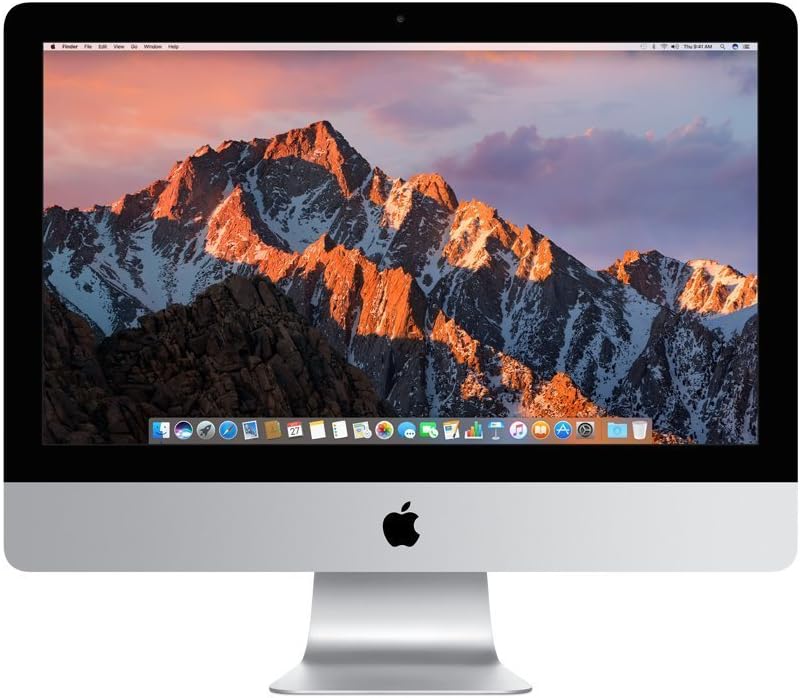
The Apple iMac MNE02LL/A is a 21.5-inch all-in-one desktop computer designed for a seamless user experience. It features a high-resolution Retina 4K display and powerful internal components suitable for various computing tasks, from everyday use to multimedia applications.
Key Features:
- Display: 21.5-inch LED backlit display with IPS technology and 4096x2304 native resolution.
- Processor: 3.4GHz Intel Core i5 processor with 4 cores and 8MB L3 cache.
- Memory: 8GB 2400MHz memory, configurable up to 32GB.
- Storage: 1TB Fusion Drive for smooth multitasking and ample storage.
- Graphics: Dedicated AMD Radeon Pro 560 graphics card with 4GB VRAM.
- Connectivity: Built-in Wi-Fi and Bluetooth 4.0, 2 USB 3.0 ports, 1 HDMI 2.0 port, 1 headphone jack.
What's in the Box
Upon unboxing your Apple iMac, please ensure all the following components are present:
- Apple iMac MNE02LL/A (21.5-inch All-in-One Desktop)
- Power Cable
- Generic Keyboard
- Generic Mouse
Additional accessories may be purchased separately.
Setup Guide
- Unpack the iMac: Carefully remove the iMac and its accessories from the packaging. Place the iMac on a stable, flat surface.
- Connect Peripherals:
- Connect the keyboard and mouse to the available USB ports on the back of the iMac.
- If using wired internet, connect an Ethernet cable to the RJ-45 port.
- Connect Power: Plug the power cable into the power port on the back of the iMac, then plug the other end into a grounded electrical outlet.
- Power On: Press the power button located on the back of the iMac (typically on the lower right side when viewed from the front).
- Initial Setup: Follow the on-screen instructions to complete the macOS setup process, including selecting your language, connecting to Wi-Fi (if not using wired), creating a user account, and setting up Apple ID.
Operating Instructions
Your iMac runs on macOS, Apple's intuitive operating system. Here are some basic operating guidelines:
- Navigation: Use the mouse or trackpad to navigate the desktop, open applications from the Dock at the bottom of the screen, and manage windows.
- Finder: The Finder is your primary tool for managing files and folders. It can be accessed from the Dock.
- Applications: Applications can be found in the Applications folder (accessible via Finder) or Launchpad.
- System Preferences: Customize your iMac's settings, including display, sound, network, and security, through System Preferences (accessible from the Apple menu in the top-left corner).
- Updates: Regularly check for and install macOS updates to ensure optimal performance and security. Updates are managed through System Preferences > Software Update.
- Shut Down/Restart/Sleep: Access these options from the Apple menu in the top-left corner of the screen.
Maintenance
To ensure the longevity and optimal performance of your iMac, consider the following maintenance tips:
- Cleaning: Use a soft, lint-free cloth to clean the screen and exterior. For stubborn smudges, slightly dampen the cloth with water. Avoid harsh chemicals.
- Software Updates: Keep your macOS and applications updated to the latest versions. This often includes performance improvements and security patches.
- Disk Space: Periodically check your storage usage and remove unnecessary files or applications to free up space on your Fusion Drive.
- Backup Data: Regularly back up your important data using Time Machine (built into macOS) or a third-party backup solution.
- Ventilation: Ensure the ventilation slots on the back of the iMac are not obstructed to prevent overheating.
Troubleshooting
If you encounter issues with your iMac, try these common troubleshooting steps:
- Restart: Many minor issues can be resolved by simply restarting your iMac.
- Check Connections: Ensure all cables (power, keyboard, mouse, network) are securely connected.
- Software Issues: If an application is unresponsive, force quit it by pressing
Command + Option + Esc, selecting the application, and clicking "Force Quit." - Internet Connectivity: If you cannot connect to the internet, check your Wi-Fi settings or Ethernet cable connection. Restart your router if necessary.
- Display Problems: If the screen is blank or flickering, try restarting the iMac. Ensure the power cable is firmly connected.
- Apple Diagnostics: For hardware issues, you can run Apple Diagnostics. Restart your iMac and immediately press and hold the
Dkey until the diagnostics screen appears.
For more complex issues, refer to Apple's official support documentation or contact Apple Support.
Specifications
| Feature | Detail |
|---|---|
| Standing screen display size | 21.5 Inches |
| Screen Resolution | 4k (4096x2304 Pixels) |
| Processor | 3.4 GHz Intel Core i5 (4 cores) |
| RAM | 8 GB DDR4 |
| Hard Drive | 1000 GB Hybrid Drive (Fusion Drive) |
| Graphics Coprocessor | AMD Radeon Pro 560 |
| Graphics Card Ram Size | 4 GB |
| Operating System | macOS High Sierra (upgradable) |
| Item Model Number | MNE02LL/A-cr |
| Item Weight | 18.01 pounds |
| Product Dimensions | 27 x 11 x 24 inches |
| Color | Silver |
| Connectivity | Wi-Fi, Bluetooth 4.0, 2 USB 3.0 ports, 1 HDMI 2.0 port, 1 headphone jack |
Warranty and Support
This Apple iMac is a renewed product. Please refer to the seller's specific return and warranty policies for details. Typically, renewed products come with a limited warranty provided by the seller or refurbisher.
For this product, a 90-day refund/replacement return policy is offered by the seller. Please contact the seller directly for any issues or support inquiries related to your purchase.
For general macOS support, software updates, and troubleshooting guides, visit the official Apple Support website: support.apple.com.
Ask a question about this manual
Ask about setup, troubleshooting, compatibility, parts, safety, or missing instructions. Manuals+ will review the question and use this page’s manual context to help answer it.