
MekedeTech Android 10.0 System 9 inch Car Stereo
MekedeTech Android 10.0 9-inch Car Stereo User Manual
Model: Android 10.0 System 9 inch Car Stereo
Brand: MekedeTech
1. Introduction
This manual provides comprehensive instructions for the installation, operation, and maintenance of your MekedeTech Android 10.0 9-inch Car Stereo. This unit is designed to integrate seamlessly into various Volkswagen and Skoda models, offering advanced navigation, entertainment, and connectivity features. Please read this manual thoroughly before using the product to ensure proper function and safety.

2. Specifications and Features
2.1 Key Features
- Android 10.0 operating system with a 1024x600 HD resolution 9-inch capacitive touch screen.
- CPU: MTK8227L QUAD CORE ARM A7 1.2GHz, 16GB ROM.
- Radio chip ST7786 & Amplifier chip TDA7851 for FM/AM tuner with RDS.
- Built-in WiFi module and support for 3G Dongle for internet connectivity.
- Built-in Car DVR program (requires optional USB camera).
- Support for OEM car steering wheel media control.
- RAM: DDR 3 2GB.
- GPS navigation with pre-downloaded North America maps for offline use.
- Bluetooth for hands-free calling and wireless audio streaming (A2DP support).
- Media playback from Media card/GPS card/USB stick or local disc (MP3, WMA, AAC, RM, FLAC, MPEG 1/2/4, RMVB, H264, H263, VC1, RV, Divx, Sorenson Spark, Spark, VP8, AVS Stream, JPG/BMP/JEPG/PNG).
- Max Audio Output: 4 x 50W.
- Built-in CANBUS, eliminating the need for an external purchase.
2.2 Technical Specifications
| Specification | Detail |
|---|---|
| Manufacturer | Shenzhen Mekede Technology Co.,Ltd |
| Brand | MekedeTech |
| Model Name | Android 10.0 System 9 inch Car Stereo |
| Item Weight | 3.19 pounds |
| Package Dimensions | 10 x 7.1 x 5.1 inches |
| Screen Size | 9 Inches |
| Connectivity Technology | Bluetooth, USB, Wi-Fi |
| Map Type | North America |
| Included Components | WiFi Module, 3G Dongle (Note: 3G dongle excluded, support only) |
| Audio Output Mode | Stereo |
| Mounting Type | Panel Mount |

3. Setup and Installation
Before beginning installation, ensure your vehicle's battery is disconnected to prevent electrical damage. Professional installation is recommended.
3.1 Package Contents
Verify that all components are present in the package:

- Main Head Unit
- Power Cable
- RCA Cable
- GPS Antenna
- USB Cables (2)
- WiFi Module (integrated)
- 3G Dongle (support only, not included)
3.2 Connection Overview
Familiarize yourself with the connection ports on the rear of the unit:

- Power Connector: Connects to the vehicle's power harness.
- RCA Port: For audio/video input/output connections.
- USB Port: For connecting USB devices (e.g., USB flash drives, external DVR camera).
- Fakra GPS: Connects the GPS antenna.
- Radio Antenna Port: Connects the vehicle's radio antenna.
- MIC Port: For an external microphone (if included or desired).
- WIFI Antenna: For Wi-Fi signal reception.
- GPS Antenna: For GPS signal reception.
The unit includes a built-in CANBUS for seamless integration with your vehicle's systems, including steering wheel controls. Ensure all connections are secure before powering on the unit.

4. Operating Instructions
The MekedeTech car stereo operates on Android 10.0, providing a user-friendly interface similar to a tablet. Navigate through functions using the touch screen and physical buttons.
4.1 Main Menu and Applications
The main menu provides access to all core functions and installed applications. Swipe left or right to view additional screens or widgets.

4.2 Navigation
The unit comes with pre-installed North America maps. Access the navigation function by tapping the "Navi" icon. You can also install other navigation applications from the Google Play Store when connected to Wi-Fi.
Video 1: Demonstrates various functions including main menu operation, navigation settings (voice, units, time format), radio operation, music and video playback, Bluetooth hands-free calling, and steering wheel control setup. This video provides a comprehensive overview of the unit's capabilities.
4.3 Radio (FM/AM with RDS)
Select the "Radio" icon to access the FM/AM tuner. You can manually search for stations or use the automatic search function. RDS (Radio Data System) provides additional information like station name and program type where available.
4.4 Media Playback (Music & Video)
The unit supports various audio and video formats. You can play media from USB flash drives, SD cards, or internal storage. Use the "Music" or "Video" icons to access the respective players.
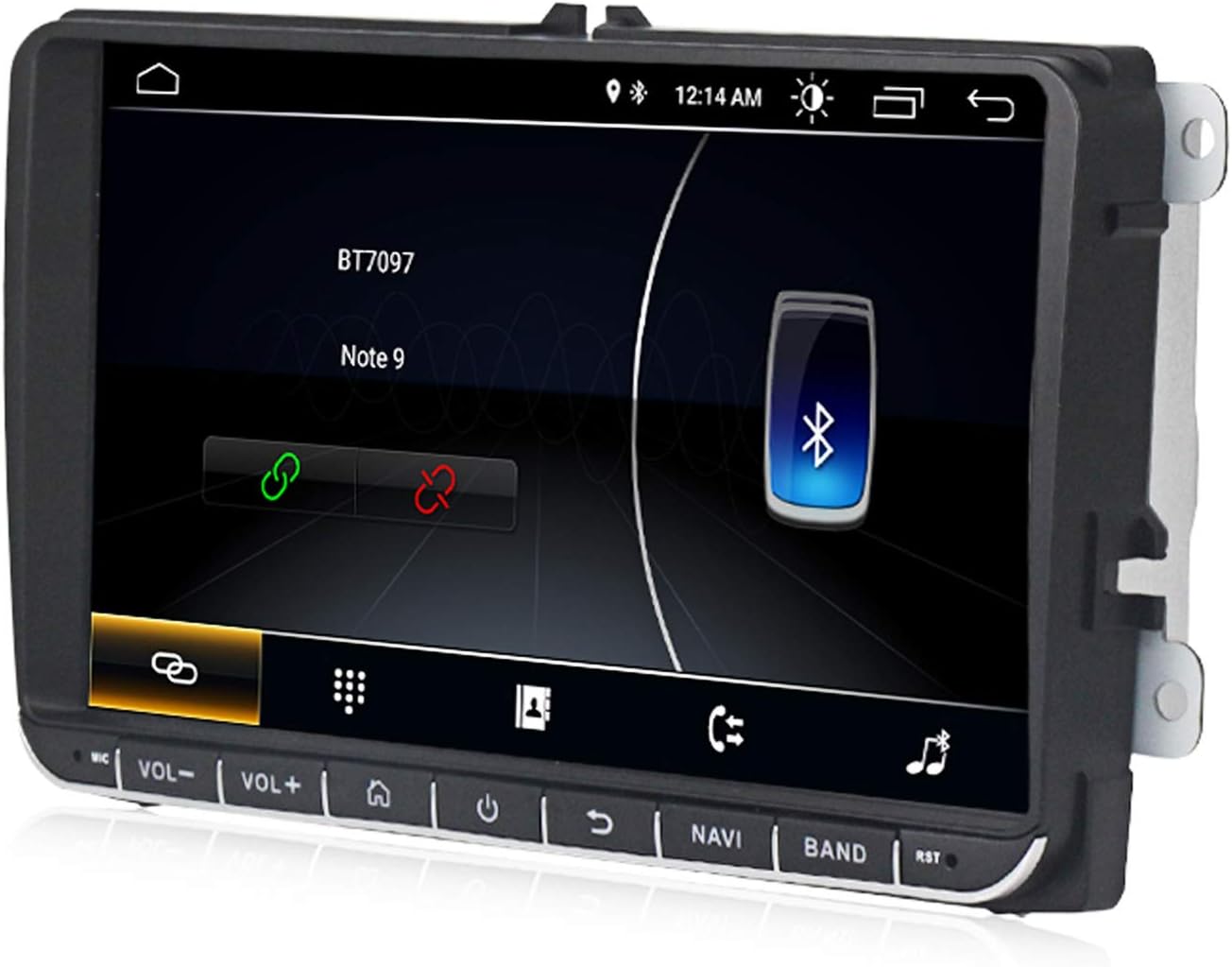
4.5 Bluetooth Connectivity
Pair your smartphone via Bluetooth for hands-free calling and wireless audio streaming. Access the Bluetooth menu by tapping the "Bluetooth" icon. Ensure your phone's Bluetooth is discoverable to connect.
4.6 Steering Wheel Control (SWC)
The unit supports your vehicle's original steering wheel media controls through its built-in CANBUS. This allows you to adjust volume, change tracks, and manage calls without taking your hands off the wheel.
4.7 Wi-Fi and Internet
Connect to a Wi-Fi hotspot to access online features, download apps, and browse the internet. The unit also supports 3G dongles for mobile data connectivity (3G dongle not included).
5. Maintenance
To ensure the longevity and optimal performance of your car stereo, follow these general maintenance guidelines:
- Cleaning: Use a soft, dry cloth to clean the screen and exterior. Avoid abrasive cleaners or solvents.
- Temperature: Avoid exposing the unit to extreme temperatures, both hot and cold, for extended periods.
- Software Updates: Periodically check for software updates to improve performance and add new features. Refer to the manufacturer's website or contact support for update procedures.
- Safety: Keep the unit away from children.
6. Troubleshooting
If you encounter issues with your car stereo, refer to the following common solutions:
- Unit does not turn off with the car or drains battery: Disconnect the red wire of the wire harness. This often resolves power-related issues where the unit remains active after the ignition is off.
- No power: Check all power connections, especially the main power connector and vehicle's fuse box. Ensure the red wire (ACC) and yellow wire (B+) are correctly connected.
- No sound: Verify speaker connections and check the volume settings. Ensure the audio output mode is correctly configured.
- GPS signal issues: Ensure the GPS antenna is properly connected and placed in a location with a clear view of the sky.
- Bluetooth pairing issues: Ensure Bluetooth is enabled on both the car stereo and your mobile device. Make sure your device is discoverable.
- Touch screen unresponsive: Try restarting the unit. If the issue persists, a factory reset might be necessary (refer to the settings menu).
For persistent issues not covered here, please contact MekedeTech customer support.
7. Warranty and Support
For detailed warranty information, please refer to the documentation provided with your purchase or contact the seller directly. Keep your proof of purchase for warranty claims.
For technical support or further assistance, please contact MekedeTech customer service through the platform where you purchased the product or visit the official MekedeTech store online.
MekedeTech Store: Visit MekedeTech Store
Ask a question about this manual
Ask about setup, troubleshooting, compatibility, parts, safety, or missing instructions. Manuals+ will review the question and use this page’s manual context to help answer it.