
Technical Pro RX55URIBT+(2) HC655 KAR
Technical Pro Home Karaoke Machine System
Model: RX55URIBT+(2) HC655 KAR
Introduction
This manual provides detailed instructions for the setup, operation, and maintenance of your Technical Pro Home Karaoke Machine System. This system includes the RX55URIBT 1500W Pro Audio Receiver, two pairs of RockvilIe HC655 6.5" In-Ceiling Home Theater Speakers, and two RockvilIe RMC-XLR High-End Metal Handheld Wired Microphones. Please read this manual thoroughly before using the product to ensure proper functionality and longevity.
Package Contents
Verify that all items listed below are included in your package:
- 1 x Technical Pro RX55URIBT 1500W Pro Audio Receiver
- 2 Pairs (4 units) of RockvilIe HC655 6.5" 500 Watt 2-Way In-Ceiling Home Theater Speakers
- 2 x RockvilIe RMC-XLR High-End Metal Handheld Wired Microphones
- 2 x 10-foot XLR to XLR Microphone Cables
- 1 x Remote Control for the Receiver
- 1 x Plastic Carry Case for Microphones
- Power Cable
- Audio Cables (e.g., 1/8'' MP3 input cable)
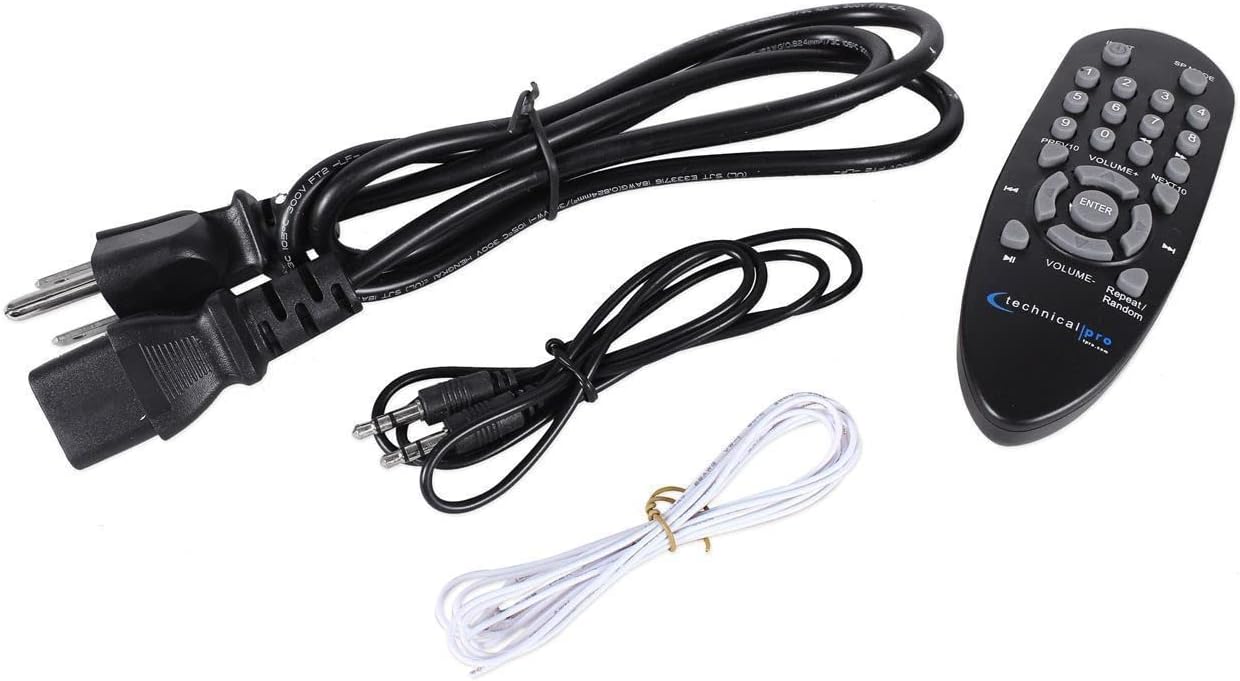
Figure 1: Included accessories, featuring the power cable, a 3.5mm audio cable, and the system's remote control.
Setup
1. Unpacking and Placement
Carefully remove all components from their packaging. Place the RX55URIBT receiver on a stable, flat surface with adequate ventilation. Ensure there is enough space around the unit for heat dissipation.
2. Speaker Connection
Connect the RockvilIe HC655 in-ceiling speakers to the receiver. The receiver supports both main and surround speakers. Use banana binding posts for main speakers and push-button terminals for surround speakers. Ensure correct polarity (+ to + and - to -) for optimal sound quality.
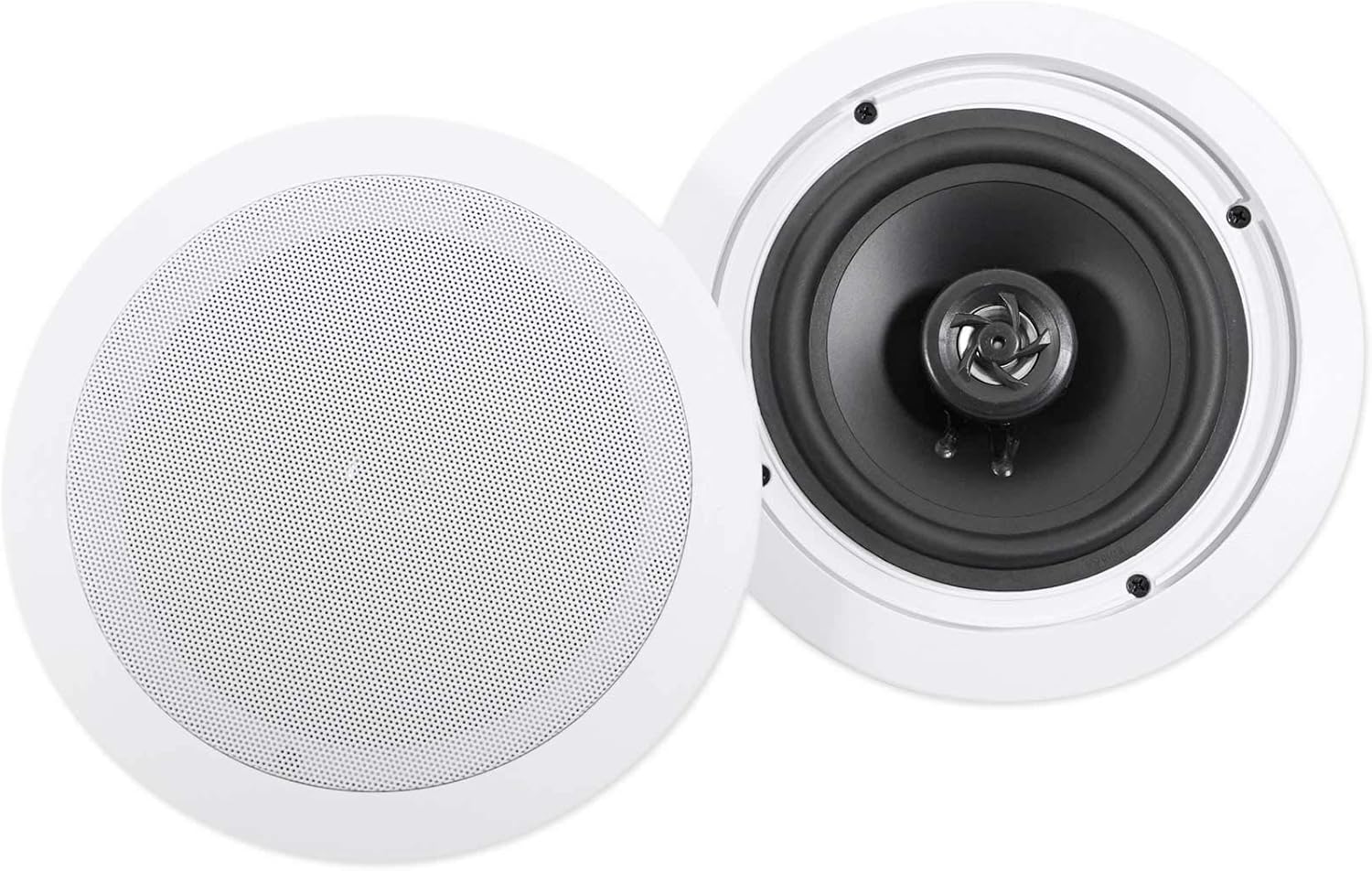
Figure 2: RockvilIe HC655 6.5" In-Ceiling Home Theater Speakers, designed for flush mounting.
3. Microphone Connection
Plug the RockvilIe RMC-XLR microphones into the 1/4'' microphone input jacks on the front panel of the RX55URIBT receiver. The system features dual microphone inputs (MIC1 and MIC2).
4. Audio Source Connection
The receiver offers multiple input options:
- RCA Inputs: Connect external audio sources like DVD players or other audio devices to the RCA (AUX, DVD) inputs on the rear panel.
- USB/SD Card: Insert a USB flash drive or SD card into the respective slots on the front panel for digital media playback.
- 1/8'' (MP3) Input: Use the 3.5mm jack on the front panel to connect portable audio devices like smartphones or MP3 players.
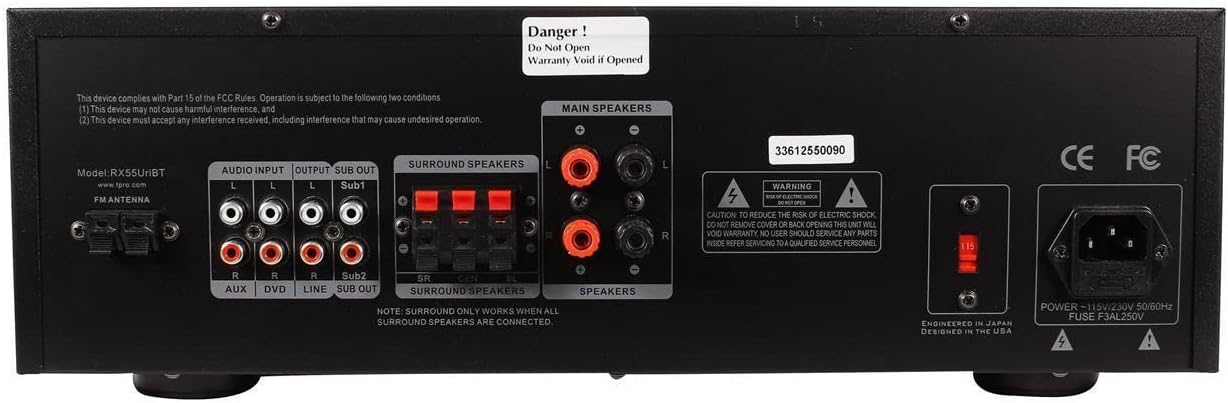
Figure 3: Rear panel connections of the RX55URIBT receiver, illustrating audio inputs, speaker outputs, and power.
5. Power Connection
Connect the power cable to the receiver's power input on the rear panel, then plug it into a standard 110/220V AC power outlet.
Operating Instructions
1. Power On/Off
Press the 'POWER' button on the front panel or the remote control to turn the unit on or off. The digital fluorescent display will illuminate when the unit is powered on.

Figure 4: Front panel of the RX55URIBT receiver, displaying controls for power, tuning, microphone, audio, and the main volume.
2. Source Selection
Use the input selector buttons (TUNER, DVD, AUX, MP3/USB/SD/BLUETOOTH) on the front panel or remote to choose your desired audio source.
3. Bluetooth Pairing
- Select 'BLUETOOTH' as the input source.
- On your Bluetooth-enabled device (e.g., smartphone), search for available devices.
- Select 'Technical Pro' or a similar name from the list to pair. A confirmation tone may sound upon successful connection.
- The Bluetooth range is approximately 30 feet.
4. USB/SD Card Playback and Recording
- Playback: Insert a USB drive or SD card (up to 32GB) containing .mp3, .wav, or .wma files into the corresponding slot. The unit will automatically begin playback. Track title, number, and elapsed time will display.
- Recording: The unit can record .wav files onto a USB Flash Drive or SD Card from the Tuner or RCA inputs. The recording quality is 128 kbps / 44.1 KHz sampling rate.
5. Microphone Usage
Adjust the 'MIC VOL' knob to control the microphone volume. Use the 'ECHO' and 'MIC TONE' controls to fine-tune the microphone's sound for karaoke or announcements.
6. Equalizer and Tone Controls
The built-in dual 7-band equalizer allows for precise audio customization. Adjust the sliders for specific frequency bands (62Hz, 160Hz, 400Hz, 1kHz, 3kHz, 8kHz, 16kHz) with an adjustment range of +/- 12dB. Additionally, use the 'BASS', 'TREBLE', and 'BALANCE' knobs for overall sound shaping.
7. Remote Control
The included remote control provides convenient access to power, input selection, volume, track navigation (for USB/SD), repeat/random playback, and other functions.

Figure 5: The RX55URIBT receiver shown with its dedicated remote control for convenient operation.
Maintenance
To ensure the longevity and optimal performance of your karaoke system, follow these maintenance guidelines:
- Cleaning: Use a soft, dry cloth to clean the exterior surfaces of the receiver and speakers. Avoid using abrasive cleaners or solvents.
- Ventilation: Ensure that the receiver's ventilation openings are not blocked to prevent overheating.
- Storage: When not in use for extended periods, store the system in a cool, dry place, away from direct sunlight and extreme temperatures. The microphone carry case provides protection for the microphones during transport and storage.
- Cables: Regularly check all cables for any signs of wear or damage. Replace damaged cables immediately to prevent performance issues or safety hazards.
Troubleshooting
If you encounter issues with your Technical Pro Home Karaoke Machine System, refer to the following common problems and solutions:
| Problem | Possible Cause | Solution |
|---|---|---|
| No power | Power cable disconnected; Power outlet issue; Unit fuse blown | Ensure power cable is securely connected. Try a different power outlet. Check the fuse on the rear panel (if accessible and user-replaceable). |
| No sound from speakers | Incorrect input selected; Speaker cables loose/incorrectly connected; Volume too low; Mute activated | Select the correct input source. Check all speaker connections for proper polarity and secure fit. Increase the main volume. Ensure the unit is not muted. |
| Microphone not working | Microphone not plugged in; MIC VOL knob too low; Microphone cable faulty | Ensure microphone is fully plugged into the 1/4'' jack. Increase the 'MIC VOL' knob. Try a different microphone or cable if available. |
| Bluetooth connection issues | Device too far; Interference; Incorrect pairing procedure | Ensure your device is within 30 feet of the receiver. Turn off other Bluetooth devices nearby. Re-attempt the pairing process as described in the 'Operating Instructions'. |
| USB/SD playback issues | Unsupported file format; Corrupted files; USB/SD card not properly inserted | Ensure files are .mp3, .wav, or .wma. Try reformatting the USB/SD card or using different files. Re-insert the USB/SD card securely. |
Specifications
| Feature | Specification |
|---|---|
| Model Number | RX55URIBT+(2) HC655 KAR |
| Output Wattage | 1500 Watts (Peak Power Output) |
| Frequency Response | 20Hz-20KHz (Receiver) |
| Equalizer Points | 62Hz, 160Hz, 400Hz, 1kHz, 3kHz, 8kHz, 16kHz (Dual 7-Band) |
| USB & SD Card Max Size | 32GB |
| Supported Audio Files | .mp3, .wav, .wma |
| Bluetooth Version | v2.0 with EDR (A2DP compatible) |
| Bluetooth Range | 30 Feet |
| Microphone Inputs | Dual 1/4'' |
| Speaker Impedance | 8 Ohms (HC655 Speakers) |
| Speaker Peak Power Handling | 250 Watts (per speaker) / 500 Watts (per pair) |
| Speaker Mounting Depth | 2.91 inches (HC655 Speakers) |
| Speaker Cut-out Diameter | 7.6 inches (HC655 Speakers) |
| Microphone Type | Dynamic, Neodymium magnet (RMC-XLR) |
| Microphone Frequency Response | 80 - 13Khz (RMC-XLR) |
| Item Weight | 28.2 pounds (Total Package) |
| Package Dimensions | 18.7 x 14.8 x 9.5 inches |
| Material Type | Aluminum, Copper (Components) |
| Power Supply | 110/220V |
Warranty and Support
This product comes with a manufacturer's warranty. Please refer to the warranty card included in your package for specific terms and conditions. For technical support, service, or warranty claims, please contact Technical Pro customer service. Contact information can typically be found on the manufacturer's official website or on the product packaging.
For additional information and support, you may visit the Technical Pro Store on Amazon.
Related documentsRX55URIBT+(2) HC655 KAR

Ask a question about this manual
Ask about setup, troubleshooting, compatibility, parts, safety, or missing instructions. Manuals+ will review the question and use this page’s manual context to help answer it.