
KeeYees ESP8266 ESP-12E
KeeYees ESP8266 ESP-12E Development Board User Manual
Model: ESP8266 ESP-12E
Introduction
The KeeYees ESP8266 ESP-12E Development Board is a versatile WiFi WLAN wireless module designed for Internet of Things (IoT) projects. It integrates GPIO, PWM, IIC, 1-Wire, and ADC capabilities, making it suitable for a wide range of applications. This board is compatible with NodeMCU firmware and Arduino IDE, offering a flexible platform for rapid prototyping and development.
The integrated CP2102-USB interface simplifies programming, eliminating the need to manually press flash and reset buttons for each upload. This manual provides essential information for setting up, operating, and maintaining your development board.
Product Features
- Easy Programming: Features a CP2102-USB interface for straightforward programming without manual button presses.
- Integrated Functionality: Combines GPIO, PWM, IIC, 1-Wire, and ADC on a single board.
- Smart Networking Support: Supports smart link smart networking for seamless integration.
- WiFi Connectivity: Provides fast and affordable WiFi technology for IoT development.
- Lua Technology: Utilizes modern Lua technology, offering an integrated unit with all necessary resources for Arduino and other I/O pin-based projects.
- Rapid Development: Enables quick prototyping and development of IoT applications using its built-in API.

Image: Three KeeYees ESP8266 ESP-12E Development Boards, showcasing their compact design and pin headers.
Setup Guide
1. Driver Installation (CP2102)
Before connecting your ESP8266 ESP-12E Development Board to your computer, you may need to install the CP2102 USB to UART Bridge VCP Drivers. These drivers enable your computer to recognize the board as a serial port.
- Download the appropriate CP2102 driver for your operating system (Windows, macOS, Linux) from the official Silicon Labs website.
- Follow the installation instructions provided with the driver package.
- After installation, connect the board to your computer using a Micro USB cable. Verify that a new COM port appears in your device manager (Windows) or system information (macOS/Linux).
2. Arduino IDE Setup
The ESP8266 ESP-12E can be programmed using the Arduino IDE. Follow these steps to prepare your IDE:
- Download and install the latest version of the Arduino IDE.
- Open the Arduino IDE and go to File > Preferences.
- In the 'Additional Boards Manager URLs' field, add the following URL:
http://arduino.esp8266.com/stable/package_esp8266com_index.json - Go to Tools > Board > Boards Manager.... Search for 'ESP8266' and install the 'esp8266 by ESP8266 Community' package.
- Once installed, go to Tools > Board and select 'NodeMCU 1.0 (ESP-12E Module)'.
- Select the correct COM port for your board under Tools > Port.
3. Pinout Diagram
Understanding the pinout is crucial for connecting external components and programming. Refer to the diagram below for the pin assignments of the ESP8266 ESP-12E Development Board.

Image: Detailed pinout diagram for the ESP-12E Development Board, showing GPIO, power, and communication pins.
Note on Digital Pins: The labels D0-D8 on the board correspond to specific GPIO numbers. Always refer to the official NodeMCU ESP-12E pinout documentation for accurate GPIO mapping to avoid confusion, as the silkscreen labels may not directly reflect the underlying GPIO numbers in some programming environments.
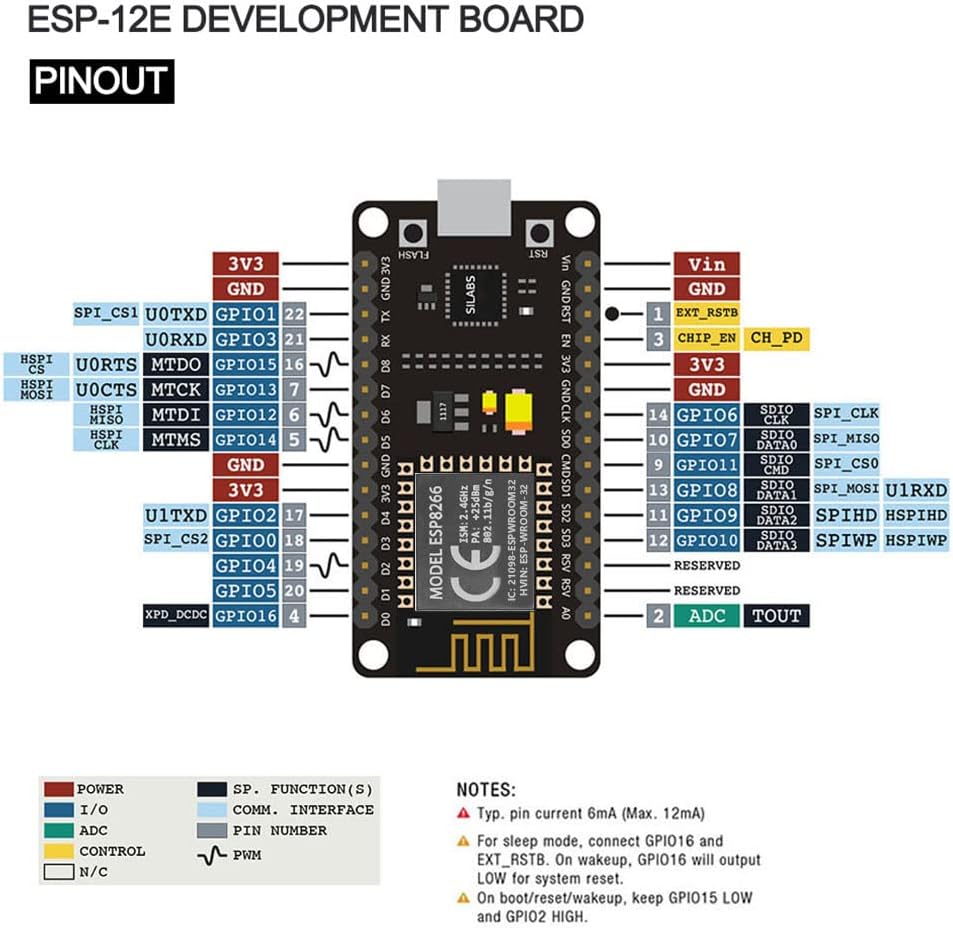
Image: Close-up view of the ESP8266 ESP-12E Development Board, highlighting the Micro USB port for power and data, and the ESP8266MOD WiFi module.
Operating Instructions
1. Basic Programming
Once the Arduino IDE is set up, you can write and upload your code. The board functions similarly to other Arduino-compatible boards:
- Code placed in the
setup()function runs once at startup. - Code in the
loop()function executes repeatedly aftersetup()completes. - To upload code, click the 'Upload' button in the Arduino IDE. The CP2102 interface will handle the flashing process automatically.
2. WiFi Connectivity
The ESP8266 is designed for WiFi applications. You can connect it to your local network and use it to send or receive data, host web servers, or interact with cloud services. Libraries like the ESP8266WiFi library in Arduino IDE simplify network operations.

Image: Conceptual diagram illustrating the ESP8266 ESP-12E acting as a server, connecting to the internet through an access point, and facilitating communication with client devices such as a PC and a mobile phone.
3. GPIO and Peripheral Usage
The board provides various General Purpose Input/Output (GPIO) pins, along with support for Pulse Width Modulation (PWM), Inter-Integrated Circuit (IIC), 1-Wire, and Analog-to-Digital Converter (ADC). These can be used to interface with sensors, actuators, and other electronic components.
For detailed examples and code snippets, refer to the NodeMCU documentation and the extensive community resources available online for ESP8266 development.
Video: A brief demonstration of the ESP8266 ESP-12E Development Board connected to a breadboard with multiple LEDs, showcasing its basic functionality and ease of use in a simple circuit.
Video: A rotating view of the ESP8266 Development Board, highlighting its compact size and various components from different angles.
Video: A close-up, rotating view of the ESP8266 ESP-12F NodeMCU Mini D1 Module, demonstrating its physical characteristics and small form factor.
Video: A demonstration of the ESP8266-12F board connected to an LCD screen, displaying data, illustrating its capability to interface with display modules for various projects.
Maintenance
To ensure the longevity and optimal performance of your KeeYees ESP8266 ESP-12E Development Board, follow these maintenance guidelines:
- Handle with Care: Avoid dropping the board or subjecting it to excessive physical stress.
- Static Discharge: Always handle the board in an anti-static environment or take precautions to prevent electrostatic discharge, which can damage electronic components.
- Cleanliness: Keep the board free from dust, dirt, and moisture. Use a soft, dry brush or compressed air for cleaning. Avoid using liquids or harsh chemicals.
- Storage: Store the board in a dry, cool environment, away from direct sunlight and extreme temperatures. Use anti-static bags if storing for extended periods.
- Power Supply: Ensure you use a stable 5V power supply. Incorrect voltage can damage the board.
Troubleshooting
1. Board Not Recognized / No COM Port
If your computer does not detect the board or a COM port is not available in the Arduino IDE:
- Check CP2102 Driver: Ensure the CP2102 driver is correctly installed. Reinstall it if necessary.
- USB Cable: Try a different Micro USB cable. Some cables are for charging only and do not support data transfer.
- USB Port: Connect the board to a different USB port on your computer.
- Restart IDE/Computer: Close and reopen the Arduino IDE, or restart your computer.
2. Incorrect Digital Pin Behavior
If digital pins are not behaving as expected (e.g., D0-D8 labels not matching GPIO in code):
- Consult Pinout: Always refer to the detailed pinout diagram (provided in the Setup Guide) and official NodeMCU ESP-12E documentation to confirm the actual GPIO numbers corresponding to the D-labels.
- Test Pins: Use simple blink sketches to test individual pins and verify their functionality.
3. Board Stuck in Boot Loop / Upload Errors
If the board continuously reboots or you encounter errors during code upload:
- Correct Board Selection: Ensure 'NodeMCU 1.0 (ESP-12E Module)' is selected under Tools > Board in the Arduino IDE.
- Erase Flash: Sometimes, corrupted firmware can cause issues. Use the 'ESP8266 Sketch Data Upload' tool or a dedicated flash tool to erase the board's flash memory before uploading new code.
- Add Delay: When developing, consider adding a short delay (e.g.,
delay(1000);) at the beginning of yoursetup()function. This can provide a window to upload new code if the board enters a rapid boot loop. - Power Supply: Ensure your power supply is stable and provides sufficient current, especially when connecting multiple peripherals.
Specifications
| Feature | Specification |
|---|---|
| Brand | KeeYees |
| Model Name | ESP8266 ESP-12E |
| Item Model Number | 8541549622 |
| Connectivity Technology | Wi-Fi 802.11b/g/n, UART/GPIO |
| Wireless Type | 802.11b |
| Operating System | Lua |
| Processor Brand | Espressif |
| Number of Processors | 1 |
| Voltage | 5 Volts |
| RAM | LPDDR3 |
| Item Weight | 1.06 ounces |
| Product Dimensions | 1.89 x 1.01 x 0.51 inches |
| Included Components | 3 x Development Board |

Image: Technical drawing illustrating the dimensions of the ESP8266 ESP-12E Development Board in millimeters.
Warranty Information
For detailed warranty information regarding your KeeYees ESP8266 ESP-12E Development Board, please refer to the manufacturer's official website or the product packaging. Warranty terms and conditions may vary.
Support
Should you require further assistance, technical support, or have questions about your KeeYees ESP8266 ESP-12E Development Board, please utilize the following resources:
- KeeYees Official Website: Visit the official KeeYees website for product documentation, FAQs, and community forums.
- Customer Support: Contact KeeYees customer support directly through their website for personalized assistance.
- Online Communities: Engage with the broader ESP8266 and NodeMCU developer communities for shared knowledge and project ideas.
Related documentsESP8266 ESP-12E


Ask a question about this manual
Ask about setup, troubleshooting, compatibility, parts, safety, or missing instructions. Manuals+ will review the question and use this page’s manual context to help answer it.