1. Introduction
This manual provides detailed instructions for the installation, operation, and maintenance of your hizpo 7-inch Android car stereo. This unit is designed for specific Mercedes-Benz models, including the E-Class W211, CLS W219, and G-Class W463. Please read this manual thoroughly before installation and use to ensure proper function and safety.
2. Safety Information
- Professional Installation Recommended: Due to the complexity of vehicle electrical systems and specific Mercedes-Benz configurations (e.g., fiber optic audio systems), professional installation is highly recommended. Incorrect installation can damage the unit or vehicle.
- Power Supply: Ensure the unit is connected to a 12V DC power supply with negative grounding.
- Wiring: Do not modify or cut the wiring harness unless specifically instructed. Refer to the wiring diagram for correct connections.
- Driving Safety: Do not operate the unit in a way that distracts you from driving. Always prioritize road safety.
- Temperature: Avoid exposing the unit to extreme temperatures or direct sunlight for prolonged periods.
3. Package Contents
Verify that all components are present before beginning installation:
- hizpo 7-Inch Android Car Stereo Unit
- Power Cable Harness
- GPS Antenna
- USB Cables
- RCA Cables (Audio/Video Input/Output)
- Can-Bus Decoder Box
- External Microphone
- User Manual (this document)
- Mounting Brackets and Screws
- Optional: Rear View Camera (if included in package)
4. Setup and Installation
4.1 Pre-Installation Checks
- Confirm vehicle compatibility with Mercedes-Benz E-Class W211, CLS W219, or G-Class W463.
- Disconnect the vehicle's battery before starting any electrical work.
- If your vehicle has a Harmon Kardon sound system or fiber optic audio, an additional fiber optic decoder may be required. Ensure this is acquired and installed correctly.
4.2 Wiring Diagram and Connections
Refer to the provided wiring diagram for specific connections. The unit includes a Can-Bus decoder box to integrate with your vehicle's steering wheel controls and other factory features.

Image: Comparison of the car dashboard before and after installing the hizpo Android car stereo, showing the integrated 7-inch display.

Image: Detailed view of the hizpo 7-inch Android car stereo installed in a Mercedes-Benz dashboard, displaying the main interface with various app icons.
4.3 Can-Bus Integration
The included Can-Bus box is essential for adapting the stereo to your original car system, enabling features like steering wheel control and displaying air conditioning information (if supported by your vehicle model). Ensure all connectors are securely attached to the Can-Bus box and the main unit.

Image: Diagram illustrating the Can-Bus box and various wiring connectors, providing a visual guide for the car stereo installation process.
4.4 GPS Antenna Placement
Mount the GPS antenna in a location with a clear view of the sky, such as on the dashboard or under the windshield, to ensure optimal signal reception.
4.5 Rear View Camera (Optional)
If installing a rear view camera, connect it to the designated video input. The system will automatically switch to reverse mode when the vehicle is in reverse gear, provided the camera is correctly installed and wired.

Image: The car stereo screen showing a clear rear-view camera feed with dynamic parking guidelines, indicating the system's support for backup cameras.
5. Operating Instructions
5.1 Power On/Off and Basic Controls
- Power Button: Press and hold to turn the unit on or off. A short press typically mutes or unmutes audio.
- Volume Knobs: Use the physical knobs or on-screen controls to adjust volume.
- Touchscreen: Navigate the Android interface by tapping, swiping, and pinching.
5.2 Android Operating System
The unit runs on Android 9.0, providing access to various applications. Connect to Wi-Fi or use your phone's hotspot for internet access to download apps from the Google Play Store.
5.3 GPS Navigation
The built-in GPS module supports offline maps and online navigation apps. Ensure the GPS antenna is properly installed for accurate positioning.
5.4 Bluetooth Connectivity
Pair your smartphone via Bluetooth 5.0 for hands-free calling and audio streaming.
- Go to Settings > Bluetooth.
- Enable Bluetooth on your phone and search for available devices.
- Select the car stereo from the list and confirm pairing.

Image: Graphic representation of Bluetooth 5.0 and dual-band (2.4G/5G) Wi-Fi connectivity, highlighting stable and long-distance connections.
5.5 Mirrorlink (CarPlay/Android Auto)
Connect your smartphone to the unit to use Apple CarPlay or Android Auto for seamless integration of phone features like navigation, music, and messaging.

Image: Illustration showing the car stereo supporting both Apple CarPlay and Android Auto, with examples of phone integration for music, maps, and calls.
5.6 Radio Functions
The unit features a professional radio chip with RDS (Radio Data System) for stable reception and enhanced information display.

Image: Graphic highlighting the RDS 4745 professional radio chip, emphasizing stable radio station reception and reduced noise.
5.7 Steering Wheel Control
Once properly installed with the Can-Bus decoder, your vehicle's steering wheel controls should function automatically. You can customize button assignments in the unit's settings.

Image: The car stereo screen showing the user interface for configuring steering wheel controls, allowing customization of functions like volume and track changes.
5.8 Picture-in-Picture (PIP)
The unit supports Picture-in-Picture mode, allowing you to watch videos in a small window while using other applications simultaneously. The size of the PIP window can be adjusted.
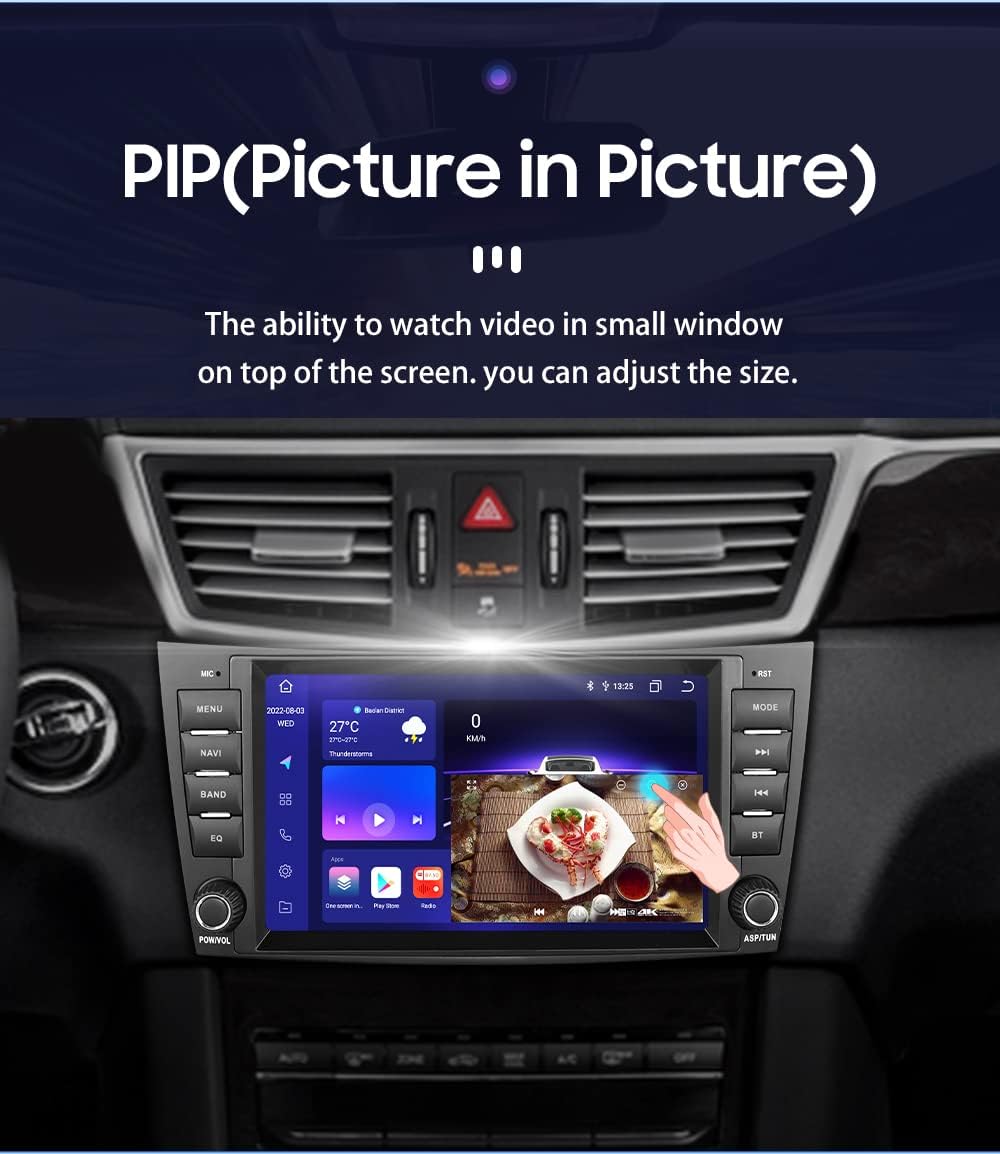
Image: The car stereo screen displaying the Picture-in-Picture (PIP) feature, where a video plays in a smaller window while the main Android interface is visible.
5.9 Weather Display
When connected to the internet, the unit can display real-time weather information for your current location or a selected city.

Image: The car stereo screen showing a weather display widget, providing current temperature and weather conditions, updated periodically.
5.10 Digital Sound Processor (DSP)
The built-in DSP (BD37534FV) allows for advanced audio customization, including equalizer settings and sound field adjustments, to optimize your listening experience.
6. Maintenance
- Cleaning: Use a soft, dry cloth to clean the screen and unit. Avoid abrasive cleaners or solvents.
- Software Updates: Periodically check for software updates to ensure optimal performance and access to new features.
- Cooling Fan: The unit includes a cooling fan that adjusts its speed based on ambient temperature to maintain stable operation. Ensure the fan vents are not obstructed.
7. Troubleshooting
- Unit Does Not Power On: Check all power connections and the vehicle's fuse box. Ensure the battery is connected.
- No Sound or Poor Sound Quality:
- Verify speaker connections.
- If your car has a Harmon Kardon or fiber optic sound system, ensure a compatible fiber optic decoder is installed and correctly wired. RCA connections may need manual adaptation.
- Check DSP settings.
- Steering Wheel Controls Not Working: Ensure the Can-Bus decoder is correctly connected and configured in the unit's settings.
- GPS Signal Lost or Inaccurate: Check the GPS antenna placement for obstructions and ensure it has a clear view of the sky.
- Bluetooth Connection Issues: Ensure Bluetooth is enabled on both the unit and your phone. Try unpairing and re-pairing the devices.
- Slow Performance or App Crashes: Close unnecessary background applications. If issues persist, a factory reset may be necessary (back up important data first).
- FM Radio Not Working: Check the antenna connection. Some Mercedes models have pre-amplified antennas; ensure compatibility or consider an antenna adapter if needed. A firmware update might also resolve this.
8. Specifications
| Feature | Specification |
|---|---|
| Brand | hizpo |
| Model Number | AD81BENZW21970011C1 |
| Operating System | Android |
| Screen Size | 7 Inches |
| Resolution | 1024 x 600 |
| Connectivity Technology | Bluetooth, Cellular, Wi-Fi |
| Bluetooth Version | 5.0 |
| Special Features | Bluetooth, Touchscreen, GPS, Can-Bus, Mirrorlink, OBD2 |
| Map Type | North America (pre-installed, supports others) |
| Audio Output Mode | Stereo |
| Mounting Type | Dashboard Mount |
| Item Weight | 7.48 pounds |
| Package Dimensions | 13 x 10.9 x 7.4 inches |
9. Warranty and Support
For warranty information and technical support, please refer to the documentation provided with your purchase or contact hizpo customer service through their official channels. Keep your purchase receipt as proof of purchase.