
1. Introduction
This manual provides detailed instructions for the setup, operation, and maintenance of your BenQ PD2700U 27-inch 4K UHD IPS monitor. Please read this manual thoroughly before using the product to ensure proper functionality and safety. Keep this manual for future reference.
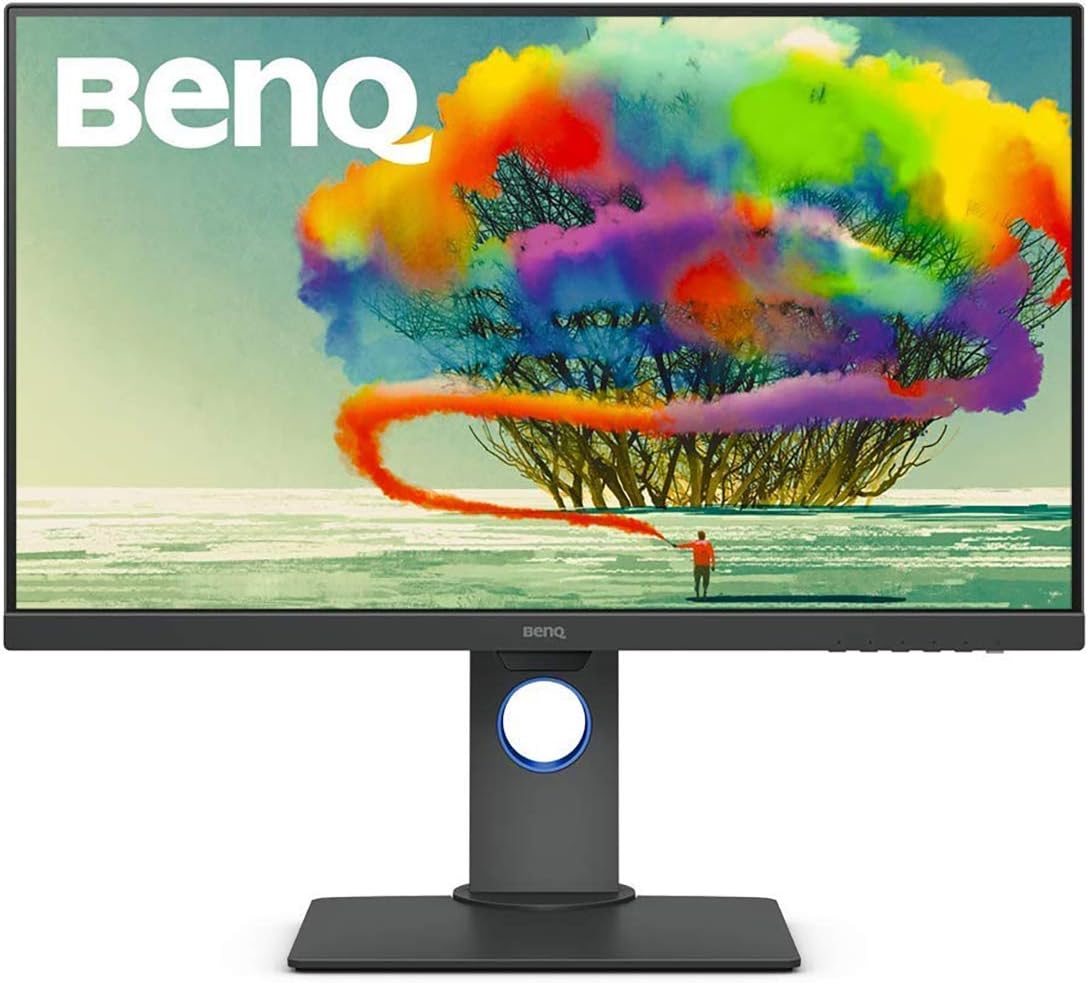
Figure 1: BenQ PD2700U 27-inch 4K UHD IPS Monitor (Front View)
2. Safety Information
Always follow these basic safety precautions to reduce the risk of fire, electric shock, and injury:
- Do not expose the monitor to rain or moisture.
- Do not open the monitor casing. There are no user-serviceable parts inside.
- Ensure proper ventilation around the monitor.
- Use only the power adapter supplied with the monitor.
- Keep the monitor away from heat sources and direct sunlight.
3. What's in the Box
Verify that all items are present in the packaging:
- BenQ PD2700U Monitor
- Power Adapter
- DisplayPort Cable
- USB 3.0 Upstream Cable
- Quick Start Guide
- Calibration Report
4. Setup
4.1 Physical Assembly
Attach the stand to the monitor panel. Ensure it clicks securely into place. For VESA mounting, remove the stand and attach a compatible VESA mount (100x100mm) to the monitor's rear panel.

Figure 2: Monitor Dimensions and Rear Panel
4.2 Connecting to a Computer
Connect the monitor to your computer using one of the following cables:
- DisplayPort: Connect one end of the DisplayPort cable to the monitor's DisplayPort input and the other end to your computer's DisplayPort output.
- HDMI: Connect an HDMI cable (not included) to the monitor's HDMI input and your computer's HDMI output.
For USB hub functionality, connect the included USB 3.0 upstream cable from the monitor to a USB 3.0 port on your computer.
4.3 Power On/Off
Connect the power adapter to the monitor and then to a power outlet. Press the power button located on the bottom right of the monitor to turn it on or off.
5. Operating the Monitor
5.1 On-Screen Display (OSD) Navigation
Use the buttons on the bottom right bezel of the monitor to navigate the OSD menu. The buttons allow you to access various settings including Picture Mode, Color, Display, KVM Switch, Audio, Custom Key, and System settings.
5.2 Picture Modes
The PD2700U offers several optimized picture modes for different professional applications:
- Animation: Enhances dark areas without overexposing bright regions.
- CAD/CAM: Provides superior contrast for lines and shapes in technical drawings.
- Darkroom: Adjusts image brightness and contrast for work in dark environments.
- HDR: High Dynamic Range mode for compatible content.
- Low Blue Light: Reduces blue light emissions to minimize eye strain.
- Rec.709: Standard for HDTV production.
- sRGB: Standard Red Green Blue color space.
- User: Customizable settings.

Figure 3: Monitor's Expertized Color Modes
5.3 AQCOLOR Technology
BenQ's AQCOLOR technology ensures accurate color reproduction. The PD2700U is factory-calibrated and comes with a calibration report, guaranteeing Delta E≤3 for precise color performance.

Figure 4: AQCOLOR Technology for Accurate Colors
5.4 Eye-Care Technology
The monitor incorporates BenQ's exclusive Eye-Care technology, including Flicker-Free and Low Blue Light features, to reduce eye fatigue during extended use.
5.5 KVM Switch Functionality
The built-in KVM (Keyboard, Video, Mouse) switch allows you to control two different computer systems using a single keyboard, mouse, and the PD2700U monitor. Connect your peripherals to the monitor's USB hub and the two computers to the monitor's video inputs and USB upstream ports.
5.6 Daisy Chain Setup
Utilize the DisplayPort output to daisy chain multiple monitors, creating an extended desktop environment with fewer cables.
5.7 Ergonomic Adjustments
The monitor stand supports tilt, pivot, swivel, and height adjustments for optimal viewing comfort.

Figure 5: Ergonomic Adjustments
5.8 Software Calibration
For advanced color management and consistency across multiple BenQ monitors, utilize the Display ColorTalk and Palette Master Ultimate software.
Video 1: Instructions for using BenQ Display ColorTalk software to achieve color consistency across multiple monitors.
Video 2: Guide to using BenQ PD Series Palette Master Ultimate software for monitor calibration.
6. Maintenance
6.1 Cleaning
To clean the monitor screen, gently wipe it with a soft, lint-free cloth. For stubborn marks, dampen the cloth slightly with water or a mild, non-abrasive screen cleaner. Avoid using alcohol-based cleaners or harsh chemicals.
6.2 Storage
When storing the monitor, ensure it is in a cool, dry place, away from direct sunlight and extreme temperatures. Use the original packaging if available for best protection.
7. Troubleshooting
- No Power: Check if the power cable is securely connected to both the monitor and the power outlet. Ensure the power outlet is functional.
- No Signal: Verify that the video cable (DisplayPort, HDMI) is correctly connected to both the monitor and the computer. Ensure the correct input source is selected in the OSD menu.
- Flickering Screen: Check the video cable connection. Try a different video cable or port. Ensure your graphics card drivers are up to date.
- Incorrect Colors: Reset the monitor to factory default settings via the OSD menu. Perform a software calibration using Display ColorTalk or Palette Master Ultimate.
8. Specifications
| Feature | Specification |
|---|---|
| Model Number | PD2700U |
| Screen Size | 27 Inches |
| Resolution | 3840x2160 (4K UHD) |
| Panel Type | IPS |
| Color Gamut | 100% Rec.709, 100% sRGB |
| Delta E | ≤3 |
| Connectivity | DisplayPort, HDMI, USB 3.0 Hub (4 ports) |
| Speakers | Built-in |
| Ergonomics | Tilt, Pivot, Swivel, Height Adjustment |
| Weight | 16.96 pounds |
| Dimensions (LxWxH) | 9.06 x 14.49 x 24.5 inches |
9. Warranty and Support
For warranty information and technical support, please refer to the warranty card included with your product or visit the official BenQ website. Keep your purchase receipt as proof of purchase.


