
Introduction
The J-Tech Digital Wireless Ergonomic Vertical USB Mouse (Model V628P) is designed to provide a comfortable and efficient computing experience. Its unique vertical design promotes a natural "handshake" wrist and arm position, aiming to reduce strain and alleviate wrist pain often associated with traditional mice. This manual provides detailed instructions for setup, operation, maintenance, and troubleshooting to ensure optimal performance of your new ergonomic mouse.

Figure 1: J-Tech Digital Wireless Ergonomic Vertical USB Mouse (Model V628P).
Key Features
- Ergonomic Design & Removable Palm Rest: Utilizes a neutral "handshake" position to reduce arm and wrist strain, providing relief from carpal tunnel syndrome. Includes a detachable palm rest for user preference.
- Wireless Connectivity: Connects wirelessly via a USB dongle transceiver, offering a clutter-free workspace. Simple plug-and-play setup.
- Adjustable DPI Settings: Switch between 800, 1200, and 1600 DPI to adjust mouse responsiveness for various tasks. Optical Tracking Technology ensures precise tracking.
- Convenient Thumb Buttons: Features back/forward buttons near the thumb area for enhanced convenience. Button functionality can be customized with compatible software.
- Wide Compatibility: Compatible with Windows 7/8/10, XP, Vista 7/8, and Linux operating systems.

Figure 2: Overview of the mouse's key features and buttons.
Ergonomic Benefits
The vertical design of the J-Tech Digital mouse is engineered to promote a more natural and comfortable hand position, reducing the pronation of the forearm. This can significantly alleviate pressure on the carpal tunnel area and minimize fatigue during prolonged computer use, compared to traditional horizontal mice.

Figure 3: Visual comparison of hand posture with a vertical ergonomic mouse versus a traditional mouse.
What's in the Box
Upon opening the product packaging, you should find the following items:
- J-Tech Digital Wireless Ergonomic Vertical USB Mouse (Model V628P)
- Removable Palm Rest
- USB Dongle Transceiver (located inside the battery compartment)
- 1 AA Battery (included)
- User Manual (this document)
Video 1: Unboxing and overview of the J-Tech Digital Ergonomic Mouse, showing included components.
Setup Guide
1. Inserting Battery and Locating USB Dongle
The USB dongle transceiver for wireless connectivity is conveniently stored inside the mouse's battery compartment. Before first use, open the battery compartment cover on the underside of the mouse. Carefully remove the USB dongle. Insert the included AA battery, ensuring correct polarity, then close the cover.

Figure 4: The USB receiver is located inside the battery compartment.
2. Connecting to Your Computer
Plug the USB dongle into an available USB port on your computer. The mouse is a plug-and-play device and your computer should automatically detect and install the necessary drivers. No additional software installation is typically required for basic functionality.
3. Attaching the Removable Palm Rest
The mouse comes with a removable palm rest designed to further enhance ergonomic comfort. To attach it, align the palm rest with the base of the mouse and gently push until it clicks into place. You can remove it at any time based on your preference.

Figure 5: The removable palm rest can be attached or detached as desired.
Video 2: Demonstrates the ergonomic shape and features, including the removable palm rest and DPI settings.
Operating Instructions
Power On/Off
Locate the On/Off switch on the bottom of the mouse. Slide the switch to the "On" position to activate the mouse. Slide it to "Off" when not in use to conserve battery life.
Adjusting DPI Sensitivity
The mouse features adjustable DPI (Dots Per Inch) settings, allowing you to control cursor speed and precision. Press the DPI button (usually located near the scroll wheel or on the bottom) to cycle through the available sensitivity levels: 800, 1200, and 1600 DPI. Choose the setting that best suits your task and preference.
Button Functions
The J-Tech Digital Vertical Mouse includes standard and customizable buttons:
- Left Click Button: Standard primary click function.
- Right Click Button: Standard secondary click function.
- Scroll Wheel: Used for vertical scrolling. Can also be pressed for middle-click functionality.
- Forward/Back Thumb Buttons: Located near the thumb area, these buttons typically navigate forward and backward in web browsers or file explorers. Their functionality can be reassigned using compatible driver software if desired.

Figure 6: Front and back views highlighting the mouse buttons.
Maintenance
To ensure the longevity and optimal performance of your J-Tech Digital Vertical Mouse, follow these simple maintenance guidelines:
- Cleaning: Use a soft, dry cloth to wipe down the mouse regularly. For stubborn dirt, a slightly damp cloth can be used, but ensure no moisture enters the internal components. Avoid harsh chemicals or abrasive cleaners.
- Battery Replacement: Replace the AA battery when the mouse's performance degrades or it stops responding. Always use a fresh, high-quality AA battery.
- Storage: When not in use for extended periods, turn off the mouse to conserve battery life. Store it in a clean, dry environment away from extreme temperatures.
- Handle with Care: Avoid dropping the mouse or subjecting it to excessive force, as this can damage internal components.
Troubleshooting
If you encounter any issues with your J-Tech Digital Wireless Ergonomic Vertical USB Mouse, please refer to the following common troubleshooting steps:
| Problem | Possible Cause / Solution |
|---|---|
| Mouse not responding / No cursor movement. |
|
| Erratic or jumpy cursor movement. |
|
| Thumb buttons (Forward/Back) not working. |
|
| Palm rest does not attach securely. |
|
Specifications
| Feature | Detail |
|---|---|
| Brand | J-Tech Digital |
| Model Number | V628P |
| Connectivity Technology | Wireless (USB Dongle) |
| Movement Detection Technology | Optical |
| DPI Sensitivity | 800 / 1200 / 1600 DPI (Adjustable) |
| Buttons | Left Click, Right Click, Scroll Wheel (Clickable), Forward, Back |
| Power Source | 1 x AA Battery |
| Operating System Compatibility | Windows 7/8/10, XP, Vista 7/8, Linux |
| Item Weight | 8.1 ounces |
| Product Dimensions (LxWxH) | 5.5 x 3.5 x 4.2 inches |
| Color | Black |
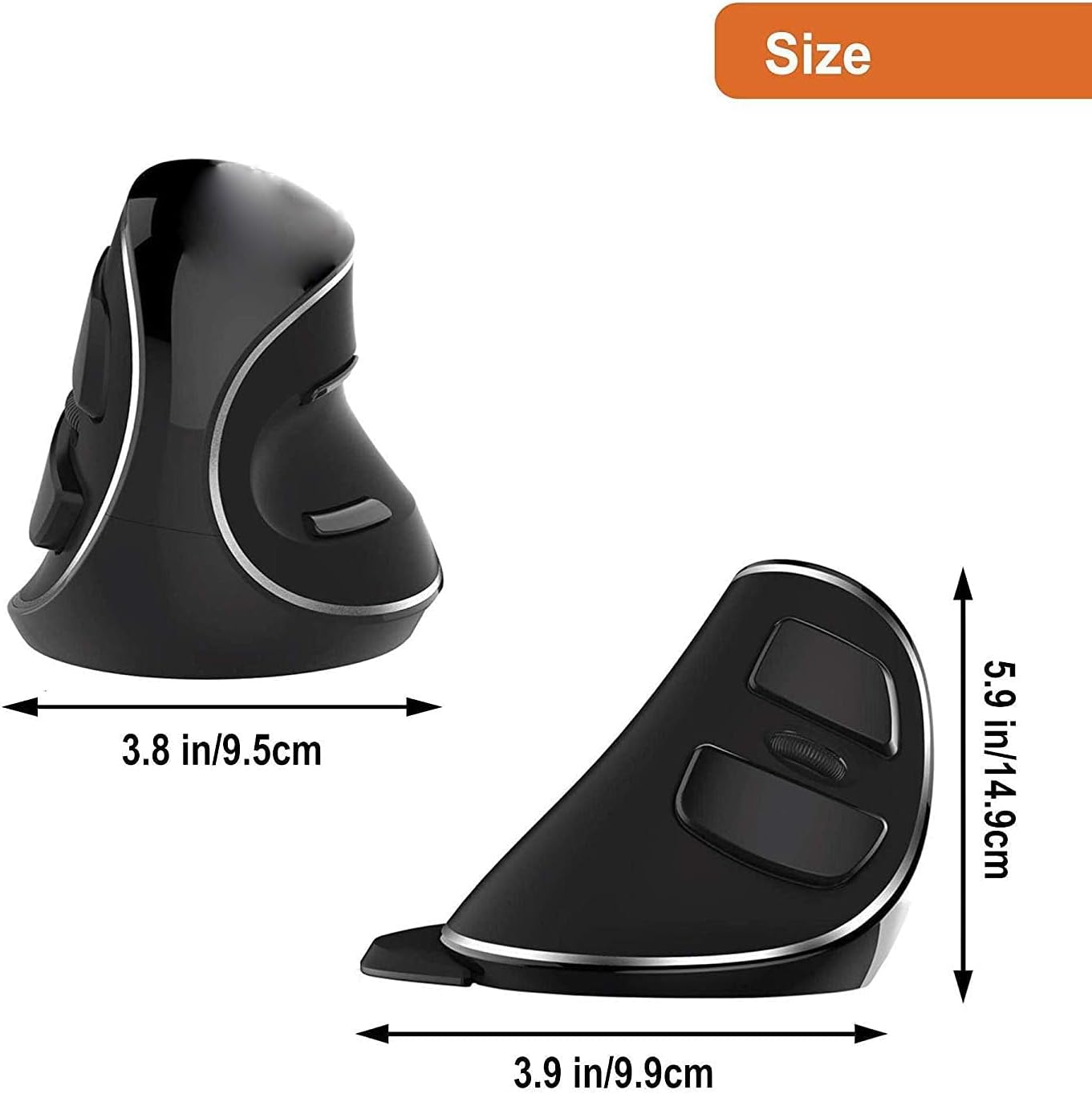
Figure 7: Approximate dimensions of the mouse.
Warranty and Support
All J-Tech Digital Products include a One-Year Manufacturer Warranty. Additionally, customers receive free lifetime technical support from our dedicated Customer Support Team. Our team is based in Houston, Texas, and is available Monday through Friday, 9 AM to 6 PM CST. For contact information, please refer to the J-Tech Digital Seller Page on Amazon or visit our official website.
For further assistance or to register your product, please visit: J-Tech Digital Store on Amazon


