
1. Introduction
This manual provides essential information for the safe and efficient operation of your Motorola Moto E5 Play XT1920-19 smartphone. Please read it thoroughly before using your device.
The Moto E5 Play XT1920-19 features a 5.3-inch HD display, 8MP rear camera, 5MP front camera, and a rear-mounted fingerprint sensor. It is powered by a 1.4 GHz Quad-Core processor with 1GB RAM and runs on Android 8.0 Oreo. The device includes 16GB of internal storage, expandable via microSDXC, and a removable 2800 mAh battery.
2. Device Overview
Familiarize yourself with the physical components of your Moto E5 Play.
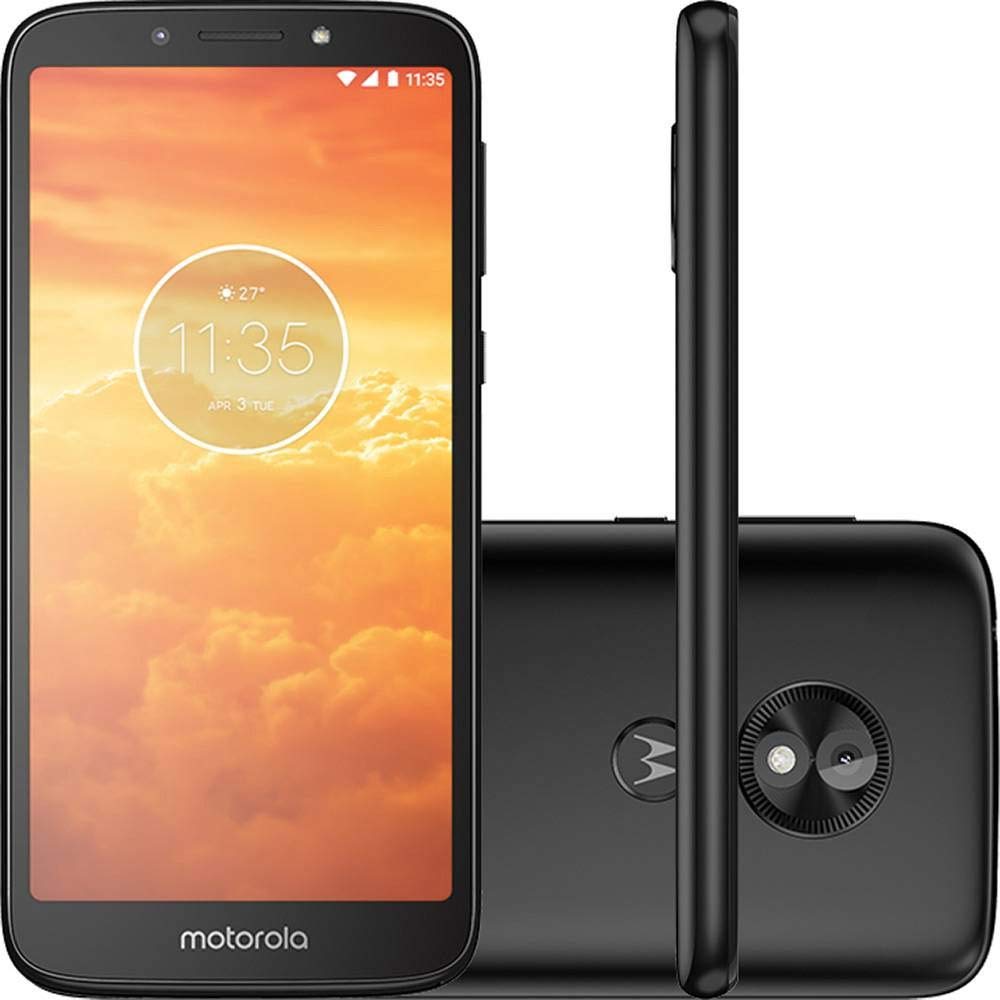
Figure 2.1: Front and back view of the Motorola Moto E5 Play XT1920-19. The front shows the display and front camera, while the back features the main camera and fingerprint sensor.

Figure 2.2: Close-up of the rear of the Moto E5 Play, highlighting the 8MP main camera with flash and the circular fingerprint sensor below it, integrated with the Motorola logo.

Figure 2.3: Side view of the Moto E5 Play, showing the volume rocker and power button located on the right edge of the device.

Figure 2.4: Bottom view of the Moto E5 Play, featuring the Micro-USB charging port and a microphone opening.

Figure 2.5: Top view of the Moto E5 Play, showing the 3.5mm headphone jack and a secondary microphone opening.
3. Setup Guide
3.1. Inserting SIM and microSD Cards
The Moto E5 Play XT1920-19 supports Dual SIM (Nano-SIM) and a dedicated microSDXC card slot for expandable storage up to 128 GB.
- Remove the Back Cover: Carefully pry open the back cover of the phone. A small notch is usually provided for this purpose.
- Insert SIM Card(s): Locate the SIM card slot(s). Insert your Nano-SIM card(s) into the designated slot(s) with the gold contacts facing down and the cut corner aligned correctly.
- Insert microSD Card: Locate the microSD card slot. Insert your microSDXC card into the slot until it clicks into place.
- Install Battery: Place the removable Li-Ion 2800 mAh battery into its compartment, ensuring the contacts align.
- Replace Back Cover: Align the back cover and press firmly around the edges until it snaps securely into place.
3.2. Initial Power On and Setup
- Power On: Press and hold the Power button (located on the right side) until the Motorola logo appears.
- Language Selection: Follow the on-screen prompts to select your preferred language.
- Connect to Wi-Fi: Select a Wi-Fi network and enter the password to connect to the internet. This is recommended for initial setup and software updates.
- Google Account Setup: Sign in with your Google account or create a new one. This is necessary to download apps from the Google Play Store and access Google services.
- Security Setup: Set up a screen lock (PIN, pattern, password) and configure the fingerprint sensor for quick and secure unlocking.
- Complete Setup: Continue following the on-screen instructions to finalize the setup process.
4. Operating Your Device
4.1. Basic Navigation
- Home Screen: Swipe left or right to access different home screen panels.
- App Drawer: Swipe up from the bottom of the screen to open the app drawer and view all installed applications.
- Notifications Panel: Swipe down from the top of the screen to access notifications and quick settings.
- Recent Apps: Tap the square navigation button (or swipe up and hold if using gesture navigation) to view recently used applications.
4.2. Making Calls and Sending Messages
- Calls: Open the Phone app, enter the number, and tap the call icon.
- Messages: Open the Messages app, tap the new message icon, enter the recipient's number or select from contacts, and type your message.
4.3. Camera Usage
Your Moto E5 Play features an 8MP main camera with flash and a 5MP front camera with flash.
- Open Camera: Tap the Camera app icon on your home screen or app drawer.
- Switch Cameras: Tap the camera switch icon to toggle between the front and rear cameras.
- Take Photo: Tap the Shutter button to capture a photo.
- Record Video: Switch to video mode and tap the Record button to start/stop recording.
5. Maintenance and Care
- Cleaning: Use a soft, lint-free cloth to clean the screen and body of the phone. Avoid harsh chemicals.
- Battery Care: The removable 2800 mAh battery is designed for all-day use. To prolong battery life, avoid extreme temperatures and fully discharging the battery frequently.
- Software Updates: Regularly check for and install software updates to ensure optimal performance and security. Go to Settings > System > System updates.
- Storage Management: Periodically clear unnecessary files and apps to free up storage space. Utilize the microSD card slot for additional storage.
- Protection: Consider using a protective case and screen protector to guard against physical damage.
6. Troubleshooting
6.1. Common Issues and Solutions
- Phone Not Turning On: Ensure the battery is charged. Connect the phone to the charger and wait a few minutes before attempting to power on again. If the battery is removable, ensure it is properly seated.
- Poor Battery Life: Reduce screen brightness, disable unused features like Wi-Fi or Bluetooth, close background apps, and limit location services.
- Apps Crashing/Freezing: Close and restart the app. If the issue persists, clear the app's cache (Settings > Apps & notifications > App info > [App Name] > Storage & cache > Clear cache). As a last resort, uninstall and reinstall the app.
- Network Connectivity Issues: Check if Airplane mode is off. Restart the phone. Verify SIM card is correctly inserted. Contact your carrier if problems persist.
- Fingerprint Sensor Not Working: Ensure your finger is clean and dry. Re-register your fingerprint in Settings > Security & Location > Fingerprint.
6.2. Factory Reset
A factory reset will erase all data from your phone's internal storage, including apps, photos, and settings. Back up important data before proceeding.
- Go to Settings > System > Reset options.
- Tap Erase all data (factory reset).
- Confirm your decision by tapping Reset phone and then Erase everything.
7. Specifications
| Feature | Detail |
|---|---|
| Model Name | Moto E5 Play (XT1920) |
| Display | 5.3-inch LCD, 480x960 resolution |
| Processor | 1.4 GHz Snapdragon Quad-Core CPU |
| RAM | 1 GB |
| Internal Storage | 16 GB |
| Expandable Storage | microSDXC, up to 128 GB |
| Operating System | Android 8.0 Oreo |
| Rear Camera | 8 MP with Flash |
| Front Camera | 5 MP with Flash |
| Battery | Removable Li-Ion 2800 mAh |
| Connectivity | Wi-Fi, Bluetooth 4.2, Micro-USB, 3.5 mm headphone jack |
| SIM Type | Dual Nano-SIM |
| Network Compatibility | GSM, 3G UMTS/HSPA+ (B1, 2, 4, 5, 8), 4G LTE (B1, 2, 3, 4, 5, 7, 28) |
| Dimensions | 6 x 2 x 3.5 inches |
| Weight | 8 ounces (0.5 lbs) |
8. Warranty and Support
This is an International Model and may not include a US warranty. For warranty information specific to your region, please refer to the documentation provided with your device or visit the official Motorola support website.
For further assistance, troubleshooting, or to access additional support resources, please visit the official Motorola support website or contact their customer service.
Motorola Support: www.motorola.com/us/support


