
Introduction
This manual provides comprehensive instructions for the setup, operation, and maintenance of your ASTRO Gaming A50 Wireless Dolby Gaming Headset. Designed for optimal audio performance and comfort, this headset is compatible with Xbox One and PC platforms.
Package Contents
Ensure all items are present before proceeding with setup:
- ASTRO A50 Wireless Headset
- ASTRO A50 Base Station
- Micro USB Cable
- Optical Cable

Setup Guide
1. Connecting the Base Station
The Base Station serves as the central hub for your A50 headset, providing power, audio processing, and wireless connectivity. Connect the Base Station to your gaming platform using the appropriate cables.

2. Charging the Headset
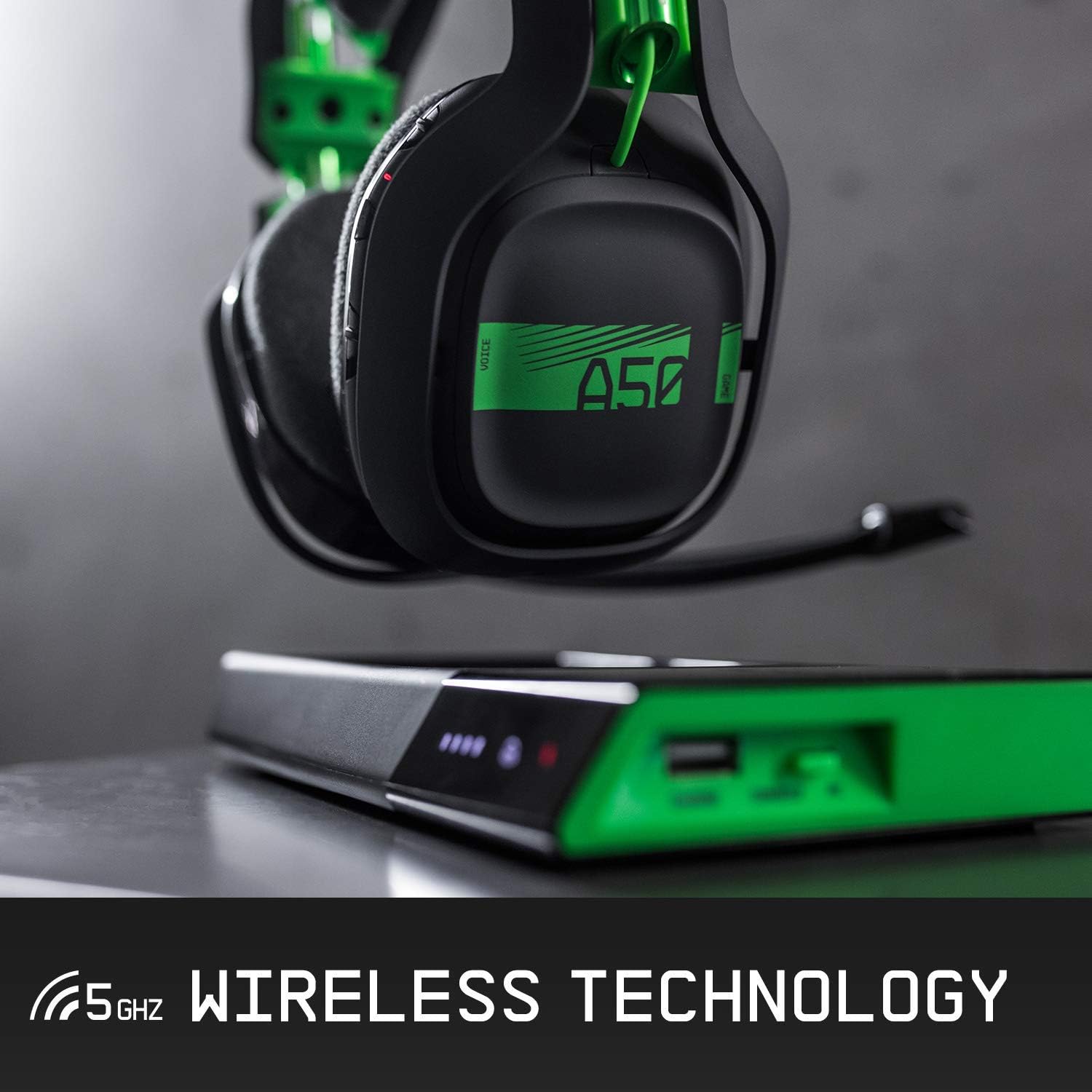
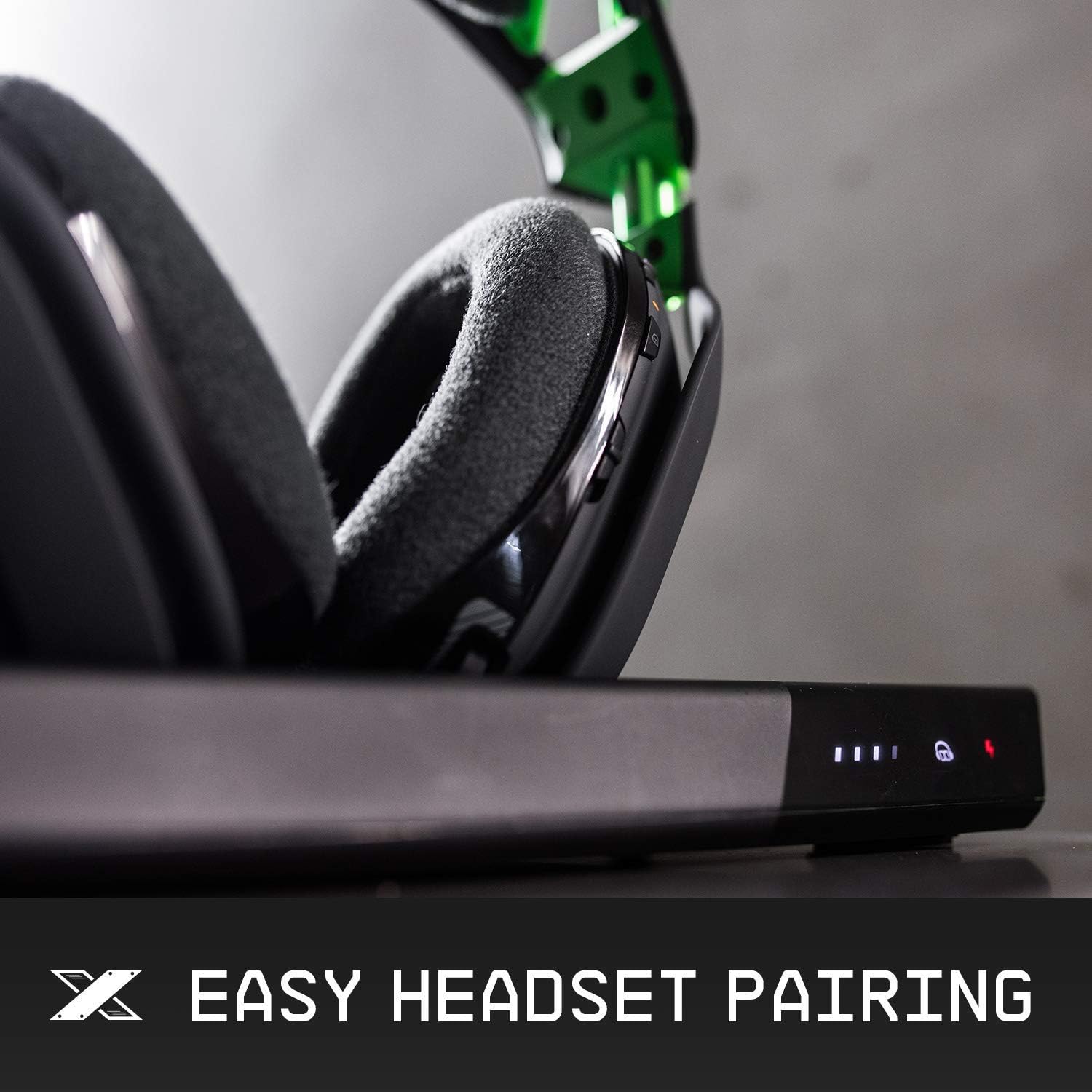
Place the A50 Wireless Headset onto the Base Station. The magnetic charging pins will align automatically. The front display of the Base Station indicates the battery life and charging status. Ensure the headset is properly seated to initiate charging.

3. Initial Pairing
The headset and Base Station are designed for automatic pairing. Once the Base Station is connected and powered on, and the headset is placed on it, they should pair automatically. If pairing issues occur, consult the troubleshooting section.
Operating Instructions
1. Controls Overview
The ASTRO A50 headset features intuitive controls located on the earcups for easy access during gameplay.
2. Volume and Game/Voice Balance
Adjust the overall volume using the master volume wheel on the right earcup. The game/voice balance buttons allow you to prioritize game audio or chat audio, ensuring clear communication and immersive sound.
3. Microphone Functionality
The headset features a precision boom microphone. To activate the microphone, lower the boom arm. To mute the microphone, simply flip the boom arm to the upright position. This provides quick and convenient control over your voice communication.

4. EQ Presets
Cycle through different equalizer (EQ) presets to optimize audio for various content types (e.g., gaming, movies, music). Refer to the ASTRO Command Center software for customization options and to create your own EQ modes.
Maintenance and Care
1. Cleaning
To maintain hygiene and performance, regularly clean your headset. The ear cushions are magnetically attached and can be easily removed for cleaning or replacement. Use a soft, damp cloth to wipe down surfaces. Avoid harsh chemicals.

2. Storage
When not in use, store the headset on its Base Station to ensure it remains charged and protected. This also helps maintain the longevity of the battery and components.
Troubleshooting
- No Audio/Connectivity: Ensure the Base Station is correctly connected to your platform (PC/Xbox) and the headset is paired. Check the PC/Xbox switch on the Base Station.
- Charging Issues: Verify the headset is properly seated on the magnetic charging pins of the Base Station. Check the charging indicator lights.
- Microphone Not Working: Ensure the microphone boom is fully lowered. Check microphone settings on your platform.
- Sound Distortion/Static: Ensure the headset is within range of the Base Station. Check for potential interference from other wireless devices.
Technical Specifications
| Feature | Detail |
|---|---|
| Brand | ASTRO Gaming |
| Model Name | A50 Wireless Dolby Gaming Headset |
| Connectivity Technology | RF, Wired |
| Wireless Communication Technology | RF (5GHz) |
| Compatible Devices | Xbox One, PC |
| Headphones Jack | 3.5 mm Jack (on Base Station) |
| Control Type | Noise Control, Remote |
| Ear Placement | Over Ear |
| Material | Faux Leather (ear cushions) |
| Special Feature | Foldable |
| Item Weight | 2.03 pounds |
| Product Dimensions | 1.97 x 1.97 x 1.97 inches |
Warranty and Support
This Certified Refurbished product is tested and certified to look and work like new. It includes a minimum 90-day warranty. For further support, including detailed warranty information and technical assistance, please visit the official ASTRO Gaming support website.
Official ASTRO Gaming Support: www.astrogaming.com/support


