
TOUMEI C800S
TOUMEI C800S Mini Portable Projector User Manual
Model: C800S
Introduction
Thank you for purchasing the TOUMEI C800S Mini Portable Projector. This manual provides essential information for setting up, operating, and maintaining your device. Please read it thoroughly before use to ensure optimal performance and longevity of your projector.
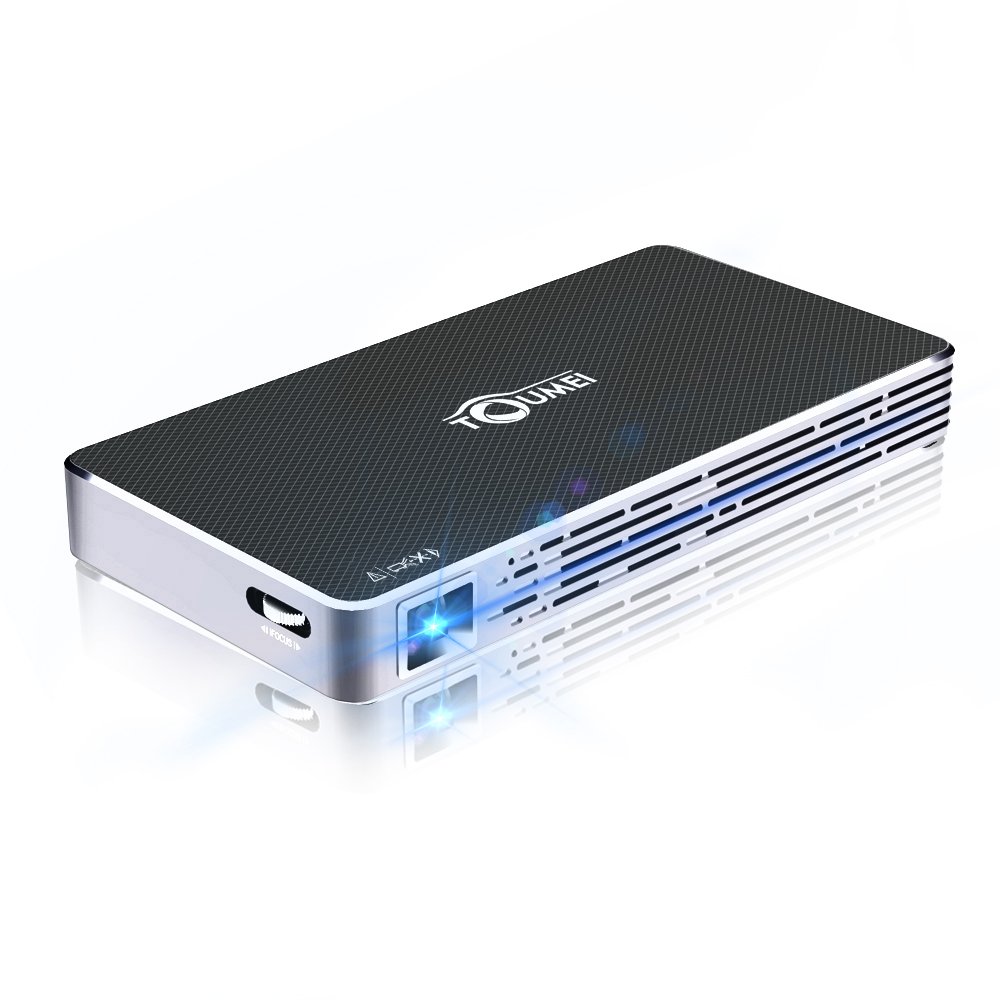
Image: The TOUMEI C800S Mini Portable Projector, showcasing its compact design and projection lens.
Package Contents
Ensure all items are present in the package:
- TOUMEI C800S DLP Projector
- Power Supply
- Remote Control
- Mini Tripod
- HDMI Cable
- Welcome Guide (this manual)
Product Overview
Familiarize yourself with the main components and features of your TOUMEI C800S projector.
Key Features:
- DLP Projection Technology
- Automatic Keystone Correction
- LED Light Source with up to 30,000 hours lifespan
- Android 7.1 Operating System
- 2.4G / 5G Dual-band WiFi and Bluetooth Connectivity
- Built-in Stereo Speaker
- 4200mAh Lithium-ion Battery for portable use
- Support for HDMI, USB, TF Card inputs
Setup
1. Powering On/Off
- To Power On: Connect the power supply to the projector and a power outlet. Press and hold the power button on the projector or remote control until the device powers on.
- To Power Off: Press and hold the power button until the shutdown options appear, then select "Power Off". Alternatively, a short press might initiate shutdown depending on settings.
2. Initial Setup and Focus Adjustment
- Place the projector on a stable surface or mount it using a tripod.
- Point the projector towards a flat, light-colored wall or projection screen.
- Adjust the focus using the focus wheel located on the side of the projector until the image is clear and sharp.
- The projector features automatic keystone correction to adjust for distorted images when the projector is not perfectly perpendicular to the screen.
3. Network Connection (Wi-Fi)
- Navigate to the "Settings" menu on the projector's interface.
- Select "Wi-Fi" and turn it on.
- Choose your desired 2.4G or 5G Wi-Fi network from the list.
- Enter the Wi-Fi password using the on-screen keyboard and confirm.
Operating Instructions
1. Connecting to iOS Devices (Airplay)
- Ensure the projector's Wifidisplay application is updated to the latest version. Open Wifidisplay on the projector's desktop; it will prompt for updates automatically.
- Connect both your iPhone/iPad and the TOUMEI C800S projector to the same Wi-Fi network.
- Open the Wifidisplay application on the projector.
- On your iOS device, open Control Center and tap "Screen Mirroring" (or "AirPlay Mirroring").
- Select the name of your projector from the list of available devices to begin mirroring.
2. Connecting to Android Devices (Multiscreen)
- Ensure both your Android device and the TOUMEI C800S projector are connected to the same Wi-Fi network.
- On the projector, open the Wifidisplay application (Menu -> Wifidisplay -> click to enter the app). The system will automatically search for mobile phone models.
- On your Android device, open the "Multiscreen" (or "Smart View", "Screen Cast", "Wireless Display" depending on your device model) feature. Your mobile model will be searched for on the projector.
- Select the projector's name from the list on your Android device and confirm the connection.
3. Connecting via HDMI
- Connect one end of the HDMI cable to the HDMI port on the projector.
- Connect the other end of the HDMI cable to the HDMI output port of your source device (e.g., laptop, gaming console, TV box).
- On the projector, select the HDMI input source from the main menu or input selection option.
4. Connecting via USB/TF Card
- Insert your USB drive or TF card into the respective port on the projector.
- The projector's file manager will typically open automatically, allowing you to browse and play media files (videos, photos, documents) directly from the storage device.
Maintenance
1. Cleaning the Projector
- Lens: Use a soft, lint-free cloth specifically designed for optical lenses. Gently wipe the lens in a circular motion. Do not use abrasive cleaners or excessive force.
- Casing: Wipe the exterior casing with a soft, dry cloth. For stubborn marks, slightly dampen the cloth with water. Avoid using chemical cleaners.
- Vents: Periodically check the ventilation vents for dust accumulation. Use a soft brush or compressed air (held upright and at a distance) to clear any blockages. Ensure the projector is turned off and unplugged before cleaning vents.
2. Storage
When not in use for extended periods, store the projector in a cool, dry place, away from direct sunlight and extreme temperatures. Use the original packaging or a protective case to prevent dust and damage.
3. Battery Care
- To prolong battery life, avoid fully discharging the battery frequently.
- If storing for a long time, charge the battery to about 50% before storage.
- Recharge the battery every 3-6 months if not in use to prevent deep discharge.
Troubleshooting
| Problem | Possible Cause | Solution |
|---|---|---|
| No image projected | Power not connected; Projector off; Incorrect input source; Lens cap on. | Check power connection; Turn on projector; Select correct input (HDMI, USB, etc.); Remove lens cap. |
| Image is blurry | Focus not adjusted; Projector too close/far from screen. | Adjust the focus wheel; Adjust projection distance (1-5M). |
| No sound | Volume too low; Muted; External speakers not connected properly; Source device volume low. | Increase projector volume; Unmute; Check external speaker connection; Increase source device volume. |
| Cannot connect to Wi-Fi | Incorrect password; Out of range; Network issue. | Re-enter password carefully; Move projector closer to router; Restart router and projector. |
| Screen mirroring not working | Devices on different networks; Wifidisplay app not open/updated; Device compatibility. | Ensure both devices are on the same Wi-Fi; Open/update Wifidisplay app; Check device's mirroring function. |
Specifications
| Feature | Detail |
|---|---|
| Projection Technique | DLP |
| Light Source | LED |
| LED Lifespan | Up to 30,000 hours |
| Brightness | 100 ANSI Lumens |
| Contrast Ratio | 2000:1 |
| Native Resolution | 854 x 480 pixels |
| Projecting Distance | 1 - 5 meters |
| Projecting Image Size | 30 - 120 inches |
| Keystone Correction | Automatic |
| Operating System | Android 7.1 (support upgrade) |
| Wi-Fi | 2.4G / 5G Dual-band |
| Bluetooth | Supported |
| Internal Storage | 8GB |
| TF Card Support | Max. 32GB |
| Battery | 4200mAh Lithium-ion |
| Working Time (Battery) | Approx. 150 minutes |
| Standby Time (Battery) | 4 hours |
| Audio | Built-in Stereo Speaker |
| Input Interfaces | HDMI, USB, TF Card |
| Dimensions (L x W x H) | 15.8 x 8 x 1.8 cm |
| Weight | 285 grams |
Warranty and Support
TOUMEI provides a worry-free 18-month warranty for the C800S DLP projector. For technical support, warranty claims, or any inquiries, please contact TOUMEI customer service through the official channels provided at the time of purchase or on the TOUMEI website.
Please retain your proof of purchase for warranty validation.
Related documentsC800S

Ask a question about this manual
Ask about setup, troubleshooting, compatibility, parts, safety, or missing instructions. Manuals+ will review the question and use this page’s manual context to help answer it.