
Introduction
This manual provides essential instructions for setting up, operating, maintaining, and troubleshooting your Huawei Watch GT Fashion smartwatch. Please read this manual thoroughly to ensure proper use and to maximize the device's features.

Image: Huawei Watch GT Fashion Smartwatch with a brown leather strap, displaying a digital watch face with time and step count.
Setup
1. Initial Charging
Before first use, fully charge your Huawei Watch GT Fashion. Connect the charging cradle to a power adapter and place the watch onto the cradle, ensuring the charging contacts align. The watch will display a charging indicator.
2. Pairing with Your Smartphone
- Download the Huawei Health App from your smartphone's app store (Google Play Store for Android, Apple App Store for iOS).
- Ensure your smartphone's Bluetooth is enabled.
- Open the Huawei Health App, navigate to Devices, and select "Add device". Choose your Huawei Watch GT Fashion from the list.
- Follow the on-screen prompts on both your watch and smartphone to complete the pairing process. Confirm the pairing code if prompted.
System Requirements: Android 4.4 or later; iOS 9.0 or later.
3. Software Updates
After pairing, the Huawei Health App may prompt you to update the watch's software. It is recommended to perform these updates to ensure optimal performance and access to the latest features. Ensure your watch is sufficiently charged before starting an update.
Operating Instructions
Basic Navigation
- Touchscreen: Swipe up, down, left, or right to navigate through menus and notifications. Tap to select items.
- Upper Button: Press to access the app list or return to the home screen.
- Lower Button: Customizable for quick access to a specific function, such as workout modes.

Image: The Huawei Watch GT Fashion highlighting its 1.39" AMOLED touchscreen and ultra-slim 10.6 mm profile.
Health Monitoring
- Heart Rate Monitoring (TruSeen 3.0): The watch continuously monitors your heart rate using innovative sensors, providing real-time data. Access heart rate graphs via the Huawei Health App.
- Sleep Tracking (TruSleep 2.0): In collaboration with Harvard Medical School CDB Center, the watch identifies common sleep issues and offers over 200 suggestions to improve sleep quality.
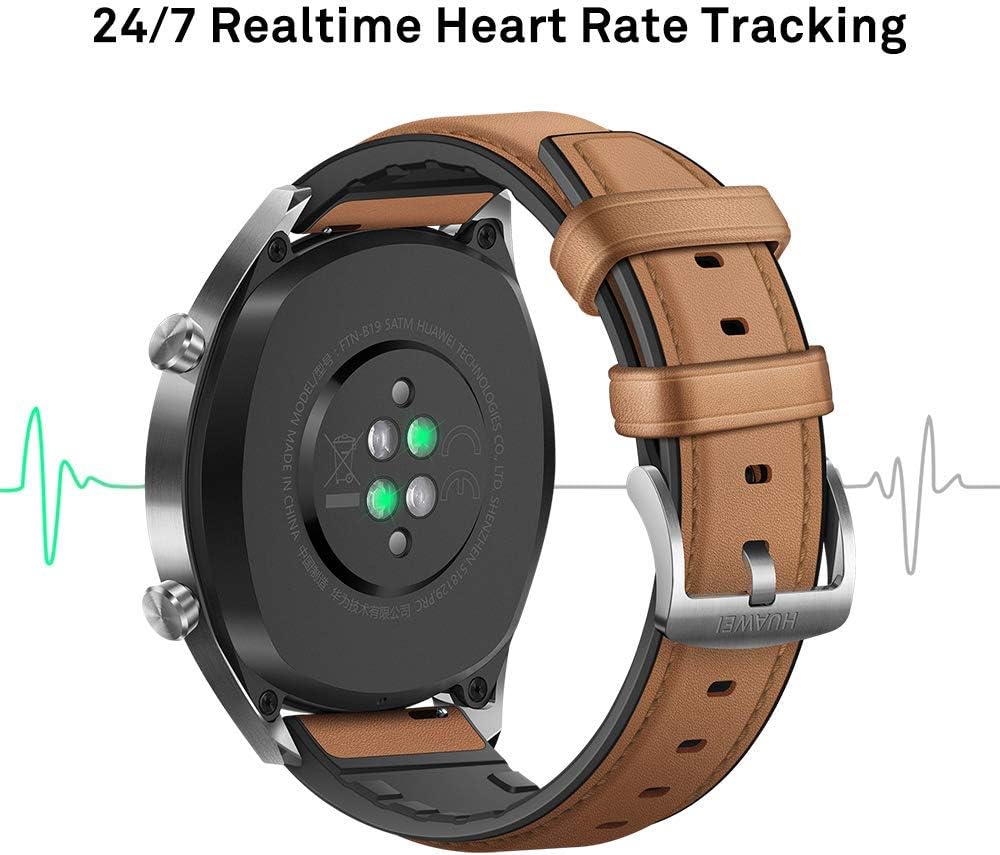
Image: Rear view of the Huawei Watch GT Fashion, illustrating the optical heart rate sensors for 24/7 real-time tracking.
Activity Tracking and GPS
- Multi-Sport Modes: The watch supports various indoor and outdoor sports modes, including running, cycling, swimming, and more. Select your activity from the watch's menu to start tracking.
- GPS Positioning: Equipped with 3 global satellite positioning systems (GPS, GLONASS, GALILEO), the watch offers fast and precise positioning for outdoor activities.
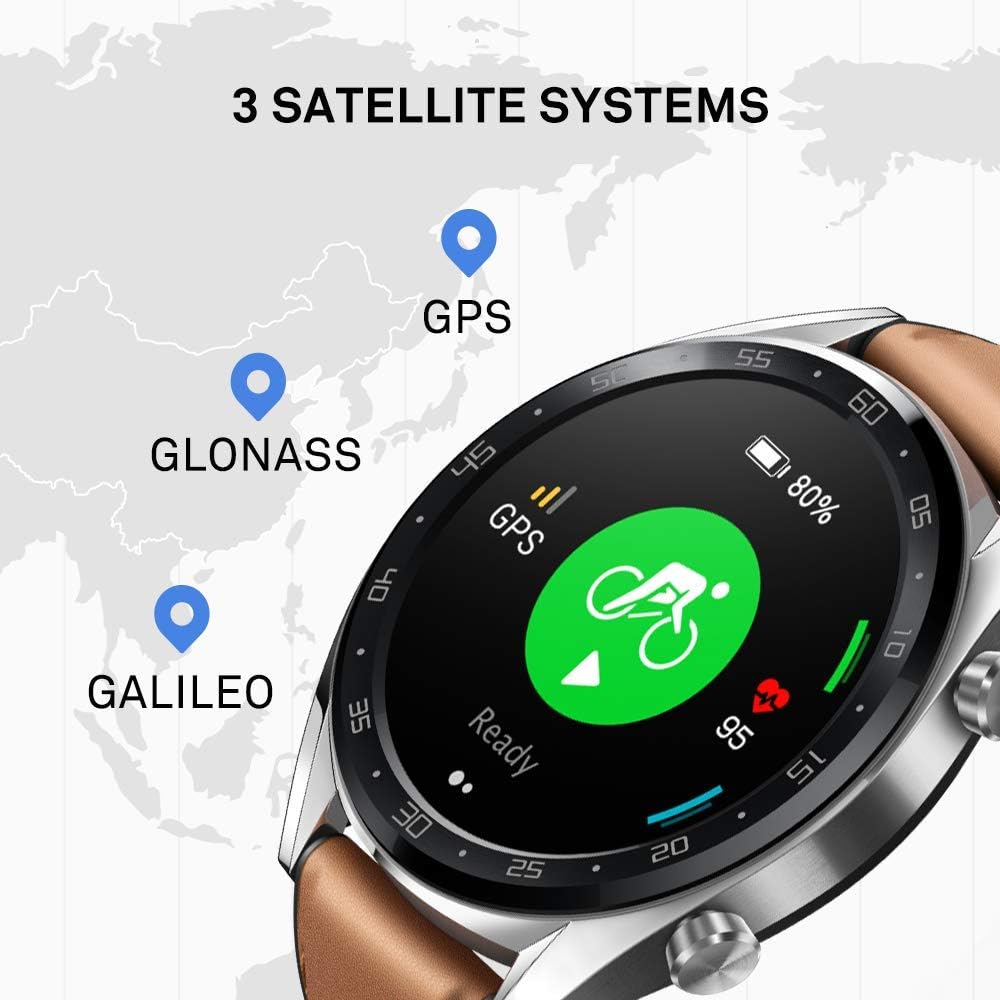
Image: The Huawei Watch GT Fashion screen showing icons for GPS, GLONASS, and GALILEO satellite systems, indicating global positioning capabilities.
Notifications and Other Features
- Smart Notifications: Receive call, message, and app notifications directly on your wrist when connected to your smartphone.
- Water Resistance: The watch is water-resistant up to 50 meters, suitable for swimming and shallow water activities. Avoid hot water or steam.
- Battery Life: The watch offers up to two weeks of battery life under typical usage conditions (heart rate monitor on, 90 mins exercise/week). Battery life varies with usage.

Image: An infographic detailing battery life scenarios for the Huawei Watch GT Fashion: 2 weeks with heart rate and exercise, 30 days with notifications only, and 22 hours with all activity modes and GPS on.
Maintenance
Cleaning Your Watch
- Regularly clean the watch casing and strap with a soft, damp cloth.
- Ensure the charging contacts on the back of the watch are clean and dry to prevent charging issues.
- Avoid using harsh chemicals or abrasive materials, as these can damage the watch's finish.
Strap Replacement
The Huawei Watch GT Fashion uses standard 22mm interchangeable straps. To replace the strap, locate the quick-release pins on the underside of the strap and slide them to detach. Attach a new strap by reversing the process.
Battery Care
- Charge the watch using only the provided charging cradle and a compatible power adapter.
- Avoid exposing the watch to extreme temperatures, which can affect battery life and performance.
- If storing the watch for an extended period, charge it to approximately 50% to preserve battery health.
Troubleshooting
Watch Not Turning On or Charging
- Ensure the charging contacts on both the watch and cradle are clean and free of debris.
- Verify the charging cable and power adapter are functioning correctly.
- Try a different power source.
Pairing Issues
- Make sure Bluetooth is enabled on your smartphone and the watch is within range.
- Restart both your smartphone and the watch.
- Unpair the watch from your smartphone's Bluetooth settings and attempt to pair again through the Huawei Health App.
- Ensure the Huawei Health App is updated to the latest version.
Inaccurate Heart Rate or GPS Data
- For heart rate, ensure the watch is worn snugly on your wrist, not too tight or too loose.
- For GPS, ensure you are in an open outdoor area with a clear view of the sky.
- Sync your watch with the Huawei Health App regularly to ensure updated satellite data.
Watch Reset
If issues persist, you may need to reset your watch to factory settings. This will erase all data on the watch. Navigate to Settings > System > Reset on your watch. Confirm the action when prompted.
Specifications
| Model Name | Watch GT Fashion |
| Model Number | 55023253 |
| Display | 1.39-inch AMOLED, 454 x 454 resolution |
| Dimensions | 1.06 x 4.65 x 4.65 cm (0.42 x 1.83 x 1.83 inches) |
| Weight | 46 g (without strap) |
| Battery Life | Up to 13 days (typical usage) |
| Sensors | Accelerometer, Gyroscope, Magnetometer, Optical Heart Rate, Ambient Light, Barometer |
| Connectivity | Bluetooth BT4.2, BLE, GPS (GPS, GLONASS, GALILEO) |
| Water Resistance | 5 ATM (50 meters) |
| System Requirements | Android 4.4 or later; iOS 9.0 or later |
Warranty Information
Your Huawei Watch GT Fashion is covered by a limited warranty. For detailed warranty terms and conditions, please refer to the warranty card included with your product or visit the official Huawei website for your region. Keep your proof of purchase for warranty claims.
Support
For further assistance, technical support, or to view frequently asked questions, please visit the official Huawei support website:
consumer.huawei.com/en/support/
You can also contact Huawei customer service through the contact information provided on their support page.


