
ARRIS SBG10
ARRIS SURFboard SBG10 Wi-Fi Cable Modem User Manual
Model: SBG10 | Brand: ARRIS
Product Overview
The ARRIS SURFboard SBG10 is a high-performance DOCSIS 3.0 cable modem and AC1600 Wi-Fi router combo, designed to provide fast and reliable internet connectivity throughout your home. This two-in-one device simplifies your network setup by combining the functions of a modem and a Wi-Fi router into a single unit.
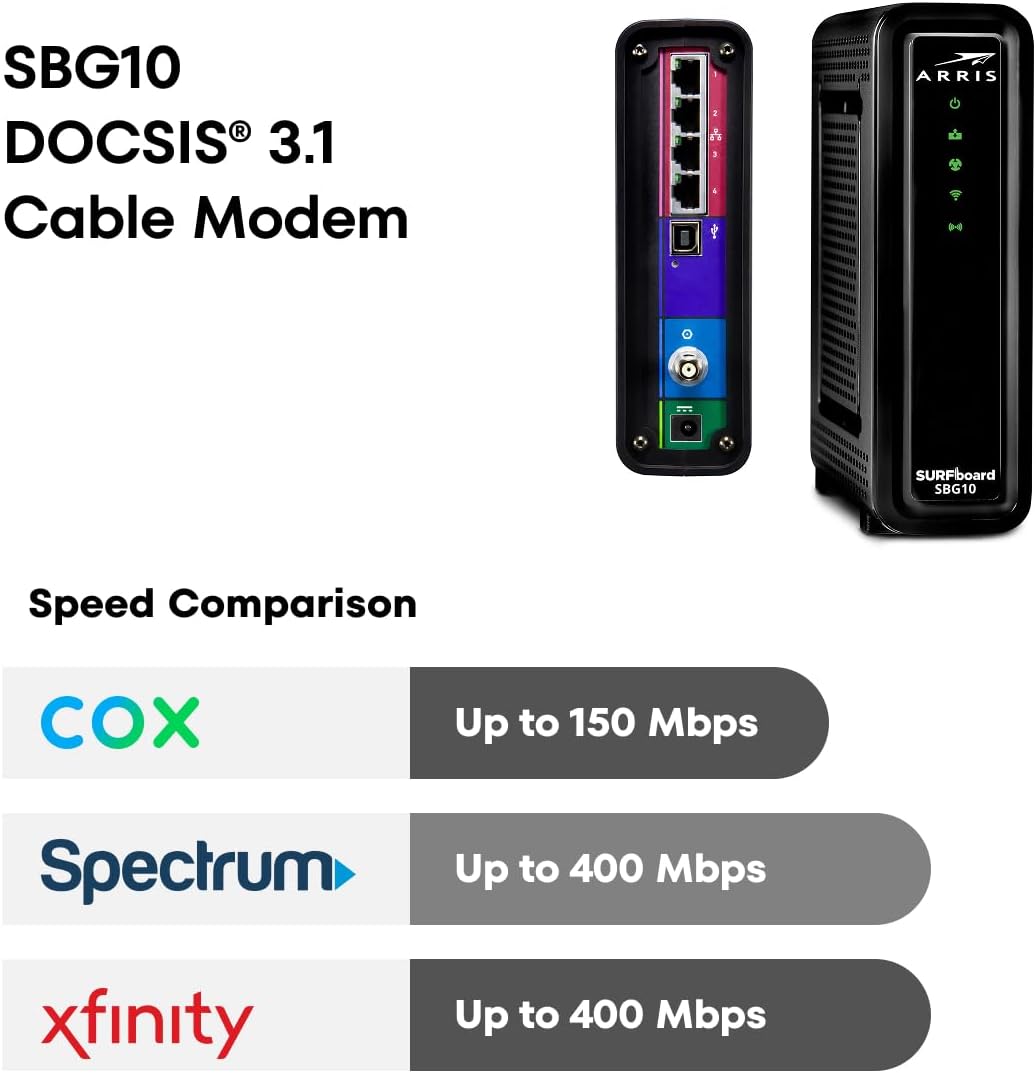
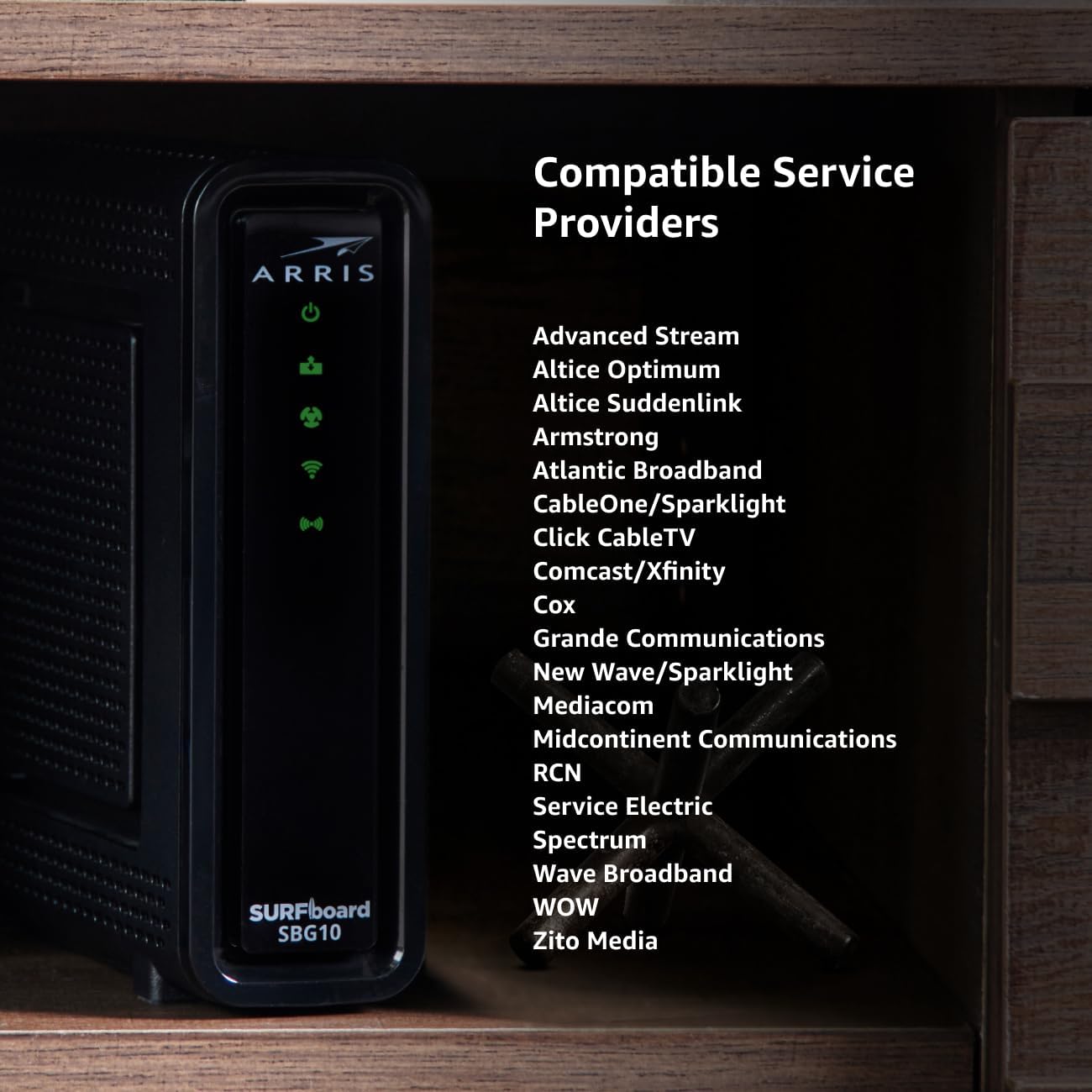
It supports maximum internet speeds of up to 400 Mbps and a maximum download speed of 686 Mbps, making it suitable for streaming, gaming, and general internet usage. The SBG10 is certified for use with major U.S. cable internet service providers such as Comcast Xfinity and Cox. Please verify compatibility with your specific Internet Service Provider (ISP) before use.
Important Note: This device is not compatible with DSL, Fiber, or Satellite internet services, nor does it support cable digital voice services. It is recommended for cable internet speed plans up to 1 Gbps.
What's in the Box
- ARRIS SURFboard SBG10 Cable Modem
- Power Supply
- Quick-Start Guide
- 2-Year Warranty Card

Setup Guide
Setting up your ARRIS SURFboard SBG10 is a straightforward process. Follow these steps to get your modem and Wi-Fi network operational:
- Connect Coaxial Cable: Connect the coaxial cable from your wall outlet to the "Cable" port on the back of your SBG10 modem. Ensure the connection is finger-tight.
- Connect to Power Outlet: Connect the power supply to the "Power" port on the back of the SBG10, then plug the other end into an electrical outlet. The modem will begin its startup sequence.
- Connect Ethernet Cable (Optional): For a wired connection, connect an Ethernet cable from one of the Ethernet ports on the back of the SBG10 to your computer or other network device.
- Activate Your Service:
- Download the SURFboard Central App on your smartphone or tablet.
- Follow the step-by-step instructions within the app to activate your modem and set up your Wi-Fi network. This includes customizing your Wi-Fi name (SSID) and password.
- Alternatively, you may need to contact your Internet Service Provider (ISP) directly to activate the modem. Provide them with the MAC address and serial number located on the label of your SBG10.


Operating Instructions
LED Indicators
The front panel of your SBG10 features LED indicators that provide status information about your modem and network. Refer to the table below for a description of each LED's behavior:

| LED Icon | Status | Description |
|---|---|---|
| Power (Circle with vertical line) | Solid Green | Power is on. |
| Downstream (Cylinder with arrow down) | Solid Green | Downstream channel is connected. |
| Upstream (Cylinder with arrow up) | Solid Green | Upstream channel is connected. |
| Online (Globe) | Solid Green | Modem is online and connected to the internet. |
| Wi-Fi (Fan icon) | Solid Green | Wi-Fi is enabled and active. |
| WPS (Two arrows circling) | Flashing Green | WPS pairing in progress. |
Using the SURFboard Central App
The SURFboard Central App provides comprehensive control and monitoring capabilities for your SBG10 Wi-Fi Cable Modem. After initial setup, you can use the app for:
- Real-time monitoring of connected devices on your network.
- Enhanced parental controls, including setting time limits and pausing internet access for specific devices.
- Customizing Wi-Fi settings (SSID, password, security type).
- Adding new devices to your home network.
- Troubleshooting and diagnostic tools.

Maintenance
Proper maintenance ensures the longevity and optimal performance of your ARRIS SURFboard SBG10. Follow these guidelines:
- Placement: Place the modem in a well-ventilated area, away from direct sunlight, heat sources, and moisture. Avoid placing it in enclosed spaces that can restrict airflow.
- Cleaning: Use a soft, dry cloth to clean the exterior of the modem. Do not use liquid cleaners or aerosol sprays.
- Firmware Updates: Firmware updates are typically managed by your Internet Service Provider (ISP). Ensure your modem is connected and powered on to receive automatic updates.
- Rebooting: Periodically rebooting your modem can resolve minor connectivity issues and improve performance. To reboot, unplug the power cord from the modem, wait 10-15 seconds, and then plug it back in.
Troubleshooting
If you encounter issues with your ARRIS SURFboard SBG10, try the following troubleshooting steps:
- No Internet Connection:
- Check all cable connections (coaxial, power, Ethernet) to ensure they are secure.
- Verify the LED indicators on the front panel. If the "Online" LED is off or flashing, there may be an issue with your ISP connection.
- Reboot the modem by unplugging it for 10-15 seconds and plugging it back in.
- Contact your Internet Service Provider (ISP) to confirm service status and modem activation.
- Slow Internet Speeds:
- Ensure your devices are connected to the correct Wi-Fi band (2.4 GHz or 5 GHz). The 5 GHz band offers faster speeds but has a shorter range.
- Reduce the number of active devices or applications consuming high bandwidth.
- Consider the placement of your modem. Obstructions and distance can affect Wi-Fi signal strength.
- Perform a speed test to confirm your current internet speed.
- Contact your ISP if speeds remain consistently below your subscribed plan.
- Wi-Fi Disconnections:
- Check for interference from other electronic devices (e.g., cordless phones, microwaves).
- Try changing your Wi-Fi channel in the modem's settings (via the SURFboard Central App or web interface).
- Ensure your modem's firmware is up to date (usually managed by your ISP).
- Cannot Access Modem Settings:
- Ensure your device is connected to the SBG10's network (either wired or wirelessly).
- Try accessing the modem's web interface using the default IP address (often 192.168.0.1 or 192.168.100.1). Refer to the Quick-Start Guide for specific details.
- Reset the modem to factory defaults (this will erase all custom settings). Use a paperclip to press and hold the reset button on the back of the modem for 10-15 seconds.
Specifications
| Feature | Detail |
|---|---|
| Model Name | SBG10 |
| DOCSIS Standard | DOCSIS 3.0 |
| Channel Bonding | 16 Downstream x 4 Upstream |
| Wi-Fi Standard | AC1600 (802.11ac) |
| Wireless Type | 802.11ac |
| Frequency Band Class | Dual-Band (2.4 GHz and 5 GHz) |
| Ethernet Ports | 2 Gigabit Ethernet Ports |
| Max Internet Speed | Up to 400 Mbps (ISP dependent) |
| Max Download Speed | 686 Mbps |
| Dimensions (LxWxH) | 6.77 x 1.97 x 6.58 inches |
| Item Weight | 1.96 pounds |
| Color | Black |
| Power Input | 120 Volts (AC) |
| Compatible Devices | Personal Computer, Smart Television, Smartphone |
| Special Features | Access Point Mode, Parental Control (via app) |

Warranty and Support
The ARRIS SURFboard SBG10 comes with a 2-Year Limited Warranty. Please refer to the warranty card included in your product packaging for full terms and conditions.
For technical support, additional resources, or to download the full user manual, please visit the official ARRIS support website or contact their customer service. You can also find helpful information and FAQs on the product page.
For the official User Guide (PDF), you can access it here.
Related documentsSBG10


Ask a question about this manual
Ask about setup, troubleshooting, compatibility, parts, safety, or missing instructions. Manuals+ will review the question and use this page’s manual context to help answer it.