
Minolta C454E
Contents
Konica Minolta Bizhub C454E User Manual
Model: C454E | Brand: Konica Minolta
1. Introduction
This manual provides essential information for the safe and efficient operation of your Konica Minolta Bizhub C454E Color Copier Printer Scanner. Please read it thoroughly before using the device to ensure proper setup, operation, and maintenance.
The Konica Minolta Bizhub C454E is a versatile multifunction device designed for office environments, capable of printing, copying, and scanning in color. It features a large paper capacity and fast print speeds, supporting direct printing and scanning from mobile devices, and saving documents as PDF files.
2. Safety Information
Always follow basic safety precautions to reduce the risk of fire, electric shock, and injury to persons.
- Ensure the device is connected to a grounded power outlet.
- Do not block ventilation openings.
- Keep liquids away from the device.
- Do not attempt to service the device yourself. Refer all servicing to qualified service personnel.
- Unplug the device during lightning storms or when unused for long periods.
3. Setup and Installation
3.1 Unpacking and Placement
Carefully remove the Bizhub C454E from its packaging. Ensure all packing materials are removed. Place the device on a stable, level surface with adequate ventilation space around it.
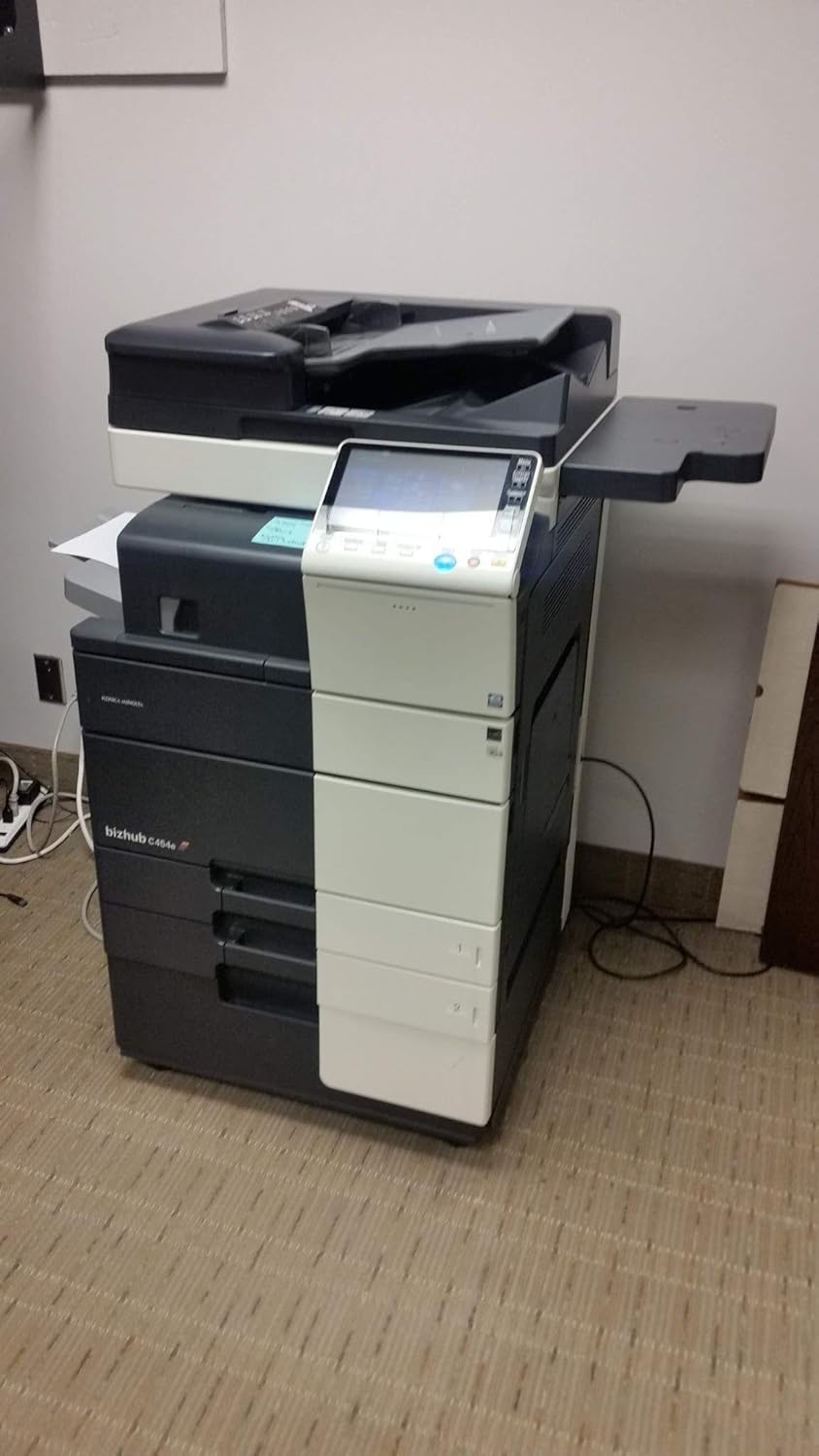
Figure 3.1: The Konica Minolta Bizhub C454E, a large, black and white multifunction printer with a top-mounted document feeder and a side control panel, shown in an office setting.
3.2 Connecting Power
Connect the provided power cord to the power input on the rear of the device, then plug the other end into a grounded electrical outlet. The device requires a stable power supply.
The product includes a power cord and the printer itself.
3.3 Network Connection
The Bizhub C454E supports Wi-Fi connectivity and has one Ethernet port for wired network connections. For initial setup, a wired connection is recommended for stability.
- Wired Connection: Connect an Ethernet cable from the device's Ethernet port to your network router or switch.
- Wi-Fi Connection: Access the network settings on the control panel (see Section 4.1) to configure Wi-Fi.
4. Operating Instructions
4.1 Control Panel Overview
The device features an LCD touch display for control. Familiarize yourself with the main screen and navigation options.

Figure 4.1: A detailed view of the Konica Minolta Bizhub C454E's LCD touch control panel, displaying various settings for color, paper, zoom, and output options for copying.
4.2 Loading Paper
The Bizhub C454E has a maximum input sheet capacity of 6650 sheets and two paper trays. It supports plain paper up to 12 inches in sheet size and SRA3 maximum media size.
- Open the desired paper tray.
- Adjust the paper guides to fit the paper size.
- Load the paper stack, ensuring it is not overfilled.
- Close the paper tray securely.
4.3 Copying Documents
To make copies, place your original document on the scanner glass or in the automatic document feeder (ADF).

Figure 4.2: Top-down view of the Konica Minolta Bizhub C454E, showing the document feeder mechanism and the control panel from a slightly elevated angle.
- Select the "Copy" function on the control panel.
- Adjust settings such as color (CMYK), number of copies (up to 6650), and duplex printing (Yes).
- Press the "Start" button.
4.4 Printing Documents
The Bizhub C454E supports laser printing technology with a maximum color print resolution of 1200 x 1200 dpi and a maximum black and white print resolution of 1200 dpi.
- Ensure the printer is connected to your network.
- Install the necessary printer drivers on your computer (one driver is typically required).
- From your application, select "Print" and choose the Konica Minolta Bizhub C454E.
- Adjust print settings as needed (e.g., color output, duplex).
- Confirm the print job.
4.5 Scanning Documents
The device functions as a document scanner. You can scan directly to mobile devices or save as PDF files.
- Place the document on the scanner glass or in the ADF.
- Select the "Scan" function on the control panel.
- Choose your scan destination (e.g., email, network folder, USB, mobile device).
- Adjust scan settings (e.g., resolution 600 dpi, color/black & white).
- Press the "Start" button to begin scanning.
5. Maintenance
5.1 Cleaning the Device
Regular cleaning helps maintain optimal performance.
- Power off and unplug the device before cleaning.
- Wipe the exterior with a soft, damp cloth.
- Clean the scanner glass with a lint-free cloth and glass cleaner.
- Remove any dust or paper debris from the paper trays.
5.2 Replacing Toner
The Bizhub C454E uses toner cartridges (CMYK). The control panel will indicate when a toner cartridge needs replacement.
- Open the front cover of the device.
- Locate the empty toner cartridge.
- Carefully remove the old cartridge.
- Unpack the new toner cartridge and shake it gently.
- Insert the new cartridge until it clicks into place.
- Close the front cover.
6. Troubleshooting
This section addresses common issues you might encounter.
| Problem | Possible Cause | Solution |
|---|---|---|
| Device does not power on. | Power cord not connected; power outlet issue. | Check power cord connection; try a different outlet. |
| Paper jams. | Incorrect paper loading; foreign objects in paper path. | Remove jammed paper carefully; ensure paper is loaded correctly. |
| Poor print quality. | Low toner; dirty print heads/scanner glass. | Replace toner cartridge; clean scanner glass and internal components. |
| Cannot connect to network. | Incorrect network settings; Wi-Fi signal weak. | Verify network settings on control panel; check router connection; restart device and router. |
7. Specifications
Key technical specifications for the Konica Minolta Bizhub C454E.
- Model Name: C454E
- Brand: Minolta (Manufacturer: Konica Minolta)
- Functions: All In One (Copier, Printer, Scanner)
- Printing Technology: Laser
- Printer Output: Color
- Max Color Print Resolution: 1200 x 1200 dpi
- Max B&W Print Resolution: 1200 dpi
- Max Input Sheet Capacity: 6650 sheets
- Max Copies per Run: 6650
- Scanner Type: Document
- Scan Resolution: 600 dpi
- Connectivity: Wi-Fi, Ethernet (1 port)
- Control Method: Touch (LCD Display)
- Compatible Devices: Smartphones
- Ink Color: CMYK (Toner)
- Dual-sided printing: Yes
- Sheet Size: Up to 12 inches, Max Media Size: SRA3
- Included Components: Power cord, Printer
8. Warranty and Support
This product is a Certified Refurbished item and comes with a minimum 90-day warranty.
- Warranty Type: 90 days limited warranty.
- For support or warranty claims, please contact the seller or the authorized service center.
Documents and downloads
Ask a question about this manual
Ask about setup, troubleshooting, compatibility, parts, safety, or missing instructions. Manuals+ will review the question and use this page’s manual context to help answer it.