
Sonew Sonew0iy8dcetmw
Sonew Smart Fingerprint Keyless Lock User Manual
Model: Sonew0iy8dcetmw
Introduction
This manual provides comprehensive instructions for the setup, operation, maintenance, and troubleshooting of your Sonew Smart Fingerprint Keyless Lock. Please read this manual carefully before using the product to ensure proper function and longevity.
The Sonew Smart Fingerprint Keyless Lock offers advanced security features including fingerprint recognition and APP control, eliminating the need for traditional keys or combinations. Its robust design is suitable for various applications, from personal belongings to secure storage.
Product Overview
The Sonew Smart Fingerprint Keyless Lock is designed for convenience and security. It features a durable ADC12 Aluminum Alloy body and 303 Stainless Steel shackle, offering IP65 water resistance for outdoor use.

Figure 1: Front view of the Sonew Smart Fingerprint Keyless Lock, showing the fingerprint sensor on the main body and the metal shackle.
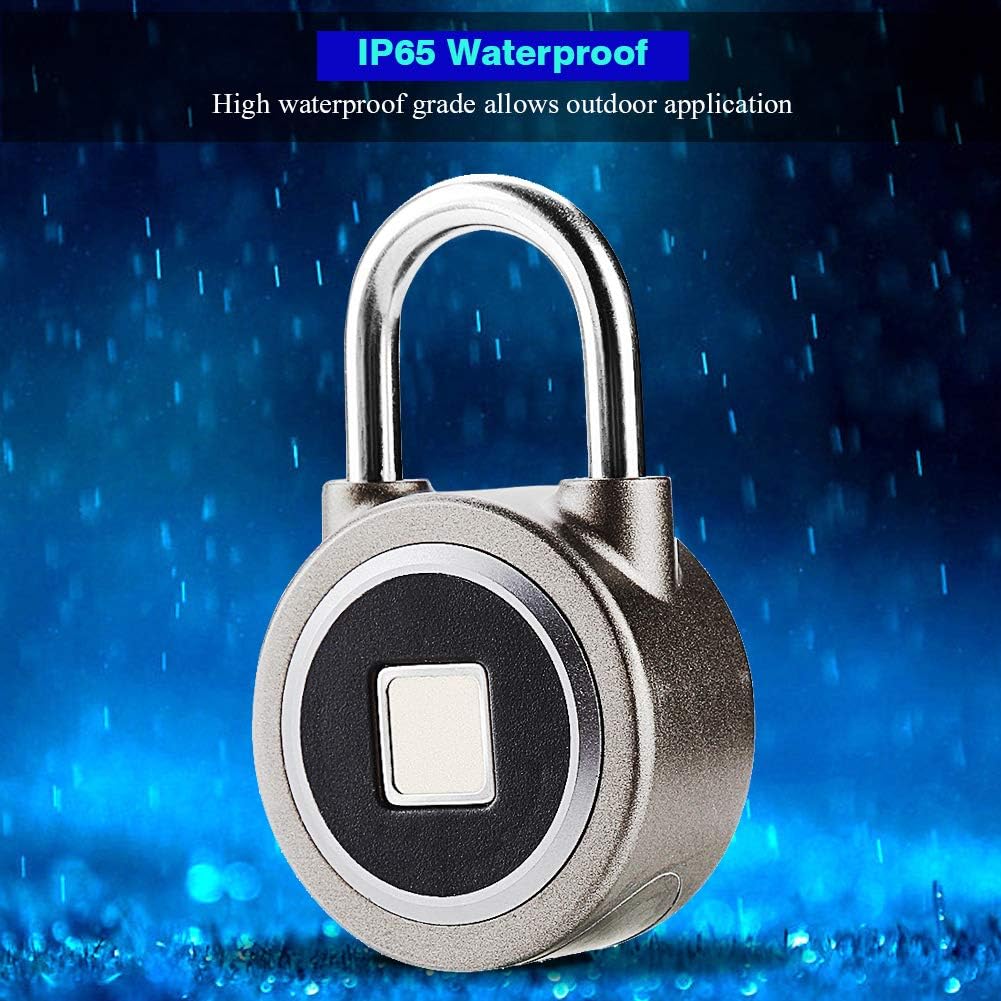
Figure 2: The smart lock shown with a background indicating water resistance, highlighting its IP65 waterproof rating suitable for outdoor applications.

Figure 3: Illustration demonstrating the USB charging capability of the smart lock, showing the micro USB port and a battery icon indicating charge level.
Specifications
| Feature | Detail |
|---|---|
| Item Type | Smart Lock |
| Material | ADC12 Aluminum Alloy + 303 Stainless Steel |
| Color | Black |
| Item Size | 4.8 * 8cm (1.88 * 3.14inch) |
| BT Version | 4.0 |
| BT Working Frequency | 2.4G |
| System Requirement | iOS/Android 4.3 and above |
| Battery | Built-in 1 * 3.7V 130mAh 501225 polymer battery |
| Working Voltage | 3.7V |
| Standby Time | About 1 month |
| Unlock Times | Over 1000 continuous unlock times |
| Unlock Record | 1000pcs |
| Fingerprint Capacity | 15 groups (managed via app) |
| Charging Method | Micro USB, 5V 130mA (USB cable included) |
| Waterproof Grade | IP65 |
| Work Environment Temperature | -25~80°C |
| Work Environment Humidity | 5%~95% |
Package Contents
- 1 x Sonew Smart Padlock
- 1 x English Instructions (this manual)
- 1 x USB Cable (for charging)
- 1 x QR code sticker (for app download)
Setup Guide
1. Initial Charging
Before first use, fully charge the smart padlock using the provided USB cable. Connect the micro USB end to the charging port at the bottom of the lock and the other end to a 5V USB power source (e.g., computer USB port, wall adapter). The indicator light will show charging status.
2. App Installation
Scan the QR code provided on the sticker or in the package to download the official control application for your smartphone (compatible with iOS 4.3+ and Android 4.3+). Alternatively, search for "OKLOK" or "Smart Lock" in your device's app store.
3. Device Pairing and Administrator Fingerprint Setup
- Ensure Bluetooth is enabled on your smartphone.
- Open the installed smart lock application.
- Follow the in-app instructions to search for and pair with your Sonew Smart Lock. The lock will typically appear as a discoverable Bluetooth device.
- Once paired, the app will guide you through registering the administrator fingerprint. This is usually the first fingerprint registered and has full control over the lock's settings, including adding or removing other fingerprints.
- Place your finger on the fingerprint sensor multiple times as prompted by the app to ensure accurate registration.
4. Adding Additional Fingerprints (Up to 15 Groups)
After setting up the administrator fingerprint, you can add up to 14 additional user fingerprints through the app. Navigate to the "Fingerprint Management" or "User Management" section within the app and follow the instructions to register new fingerprints. Each fingerprint can be assigned a name for easier identification.
Operating Instructions
1. Unlocking with Fingerprint
To unlock the padlock using a registered fingerprint, simply place your registered finger firmly on the fingerprint sensor. The lock will unlock instantly if the fingerprint is recognized. A successful unlock is usually indicated by a green light and an audible click.
2. Unlocking with APP
Ensure your smartphone's Bluetooth is on and you are within range of the lock. Open the smart lock application, select your paired lock, and tap the "Unlock" button within the app. The lock will unlock remotely via Bluetooth.
3. Locking the Padlock
To lock the padlock, simply push the shackle down into the lock body until it clicks into place. The lock will automatically secure itself.
4. Monitoring Activity
The app allows you to monitor unlocking records, including who unlocked the device and when. This feature provides an audit trail for security purposes. Access the "Unlock Records" or "Activity Log" section in the app.
5. Battery Status Check
The battery level of the padlock is displayed within the mobile application. Regularly check the battery status to ensure the lock remains powered. When the battery is low, recharge it promptly using the micro USB cable.
Versatile Applications
The Sonew Smart Fingerprint Keyless Lock is designed for a wide range of uses, providing secure locking solutions for various personal and professional items and locations.

Figure 4: Examples of the smart lock's versatile applications, including securing bags, luggage, warehouse doors, cabinets, and cargo. Its compact size and robust design make it suitable for both indoor and outdoor environments.
- House Doors: Enhance security for sheds, gates, or utility doors.
- Backpacks & Suitcases: Protect your belongings while traveling or commuting.
- Warehouses & Cabinets: Secure storage units, lockers, or office cabinets.
- Bikes: A convenient secondary lock for bicycles.
- Office: Secure drawers, filing cabinets, or personal office items.
Maintenance
- Charging: Recharge the lock when the battery indicator in the app shows low power. A full charge provides over 1000 continuous unlocks or about 1 month of standby time.
- Cleaning: Wipe the lock body and fingerprint sensor with a soft, dry cloth. Avoid using abrasive cleaners or solvents that could damage the finish or electronic components.
- Storage: If storing the lock for an extended period, ensure it is fully charged and stored in a cool, dry place. Recharge periodically to maintain battery health.
- Water Exposure: While the lock is IP65 rated for water resistance, prolonged submersion or exposure to high-pressure water jets is not recommended. Ensure the USB charging port cover is securely closed when exposed to moisture.
Troubleshooting
| Problem | Possible Cause / Solution |
|---|---|
| Lock does not respond to fingerprint. |
|
| Cannot connect to the lock via APP. |
|
| Lock is not charging. |
|
| Cannot add new fingerprints. |
|
Important Safety Information
- Do not attempt to disassemble or modify the lock. This will void the warranty and may cause damage.
- Keep the lock away from extreme temperatures and direct sunlight for prolonged periods.
- Avoid dropping the lock or subjecting it to strong impacts.
- Ensure the charging port is dry before connecting the USB cable.
- This lock is designed for security but cannot guarantee absolute protection against theft.
Warranty and Support
For warranty information and technical support, please refer to the contact details provided by your retailer or visit the official Sonew website. Keep your purchase receipt as proof of purchase.
For further assistance, you may contact Sonew customer service through their official channels. Please have your model number (Sonew0iy8dcetmw) and purchase date ready.
Ask a question about this manual
Ask about setup, troubleshooting, compatibility, parts, safety, or missing instructions. Manuals+ will review the question and use this page’s manual context to help answer it.