1. Introduction
The SABRENT 4-Bay USB 3.0 Docking Station (DS-U3B4) provides a convenient solution for accessing and managing multiple 2.5-inch or 3.5-inch SATA SSDs and HDDs. This tool-free, trayless design supports simultaneous operation of up to four drives and offers high-speed data transfer via USB 3.2 Gen 1 (5Gbps). It is compatible with Windows, macOS, and Linux systems, requiring no additional drivers for basic functionality. The docking station also features an offline cloning function for direct drive duplication without a computer connection.

Image: The SABRENT 4-Bay USB 3.0 Docking Station, a black rectangular device with four top-loading bays for hard drives and LED indicators on the front.
2. Package Contents
- SABRENT 4-Bay USB 3.0 Docking Station (DS-U3B4)
- USB Cable
- Power Adapter (Input 100–240V~50/60Hz, Output 12V/6.5A)
- User Manual
3. Product Features
- Four-Bay SATA Access: Supports up to four 2.5-inch or 3.5-inch SATA SSDs or HDDs simultaneously.
- Tool-Free Installation: Quickly insert or remove drives without tools or trays.
- Fast USB 3.2 Performance: Data transfer speeds up to 5Gbps via USB 3.2 Gen 1. Backward compatible with USB 2.0.
- Trayless Hot-Swap Design: Drives can be swapped without system reboot.
- Universal Compatibility: Works with Windows, macOS, and Linux systems without drivers.
- Independent Power Switches: Each bay has its own independent power switch and LED status indicator.
- Offline Cloning: Duplicate drives directly from source to target without a computer connection.
4. Setup Instructions
- Connect Power: Plug the provided power adapter into the DC IN port on the back of the docking station and then into a wall outlet.
- Connect USB: Connect the provided USB cable from the USB 3.0 port on the back of the docking station to an available USB 3.0 (or higher) port on your computer.
- Set PC/CLONE Switch: Ensure the PC/CLONE switch on the back of the docking station is set to the "PC" position for computer connectivity.
- Insert Drives: With the docking station powered off, carefully insert your 2.5-inch or 3.5-inch SATA SSDs/HDDs into the available bays. Ensure they are seated firmly.
- Power On: Flip the ON/OFF switch on the back of the docking station to the "ON" position. The power LED and individual bay LEDs should illuminate, indicating successful connection.

Image: The SABRENT 4-Bay USB 3.0 Docking Station with 2.5-inch SSDs and 3.5-inch HDDs inserted into its bays.
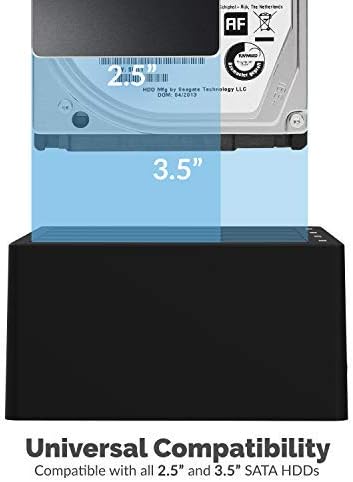
Image: A 3.5-inch hard drive being inserted into a bay of the docking station, illustrating universal compatibility.

Image: Close-up of the back panel of the docking station, highlighting the USB 3.0 port, DC IN port, and ON/OFF switch.
5. Operating Instructions
5.1. Data Transfer Mode (PC Mode)
- Ensure the docking station is set up as described in Section 4.
- Your operating system should automatically detect the inserted drives. They will appear as individual external drives.
- You can now access, read, write, and transfer data to and from the drives as you would with any other external storage device.
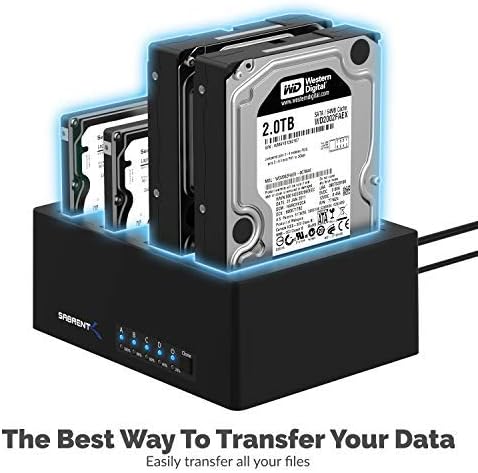
Image: The SABRENT 4-Bay USB 3.0 Docking Station with multiple hard drives, illustrating its use for data transfer.
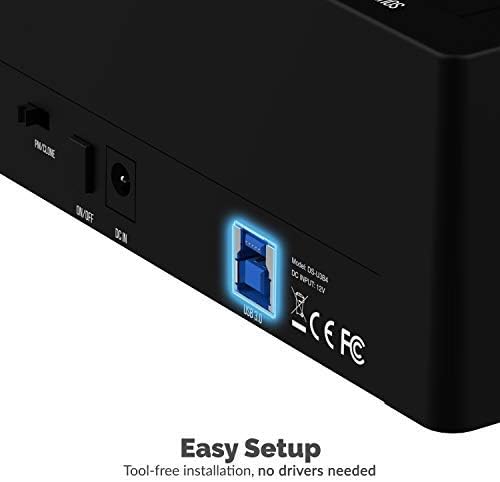
Image: A visual representation of data being transferred at 5Gbps from the docking station to a computer.
5.2. Offline Cloning Function
The offline cloning feature allows you to duplicate a source drive to a target drive without connecting to a computer. The target drive must have equal or greater capacity than the source drive.
- Power Off: Ensure the docking station is powered off.
- Insert Drives: Insert the Source Drive into Bay A (marked "SOURCE A"). Insert the Target Drive into Bay B (marked "TARGET B").
- Set PC/CLONE Switch: Slide the PC/CLONE switch on the back of the docking station to the "CLONE" position.
- Start Cloning: Press and hold the "CLONE" button on the front of the docking station for approximately 3-5 seconds until the 20% LED indicator starts flashing. Release the button.
- Confirm Cloning: Press the "CLONE" button again briefly to confirm and start the cloning process. The LED indicators (25%, 50%, 75%, 100%) will illuminate sequentially to show the cloning progress.
- Completion: The cloning process is complete when all four LED indicators (25%, 50%, 75%, 100%) remain steadily lit.
- Power Off & Remove: Power off the docking station and carefully remove the cloned drives.
Video: An official product video demonstrating the offline cloning feature of the SABRENT 4-Bay USB 3.0 Docking Station. It shows how to insert drives, activate the clone mode, and monitor the progress via LED indicators.
6. Maintenance
- Keep the docking station clean and free from dust. Use a soft, dry cloth for cleaning.
- Avoid exposing the device to extreme temperatures or humidity.
- Do not attempt to disassemble or repair the unit yourself. Refer to qualified service personnel.
7. Troubleshooting
- Drives Not Detected:
- Ensure all power and USB cables are securely connected.
- Verify the ON/OFF switch is in the "ON" position.
- Check that the PC/CLONE switch is set to "PC" for computer access.
- Ensure drives are properly seated in their bays.
- Try connecting to a different USB port on your computer.
- Slow Transfer Speeds:
- Ensure the docking station is connected to a USB 3.0 (or higher) port on your computer.
- Verify your drives are capable of USB 3.0 speeds.
- Offline Cloning Fails:
- Confirm the target drive has equal or greater capacity than the source drive.
- Ensure the PC/CLONE switch is set to "CLONE".
- Follow the cloning steps precisely, including pressing and holding the clone button, then pressing again to confirm.
8. Specifications
| Feature | Specification |
|---|---|
| Model Number | DS-U3B4 |
| Material | Plastic |
| Compatible Drive Types | 2.5" / 3.5" SATA SSD/HDD |
| Max Number of Supported Devices | 4 |
| Data Transfer Rate | Up to 5Gbps (USB 3.2 Gen 1) |
| Hardware Interface | USB 3.0 |
| Power Supply Input | 100–240V~50/60Hz |
| Power Supply Output | 12V/6.5A |
| Compatible Operating Systems | Windows, macOS, Linux |
| Product Dimensions | 6.3 x 4.72 x 2.76 inches |
| Item Weight | 1 pounds |
9. Warranty and Support
SABRENT products are designed for reliability and performance. For warranty information, technical support, or further assistance, please refer to the official SABRENT website or contact their customer service directly. Keep your purchase receipt for warranty claims.


