
Introduction
The Lutron Caseta Wireless Smart Switch (model PD-5ANS-WH-R) provides convenient on/off control for lights or fans. This wireless switch can be controlled directly at the device or remotely when paired with Lutron Pico remote controls. For advanced control, including scheduling and voice commands, the switch integrates with the Lutron App via a Smart Bridge (sold separately). It utilizes Lutron's patented Clear Connect RF Technology for reliable communication through walls and floors.
Safety Information
- WARNING: Risk of Electric Shock. Turn off power at the circuit breaker or fuse box before installation.
- Install in accordance with all national and local electrical codes.
- Use only with copper or copper clad wire.
- A neutral wire is required for installation. Verify your electrical box has a neutral wire before proceeding.
- Do not use if the product appears damaged.
Package Contents
Your package should contain the following item:
- One (1) Lutron Caseta Wireless Smart Switch (PD-5ANS-WH-R)
Note: Coordinating wallplates and Pico remote controls are sold separately.

Image: Front view of the Lutron Caseta Wireless Smart Switch in its retail packaging.
Setup and Installation
Follow these steps to install your Lutron Caseta Wireless Smart Switch:
- Turn Off Power: Before beginning, turn off the power at the circuit breaker for the switch location.
- Remove Existing Switch: Carefully remove the wallplate and unscrew the existing switch from the wall box. Disconnect the wires.
- Identify Wires: You will typically find a Line (hot) wire, a Load wire (to the light/fan), a Neutral wire, and a Ground wire. A neutral wire is essential for this switch.
- Wire the Caseta Switch: Connect the wires from the wall box to the corresponding wires on the Caseta switch. Refer to the wiring diagram provided with your product for specific connections. Typically:
- Black wire (Switch) to Line (hot) wire (Wall Box)
- Red wire (Switch) to Load wire (Wall Box)
- White wire (Switch) to Neutral wire (Wall Box)
- Green wire (Switch) to Ground wire (Wall Box)
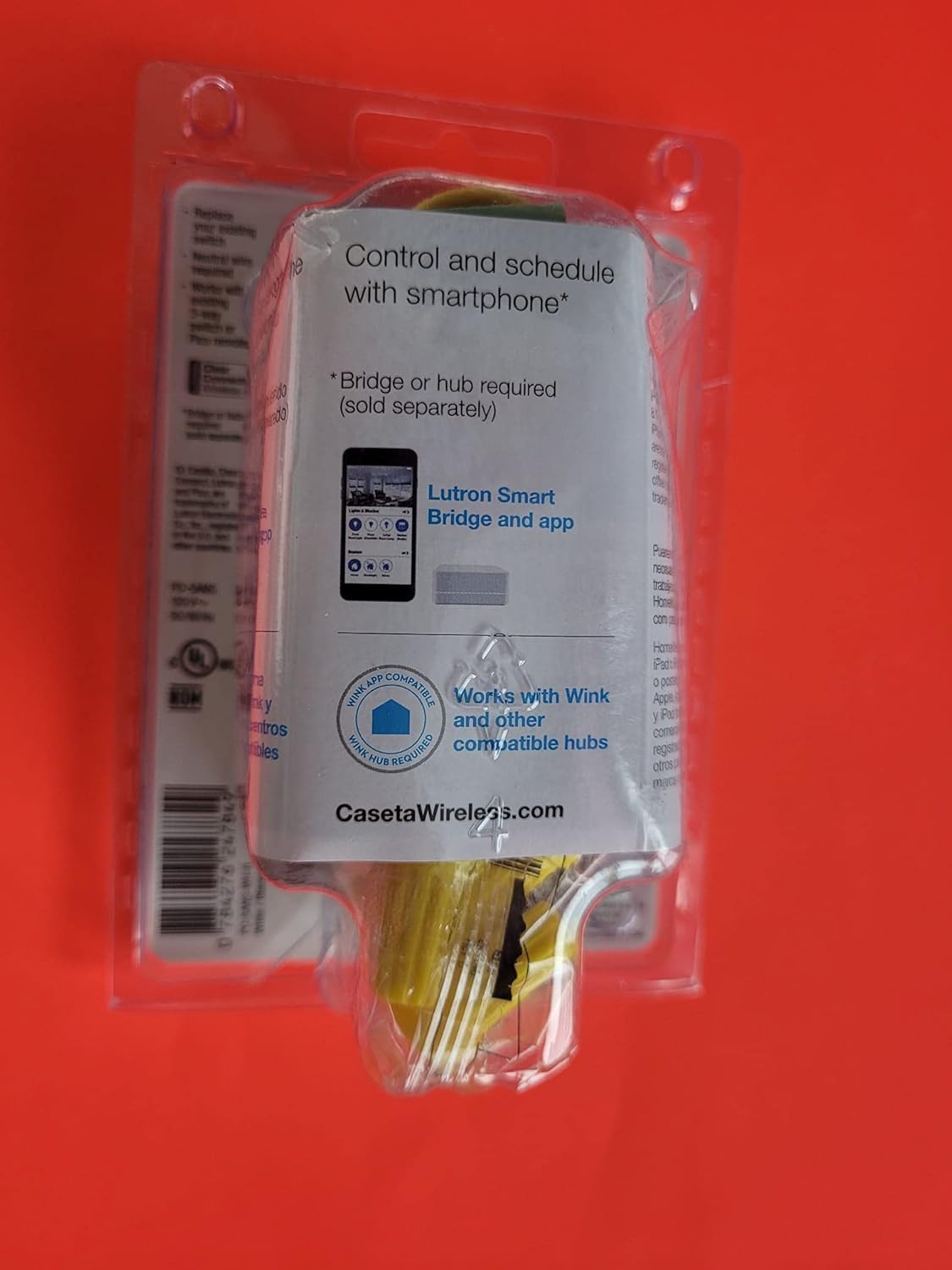
Image: Rear view of the Lutron Caseta Wireless Smart Switch, showing wiring terminals.
- Mount the Switch: Gently push the wired switch into the wall box and secure it with screws. Attach the new wallplate (sold separately).
- Restore Power: Turn the power back on at the circuit breaker.
- System Integration (Optional): For smartphone and voice control, a Lutron Smart Bridge is required (sold separately). Download the Lutron App and follow the in-app instructions to add your new switch to your Caseta system.
- 3-Way Applications: For multi-location control, the Caseta switch can be used with an existing toggle switch or paired with 2-button Pico remote controls (PJ2-2B-GWH-L01, sold separately). Consult the specific wiring instructions for 3-way setups.
Operating Instructions
The Lutron Caseta Wireless Smart Switch offers multiple ways to control your lights or fans:
- Manual Control: Press the top button on the switch to turn the connected load ON. Press the bottom button to turn the connected load OFF.
- Pico Remote Control: If paired with a Pico remote (sold separately), use the ON/OFF buttons on the remote to control the switch wirelessly.
- Lutron App Control: Once connected to a Lutron Smart Bridge (sold separately) and configured in the Lutron App, you can control the switch from your smartphone or tablet. This includes turning lights/fans on/off, creating schedules, and setting scenes.
- Voice Control: When integrated with a compatible voice assistant (e.g., Amazon Alexa, Google Assistant, Apple HomeKit) via the Lutron Smart Bridge, you can use voice commands to operate the switch.
Maintenance
The Lutron Caseta Wireless Smart Switch is designed for maintenance-free operation. To clean the switch, wipe it with a soft, damp cloth. Do not use chemical cleaners. There are no user-serviceable parts inside the switch.
Troubleshooting
If you encounter issues with your Lutron Caseta Wireless Smart Switch, consider the following:
- Switch Not Responding: Ensure power is on at the circuit breaker. Check all wire connections are secure.
- Lights/Fan Not Turning On/Off: Verify the load (light bulb or fan) is functioning correctly. Ensure the switch is wired correctly, especially the Line and Load connections.
- Lights Blinking or Flickering: This can sometimes indicate incorrect wiring, particularly in 3-way setups, or an incompatible load. Ensure a neutral wire is properly connected. For low-wattage LED loads, a load capacitor might be required (consult Lutron support).
- App/Voice Control Issues: Confirm your Lutron Smart Bridge is powered on and connected to your home network. Ensure the switch is properly paired with the Smart Bridge in the Lutron App. Check your Wi-Fi connectivity and router settings.
- Pico Remote Not Controlling Switch: Ensure the Pico remote is properly paired with the switch. Refer to the Pico remote's instructions for pairing procedures.
- Neutral Wire Requirement: Many smart switches, including this model, require a neutral wire. If your electrical box lacks a neutral wire, the switch will not function correctly.
For further assistance, contact Lutron customer support.
Specifications
| Model Number | PD-5ANS-WH-R |
| Operation Mode | On/Off, Toggle |
| Current Rating | 5 Amps |
| Contact Type | Normally Open |
| Connector Type | Wireless |
| Terminal | SPST (Single Pole Single Throw) |
| Circuit Type | Single-pole or 3-way |
| Mounting Type | Wall Mount |
| Control Method | Manual, App (via Smart Bridge), Voice (via Smart Bridge) |
| Connectivity Protocol | Lutron Clear Connect RF Technology, Wi-Fi (via Smart Bridge) |
| Compatible Devices | iOS, Android, Wi-Fi enabled devices (with Smart Bridge) |
| Dimensions (L x W x H) | 6 x 3 x 4 inches (Product) |
| Item Weight | 4.8 ounces |
| Color | White, Gray |
| International Protection Rating | IP54 |
Warranty Information
Lutron products typically come with a manufacturer's warranty. For detailed information regarding the warranty period, coverage, and terms for your PD-5ANS-WH-R switch, please refer to the documentation included with your purchase or visit the official Lutron website.
Support
For technical support, troubleshooting assistance, or further product information, please contact Lutron customer service directly. You can typically find contact details, FAQs, and additional resources on the official Lutron website:
Lutron Official Website: www.lutron.com


