Introduction
This user manual provides detailed instructions for the Qisan GATERON Brown Switch Mechanical Numeric Keypad. Please read this manual thoroughly before using the product to ensure proper operation and maintenance. This keypad is designed to enhance productivity for users requiring a dedicated numeric input, especially those using laptops or compact keyboards without a numeric section.
Product Features
- Enhanced 21-Key Layout: Beyond the standard 17 numeric keys, this keypad includes additional keys such as Esc, Tab, ← (Backspace), and Fn for expanded functionality.
- GATERON Brown Mechanical Switches: Equipped with GATERON Brown switches, offering a tactile typing experience with a moderate actuation force, suitable for both typing and gaming.
- Adjustable Backlighting: Features 3 backlight modes and 6 brightness levels, allowing customization for various lighting conditions.
- Durable Keycaps: Two-color injection molded transparent keycaps ensure durability and clear visibility of characters, especially with backlighting.
- Ergonomic Design: Keys are ergonomically angled for comfortable and easy typing. The transparent polycarbonate casing provides a clear, crystalline texture.
- Anti-slip Base: Four silicone pads on the bottom prevent the keypad from sliding during use.
- Portable Design: The keypad and its USB cable are detachable, making it easy to transport and store.

Image: Top-down view of the Qisan mechanical numeric keypad, showcasing its 21-key layout and white backlighting.
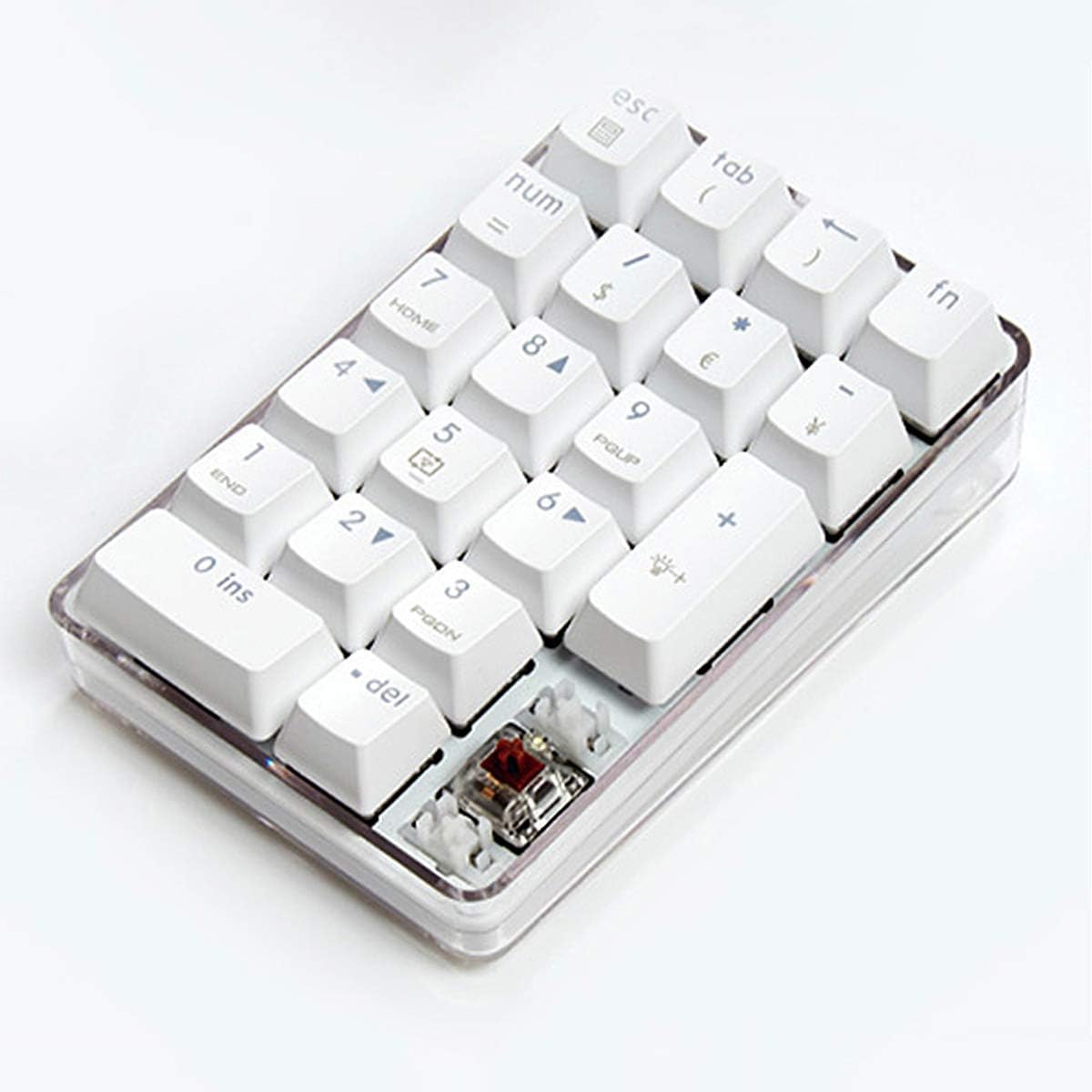
Image: Angled view of the keypad, highlighting the transparent casing and a visible GATERON Brown mechanical switch.
Setup
- Unpack the Keypad: Carefully remove the numeric keypad and its USB cable from the packaging.
- Connect the Cable: Insert the smaller end of the provided USB cable into the USB-C port on the keypad.
- Connect to Computer: Plug the standard USB-A end of the cable into an available USB port on your computer or laptop.
- Driver Installation: The keypad is plug-and-play and typically does not require additional driver installation. Your operating system should automatically recognize the device.

Image: The keypad with its detachable USB-C cable, illustrating the connection point.
Operating Instructions
Num Lock Functionality
The Num Lock function on this keypad operates independently of any other connected keyboard. This means you can toggle the numeric input on or off for the keypad without affecting the Num Lock status of your main keyboard.
Backlight Control
- Change Backlight Mode: Press FN + 5 to cycle through the 3 available backlight modes:
- Continuous light
- Reactive (lights up on key press)
- Breathing effect
- Backlight off
- Increase Brightness: Press FN + + to increase the backlight brightness. There are 6 levels of brightness.
- Decrease Brightness: Press FN + Enter to decrease the backlight brightness.
Shortcut Keys
The Fn key allows access to additional functions printed on certain keys. Press and hold Fn, then press the desired key:
- FN + ESC: Activates the calculator function.
- FN + TAB: Activates the left parenthesis (.
- FN + Backspace: Activates the right parenthesis ).
- FN + NUM: Toggles the Num Lock function.
- FN + /: Activates the dollar sign $.
- FN + *: Activates the Euro sign €.
- FN + -: Activates the exclamation mark ¡.

Image: A user operating the Qisan numeric keypad alongside a laptop, demonstrating its practical use.
Maintenance
- Cleaning: Use a soft, dry cloth to wipe the surface of the keypad. For deeper cleaning, use compressed air to remove dust and debris from between the keys. Avoid using liquid cleaners directly on the keypad.
- Storage: When not in use, store the keypad in a clean, dry environment away from direct sunlight and extreme temperatures.
- Cable Care: Avoid bending or twisting the USB cable excessively to prevent damage.
Troubleshooting
- Keypad Not Responding:
- Ensure the USB cable is securely connected to both the keypad and the computer.
- Try plugging the keypad into a different USB port on your computer.
- Restart your computer.
- Check if the Num Lock indicator light is on. If not, press the Num key or FN + NUM to activate it.
- Backlight Not Working:
- Ensure the keypad is properly connected and receiving power.
- Press FN + 5 to cycle through backlight modes, ensuring it's not set to "Backlight off".
- Adjust brightness using FN + + or FN + Enter.
- Incorrect Character Output:
- Verify that Num Lock is enabled if you are trying to input numbers.
- If using shortcut keys, ensure you are pressing Fn simultaneously with the correct key.
Specifications
| Feature | Detail |
|---|---|
| Model Number | 100674 |
| Switch Type | GATERON Brown |
| Number of Keys | 21 |
| Color | White |
| Connectivity Technology | USB-C (Wired) |
| Material | Polycarbonate |
| Product Dimensions | 14.5 x 10 x 5.5 cm (approx. 5.7 x 3.9 x 2.2 inches) |
| Product Weight | 330 g (approx. 0.73 lbs) |
| Compatible Devices | Laptop, Desktop Computers |

Image: Diagram illustrating the dimensions of the Qisan numeric keypad.
Warranty and Support
For warranty information and technical support, please refer to the product packaging or contact the manufacturer directly. Keep your purchase receipt as proof of purchase for any warranty claims.
Manufacturer: Qisan

