
1. Introduction
This manual provides instructions for the iKey IK-SAM-AT Attachable Keyboard, designed specifically for seamless integration with the Samsung Galaxy Tab Active2 Rugged Tablet. This keyboard enhances the functionality of your tablet, providing a robust and reliable input solution for various demanding environments.
Key features include:
- Designed to meet IP54 standards for dust and water resistance.
- Meets MIL-STD-810 specifications for ruggedness.
- Integrated USB-C charging port for convenient tablet charging while attached.
- Includes a dedicated S Pen holder.
- Standard red backlighting for visibility in low-light conditions, with options for green and NVIS (Night Vision Imaging System) compatibility.
2. Setup
2.1 Attaching the Tablet
To attach your Samsung Galaxy Tab Active2 to the iKey IK-SAM-AT keyboard, align the tablet with the designated slot on the keyboard. Gently press the tablet into place until it securely snaps into position. This design allows for quick and secure attachment in a single motion.

Figure 2.1: The iKey IK-SAM-AT keyboard with the Samsung Galaxy Tab Active2 tablet securely attached and open, ready for use.
2.2 Charging the Tablet
The iKey IK-SAM-AT keyboard features an integrated USB-C charging port, allowing you to charge your Samsung Galaxy Tab Active2 without removing it from the keyboard. Connect a compatible USB-C charging cable to the port located on the keyboard. The tablet will begin charging automatically.
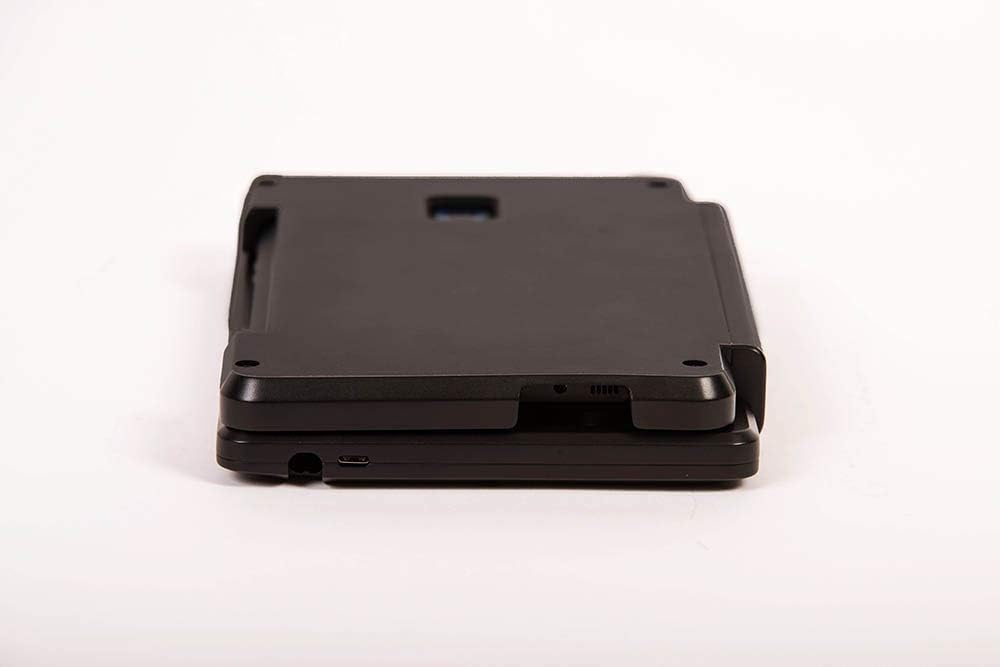
Figure 2.2: Side view of the iKey IK-SAM-AT keyboard, highlighting the USB-C charging port for convenient tablet power management.
3. Operating Instructions
3.1 Keyboard Functions
The keyboard provides a full QWERTY layout with additional function keys for enhanced productivity. Standard typing functions operate as expected. Refer to your Samsung Galaxy Tab Active2's operating system documentation for specific key combinations or shortcuts.

Figure 3.1: Top-down view of the iKey IK-SAM-AT keyboard, illustrating the complete key layout and design.
3.2 Backlighting
The keyboard features standard red backlighting to improve visibility in low-light conditions. The product also supports green and NVIS compatible backlighting options. Consult the manufacturer's website or additional documentation for instructions on activating or changing backlighting modes, if applicable.
3.3 S Pen Holder
A dedicated holder for the Samsung S Pen is integrated into the keyboard's design. This allows for secure storage and easy access to your S Pen when not in use, preventing loss and ensuring it is always available for tablet interaction.

Figure 3.2: Side view of the iKey IK-SAM-AT keyboard, highlighting the integrated S Pen holder for secure storage.
4. Maintenance
The iKey IK-SAM-AT keyboard is designed to meet IP54 standards, offering protection against dust ingress and splashing water. To maintain its condition and functionality:
- Cleaning: Use a soft, damp cloth with mild soap and water to clean the surface of the keyboard. Avoid abrasive cleaners or solvents. Ensure the keyboard is powered off and disconnected from any power source before cleaning.
- Storage: Store the keyboard in a clean, dry environment when not in use.
- Avoid Immersion: While resistant to splashing water, the keyboard is not designed for immersion in liquids.
5. Troubleshooting
If you encounter issues with your iKey IK-SAM-AT keyboard, refer to the following common troubleshooting steps:
- Keyboard Not Responding:
- Ensure the tablet is correctly seated and securely attached to the keyboard.
- Restart your Samsung Galaxy Tab Active2 tablet.
- Check for any physical obstructions or damage to the connection points.
- Tablet Not Charging When Attached:
- Verify that the USB-C charging cable is securely connected to both the keyboard's port and a working power adapter.
- Test the USB-C cable and power adapter with another device to confirm they are functional.
- Ensure the tablet is properly attached to the keyboard.
- Backlighting Not Working:
- Check if the backlighting feature is enabled through the tablet's settings or a dedicated key combination on the keyboard (refer to tablet or manufacturer documentation).
If problems persist, contact iKey customer support for further assistance.
6. Specifications
| Feature | Detail |
|---|---|
| Model Number | IK-SAM-AT |
| Brand | iKey |
| Compatible Devices | Samsung Galaxy Tab Active2 Rugged Tablet |
| Connectivity Technology | USB-C (for charging) |
| Keyboard Description | Attachable QWERTY Keyboard |
| Special Feature | Backlit (Red standard, Green and NVIS options) |
| Color | Black |
| Style | Modern |
| Material | Plastic |
| Included Components | Attachable keyboard |
| Power Source | USB Powered |
| Environmental Standards | IP54, MIL-STD-810 |
| Package Dimensions | 10 x 6 x 1 inches |
| Manufacturer | iKey |
| Date First Available | August 27, 2018 |
7. Warranty and Support
Warranty information for the iKey IK-SAM-AT keyboard is typically provided with the product packaging or can be found on the official iKey website. For detailed warranty terms, product support, or technical assistance, please refer to the documentation included with your purchase or visit the manufacturer's support portal.
Manufacturer: iKey
For further inquiries, please contact iKey directly through their official channels.


