
1. Introduction
Thank you for purchasing the GooDee Mini Projector GD-DE-9. This manual provides essential information for setting up, operating, and maintaining your projector. Please read it thoroughly before use to ensure optimal performance and safety.
The GooDee GD-DE-9 is a portable LED projector designed for home entertainment, gaming, and presentations. It features a native resolution of 800x480p, supports up to 1080p input, and offers multiple connectivity options including HDMI, VGA, USB, AV, and SD card. Its advanced cooling system ensures quiet operation, and the integrated 2W speaker provides clear audio.

Figure 1.1: Front view of the GooDee Mini Projector GD-DE-9.
2. Safety Information
To prevent fire, electric shock, or injury, please observe the following safety precautions:
- Do not open the projector casing. Refer all servicing to qualified service personnel.
- Do not expose the projector to rain or moisture to prevent fire or electric shock.
- Ensure proper ventilation. Do not block ventilation openings.
- Use only the power adapter supplied with the projector.
- Avoid looking directly into the projector lens when the lamp is on.
- Place the projector on a stable, level surface.
- Unplug the projector from the power outlet during lightning storms or when unused for long periods.
3. Package Contents
Please check that all items are included in your package:
- GooDee Mini Projector GD-DE-9
- Power Adapter
- Remote Control
- HDMI Cable
- AV Cable
- User Manual
4. Product Overview
4.1 Projector Components

Figure 4.1: Side view with input/output ports.
The projector features a direct light path optical technology for enhanced brightness and an advanced cooling system for quiet operation.

Figure 4.2: Advanced Cooling System and HIFI Stereo Speaker.
4.2 Remote Control
The remote control allows you to operate the projector from a distance. Insert two AAA batteries (not included) into the remote control before use.

Figure 4.3: Remote Control.
5. Setup
5.1 Placement and Projection Distance
The image size is adjusted by changing the projection distance. For optimal viewing, a projection distance between 1.5 to 4 meters is recommended, yielding screen sizes from 50 to 130 inches. The best projection size is typically 80-100 inches at a distance of 6.6-8 feet.

Figure 5.1: Projection Distance and Screen Size Chart.
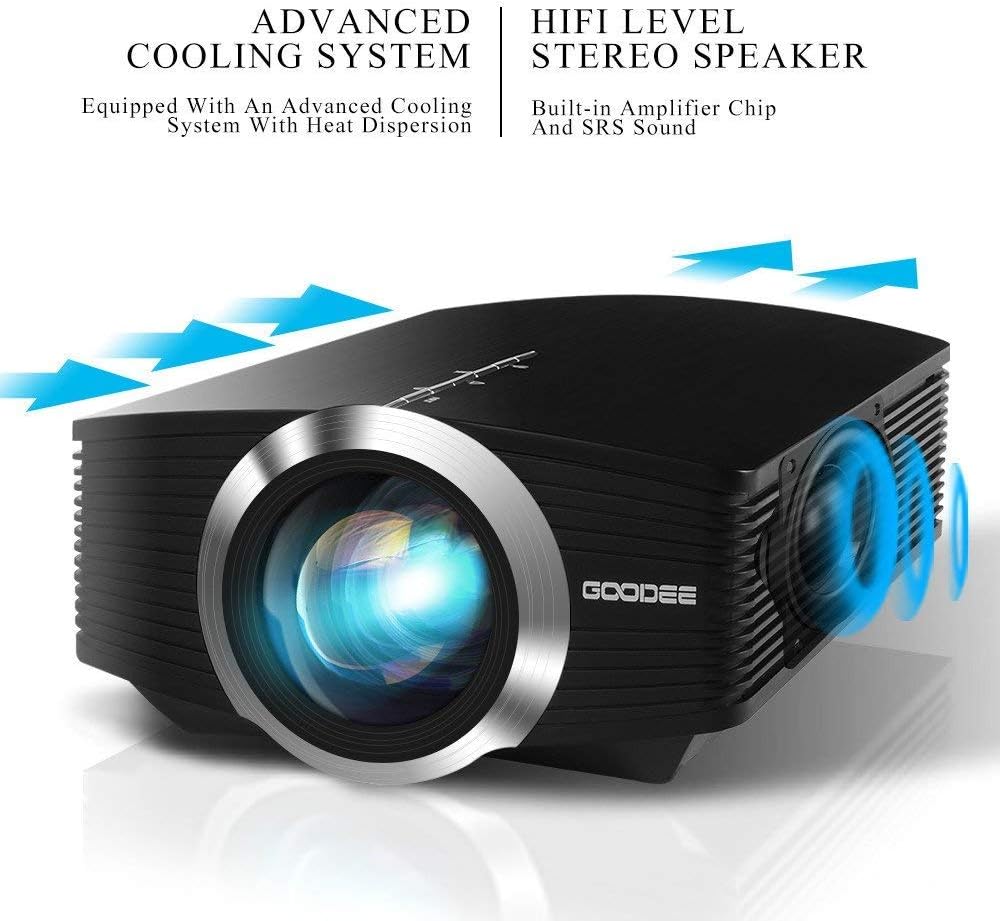
Figure 5.2: Example Projector Placement.
5.2 Power Connection
Connect the power adapter to the projector's power input port, then plug the adapter into a power outlet.
5.3 Connecting Input Devices
The projector supports various input sources including HDMI, VGA, USB, AV, and SD card. It can connect to PCs, laptops, DVD players, PS3/4, Xbox ONE, and smartphones/tablets (via MHL cable and adapter, not included).

Figure 5.3: Multimedia Connection Diagram.
To connect a smartphone or tablet, ensure your device supports MHL functionality. You will need an MHL cable and a suitable adapter (not included).

Figure 5.4: Connecting Smartphones/Tablets.
5.4 Focus Adjustment and Keystone Correction
Adjust the focus ring on the projector lens until the image is clear. Use the keystone correction feature to adjust the image if it appears trapezoidal. The projector supports a ±15° keystone correction.
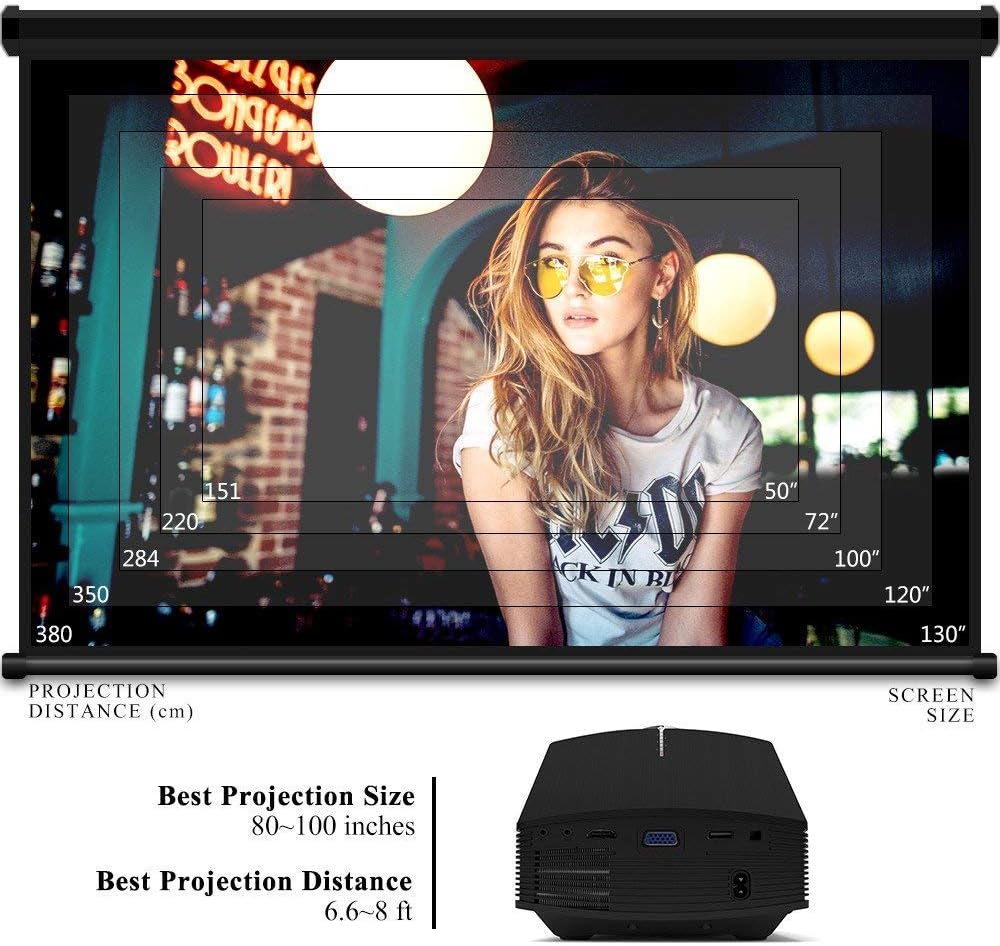
Figure 5.5: Focus and Keystone Adjustment.
6. Operating Instructions
6.1 Power On/Off
Press the power button on the projector or the remote control to turn the projector on or off.
6.2 Source Selection
Press the 'Source' button on the projector or remote control to cycle through available input sources (HDMI, VGA, USB, AV, SD). Select the desired input source corresponding to your connected device.
6.3 Menu Navigation
Use the arrow buttons on the projector or remote control to navigate through the on-screen menu. Press 'OK' or 'Enter' to confirm selections. Use the 'Menu' button to access settings and 'Exit' or 'Return' to go back.
6.4 Audio Output
The projector has a built-in 2W speaker. For external audio, connect speakers or headphones to the 3.5mm audio output jack on the projector.
7. Maintenance
7.1 Cleaning the Lens
Use a soft, lint-free cloth or lens cleaning paper to gently wipe the projector lens. Do not use abrasive cleaners or solvents.
7.2 Cleaning Air Vents
Regularly clean the air vents to ensure proper airflow and prevent overheating. Use a soft brush or compressed air to remove dust accumulation.
7.3 Storage
When not in use, store the projector in a cool, dry place, away from direct sunlight and extreme temperatures. Use the original packaging or a protective case to prevent dust and damage.
8. Troubleshooting
| Problem | Possible Cause | Solution |
|---|---|---|
| No image displayed | Incorrect input source selected; Cable not connected properly; Device not powered on. | Select the correct input source; Check all cable connections; Ensure the source device is powered on. |
| Image is blurry | Focus not adjusted; Projector too close/far from screen. | Adjust the focus ring; Adjust projection distance. |
| Image is trapezoidal | Projector not perpendicular to screen. | Adjust keystone correction. |
| No sound | Volume too low; Muted; External audio device not connected/configured. | Increase volume; Unmute; Check external audio connections and settings. |
| Remote control not working | Batteries low/dead; Obstruction between remote and projector; Remote sensor blocked. | Replace batteries; Remove obstructions; Ensure remote sensor is clear. |
9. Specifications
| Feature | Detail |
|---|---|
| Brand | GooDee |
| Model Number | GD-DE-9 |
| Display Type | LCD |
| Native Resolution | 800 x 480 pixels |
| Supported Resolution | Up to 1080p |
| Brightness | 3000 Lumens (LED) |
| Lamp Life | 30,000 Hours |
| Connectivity Technology | HDMI, USB, VGA, AV, SD Card |
| Hardware Interface | HDMI, USB, VGA |
| Integrated Speaker | 2W Stereo Speaker |
| Projection Distance | 1.5 - 4 meters (6.6 - 8 feet recommended) |
| Screen Size | 50 - 130 inches (80 - 100 inches recommended) |
| Keystone Correction | ±15° Manual |
| Form Factor | Portable |
| Mounting Type | Tabletop Mount |
| Color | Black |
| Package Dimensions | 33 x 21.6 x 11.8 cm |
| Item Weight | 1.48 kg |
| Recommended Use | Gaming, Home Theater |
| Compatible Devices | Smartphone, PC, Laptop, DVD Player, PS3/4, Xbox ONE, Fire TV Stick |
10. Warranty and Support
GooDee offers a 3-year warranty for this projector. If you encounter any issues or are not completely satisfied with your purchase, please contact GooDee customer support. A refund or replacement is available within the first 2 months of purchase. Customer satisfaction is our top priority.
For support, please refer to the contact information provided on the GooDee official website or your purchase platform.


