
1. Introduction
Thank you for purchasing the ipega PG-9028 Wireless Gamepad. This high-performance Bluetooth 5.0 controller is designed to enhance your gaming experience across multiple platforms, including Android smartphones, tablets, PS3 consoles, and Nintendo Switch. Please read this manual carefully to ensure proper use and optimal performance of your device.

Figure 1.1: ipega PG-9028 Wireless Gamepad with a smartphone securely mounted in the integrated holder.
2. Product Features
- Wide Compatibility: Supports Android 6.0 and higher systems, PS3, N-Switch, and Windows PCs.
- Bluetooth 5.0 Connectivity: Provides stable and low-latency wireless connection.
- Direct Play Function: No need for complex activation or downloading redundant game platforms for supported Android devices.
- Programmable Buttons: Features four custom buttons (S1, S2, S3, S4) on the back and side for enhanced efficiency and personalized control.
- Dual Motor Vibration: Offers immersive haptic feedback for a more realistic gaming experience.
- Key TURBO Combo Function: Allows for one-click combo attacks and continuous firing, simplifying complex in-game actions.
- Cool Color Backlit Buttons: LED-illuminated action buttons (A/B/X/Y) for improved visibility and aesthetic appeal, especially in low-light conditions.
- Integrated Phone Holder: Securely holds smartphones for mobile gaming.
- Ergonomic Design: Comfortable grip for extended gaming sessions.

Figure 2.1: Overview of the ipega PG-9028 Gamepad's core features, including support for Android and Windows systems, and Bluetooth 5.0 wireless technology.
3. Package Contents
Please check the package contents upon unboxing. If any items are missing or damaged, contact your retailer.
- 1 x ipega PG-9028 Wireless Gamepad
- 1 x USB Type-C Charging Cable
- 1 x User Manual (this document)
- 1 x Replacement D-pad cap (if included with your model)

Figure 3.1: The ipega PG-9028 Wireless Gamepad and its retail packaging.
4. Setup
4.1 Charging the Gamepad
Before first use, fully charge the gamepad. Connect the supplied USB Type-C cable to the charging port on the gamepad and the other end to a USB power source (e.g., computer USB port, USB wall adapter). The LED indicator will show charging status and turn off or change color when fully charged.
4.2 Pairing with Devices
The PG-9028 supports various connection modes. Select the appropriate mode based on your device:
- Android V3 Direct Play Mode (A + HOME):
Press and hold the A button and the HOME button simultaneously until the indicator light flashes rapidly. On your Android device, search for Bluetooth devices and select "PG-9028" to pair. This mode is ideal for direct play on Android 6.0 and higher without additional mapping.
- Android Standard Game Mode (X + HOME):
Press and hold the X button and the HOME button simultaneously until the indicator light flashes. Pair with "PG-9028" on your Android device. This mode is for standard Android games that support gamepad input.
- PS3 Connection:
Connect the gamepad to the PS3 console using the USB cable. Once connected, press the HOME button. The gamepad will automatically pair and function as a PS3 controller.
- N-Switch Connection:
On your Nintendo Switch, go to "Controllers" -> "Change Grip/Order". Press and hold the R button and the HOME button simultaneously on the gamepad until the indicator light flashes. The Switch will detect and pair with the controller.
- PC (Windows) Connection:
Connect the gamepad to your PC using the USB cable. The gamepad will be recognized as a standard XInput or DInput device. For wireless connection, ensure your PC has Bluetooth 5.0. Press and hold the X button and the HOME button simultaneously until the indicator light flashes, then pair via PC Bluetooth settings.
Once successfully paired, the indicator light will remain solid.
5. Operating Instructions
5.1 Button Layout and Functions
Familiarize yourself with the gamepad's buttons and their primary functions:
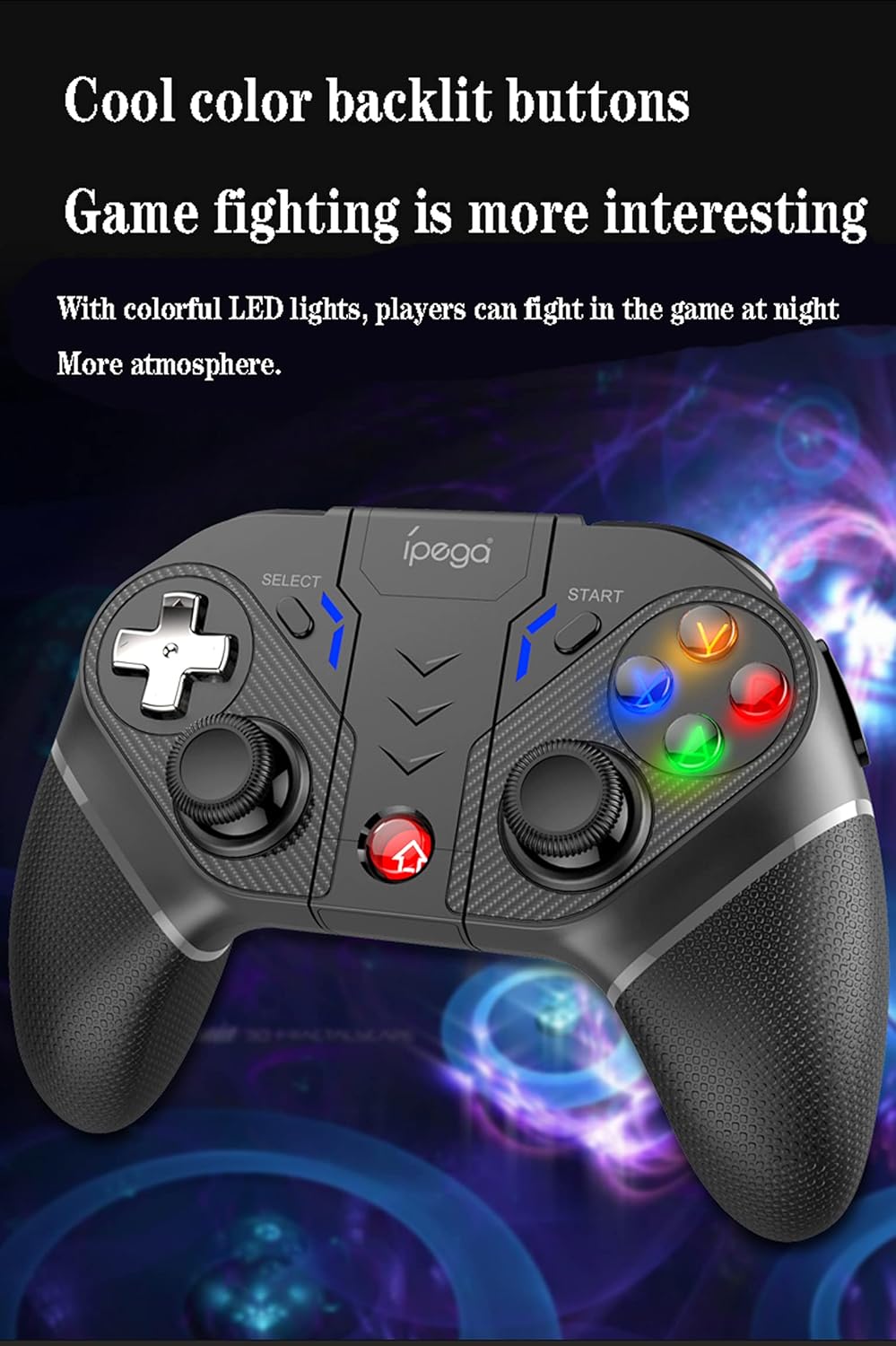
Figure 5.1: Comprehensive diagram illustrating all buttons and their respective labels on the ipega PG-9028 Wireless Gamepad.
- Left Analog Stick (L3): Movement, camera control. Press down for L3 button.
- Right Analog Stick (R3): Camera control, aiming. Press down for R3 button.
- D-pad: Directional input (Up, Down, Left, Right).
- Action Buttons (A/B/X/Y): Primary game actions. Backlit for visibility.
- HOME Button: Power on/off, return to home screen, mode switching.
- SELECT Button: Game-specific functions, often used for menus.
- START Button: Game-specific functions, often used for pausing or starting.
- L1/R1 (Shoulder Buttons): Quick actions, often for shooting or item use.
- L2/R2 (Trigger Buttons): Analog input for acceleration, braking, or precise actions.
- S1/S2/S3/S4 (Programmable Buttons): Custom mapping for complex actions.
- TURBO Button: Activates/deactivates Turbo function.
- CLEAR Button: Clears Turbo settings.
- Type-C Port: For charging and wired connection.
5.2 Programmable Buttons (S1-S4)
The PG-9028 features four customizable buttons (S1, S2, S3, S4) located on the back and side of the gamepad. These can be programmed to replicate single or multiple key presses, significantly improving efficiency in competitive gaming.

Figure 5.2: Location of the four programmable buttons (S1, S2, S3, S4) on the ipega PG-9028 gamepad, designed for custom key mapping.
Refer to the specific game or application settings for mapping these buttons, as the programming method may vary. Generally, you will enter a mapping mode on the gamepad (often by holding a combination of buttons) and then assign the desired input to S1-S4.
5.3 TURBO Function
The TURBO function allows you to set any action button (A/B/X/Y, L1/R1, L2/R2, etc.) to automatically repeat its input when held down, making rapid actions easier.

Figure 5.3: Visual guide for setting and clearing the TURBO function on the ipega PG-9028 gamepad, simplifying rapid button presses.
- Setting TURBO: Press and hold the desired action button (e.g., A) and then lightly press the TURBO button simultaneously. The action button will now have the TURBO function enabled.
- Clearing TURBO: To turn off the TURBO function for a specific button, press and hold the action button and then lightly press the TURBO button again. To clear all TURBO settings, press the CLEAR button.
Note: If the product is disconnected, previously set TURBO functions may be cleared and need to be reset upon reconnection.
5.4 Dual Motor Vibration
The gamepad features dual asymmetrical vibration motors that provide haptic feedback, enhancing immersion by simulating in-game impacts, explosions, and other events.

Figure 5.4: Visual representation of the dual motor vibration function in the ipega PG-9028 gamepad, providing realistic haptic feedback during gameplay.
Vibration intensity and availability depend on the game and platform. Ensure the game supports vibration feedback for this feature to function.
5.5 Backlit Buttons
The A/B/X/Y action buttons are equipped with colorful LED backlighting, improving visibility in dark environments and adding to the gaming atmosphere.

Figure 5.5: The ipega PG-9028 gamepad featuring cool color backlit buttons, enhancing visibility and aesthetic appeal during gameplay.
The backlighting is typically active when the gamepad is powered on. There may not be an option to turn off the lights independently on some models.
6. Maintenance
- Cleaning: Use a soft, dry cloth to clean the gamepad. Do not use harsh chemicals or abrasive materials.
- Storage: Store the gamepad in a cool, dry place away from direct sunlight and extreme temperatures.
- Battery Care: To prolong battery life, avoid fully discharging the gamepad frequently. Charge it regularly, even if not in use for extended periods.
- Avoid Drops: Protect the gamepad from drops and impacts, which can damage internal components.
7. Troubleshooting
| Problem | Possible Cause / Solution |
|---|---|
| Gamepad does not power on. | Battery may be depleted. Connect the gamepad to a power source using the Type-C cable and charge it for at least 30 minutes before attempting to power on again. |
| Unable to pair via Bluetooth. |
|
| Buttons are unresponsive or sticking. |
|
| Analog sticks have "dead zones" or inaccurate input. | This can sometimes be a characteristic of the controller's design or wear over time. Ensure the gamepad's firmware is up to date if an update tool is provided by ipega. For some games, adjusting in-game dead zone settings might help. |
| Gamepad disconnects frequently. |
|
8. Specifications
- Model: PG-9028
- Connectivity: Bluetooth 5.0, Wired (USB Type-C)
- Compatibility: Android 6.0+ Smartphones/Tablets, PS3, N-Switch, Windows PC
- Battery: Built-in Rechargeable Lithium Battery
- Charging Port: USB Type-C
- Features: Dual Vibration Motors, Programmable Buttons, TURBO Function, Backlit Buttons, Integrated Phone Holder
- Dimensions: Approximately 7 x 5.5 x 3 inches (17.8 x 14 x 7.6 cm)
- Weight: Approximately 10.4 ounces (295 grams)
9. Warranty and Support
This ipega product comes with a standard manufacturer's warranty. Please refer to the warranty card included in your package or visit the official ipega website for detailed warranty terms and conditions.
For technical support, troubleshooting assistance, or inquiries about replacement parts, please contact ipega customer service through their official website or the contact information provided with your purchase. Keep your purchase receipt as proof of purchase for warranty claims.


