
Lexmark E460DN
Lexmark E460DN Laser Printer User Manual
Model: E460DN
Introduction
This manual provides essential instructions for the Lexmark E460DN laser printer. Designed for small and midsize workgroups, the E460DN offers efficient, high-quality monochrome printing with advanced features. This document covers unpacking, setup, operation, maintenance, and troubleshooting to ensure optimal performance of your device.
The Lexmark E460DN is a Certified Refurbished product, meaning it has been tested and certified to function like new. It includes a toner drum and comes with a 90-day warranty.
Product Overview
The Lexmark E460DN is a compact laser printer featuring a light gray and dark gray exterior. It is equipped with a user-friendly control panel and supports various paper handling options.
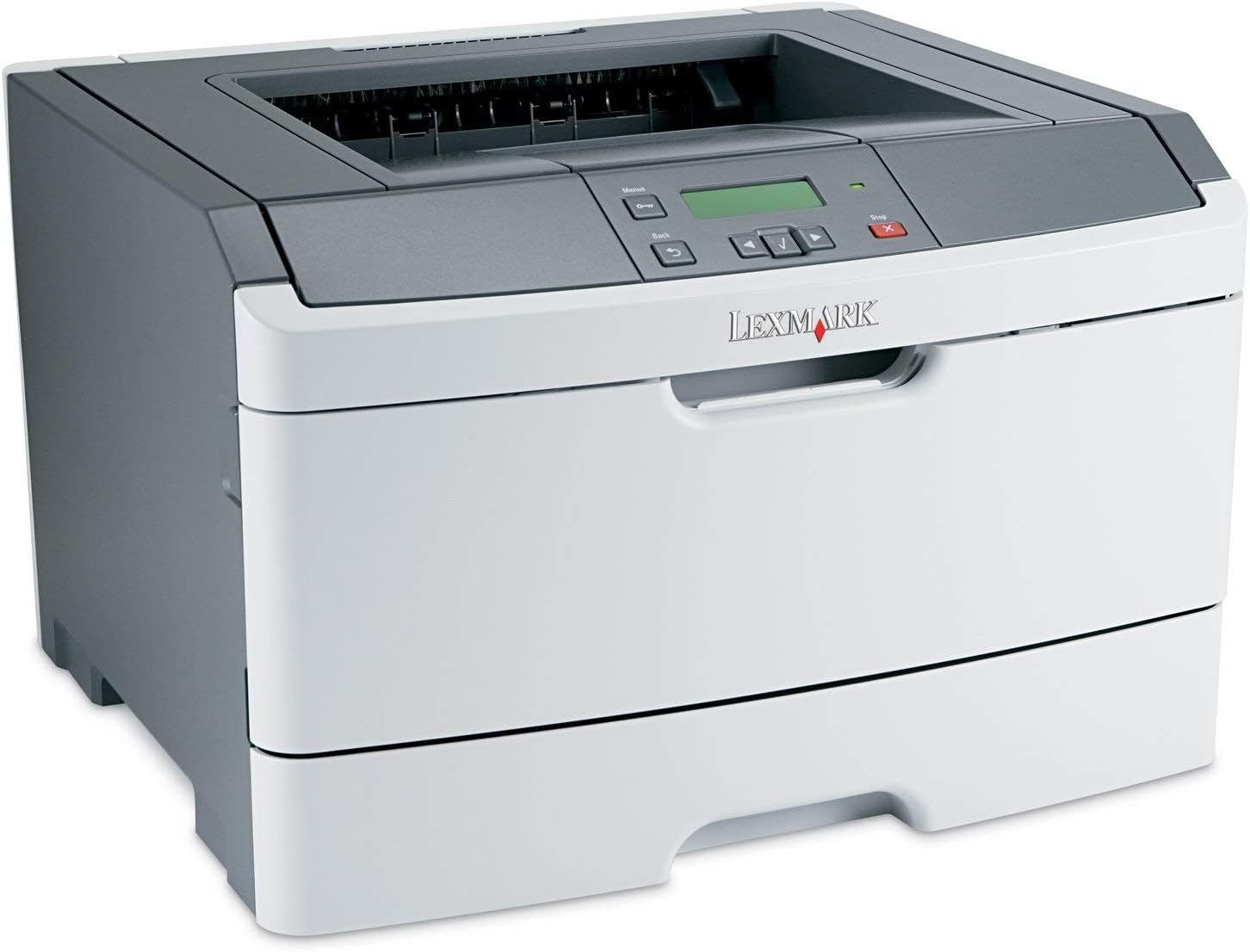
Figure 1: Front view of the Lexmark E460DN Laser Printer. The image displays the printer's light gray body with a dark gray top section, including the output tray and control panel. The Lexmark logo is visible on the front panel.
Key Features:
- Fast Print Speeds: Up to 40 pages per minute (ppm) for monochrome documents.
- High Print Quality: True 1200 x 1200 dpi resolution for sharp text and graphics.
- Automatic Duplexing: Standard feature for two-sided printing, reducing paper consumption.
- Network Ready: Ethernet connectivity for shared use in workgroup environments.
- User-Friendly Interface: Four-line operator panel for easy navigation and control.
- Enhanced Security: Numeric pad for confidential printing.
- Efficient Operation: Instant warm-up fuser for fast first-page-out times and reduced power consumption.
Setup Instructions
- Unpack the Printer: Carefully remove the printer from its packaging. Remove all packing materials, tapes, and protective films.
- Place the Printer: Position the printer on a stable, level surface with adequate ventilation. Ensure sufficient space around the printer for paper loading and output.
- Connect Power: Plug the power cord into the printer's power inlet, then into a grounded electrical outlet.
- Install Toner/Drum (if applicable): If the toner cartridge and imaging drum are not pre-installed, follow the instructions provided with the consumables to install them. For refurbished units, these components are typically pre-installed.
- Load Paper: Open the paper tray and adjust the paper guides to fit the paper size. Load the desired print media (e.g., plain paper, envelopes) into the tray.
- Connect to Network/Computer:
- Ethernet (Wired): Connect an Ethernet cable from the printer's Ethernet port to your network router or switch.
- USB (Optional, if available): Connect a USB cable from the printer to your computer.
- Install Drivers: Turn on the printer. Install the appropriate printer drivers on your computer. Drivers can usually be found on the manufacturer's website.
- Perform a Test Print: After driver installation, print a test page to confirm proper setup and connectivity.
Operating Instructions
Control Panel Navigation:
The Lexmark E460DN features a four-line display and several buttons for navigating menus and controlling printer functions. Use the arrow buttons to scroll through options and the 'Menu' or 'Select' button to confirm selections. The 'Back' button allows you to return to previous menus, and the 'Stop' button can cancel print jobs.
Basic Printing:
- Ensure the printer is powered on and connected to your computer or network.
- Open the document you wish to print on your computer.
- Select File > Print (or the equivalent command in your application).
- Choose the Lexmark E460DN from the list of available printers.
- Adjust print settings as needed (e.g., number of copies, paper size, print quality).
- For two-sided printing, select the duplex option in your printer settings. The E460DN supports automatic duplexing.
- Click Print.
Confidential Printing:
The printer supports confidential printing using a numeric pad. When sending a confidential print job from your computer, you will be prompted to enter a PIN. To release the job at the printer, enter the same PIN using the control panel's numeric pad.
Maintenance
Toner Cartridge and Imaging Drum Replacement:
The Lexmark E460DN uses a combined toner cartridge and imaging drum unit. The printer's control panel will display early-warning alerts for low toner. When prompted:
- Open the front access door of the printer.
- Carefully remove the old toner/drum unit by pulling it straight out.
- Unpack the new toner/drum unit and gently shake it to distribute the toner.
- Insert the new unit into the printer until it clicks into place.
- Close the front access door.
Dispose of used toner cartridges according to local regulations or return them to Lexmark for recycling.
Cleaning the Printer:
- Exterior: Wipe the exterior surfaces with a soft, damp, lint-free cloth. Do not use abrasive cleaners or solvents.
- Interior: Periodically clean the paper path and other accessible interior areas to remove dust and paper debris. Refer to the printer's on-screen messages or full service manual for detailed internal cleaning procedures.
Troubleshooting
This section provides solutions to common issues you may encounter with your Lexmark E460DN printer. For more complex problems, consult the full service manual or Lexmark support.
Common Issues and Solutions:
- Printer Not Responding:
- Check power connections and ensure the printer is turned on.
- Verify network or USB cable connections.
- Restart the printer and your computer.
- Ensure printer drivers are correctly installed and updated.
- Paper Jams:
- Follow the instructions on the printer's display or in the full service manual to locate and clear jammed paper.
- Ensure paper is loaded correctly and not overfilled in the tray.
- Use recommended paper types.
- Poor Print Quality:
- Check toner levels. Replace the toner/drum unit if low or empty.
- Ensure the imaging drum is clean and free from damage.
- Perform a print quality test from the printer's menu to diagnose issues.
- Clean the printer's interior as described in the maintenance section.
- Error Messages:
Refer to the customizable operator panel messaging for specific error codes or descriptions. Consult the full service manual for detailed explanations and solutions for each error message.
Specifications
| Feature | Specification |
|---|---|
| Model Number | E460DN |
| Printing Technology | Laser |
| Printer Output | Monochrome |
| Max Print Speed (Monochrome) | Up to 40 ppm (letter-size paper) |
| Print Resolution | 1200 x 1200 dpi |
| Duplex Printing | Automatic (Dual-sided printing) |
| Connectivity Technology | Wired; Ethernet |
| Hardware Interface | Ethernet |
| Memory Storage Capacity | 64 MB |
| Max Input Sheet Capacity | 300 sheets |
| Output Sheet Capacity | 150 sheets |
| Print Media Supported | Envelopes, Plain Paper |
| Product Dimensions | 14.55 x 15.98 x 10.2 inches |
| Color | Light Gray/Dark Gray |
| UPC | 748926547406 |
Warranty and Support
This Lexmark E460DN printer is a Certified Refurbished product and comes with a 90-day limited warranty. This warranty covers defects in materials and workmanship under normal use.
For warranty claims, technical support, or further assistance, please refer to the documentation provided with your refurbished product or contact the seller directly. Additional support resources may be available on the official Lexmark website.
Related documentsE460DN


Ask a question about this manual
Ask about setup, troubleshooting, compatibility, parts, safety, or missing instructions. Manuals+ will review the question and use this page’s manual context to help answer it.