
Mitel IP 480
Mitel ShoreTel IP 480 Telephone User Manual
Model: IP 480 (10576)
1. Introduction
This manual provides detailed instructions for the setup, operation, and maintenance of your Mitel ShoreTel IP 480 Telephone. The Mitel IP 480 is a Voice over IP (VoIP) phone designed for business communication, featuring a large backlit display, eight line appearances, and dedicated function keys for efficient call handling. Please read this manual thoroughly to ensure proper use and to maximize the functionality of your device.
2. Package Contents
Verify that all items are present in your package. If any items are missing or damaged, please contact your vendor immediately.
- Mitel ShoreTel IP 480 Telephone Unit (5 units)
- Handset (5 units)
- Handset Cord (5 units)
- Ethernet Cable (5 units)
- Desk Stand (5 units)

Image 2.1: Overview of the Mitel ShoreTel IP 480 Telephone. This image displays one of the five IP 480 telephone units, including the main phone body, handset, and desk stand, as typically found in the multi-pack.
3. Product Overview
The Mitel ShoreTel IP 480 is designed for intuitive communication. Key features include:
- Display: A large, backlit graphical display for clear visibility of call information, menus, and directories.
- Line Appearances: Eight programmable line appearances for managing multiple calls or lines.
- Fixed Feature Keys: Dedicated buttons for common functions such as Transfer, Conference, Hold, Call History, Voicemail, and Directory.
- Soft Keys: Five context-sensitive soft keys located below the display, whose functions change based on the phone's current state.
- Navigation Cluster: A four-way navigation pad with a select button for menu navigation.
- Volume Control: Dedicated buttons for adjusting handset, headset, and speakerphone volume.

Image 3.1: Close-up view of the Mitel ShoreTel IP 480's keypad and display. This image highlights the backlit display, the fixed feature keys (such as Transfer, Conference, Hold), the numeric keypad, and the context-sensitive soft keys.
4. Setup
Follow these steps to set up your Mitel ShoreTel IP 480 Telephone:
- Attach the Desk Stand: Align the desk stand with the slots on the back of the phone unit and snap it into place.
- Connect the Handset: Plug one end of the coiled handset cord into the handset and the other end into the handset port on the side of the phone unit.
- Connect the Ethernet Cable: Plug one end of the provided Ethernet cable into the LAN port on the back of the phone. Connect the other end to an active network port (e.g., a wall jack or network switch) that provides Power over Ethernet (PoE) or is connected to a power adapter (not included if PoE is used).
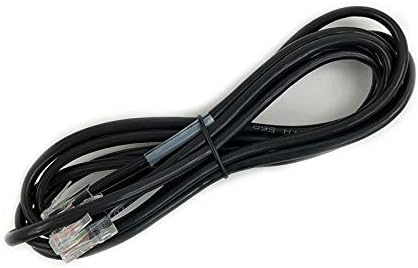
Image 4.1: Standard Ethernet cable. This cable is used to connect the Mitel IP 480 phone to your network, providing both data connectivity and power if Power over Ethernet (PoE) is available.
- Power On: The phone will automatically power on once connected to a PoE-enabled network port or an external power adapter. The display will illuminate, and the phone will begin its boot-up sequence.
- Initial Configuration: The phone will attempt to connect to your network and register with your IP PBX system. Follow any on-screen prompts or consult your system administrator for specific network settings if required.
5. Operating Instructions
5.1 Making and Receiving Calls
- To Make a Call: Lift the handset, press a line appearance button, or press the Speaker button. Dial the desired number using the keypad.
- To Answer a Call: Lift the handset, press the flashing line appearance button, or press the Speaker button.
- To End a Call: Replace the handset or press the Speaker button again if using speakerphone.
5.2 Using Fixed Feature Keys
- Transfer: During an active call, press the Transfer button, dial the new number, and then press Transfer again to complete.
- Conference: During an active call, press the Conference button, dial the number of the third party, and then press Conference again to join all parties.
- Hold: Press the Hold button to place an active call on hold. Press the flashing line button to retrieve the call.
- Voicemail: Press the Voicemail button to access your voicemail messages.
- Directory: Press the Directory button to access your personal or corporate directory.
- Call History: Press the Call History button to view a list of missed, received, and dialed calls.
5.3 Using Soft Keys
The five soft keys below the display provide context-sensitive options. Their labels will change depending on the phone's current state (e.g., idle, on a call, in a menu). Press the corresponding soft key to activate the displayed function.
5.4 Adjusting Volume
Use the Volume buttons (up/down arrows) located below the keypad to adjust the volume of the handset, speakerphone, or ringer, depending on the phone's current state.
6. Maintenance
Proper care ensures the longevity and optimal performance of your Mitel ShoreTel IP 480 Telephone.
- Cleaning: Use a soft, damp cloth to clean the phone's surface. Avoid abrasive cleaners, solvents, or harsh chemicals, as these can damage the plastic and display.
- Environment: Keep the phone away from direct sunlight, excessive heat, moisture, and dust. Ensure adequate ventilation around the device.
- Cords: Periodically check all cords for signs of wear or damage. Replace any damaged cords immediately.
7. Troubleshooting
If you encounter issues with your Mitel ShoreTel IP 480 Telephone, try the following troubleshooting steps:
- No Dial Tone/Cannot Make Calls:
- Check that the Ethernet cable is securely connected to both the phone and the network port.
- Ensure the network port is active and providing PoE (if applicable).
- Restart the phone by disconnecting and reconnecting the Ethernet cable.
- Contact your system administrator to verify network connectivity and phone registration status.
- Display is Blank/Not Working:
- Verify the phone is receiving power (check Ethernet cable connection or power adapter).
- Restart the phone.
- Poor Audio Quality:
- Check handset and handset cord connections.
- Adjust the volume using the volume buttons.
- Ensure there is no interference from other electronic devices.
- Contact your system administrator to check network quality.
- Buttons Not Responding:
- Restart the phone.
- Ensure no debris is lodged under the buttons.
If these steps do not resolve the issue, please contact your IT department or Mitel support for further assistance.
8. Specifications
The following are technical specifications for the Mitel ShoreTel IP 480 Telephone:
| Feature | Specification |
|---|---|
| Product Dimensions (L x W x H) | 10.3 x 6.7 x 4.7 inches |
| Item Weight | 2.59 pounds |
| Material | Plastic |
| Power Source | Corded Electric (typically Power over Ethernet) |
| Dialer Type | Single Keypad |
| Answering System Type | Digital (via connected PBX system) |
| Conference Call Capability | 3-way |
| Caller Identification | Yes |
9. Warranty and Support
The Mitel ShoreTel IP 480 Telephone is manufactured by Mitel. For information regarding warranty coverage, technical support, or service, please refer to the official Mitel website or contact your authorized Mitel reseller. Keep your purchase receipt and product serial numbers handy when contacting support.
Related documentsIP 480


Ask a question about this manual
Ask about setup, troubleshooting, compatibility, parts, safety, or missing instructions. Manuals+ will review the question and use this page’s manual context to help answer it.