Introduction
This manual provides essential information for setting up, operating, maintaining, and troubleshooting your Dell Precision 3510 Business Workstation Laptop PC. This product has been professionally inspected and tested to ensure it functions and appears like new, as part of the Amazon Renewed program.

Figure 1: Dell Precision 3510 Laptop displaying the Windows 10 operating system desktop.
Setup
1. Unpacking
Carefully remove the laptop and all accessories from the packaging. Ensure the power adapter is present.
2. Connecting the Power Adapter
- Connect the power cable to the power adapter.
- Plug the power adapter into a wall outlet.
- Connect the adapter's barrel connector to the power input port on the laptop. The power input port is typically located on the side or rear of the laptop.
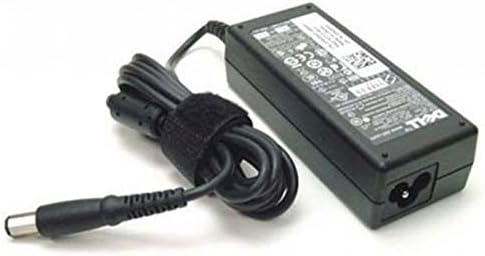
Figure 2: The Dell laptop power adapter, used to supply power to the device.
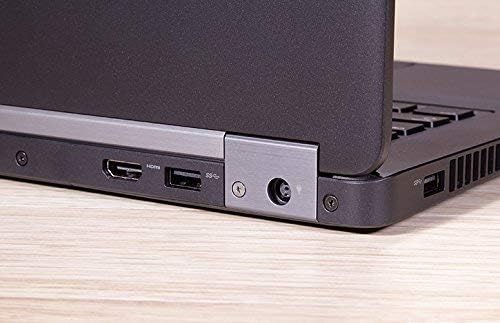
Figure 3: A close-up view of the laptop's side, illustrating the HDMI port, a USB port, and the circular power input port.
3. Initial Boot
Once connected to power, open the laptop lid and press the power button, usually located above the keyboard or on the side. The laptop will begin the boot process. Follow any on-screen instructions for initial Windows 10 setup.
Operating
1. Power On/Off
- To Power On: Press the power button.
- To Shut Down: Click the Start button (Windows icon) > Power > Shut down.
- To Restart: Click the Start button (Windows icon) > Power > Restart.
- To Sleep: Click the Start button (Windows icon) > Power > Sleep, or close the laptop lid.
2. Using the Keyboard and Touchpad

Figure 4: The full keyboard layout with numeric keypad and the integrated touchpad with physical buttons on the Dell Precision 3510.
The laptop features a full-size keyboard and a multi-touch touchpad. Use the touchpad for cursor control and gestures. External mice can be connected via USB ports.
3. Connecting Peripherals
The Dell Precision 3510 offers various ports for connecting external devices:
- USB Ports: For connecting external drives, mice, keyboards, and other USB devices.
- HDMI Port: For connecting to external displays or projectors.
- VGA Port: For connecting to older external displays or projectors.
- Ethernet Port (RJ-45): For wired network connections.
- Audio Jack: For headphones or external speakers.

Figure 5: A detailed view of the laptop's side, highlighting the Ethernet (RJ-45) port and the VGA port for video output.
Maintenance
1. Cleaning
- Screen: Use a soft, lint-free cloth slightly dampened with water or a screen cleaner. Do not spray liquid directly onto the screen.
- Keyboard and Chassis: Use a soft cloth. A can of compressed air can help remove dust from between keys.
2. Battery Care
To prolong battery life, avoid extreme temperatures and do not leave the laptop fully charged or fully discharged for extended periods. For optimal performance, allow the battery to discharge partially before recharging.
3. Software Updates
Regularly update your Windows 10 operating system and drivers to ensure optimal performance and security. Access Windows Update through the Settings menu.
Troubleshooting
This section addresses common issues you might encounter with your Dell Precision 3510.
1. Laptop Not Powering On
- Ensure the power adapter is securely connected to both the laptop and a working wall outlet.
- Verify the wall outlet is functional by plugging in another device.
- If using a power strip, ensure it is switched on.
2. Display Issues
- If the screen is blank, try adjusting the display brightness using the function keys (Fn + F-keys).
- If an external monitor is connected, ensure the correct display output is selected (Fn + F-keys, or Windows Display Settings).
- Restart the laptop.
3. Slow Performance
- Close unnecessary applications running in the background.
- Check for and install any pending Windows updates.
- Ensure sufficient free space on the SSD.
- Run a virus and malware scan.
Specifications
| Model | Dell Precision 3510 |
| Processor | Intel Quad Core i5-6440HQ (2.3 GHz) |
| RAM | 8 GB DDR4 |
| Storage | 256 GB SSD |
| Graphics | AMD FirePro W5130M 2GB GDDR5 |
| Display | 15.6 Inches, 1366 x 768 pixels |
| Operating System | Windows 10 Home |
| Wireless Connectivity | 802.11abg, 802.11bgn, 802.11n |
| Ports | HDMI, USB, Ethernet (RJ-45), VGA, Audio Jack |
| Dimensions (LxWxH) | 14.8 x 10 x 1.2 inches |
| Weight | 8.86 pounds |
Warranty and Support
Amazon Renewed Guarantee
This Dell Precision 3510 laptop is covered by the Amazon Renewed Guarantee. If you are not satisfied with your purchase, renewed products are eligible for replacement or refund within 90 days of receipt under this guarantee. For specific terms and conditions, please refer to the Amazon Renewed program details.
Technical Support
For any technical issues or questions not covered in this manual, please contact the seller directly through your Amazon order history for assistance. They can provide product-specific support and guidance.


