1. Introduction
The SmartSee MiraScreen K6 is a wireless display adapter designed to mirror content from your mobile devices (iOS, Android, Mac OS, Windows) to a larger screen such as an HDTV, projector, or monitor. It supports 1080P and 4K (3840x2160) resolution and operates on a dual-core 1.6Ghz chipset for efficient performance. This device supports multiple wireless display protocols including DLNA, Airplay, and Miracast without requiring manual mode switching.
This manual provides detailed instructions for setting up, operating, and maintaining your MiraScreen K6 adapter.
Package Contents
- 1 x SmartSee MiraScreen K6 Wireless Display Dongle
- 1 x WiFi Antenna Cable
- 1 x English User Manual
2. Product Overview
The MiraScreen K6 dongle allows for seamless screen mirroring with low latency, providing a real-time wireless display experience within an effective distance of 10 meters.

Image: The SmartSee MiraScreen K6 Wireless Display Adapter connected to a TV, mirroring a smartphone screen. The image highlights low latency and real-time wireless mirroring.
The device is compatible with a wide range of operating systems and supports various mirroring protocols.

Image: Icons illustrating compatibility with iOS, Android, Mac OS, and Windows operating systems, as well as support for Airplay, DLNA, and Miracast protocols.
3. Setup Instructions
Setting up the MiraScreen K6 is a simple three-step process: plug, connect, and mirror.
3.1 Hardware Connection
- Plug the MiraScreen K6 dongle into an available HDMI port on your TV, projector, or monitor.
- Connect the USB power cable to the dongle and then to a USB power adapter (not less than 5V/1A) or a USB port on your display device for power.
- Ensure the WiFi antenna cable is securely connected to the dongle.

Image: A diagram illustrating the connection of the MiraScreen K6 dongle to a display device. The dongle connects to the HDMI port, and its USB cable connects to a USB power source (either a power adapter or the display's USB port).
Once connected, power on your display device and select the correct HDMI input source. The MiraScreen K6 setup screen will appear.
3.2 Initial Configuration (Connecting to Internet)
To enable streaming from the internet or for OTA updates, connect the dongle to your home Wi-Fi network.
- On your mobile device (phone/tablet), connect to the MiraScreen K6's Wi-Fi network. The SSID (network name) and password will be displayed on your TV screen (e.g., SSID: MiraScreen-XXXX, Password: 12345678).
- Open a web browser on your mobile device and navigate to the IP address displayed on the TV screen (e.g., 192.168.203.1). This will open the MiraScreen K6's Setting Menu.
- In the Setting Menu, select "Internet" or "Wi-Fi Setup" and choose your home Wi-Fi network from the list. Enter your Wi-Fi password and confirm the connection.
- Your mobile device can now disconnect from the MiraScreen K6's Wi-Fi and reconnect to your home Wi-Fi. The MiraScreen K6 will remain connected to your home Wi-Fi.
Video: A demonstration of the MiraScreen K6 dongle setup process, including connecting to its Wi-Fi and configuring internet access via the web interface.
4. Operating Instructions
4.1 For iOS Devices (iPhone/iPad)
- Ensure your iOS device is connected to the same Wi-Fi network as the MiraScreen K6 (or directly to the MiraScreen K6's Wi-Fi if not connected to the internet).
- Swipe down from the top-right corner (or up from the bottom for older models) to open the Control Center.
- Tap on "Screen Mirroring" or "AirPlay Mirroring".
- Select the MiraScreen K6 dongle from the list of available devices. Your iOS device screen will now be mirrored to the display.
Video: A demonstration showing how to wirelessly cast an iPhone screen to a TV using the MiraScreen 4K dongle via AirPlay Mirroring.
4.2 For Android Devices
Android devices typically use Miracast for screen mirroring. The exact name of the feature may vary by device.
- On your Android device, navigate to the settings menu and look for screen mirroring features such as "Miracast", "Screen Mirroring", "Smart View", "Wi-Fi Display", or "Casting".
- Enable this feature and select the MiraScreen K6 dongle from the list of available devices.
Alternatively, you can use the EZMira App for easier connection:
- Download the EZMira App from the Google Play Store.
- Open the EZMira App and follow the on-screen instructions to connect to the MiraScreen K6 dongle for screen mirroring.

Image: A smartphone displaying a video game, with the same game mirrored onto a larger monitor, demonstrating the ability to play games on a big screen using the MiraScreen K6 dongle.
The MiraScreen K6 allows for sharing various content, from personal photos to presentations.
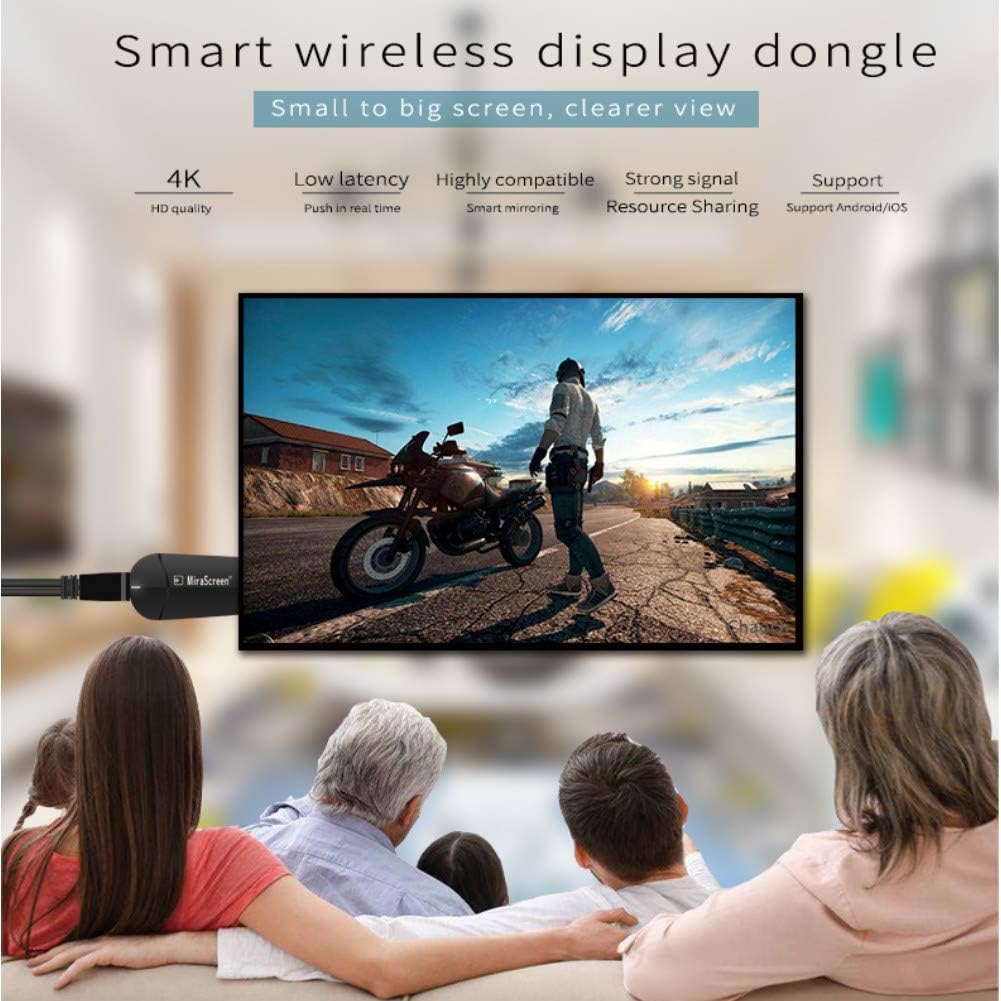
Image: A family seated on a couch, watching content displayed on a large television screen, which is being mirrored wirelessly from a device using the SmartSee dongle.
5. Maintenance
The MiraScreen K6 is designed for low maintenance. Keep the device in a cool, dry place. Avoid exposing it to extreme temperatures or moisture.
5.1 Firmware Updates (OTA)
The device supports Over-The-Air (OTA) firmware updates. When connected to the internet, the dongle will automatically check for and install the newest firmware version to ensure compatibility with the latest iOS/Android/Windows systems and to add new features.
5.2 Factory Reset
If you encounter persistent issues or wish to clear all settings, you can perform a factory reset.
- Locate the small button on the side of the MiraScreen K6 dongle.
- Press and hold this button for approximately 5-10 seconds until the display screen indicates a reset is in progress or the device reboots.

Image: A close-up view of the MiraScreen K6 dongle, highlighting the button used for factory reset. A long press on this button restores factory settings.
6. Troubleshooting
- No display on TV: Ensure the dongle is properly plugged into the HDMI port and receiving adequate power (5V/1A minimum). Check that your TV is set to the correct HDMI input.
- Unstable connection/lag: Ensure the dongle is within 10 meters of your casting device. Reduce interference from other wireless devices. Ensure the dongle has a strong Wi-Fi signal if connected to your home network.
- Cannot connect to MiraScreen Wi-Fi: Verify the SSID and password displayed on the TV screen. Try restarting the dongle by unplugging and re-plugging its power source.
- Cannot mirror certain apps (e.g., Netflix, Amazon Video, HBO Go): Due to copyright protection, some streaming services do not allow screen mirroring. This is a limitation of the content providers, not the MiraScreen K6.
- Android device not finding dongle: Ensure your Android device's Miracast feature is enabled and named correctly (e.g., Screen Mirroring, Smart View, Wi-Fi Display). If issues persist, try using the EZMira App.
- Dongle gets hot: It is normal for the device to generate some heat during operation. Ensure it has adequate ventilation and is not covered. If it becomes excessively hot and malfunctions, discontinue use and contact support.
7. Specifications
| CPU | Dual core AM8272 1.6Ghz |
| Operating System | Linux 3.0.8 |
| DDR3 RAM | 128MB |
| Wireless Protocols | DLNA, Airplay, Miracast |
| System Requirements | iOS 9+, Android 4.4+, Mac OS, Windows 8.1+ (Miracast enabled) |
| Supported Resolutions | 3840*2160_30P (4K), 1920*1080_60P (1080P), 1280*720_60P (720P) |
| Connectivity | Wi-Fi (2.4Ghz) |
| Connectors | HDMI, USB (for power) |
| Dimensions | 2.6 x 1.4 x 0.5 inches |
| Weight | 1.76 ounces |
8. Warranty and Support
For warranty information and technical support, please refer to the documentation provided with your purchase or contact SmartSee customer service through their official channels. Regular firmware updates are provided to enhance product performance and compatibility.