
1. Introduction
Thank you for choosing the VEIKK A50 Graphics Tablet. This manual provides detailed instructions on how to set up, operate, and maintain your new drawing tablet. The VEIKK A50 is designed to enhance your digital artwork creation with its large working area, advanced pressure sensitivity, and customizable shortcut keys, offering a seamless and intuitive experience for artists and designers.
2. What's in the Box
Please check the contents of your package to ensure all items are present:
- VEIKK A50 Drawing Tablet
- Battery-Free Passive Pen
- USB-C Cable
- Replacement Pen Nibs (8 pieces)
- Nib Removal Tool
3. Product Overview
The VEIKK A50 graphics tablet features a sleek design with a large active area and intuitive controls for an optimal drawing experience.

Figure 3.1: VEIKK A50 Graphics Tablet with its battery-free passive pen, showcasing its overall design.
3.1 Tablet Features
- Large Working Area: The tablet offers a 10 x 6 inch active drawing area, providing ample space for creative work.
- 8 Hard Shortcut Keys: Located on the side, these keys can be customized to perform various functions, reducing reliance on the keyboard.
- 1 Gesture Touch Pad: A dedicated touch area for quick adjustments like zoom and brush size, enhancing workflow efficiency.
- Type-C Port: For convenient and stable connection, allowing reversible plug-in, which is more user-friendly.
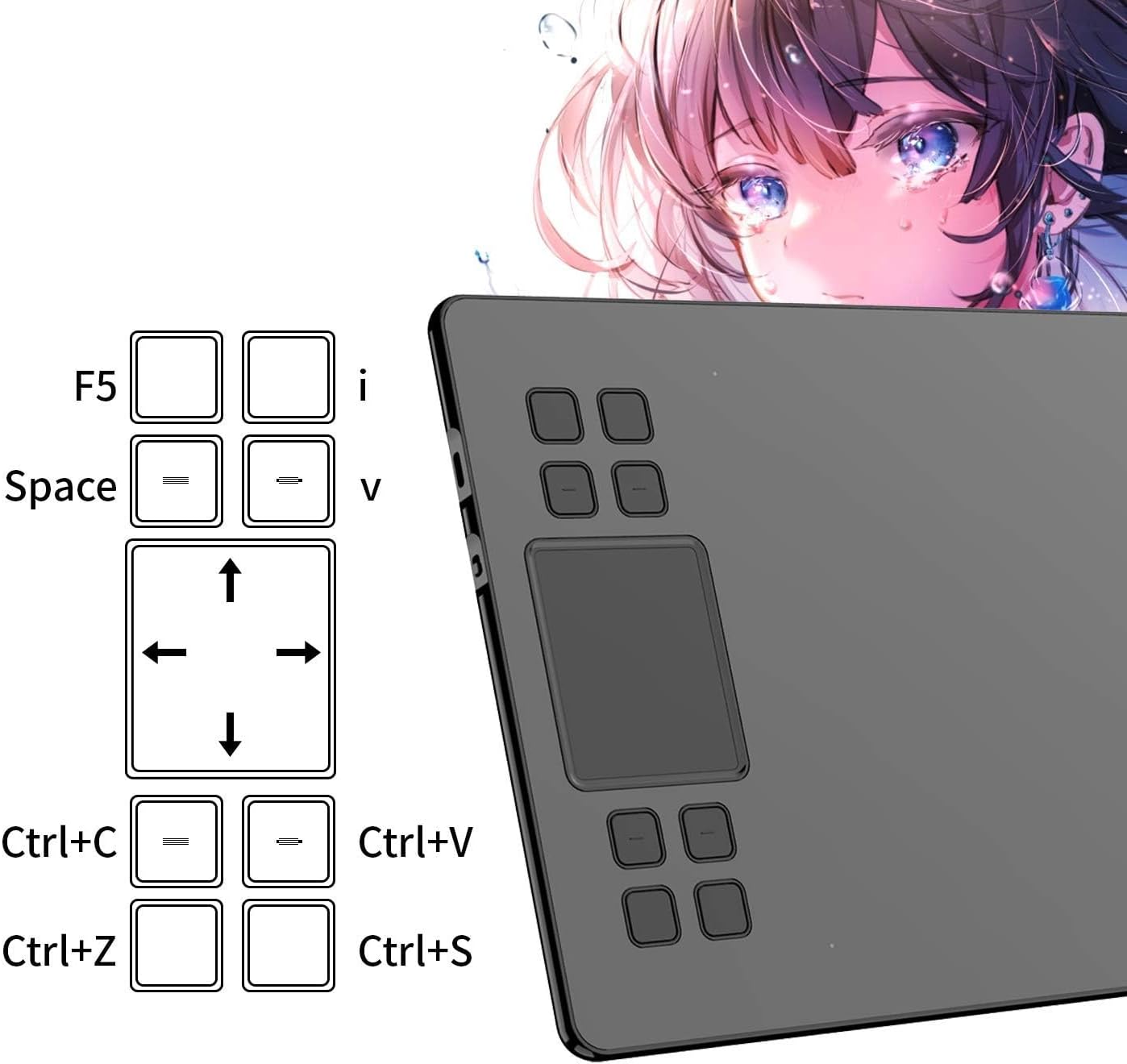
Figure 3.2: Detailed view of the 8 customizable shortcut keys and the central gesture touchpad on the VEIKK A50 tablet.
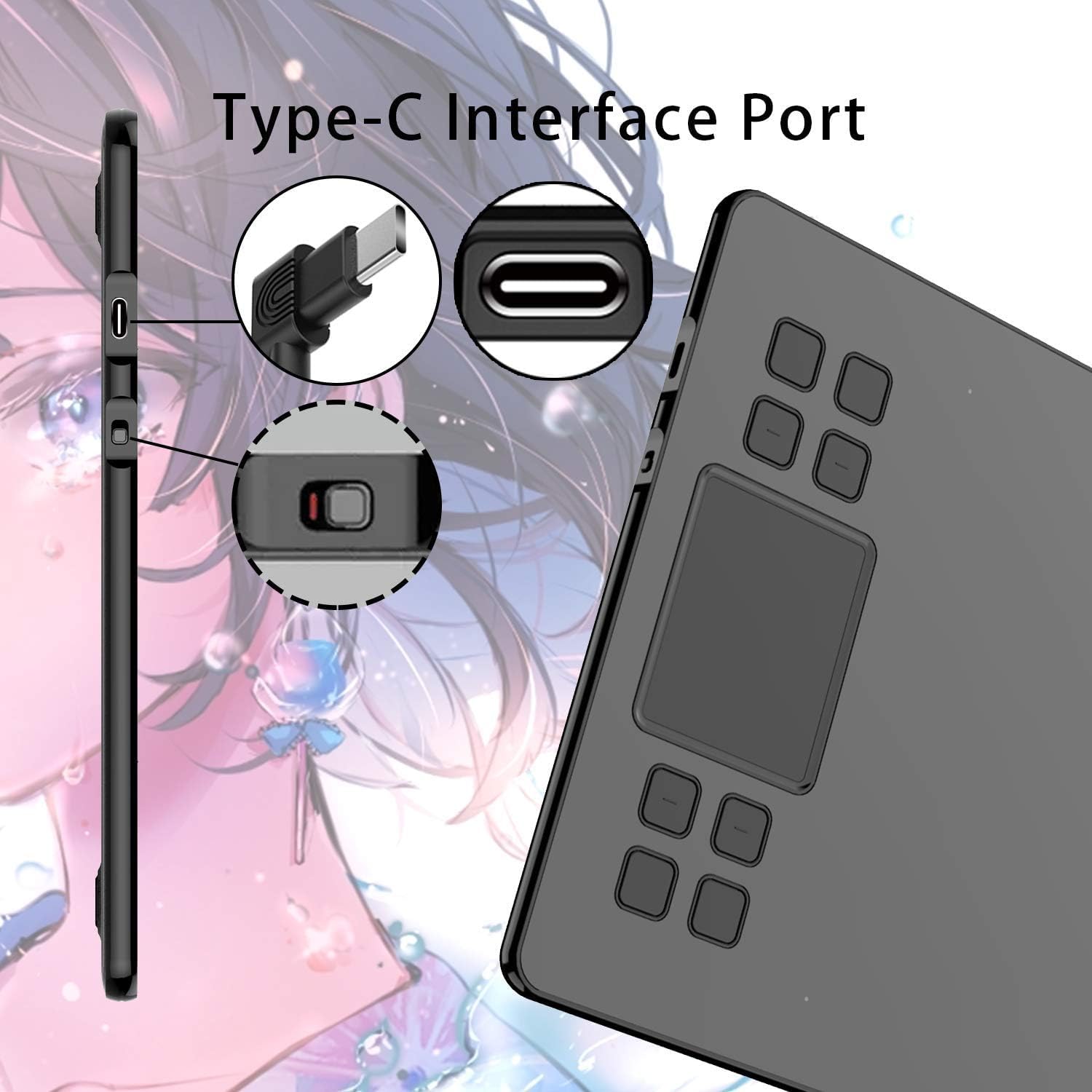
Figure 3.3: Close-up of the reversible Type-C port for easy and stable connection.
3.2 Passive Pen Features
The included passive pen is designed for comfort and precision, requiring no batteries or charging.
- Battery-Free: The pen does not require charging, ensuring uninterrupted workflow.
- 8192 Pressure Sensitivity Levels: Provides precise control over line thickness and opacity, mimicking traditional art tools.
- Tilt Function Support: Supports up to 60 degrees of tilt brush effect for natural shading and strokes, enhancing artistic expression.

Figure 3.4: The battery-free passive pen highlighting its 8192 pressure sensitivity, 5080 LPI resolution, and 250 PPS data report rate.
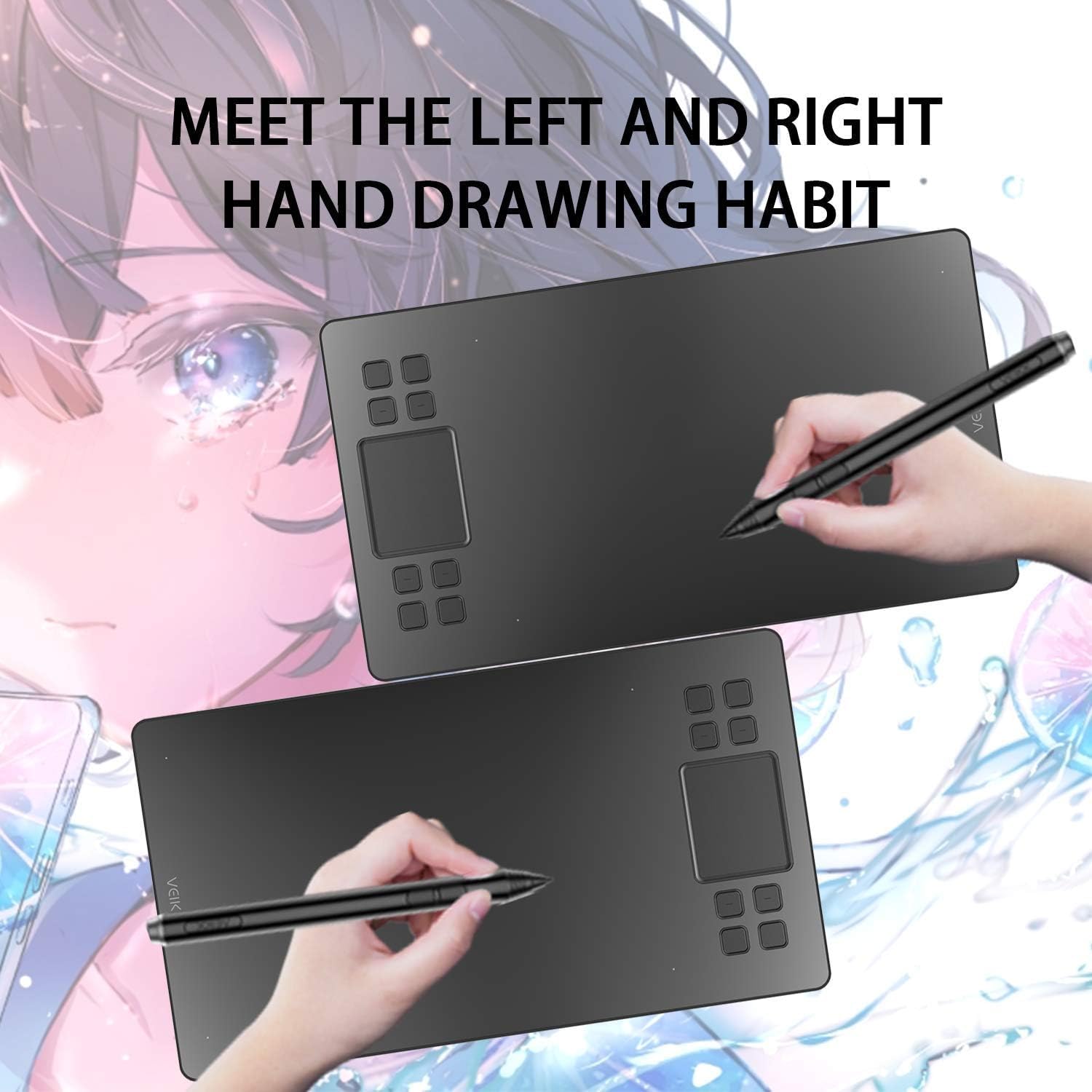
Figure 3.5: The VEIKK A50 tablet is designed to accommodate both left and right-handed drawing habits, ensuring comfort for all users.
4. Setup Guide
4.1 Driver Installation
Before connecting your VEIKK A50 tablet to your computer, it is crucial to install the correct drivers. This ensures full functionality and optimal performance.
- Download Drivers: Visit the official VEIKK website (www.veikk.com) to download the latest drivers for your specific operating system (Windows, macOS, or Linux).
- Uninstall Previous Drivers: If you have any other tablet drivers installed, uninstall them completely before proceeding to avoid conflicts.
- Install Drivers: Run the downloaded installer and follow the on-screen instructions. Grant any necessary permissions during installation.
- Restart System: After installation, restart your computer to ensure the drivers are properly loaded and recognized by the system.
4.2 Connecting the Tablet
Once the drivers are installed and your system has restarted, connect the tablet:
- Connect one end of the provided USB-C cable to the Type-C port on the VEIKK A50 tablet.
- Connect the other end of the USB-C cable to an available USB port on your computer.
- The tablet should be recognized by your system. You can then open the VEIKK driver software to customize settings and test functionality.
5. Operating Instructions
5.1 Using the Passive Pen
The battery-free passive pen is your primary tool for interaction with the tablet. It offers 8192 levels of pressure sensitivity and supports tilt function for a natural drawing experience.
- Hold the pen as you would a regular pencil. The active area of the tablet corresponds to your monitor screen.
- Apply varying pressure to achieve different line thicknesses and opacities in your drawing software.
- The pen has two customizable buttons. By default, one button often acts as a right-click or eraser toggle. These can be remapped in the driver software to suit your preferences.

Figure 5.1: An artist using the VEIKK A50 Graphics Tablet with a computer monitor, demonstrating active use.
5.2 Customizing Shortcut Keys and Gesture Touchpad
The VEIKK A50 features 8 customizable shortcut keys and a gesture touchpad to streamline your workflow and enhance productivity.
- Shortcut Keys: Open the VEIKK driver software to assign specific functions (e.g., undo, zoom in/out, brush size, specific keyboard shortcuts) to each of the 8 physical keys. This allows for quick access to frequently used commands.
- Gesture Touchpad: The touchpad supports various gestures for quick actions. Refer to the driver software for default gestures and customization options. Common uses include adjusting brush size or zooming in/out with intuitive finger movements.
You can create different profiles within the driver software for various applications (e.g., Photoshop, Clip Studio Paint, Blender), allowing the keys and touchpad to have different functions depending on the active program, optimizing your workflow for each software.
6. System Compatibility
The VEIKK A50 Graphics Tablet is compatible with a wide range of operating systems and creative software, ensuring broad usability:
- Operating Systems:
- Windows 10/8/7 (32/64bit) or later
- Mac OS 10.12 or later
- Linux OS
- Android 6.0 and above (requires OTG connector, please note it is not compatible with Samsung devices)
- Chrome OS 88 and above
- Software Compatibility: Compatible with most major drawing and design programs, including but not limited to: Adobe Photoshop, Paint Tool SAI, Corel Painter, Adobe Illustrator, Clip Studio Paint, Krita, Manga Studio, and many others.
7. Maintenance and Care
Proper care and maintenance will extend the lifespan of your VEIKK A50 Graphics Tablet:
- Cleaning: Use a soft, dry cloth to gently wipe the tablet surface and pen. Avoid using harsh chemicals, abrasive cleaners, or excessive moisture, which can damage the device.
- Pen Nibs: Replace the pen nib when it becomes worn down or feels rough. Use the provided nib removal tool to gently pull out the old nib and insert a new one firmly.
- Storage: When not in use, store the tablet and pen in a clean, dry place away from direct sunlight, extreme temperatures, and high humidity.
- Cable Care: Avoid bending or twisting the USB-C cable excessively, especially near the connectors, to prevent internal wire damage.
8. Troubleshooting
8.1 Common Issues and Solutions
- No Pen Pressure / Pen Not Working:
- Ensure drivers are correctly installed and updated. Uninstall any conflicting tablet drivers from other brands.
- Restart your computer after driver installation.
- Check the USB-C cable connection. Try a different USB port on your computer.
- Test the pen on the tablet surface. If the cursor moves but there's no pressure, check your drawing software's brush settings and the VEIKK driver settings for pressure sensitivity.
- Tablet Not Recognized:
- Verify the USB-C cable is securely connected to both the tablet and the computer.
- Try connecting to a different USB port on your computer.
- Ensure the correct drivers are installed for your operating system.
- Restart your computer.
- Shortcut Keys / Touchpad Not Responding:
- Open the VEIKK driver software and ensure the keys and touchpad are properly configured and enabled.
- Check if there are any conflicting software or hotkey programs running that might interfere with the tablet's functions.
- Ensure the VEIKK driver application is running in the background.
For further assistance, please visit the official VEIKK support website or contact customer service.
9. Specifications
| Feature | Detail |
|---|---|
| Model | A50 |
| Active Area | 10 x 6 inches |
| Pressure Sensitivity | 8192 Levels |
| Report Rate | 250 PPS |
| Resolution | 5080 LPI |
| Tilt Support | 60 degrees |
| Shortcut Keys | 8 customizable keys |
| Gesture Control | 1 gesture touchpad |
| Connectivity | USB Type-C |
| Product Dimensions | 14.09 x 7.87 x 0.35 inches (358 x 200 x 9 mm) |
| Item Weight | 1.18 pounds (540g) |
| Operating System Compatibility | Windows 10/8/7, Mac OS 10.12+, Linux OS, Android 6.0+, Chrome OS 88+ |

Figure 9.1: Physical dimensions (358mm x 200mm x 9mm) and weight (540g) of the VEIKK A50 tablet.
10. Warranty and Support
VEIKK is committed to providing high-quality products and excellent customer service. For information regarding product warranty, technical support, driver updates, or frequently asked questions, please visit the official VEIKK website:
Please retain your purchase receipt for warranty claims and for faster support.


