
Introduction
The Yale Assure Lock SL is a slim, key-free deadbolt with a touchscreen keypad, designed for modern smart homes. This smart lock offers convenient keyless entry and advanced control features through its Wi-Fi and Bluetooth connectivity. It allows users to manage access, monitor activity, and integrate with various smart home systems, providing enhanced security and convenience for your home.
Key Features
- Key-Free Entry: Replaces your existing deadbolt with a slim, key-free touchscreen keypad.
- Remote Access: Lock, unlock, share access, and monitor activity from anywhere using the Yale Access App.
- Wi-Fi Connectivity: Includes a Wi-Fi Connect Bridge, eliminating the need for an additional hub.
- Auto-Unlock & Auto-Relock: Automatically unlocks as you approach with your phone and relocks when the door is closed.
- Voice Assistant Integration: Compatible with Amazon Alexa, Hey Google, and Siri for voice control and notifications.
- Custom Entry Codes: Create unique, time-limited, or permanent entry codes for trusted individuals.
- Easy Installation: Installs in minutes with just a screwdriver on standard doors (1-3/8" to 2-1/4" thick).
Setup & Installation
Installation Overview
The Yale Assure Lock SL is designed for straightforward installation, typically requiring only a screwdriver. It replaces your existing deadbolt and is compatible with standard doors ranging from 1-3/8" to 2-1/4" thick. Ensure your door is properly aligned and the deadbolt operates smoothly before beginning installation.
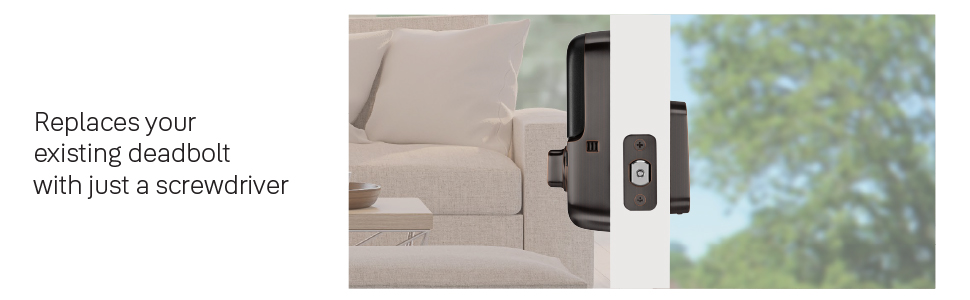
The Yale Assure Lock SL can be installed using a standard screwdriver, replacing your existing deadbolt.
App Integration
To fully utilize the smart features of your Yale Assure Lock SL, download the Yale Access App. The included Wi-Fi Connect Bridge allows seamless integration with your home Wi-Fi network, enabling remote control and monitoring. Follow the in-app instructions to pair your lock and bridge.
Operating Instructions
Keyless Entry via Touchscreen
To unlock the door using the touchscreen keypad, simply enter your personalized 4-digit (or longer) entry code and press the checkmark icon. To lock the door, press any key on the keypad or tap the Yale logo at the top of the screen.

A user entering a code on the Yale Assure Lock SL touchscreen for keyless entry.
Smartphone Control
The Yale Access App provides complete control over your smart lock from anywhere. You can remotely lock or unlock your door, check its status, and view activity logs. The app also allows you to manage user access and customize settings.
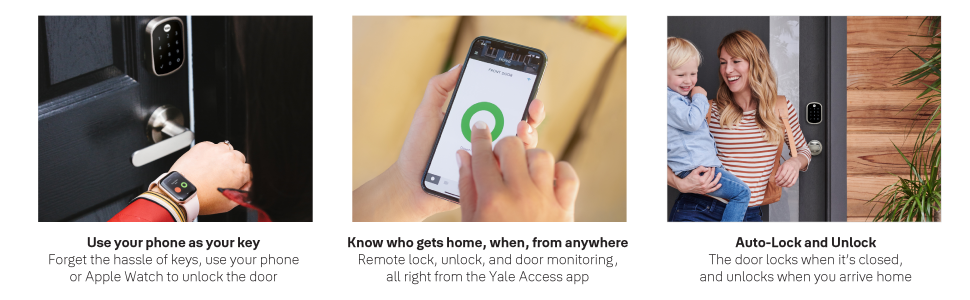
The Yale Access App allows remote locking, unlocking, and monitoring of your smart lock.
Auto-Lock and Auto-Unlock
Enable the Auto-Unlock feature in the Yale Access App, and your door will automatically unlock as you approach with your smartphone. The Auto-Relock feature ensures the door locks automatically after a set period once it's closed, providing peace of mind.
Voice Assistant Integration
The Yale Assure Lock SL integrates with popular voice assistants such as Amazon Alexa, Hey Google, and Siri. This allows you to lock, unlock, and check the status of your door using simple voice commands. Alexa can also provide notifications for low battery levels.
The Yale Assure Lock SL is compatible with major voice assistant platforms for convenient control.
Managing Access Codes
Through the Yale Access App, you can easily create and manage unique entry codes for family, friends, or service providers. Codes can be set as permanent, scheduled for specific times, or temporary, and can be revoked at any time.
Maintenance
Battery Replacement
The Yale Assure Lock SL requires 4 AA batteries (included). The lock will provide low battery notifications through the Yale Access App and on the lock itself. Battery life can vary based on usage, but users have reported approximately 5 months of use before needing replacement. For optimal performance, use high-quality alkaline batteries.
Troubleshooting
Common Issues and Solutions
- Door not locking/unlocking smoothly: Ensure the door is properly aligned and pull the door towards you slightly when operating the lock, especially if there is resistance.
- App glitches or connectivity issues: Try uninstalling and reinstalling the Yale Access App. Ensure your Wi-Fi Connect Bridge is within range and connected to a stable Wi-Fi network.
- Keypad unresponsive in cold weather: Extreme cold can affect touchscreen responsiveness. Ensure the lock is within its operating temperature range.
- Wi-Fi connection problems: Avoid using special characters in your Wi-Fi password, as some devices may have compatibility issues.
- Battery life shorter than expected: High usage or extreme temperatures can reduce battery life. Ensure you are using fresh, high-quality alkaline batteries.
Specifications
| Feature | Detail |
|---|---|
| Brand | Yale |
| Model Name | Yale Assure |
| Model Number | YRD256-CBA-0BP |
| Color | Oil Rubbed Bronze |
| Lock Type | Keypad, Smart Lock |
| Connectivity Protocol | Wi-Fi |
| Control Method | App |
| Compatible Voice Assistants | Amazon Alexa, Google Assistant, Siri |
| Power Source | 4 AA batteries (included) |
| Product Dimensions | 0.69 x 2.56 x 3.56 inches |
| Item Weight | 0.01 ounces |
Warranty & Support
Warranty Information
For detailed warranty information regarding your Yale Assure Lock SL, please refer to the documentation included with your product or visit the official Yale website. Warranty terms typically cover manufacturing defects and may vary by region.
Customer Support
If you encounter any issues or have questions not covered in this manual, please contact Yale customer support. Contact information can be found on the Yale website or in your product packaging.