
Sony XAV-AX3005DB
Contents
Sony XAV-AX3005DB Car Stereo User Manual
Model: XAV-AX3005DB | Brand: Sony
1. Introduction
This manual provides essential information for the safe and effective operation of your Sony XAV-AX3005DB 2DIN car stereo. This multimedia receiver features a 6.95-inch touchscreen, DAB+ digital radio, Apple CarPlay, and Android Auto compatibility, enhancing your in-car entertainment and connectivity experience.
Please read this manual thoroughly before using the unit and keep it for future reference.
2. Safety Information
Observe the following safety precautions to prevent accidents, injury, or damage to the unit:
- Professional Installation: It is highly recommended to have this unit installed by a qualified professional to ensure correct wiring and functionality.
- Driving Safety: Do not operate the unit in a way that distracts you from driving. Always keep your eyes on the road and hands on the steering wheel.
- Volume Levels: Keep the volume at a level where you can still hear outside traffic sounds. Prolonged exposure to high volume can cause hearing damage.
- Power Supply: Connect the unit only to a 12V DC car battery with a negative ground. Incorrect wiring can cause fire or malfunction.
- Wiring: Ensure all wiring is securely connected and insulated to prevent short circuits. Refer to the wiring diagram for specific connections.
- Parking Brake Interlock: For safety, video playback and certain functions are restricted unless the parking brake is engaged. Do not bypass this safety feature.
3. Setup and Installation
3.1. Package Contents
Verify that your package contains the following items:
- Sony XAV-AX3005DB Main Unit
- Wiring Harness (ISO connectors)
- External Microphone
- USB Extension Cable
- Mounting Hardware
- User Manual (this document)
3.2. Unit Overview
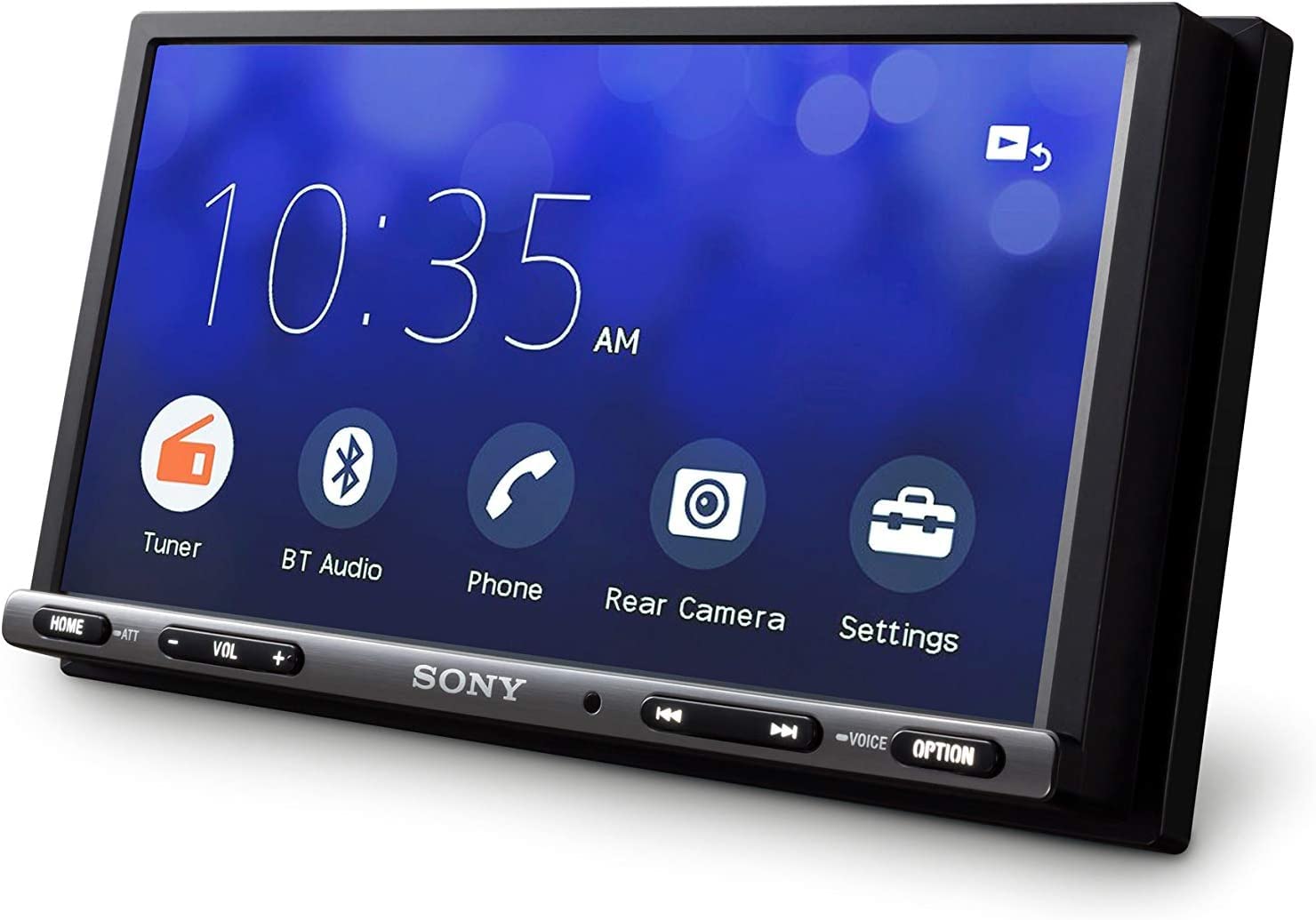
Figure 1: Front view of the XAV-AX3005DB unit.

Figure 2: Side view illustrating the compact chassis for easier installation.
3.3. Wiring Connections
Before installation, disconnect the vehicle's negative battery terminal. Refer to the detailed wiring diagram provided with your unit for specific connections. Key connections include:
- Power (Yellow): Constant 12V supply.
- Accessory (Red): Switched 12V supply (ignition).
- Ground (Black): Connect to a clean metal point on the vehicle chassis.
- Speaker Outputs: Connect to your vehicle's speakers (Front L/R, Rear L/R).
- Parking Brake (Light Green): Connect to the parking brake switch. This is a safety interlock.
- Reverse Gear (Purple/White): Connect to the vehicle's reverse light circuit for automatic rear camera display.
- External Microphone: Plug into the dedicated microphone input for hands-free calling.
- USB Port: Connect the supplied USB extension cable for Apple CarPlay, Android Auto, and USB media playback.
- Rear Camera Input (RCA): Connect your aftermarket rear-view camera.

Figure 3: Rear connections of the XAV-AX3005DB unit.
3.4. Initial Setup
After installation and reconnecting the battery, turn on your vehicle's ignition. The unit will power on. Follow the on-screen prompts to select your language and perform initial settings.
4. Operating Instructions
4.1. Basic Controls and Touchscreen
The unit features a responsive 6.95-inch touchscreen for most operations, complemented by physical buttons at the bottom for quick access to essential functions.
- HOME Button: Returns to the main menu screen.
- VOL +/-: Adjusts the volume level.
- ATT (Attenuate): Mutes or reduces audio volume.
- OPTION Button: Accesses context-sensitive options for the current source.

Figure 4: Interacting with the touchscreen interface.
4.2. Radio (DAB+/FM)
Select the 'Tuner' or 'DAB+' icon from the home screen to access radio functions. You can scan for stations, save presets, and switch between FM and DAB+ modes.
4.3. Bluetooth Connectivity
To pair a new device:
- Go to the 'Settings' menu on the unit.
- Select 'Bluetooth' and enable pairing mode.
- On your smartphone, search for available Bluetooth devices and select 'XAV-AX3005DB'.
- Confirm the pairing code on both devices.
Once paired, you can make hands-free calls and stream audio from your phone.
4.4. Apple CarPlay
Connect your iPhone to the unit's USB port using a certified USB cable. Apple CarPlay will automatically launch, mirroring essential iPhone apps like Maps, Music, Phone, and Messages onto the stereo's display. You can control CarPlay via the touchscreen or Siri voice commands.

Figure 5: Apple CarPlay interface.

Figure 6: iPhone connected to the unit for Apple CarPlay.
4.5. Android Auto
Connect your Android smartphone to the unit's USB port. Ensure you have the Android Auto app installed on your phone. Android Auto will launch, providing access to Google Maps, Spotify, calls, and other compatible apps. Control is via touchscreen or Google Assistant voice commands.

Figure 7: Android Auto interface with Google Maps.

Figure 8: Android phone connected to the unit for Android Auto.
4.6. Rear View Camera
If a rear-view camera is connected and wired correctly, the display will automatically switch to the camera view when the vehicle is put into reverse gear. Adjustable guidelines can be displayed on the screen to assist with parking.

Figure 9: Rear camera display with parking guidelines.
4.7. Sound Settings
Access the sound settings through the 'Settings' menu. Here you can adjust the 10-band equalizer, activate the Dynamic Sound Organizer to create virtual speakers on the dashboard, and control the subwoofer output.
5. Maintenance
5.1. Cleaning the Unit
To clean the unit, wipe the screen and exterior surfaces with a soft, dry cloth. For stubborn dirt, dampen the cloth lightly with water. Avoid using harsh chemicals, abrasive cleaners, or solvents, as these can damage the finish or screen.
5.2. Software Updates
Periodically check the Sony support website for available firmware updates. Updates can improve performance, add new features, or resolve known issues. Follow the instructions provided with the update package carefully.
6. Troubleshooting
If you encounter issues with your XAV-AX3005DB, refer to the following common problems and solutions:
| Problem | Possible Cause / Solution |
|---|---|
| Unit does not power on. | Check power and ground connections. Ensure the vehicle's ignition is on. Check the fuse. |
| No sound from speakers. | Check speaker wiring. Ensure volume is not muted or too low. Verify audio source is playing. |
| Bluetooth pairing fails or disconnects. | Ensure Bluetooth is enabled on both devices. Delete previous pairings and try again. Move devices closer. Restart both devices. |
| Apple CarPlay / Android Auto not launching. | Use a certified USB cable. Ensure your phone's operating system and the respective app (Android Auto) are up to date. Check USB connection. Ensure parking brake is engaged if required by your vehicle's wiring. |
| Settings are lost after turning off ignition. | This indicates incorrect wiring of the constant (yellow) and accessory (red) power wires. In some vehicles, these wires may need to be swapped. Consult a professional installer. |
| Screen difficult to see in direct sunlight. | The unit uses a resistive touchscreen which can be affected by direct sunlight. Adjust viewing angle or brightness settings if available. |
| Hands-free calling issues (e.g., with iPhone 11). | Ensure the external microphone is properly connected and positioned. Check for firmware updates that may address compatibility issues. |
7. Specifications
- Model Number: XAV-AX3005DB
- Screen Size: 6.95 inches (Touchscreen)
- Dimensions (W x H x D): 17.8 cm x 10 cm x 13.9 cm
- Weight: 1.1 kg
- Power Output: 4 x 55 Watts (220 Watts total)
- Audio Channels: 4.0 Surround Sound Configuration
- Connectivity: Bluetooth, USB
- Special Features: DAB+ Radio, Apple CarPlay, Android Auto, Rear View Camera Input, 10-band Equalizer, Dynamic Sound Organizer
- Control Method: Touch, Voice
- Compatible Devices: Smartphone
8. Warranty and Support
8.1. Warranty Information
This Sony XAV-AX3005DB unit comes with a standard 2-year manufacturer's warranty. Please retain your proof of purchase for any warranty claims. The warranty covers defects in materials and workmanship under normal use.
For detailed warranty terms and conditions, please refer to the warranty card included with your product or visit the official Sony support website.
8.2. Customer Support
For technical assistance, troubleshooting beyond this manual, or service inquiries, please contact Sony customer support or an authorized Sony service center.
You can find contact information and additional resources on the official Sony website: www.sony.com/electronics/support
Ask a question about this manual
Ask about setup, troubleshooting, compatibility, parts, safety, or missing instructions. Manuals+ will review the question and use this page’s manual context to help answer it.