
Denon DNP-800NE
Denon DNP-800NE Network Audio Player Instruction Manual
Model: DNP-800NE | Brand: Denon
Introduction
This manual provides detailed instructions for the setup, operation, and maintenance of your Denon DNP-800NE Network Audio Player. The DNP-800NE is designed to deliver high-resolution audio playback and versatile music streaming capabilities, integrating seamlessly into your home audio system. Please read this manual thoroughly to ensure proper use and to maximize your listening experience.
What's in the Box
Carefully unpack all components and ensure you have the following items:
- Network audio player (Denon DNP-800NE)
- Remote control (RC-1224)
- Batteries (2 AA batteries)
- Bluetooth/WiFi antennas (2 units)
- Stereo RCA cable (42 inches)
- Mono-minijack cables (Two 39-inch units)
Setup
1. Physical Connections
Before connecting the unit to power, ensure all audio connections are made correctly. The DNP-800NE can be connected to an amplifier or receiver using the provided stereo RCA cable. For digital audio sources, use the optical or coaxial digital inputs on your amplifier.
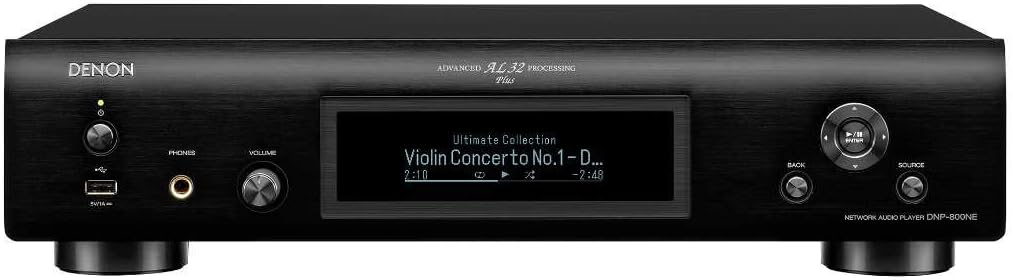
Image: Front panel of the Denon DNP-800NE, showing the display, power button, USB port, headphone jack, and volume knob.
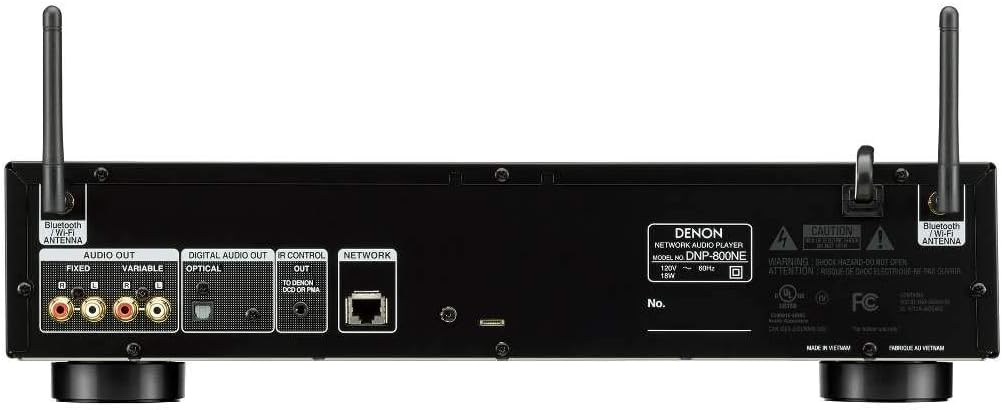
Image: Rear panel of the Denon DNP-800NE, illustrating the audio output (fixed and variable), digital audio inputs (optical, coaxial), network port, and antenna connections.
2. Antenna Installation
Attach the two provided Bluetooth/WiFi antennas to the corresponding connectors on the rear panel of the DNP-800NE. Ensure they are securely tightened and positioned vertically for optimal signal reception.
3. Power Connection
Connect the power cord to the AC inlet on the rear of the unit and then to a wall outlet. The unit is now ready for initial power-on.
4. Network Configuration
The DNP-800NE supports both wired and wireless network connections. For a wired connection, connect an Ethernet cable from your router to the NETWORK port on the rear panel. For a wireless connection, follow the on-screen prompts after powering on the unit to connect to your Wi-Fi network. The HEOS app (available for iOS and Android) is recommended for simplified network setup and control.
Operating Instructions
1. Power On/Off
Press the power button on the front panel or the remote control to turn the unit on or off.
2. Source Selection
Use the 'Source' button on the front panel or the remote control to cycle through available input sources such as Network, USB, Bluetooth, and Digital Inputs.
3. Network Audio Streaming (HEOS, Wi-Fi, AirPlay 2, Bluetooth)
The DNP-800NE offers multiple ways to stream music:
- HEOS: Download the HEOS app to your smartphone or tablet. Use the app to access various music services (e.g., Spotify, Pandora, Amazon Music) and control playback. HEOS also enables multi-room audio.
- AirPlay 2: For Apple device users, stream audio directly from your iPhone, iPad, or Mac to the DNP-800NE via AirPlay 2.
- Bluetooth: Pair your Bluetooth-enabled device with the DNP-800NE to stream audio wirelessly. Select 'Bluetooth' as the source and follow your device's pairing instructions.
- Gapless Playback: The unit supports gapless playback for high-resolution audio files, ensuring a seamless listening experience for albums with continuous tracks.
4. USB Playback
Insert a USB storage device (e.g., USB flash drive) into the front USB port. The unit will automatically detect the device, and you can navigate and play high-resolution audio files (FLAC, WAV, AIFF, ALAC, DSD) using the remote control or HEOS app.
5. Headphone Output
Connect your headphones to the 6.3mm headphone jack on the front panel. The DNP-800NE features a dedicated headphone amplifier with three gain settings (High/Mid/Low) for optimal performance with various headphone impedances. Adjust the gain setting via the unit's menu to match your headphones.
6. Advanced AL32 Processing Plus
The DNP-800NE incorporates Denon's Advanced AL32 Processing Plus, which up-samples digital audio signals to 32-bit, 384 kHz, restoring lost data during digital recording to reproduce sound closest to the original. This technology enhances clarity, detail, and dynamic range across all digital sources.
7. Remote Control (RC-1224)
The included remote control provides full functionality for operating the DNP-800NE. Insert the two AA batteries into the remote control before use.
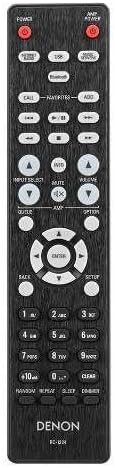
Image: The RC-1224 remote control for the Denon DNP-800NE, showing various buttons for power, source selection, playback, and menu navigation.
8. Official Product Video
Watch this official video for a visual overview of the Denon 800NE Series, highlighting key features and connectivity options.
Video: Denon 800 Series Overview. This video demonstrates the features and connectivity of the Denon 800NE series, including the DNP-800NE Network Audio Player, highlighting its integration with other Denon components and various audio sources.
Maintenance
To ensure the longevity and optimal performance of your DNP-800NE, follow these maintenance guidelines:
- Cleaning: Use a soft, dry cloth to wipe the exterior of the unit. Avoid using abrasive cleaners, solvents, or chemical cloths, as they may damage the finish.
- Ventilation: Ensure adequate ventilation around the unit. Do not block ventilation openings or place the unit in an enclosed space without proper airflow.
- Power Off: When not in use for extended periods, disconnect the power cord from the wall outlet.
Troubleshooting
If you encounter issues with your DNP-800NE, refer to the following common troubleshooting steps:
| Problem | Solution |
|---|---|
| No power | Check if the power cord is securely connected to the unit and the wall outlet. Ensure the outlet is functional. |
| No sound output | Verify that the correct input source is selected. Check all audio cable connections between the DNP-800NE and your amplifier/receiver. Ensure the volume is not muted or set too low. |
| Cannot connect to network (Wi-Fi/Ethernet) | Confirm your router is powered on and functioning. For Wi-Fi, re-enter your network password. For Ethernet, check the cable connection. Try restarting your router and the DNP-800NE. |
| Bluetooth pairing issues | Ensure the DNP-800NE is in Bluetooth pairing mode. Delete previous pairings from your device and try pairing again. Move your device closer to the DNP-800NE. |
| Remote control not working | Check and replace the batteries in the remote control. Ensure there are no obstructions between the remote and the unit's IR sensor. |
For more detailed troubleshooting or persistent issues, please contact Denon customer support.
Specifications
| Feature | Detail |
|---|---|
| Product Dimensions | 12.28 x 17.09 x 4.21 inches |
| Item Weight | 8.38 pounds |
| Item Model Number | DNP-800NE |
| Brand | Denon |
| Connectivity Technology | Wi-Fi, Bluetooth, AirPlay 2 |
| Controller Type | Voice Control (Amazon Alexa compatible), HEOS App |
| Special Features | Pandora, Spotify, Amazon Music, TuneIn, Deezer, Tidal, SoundCloud, Gapless Hi-Res Playback, Advanced AL32 Processing Plus |
| Compatible Devices | Smartphone, Speaker |
| Connector Type | USB |
| Audio Output Mode | Stereo |
| Color | Black |
| Manufacturer | Denon Electronics USA LLC |
Warranty Information
Denon products are manufactured to the highest quality standards. This product is covered by a limited warranty. For specific warranty terms and conditions, including duration and coverage details, please refer to the warranty card included with your product or visit the official Denon website. Please retain your proof of purchase for warranty claims.
Customer Support
For technical assistance, product inquiries, or service requests, please contact Denon customer support. You can find contact information, FAQs, and additional resources on the official Denon website:
Please have your model number (DNP-800NE) and serial number ready when contacting support.
Related documentsDNP-800NE


Ask a question about this manual
Ask about setup, troubleshooting, compatibility, parts, safety, or missing instructions. Manuals+ will review the question and use this page’s manual context to help answer it.