Download PDFFree PDF. The Save button below keeps a bookmark and private notes in your account.
JOYACCESS Wireless Keyboard and Mouse Set User Manual
Model: B-KB3BDE
Brand: JOYACCESS
Introduction
Welcome to your new JOYACCESS Wireless Keyboard and Mouse Set. This manual provides detailed instructions for setup, operation, maintenance, and troubleshooting to ensure optimal performance and longevity of your device.
This set utilizes 2.4G wireless technology for a stable and reliable connection.
Package Contents
1 x JOYACCESS Wireless Keyboard
1 x JOYACCESS Wireless Mouse
1 x USB Receiver (located in the mouse battery compartment)
2 x AAA Batteries (for keyboard, included)
1 x AA Battery (for mouse, included)
User Manual
Product Overview
This section provides a visual guide to the components of your wireless keyboard and mouse set.
The JOYACCESS wireless keyboard and mouse set, featuring the keyboard, mouse, and the compact USB receiver.
Close-up view of the keyboard's indicator lights for Num Lock, Caps Lock, and Power status.
Detailed view of the ergonomic mouse design, highlighting its quiet click feature and anti-slip scroll wheel.
Setup
Step 1: Insert Batteries
The keyboard requires two AAA batteries. The mouse requires one AA battery.
Locate the battery compartments on the underside of the keyboard and mouse.
Open the compartments and insert the batteries, ensuring correct polarity (+/-).
Close the battery compartments.
Step 2: Connect the USB Receiver
The USB receiver is stored in the battery compartment of the mouse.
Remove the USB receiver from the mouse's battery compartment.
Plug the USB receiver into an available USB port on your computer (PC, laptop, or smart TV).
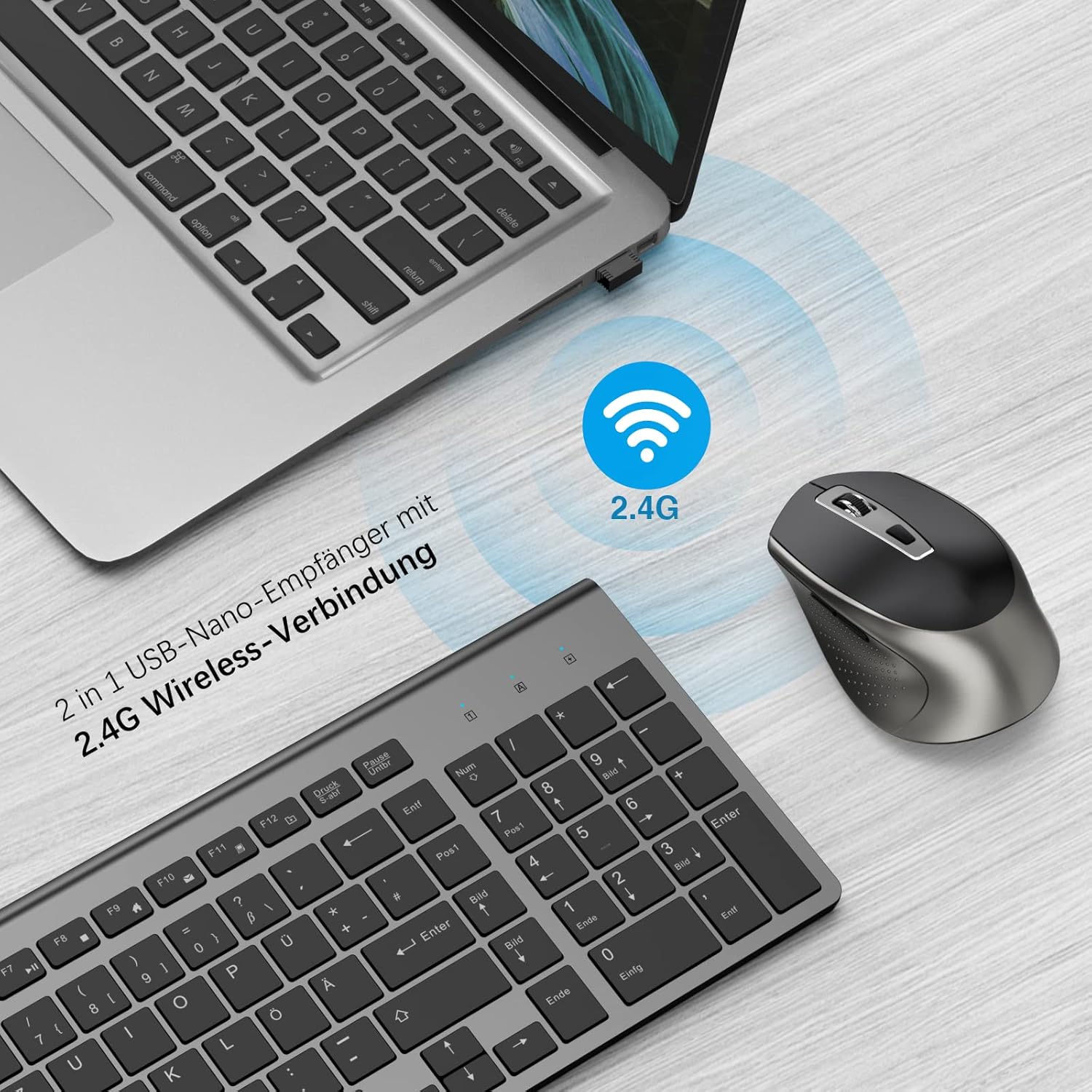
Illustration showing the 2.4G wireless connection between the keyboard, mouse, and a laptop via the USB receiver.
Step 3: Power On
Locate the ON/OFF switch on the underside of both the keyboard and the mouse. Slide the switch to the "ON" position.
The devices are plug-and-play and should connect automatically within a few seconds. No additional software or drivers are required.
Operating Instructions
Keyboard Features
The keyboard features a QWERTZ layout (German) and scissor-foot keys for comfortable and quiet typing.
Diagram illustrating the scissor-foot key mechanism for responsive and quiet typing, along with an icon indicating silent operation.
Function Keys (FN + F1-F12):
FN + F1: Media Player
FN + F2: Volume Down
FN + F3: Volume Up
FN + F4: Mute
FN + F5: Previous Track
FN + F6: Next Track
FN + F7: Play/Pause
FN + F8: Stop
FN + F9: Home Page
FN + F10: Email
FN + F11: My Computer
FN + F12: Favorites
Mouse Features
The wireless mouse offers 5 adjustable DPI levels for precise control.
DPI Adjustment: Press the DPI button (usually located behind the scroll wheel) to cycle through the DPI settings: 800, 1200, 1600, 2000, 2400.
Mute Click: The mouse features silent click buttons, reducing noise by 98% for a quiet working environment.
Side Buttons: The side buttons typically function as 'forward' and 'back' in web browsers and file explorers.
Power Saving Mode
To conserve battery life, the keyboard and mouse will enter sleep mode after 10 minutes of inactivity.
To reactivate the devices, simply press any key on the keyboard or move/click the mouse. The devices will wake up within 3 seconds.
Compatibility
This wireless set is compatible with:
Windows XP / 7 / 8 / 10
Mac OS (Note: Multifunction keys may not be fully compatible with Mac OS systems.)
PC, Laptop, Desktop computers
Smart TVs with a USB port
Visual representation of the keyboard and mouse set connected to various devices including a PC, laptop, and smart TV, demonstrating broad compatibility.
Maintenance and Care
Cleaning: Use a soft, dry cloth to clean the surfaces of the keyboard and mouse. For stubborn dirt, a slightly damp cloth can be used, but ensure no liquid enters the device.
Battery Replacement: Replace batteries when the power indicator light on the keyboard flashes or when mouse movement becomes erratic. Always use new batteries of the specified type (AAA for keyboard, AA for mouse).
Storage: When not in use for extended periods, turn off the devices using the ON/OFF switch to further conserve battery life. Store in a cool, dry place.
USB Receiver: Keep the USB receiver plugged into your computer or stored securely in the mouse's battery compartment to prevent loss.
Troubleshooting
Problem
Possible Cause
Solution
Keyboard/Mouse not responding
Low batteries
Replace batteries.
Keyboard/Mouse not responding
Devices are off
Ensure the ON/OFF switch on both devices is in the "ON" position.
Keyboard/Mouse not responding
USB receiver not connected or loose
Ensure the USB receiver is securely plugged into a working USB port. Try a different USB port.
Keyboard/Mouse not responding
Out of range
Move the keyboard and mouse closer to the USB receiver (within 10 meters).
Lagging or erratic movement
Interference from other wireless devices
Move other 2.4GHz wireless devices away from the receiver.
Lagging or erratic movement
Surface issues (for mouse)
Use the mouse on a clean, non-reflective surface or a mouse pad.
Multifunction keys not working on Mac OS
System incompatibility
This is a known limitation. Basic typing and mouse functions will work, but specific multimedia keys may not be supported on Mac OS.
Specifications
Connectivity: 2.4G Wireless
Wireless Range: Up to 10 meters (33 feet)
Keyboard Layout: QWERTZ (German)
Keyboard Dimensions: Approximately 15.4 inches (length) x 5.9 inches (width)
Mouse Dimensions: Approximately 2.7 inches (width) x 4.5 inches (length) x 2.1 inches (height)
Keyboard Battery: 2 x AAA batteries (included)
Mouse DPI Levels: 800 / 1200 / 1600 / 2000 / 2400
Mouse Battery: 1 x AA battery (included)
Operating System Compatibility: Windows XP/7/8/10, Mac OS (limited multifunction key support)
Model Number: B-KB3BDE
Brand: JOYACCESS
Detailed dimensions of the keyboard and mouse for reference.
Warranty and Support
JOYACCESS provides a warranty for this product. For specific warranty terms and conditions, please refer to the warranty card included with your purchase or contact JOYACCESS customer support.
If you encounter any issues or have questions regarding your JOYACCESS Wireless Keyboard and Mouse Set, please contact our customer support team via email. We are committed to providing professional solutions.
Safety Information
Do not expose the devices to extreme temperatures, humidity, or direct sunlight.
Avoid dropping or subjecting the devices to strong impacts.
Do not attempt to disassemble or repair the devices yourself. This will void the warranty.
Dispose of batteries according to local regulations. Do not dispose of batteries in fire.
Ask about setup, troubleshooting, compatibility, parts, safety, or missing instructions. Manuals+ will review the question and use this page’s manual context to help answer it.