
1. Introduction
Thank you for choosing the Nedis SmartLife Wi-Fi Wall Switch (WIFIWC10WT). This device allows you to control your electric curtains, roller blinds, or awnings conveniently via a physical wall switch, the Nedis SmartLife application, or voice commands. This manual provides essential information for safe installation, operation, and maintenance of your device.

Image 1.1: Front view of the Nedis SmartLife Wi-Fi Wall Switch. This switch features three touch-sensitive buttons for control and integrates with the SmartLife ecosystem.
2. Setup and Installation
2.1 Safety Precautions
- Ensure the main power supply is switched off before installation to prevent electric shock.
- Installation should be performed by a qualified electrician or in accordance with local electrical codes.
- Do not exceed the maximum load capacity of 300W.
2.2 Wiring Diagram
Connect the wires to the terminals on the back of the switch as shown in the diagram below. Ensure all connections are secure.

Image 2.1: Rear view of the wall switch, displaying the connection terminals. 'L' is for Live, 'N' for Neutral, and 'L1', 'L2', 'L3' are for motor control (Up, Down, Stop/Common).
- L: Live wire (Phase)
- N: Neutral wire
- L1: Motor Up (e.g., curtain open, blind up, awning out)
- L2: Motor Down (e.g., curtain close, blind down, awning in)
- L3: Common or Stop (refer to your motor's wiring for specific connection)
2.3 App Installation and Wi-Fi Connection
- Download the Nedis SmartLife app from your smartphone's app store (iOS or Android).
- Register or log in to your Nedis SmartLife account.
- Power on the wall switch. The Wi-Fi indicator light should start blinking rapidly. If not, press and hold the middle button for 5-10 seconds until it blinks.
- In the app, tap '+' to add a new device. Select 'Curtain Switch' or similar from the device list.
- Follow the on-screen instructions to connect the switch to your 2.4 GHz Wi-Fi network. Note: This device only supports 2.4 GHz Wi-Fi.
2.4 Calibration
After successful Wi-Fi connection, calibrate the switch to your curtain/blind/awning motor. This sets the open and closed positions.
- In the Nedis SmartLife app, navigate to the device settings for your wall switch.
- Look for a 'Calibration' or 'Travel Limit Setting' option.
- Follow the app's prompts to fully open and then fully close your curtain/blind/awning. The app will record the travel time for each direction.
- Test the open and close functions to ensure calibration is accurate. Adjust if necessary.
3. Operating the Device
3.1 Manual Control
The wall switch has three touch buttons:
- Up Arrow Button: Opens the curtain/blind/awning.
- Middle Pause Button: Stops the movement.
- Down Arrow Button: Closes the curtain/blind/awning.
3.2 App Control
Use the Nedis SmartLife app for advanced control and scheduling.
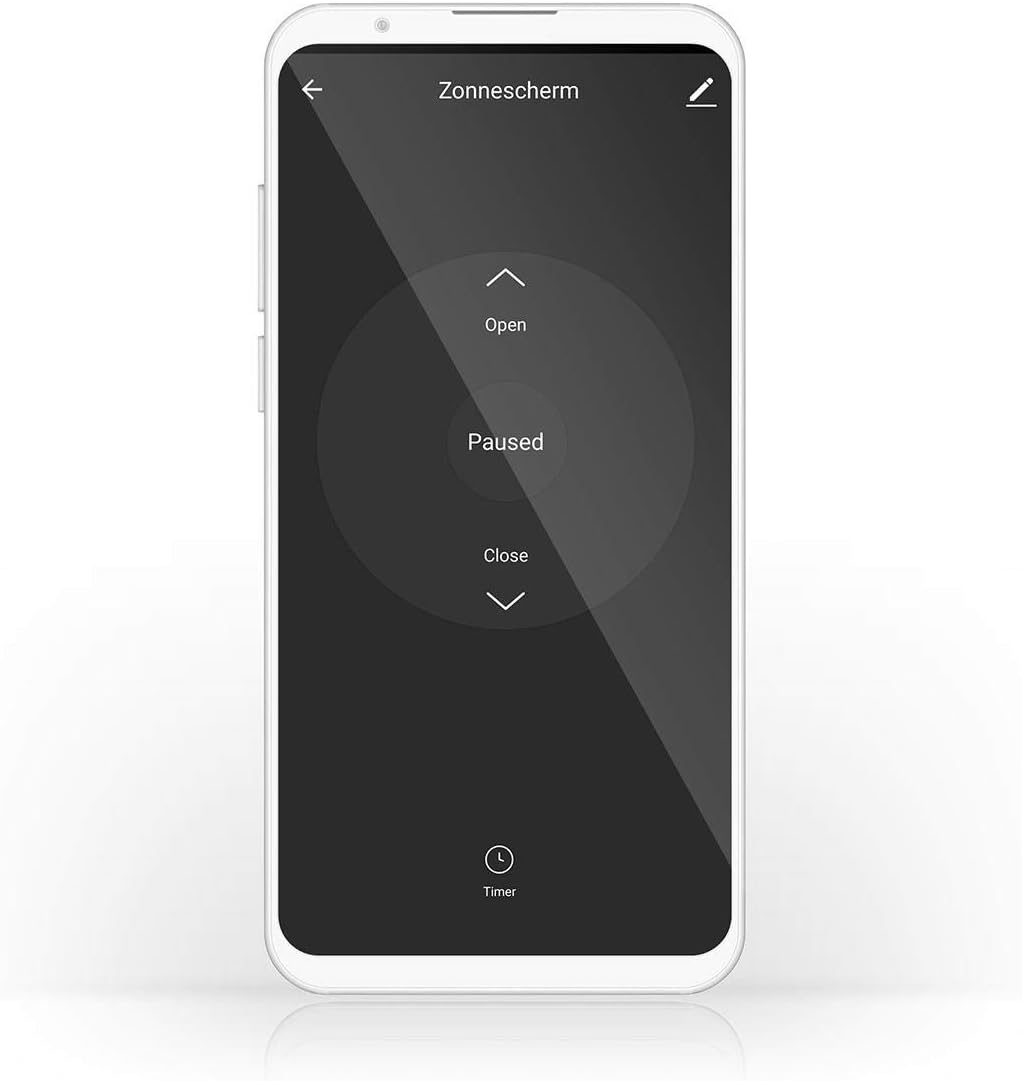
Image 3.1: Nedis SmartLife app interface for controlling a sunshade. The app allows for opening, pausing, closing, and setting timers for your connected device.
- Open/Close/Pause: Control the movement directly from the app interface.
- Timer/Schedule: Set specific times for your curtains/blinds/awnings to open or close automatically.
- Scenes: Create custom scenes to automate actions based on conditions like time of day, weather, or other SmartLife devices.
3.3 Voice Control
The switch is compatible with Amazon Alexa and Google Assistant. Link your Nedis SmartLife account to your voice assistant app and use commands such as:
- "Alexa, open the living room blinds."
- "Hey Google, close the bedroom curtains."
- "Alexa, stop the awning."
4. Maintenance
The Nedis SmartLife Wi-Fi Wall Switch requires minimal maintenance.
- Clean the surface with a soft, dry cloth. Do not use abrasive cleaners or solvents.
- Ensure no liquids enter the device.
- Regularly check for any loose wiring connections, especially after initial installation.
5. Troubleshooting
If you encounter issues with your Nedis SmartLife Wi-Fi Wall Switch, refer to the following common solutions:
- Device not connecting to Wi-Fi:
- Ensure your Wi-Fi network is 2.4 GHz. The switch does not support 5 GHz networks.
- Check if the Wi-Fi indicator light is blinking rapidly. If not, press and hold the middle button for 5-10 seconds to enter pairing mode.
- Verify your Wi-Fi password and network stability.
- Move the switch closer to your Wi-Fi router during setup.
- Calibration issues (stops at wrong point):
- Repeat the calibration process in the Nedis SmartLife app. Ensure the curtain/blind/awning moves fully to its open and closed positions during calibration.
- Check for any physical obstructions preventing full movement.
- Ensure your motor has working end-switches if applicable, as the switch relies on these for accurate positioning.
- Device unresponsive:
- Check the power supply to the switch.
- Verify your Wi-Fi connection. If the Wi-Fi is down, app control will not work, but manual control should still function.
- Restart the device by turning off the main power for a few seconds and then turning it back on.
- If the issue persists, consider resetting the device to factory settings (refer to app for specific instructions, usually involves holding a button for an extended period) and re-pairing.
- Unexpected behavior (e.g., uncontrolled movement, high-pitched noise):
- Immediately disconnect power to the device.
- This may indicate a hardware fault. Do not attempt to repair it yourself. Contact customer support.
6. Product Specifications
| Brand | Nedis |
| Model Number | WIFIWC10WT |
| Product Dimensions (L x W x H) | 8.6 x 3.5 x 8.6 cm |
| Weight | 180 g |
| Color | Black |
| Operating Mode | ON-OFF |
| Current Rating | 6 Ampere |
| Wattage | 300 watts |
| Switch Type | Push Button |
| Mounting Type | Wall Mount |
| Connectivity Protocol | Wi-Fi (2.4 GHz) |
| Controller Type | Amazon Alexa, Google Assistant |
| Compatible Devices | Nedis SmartLife |
| IP Rating | IP65 |
| Compliance | IP65, IEC 60669-2-1:2002 |
7. Warranty Information
This Nedis SmartLife Wi-Fi Wall Switch (WIFIWC10WT) comes with a 1-year limited warranty from the date of purchase. The warranty covers defects in materials and workmanship under normal use. It does not cover damage caused by misuse, unauthorized modifications, accidents, or improper installation.
Please retain your proof of purchase for warranty claims.
8. Customer Support
For technical support, troubleshooting assistance, or warranty inquiries, please visit the official Nedis website or contact their customer service department.
- Nedis Website: www.nedis.com
- Refer to the website for contact details specific to your region.


