
1. Product Overview
The Rii Wired RGB LED Backlight Gaming Keyboard and Mouse Combo (Model: 8541666920) provides an ergonomic and responsive input solution for various computing environments. This combo features multi-color LED backlighting for the keyboard and mouse, dedicated multimedia keys, and adjustable mouse DPI settings. It is designed for plug-and-play compatibility with a wide range of operating systems.
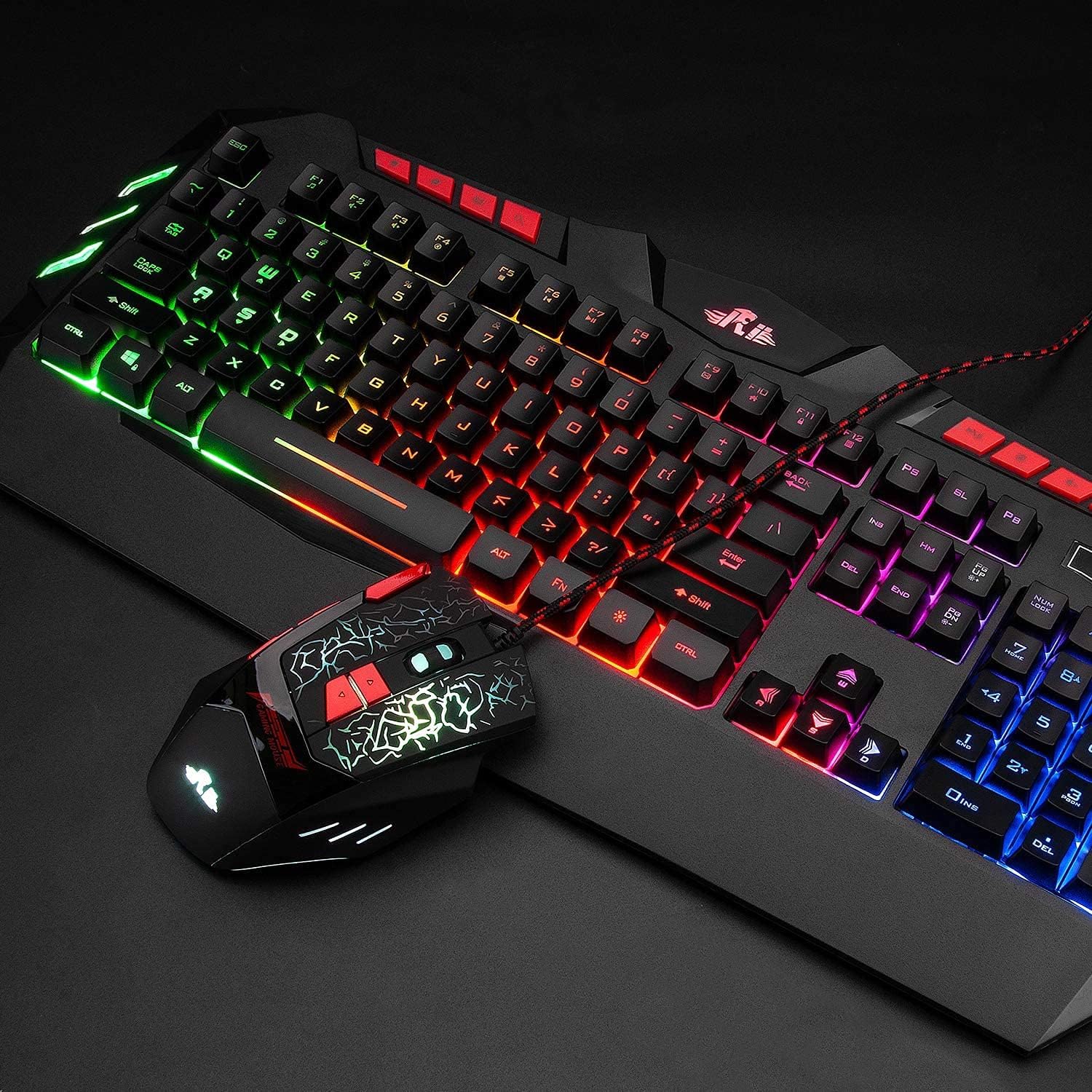
Image: The Rii Wired RGB LED Backlight Gaming Keyboard and Mouse Combo, showcasing both devices connected via USB.
2. Package Contents
- Rii Wired RGB LED Backlight Gaming Keyboard
- Rii Wired RGB LED Backlight Gaming Mouse
- User Manual (this document)
3. Setup Instructions
The Rii Wired RGB LED Backlight Gaming Keyboard and Mouse Combo is designed for simple plug-and-play operation. No additional drivers are typically required for basic functionality.
- Connect the Keyboard: Locate an available USB port on your computer (PC, Laptop, Gaming Console, Smart TV, etc.). Insert the USB connector of the keyboard firmly into the USB port.
- Connect the Mouse: Locate another available USB port on your computer. Insert the USB connector of the mouse firmly into the USB port.
- System Recognition: Your operating system should automatically detect and install the necessary drivers for the keyboard and mouse. This process may take a few moments.
- Verify Functionality: Once detected, the keyboard and mouse should be ready for use. Test by typing and moving the mouse to ensure proper operation.
Note: While the keyboard and mouse are compatible with various operating systems including Windows, Mac OS, Chrome OS, and Android, the RGB backlight functionality on the keyboard may not be fully supported on Mac OS systems.
4. Operating Instructions
4.1 Keyboard Backlight Control
The keyboard features multi-color RGB LED backlighting. Use the following key combinations to control the backlight:
- Brightness Adjustment: Press FN + Page Up to increase backlight brightness. Press FN + Page Down to decrease backlight brightness.
- Backlight Mode Switch: Press FN + Light Icon Key (usually located near the right Shift key) to cycle through different backlight modes.
- Backlight On/Off: Press the Light Icon Key (without FN) to turn the backlight on or off.

Image: Illustration of multimedia keys and backlight control functions on the keyboard, including brightness adjustment and mode switching.
4.2 Mouse DPI Adjustment
The mouse features 4 adjustable DPI (Dots Per Inch) settings, allowing you to change cursor sensitivity on the fly. The available DPI values are 1000, 1600, 2000, and 2400.
- Change DPI: Press the DPI button (typically located behind the scroll wheel) to cycle through the available DPI settings. The mouse's LED lighting may change to indicate the current DPI level.

Image: Close-up of the ergonomic mouse, highlighting the DPI adjustment button and precise optical sensor.
4.3 Multimedia Keys
The keyboard includes dedicated multimedia keys for quick access to common functions:
- Control volume (increase, decrease, mute)
- Manage music playback (play/pause, previous, next)
- Quick access to email and web browser
4.4 WASD and Arrow Key Swap
For certain gaming preferences, you can swap the functionality of the WASD keys with the Arrow keys.
- Swap Keys: Press FN + W to toggle between WASD and Arrow key functionality.

Image: Diagram illustrating how to switch between WASD and arrow key functions using the FN + W key combination.
4.5 Automatic Sleep Mode
To conserve energy, the keyboard automatically enters a sleeping mode after 10 minutes of inactivity, and its backlights will turn off. To awaken the keyboard and reactivate the backlights, simply press any key.
5. Maintenance
Proper maintenance ensures the longevity and optimal performance of your Rii keyboard and mouse combo.
- Cleaning: Use a soft, dry cloth to wipe down the surfaces of the keyboard and mouse. For stubborn dirt, a slightly damp cloth with mild soap can be used, ensuring no liquid enters the devices.
- Avoid Liquids: Do not expose the keyboard or mouse to excessive moisture or liquids, as this can cause damage to internal components.
- Storage: When not in use for extended periods, store the devices in a cool, dry place away from direct sunlight.
- Cable Care: Avoid bending or twisting the USB cables excessively to prevent internal wire damage.
6. Troubleshooting
If you encounter issues with your Rii keyboard and mouse combo, refer to the following common solutions:
- Keyboard/Mouse Not Responding:
- Ensure the USB connectors are securely plugged into the computer's USB ports.
- Try plugging the devices into different USB ports on your computer.
- Restart your computer.
- Test the devices on another computer to determine if the issue is with the devices or your system.
- Backlight Not Working:
- Ensure the backlight is turned on using the Light Icon Key.
- Adjust brightness using FN + Page Up/Down.
- If using Mac OS, note that backlight functionality may be limited or unsupported.
- Mouse Cursor Movement is Erratic or Slow:
- Adjust the DPI setting using the DPI button on the mouse.
- Ensure the mouse sensor is clean and free from obstructions.
- Use the mouse on a suitable surface (e.g., a mouse pad).
- Multimedia Keys Not Functioning:
- Ensure your operating system and media player are properly configured to respond to standard multimedia key commands.
- Some systems may require specific software or settings to fully utilize multimedia keys.
7. Specifications

Image: Detailed dimensions of the Rii keyboard and mouse.
| Feature | Detail |
|---|---|
| Brand | Rii |
| Model Number | 8541666920 |
| Connectivity Technology | USB Wired |
| Keyboard Backlight | RGB LED (Multiple mixed colors) |
| Mouse DPI Settings | 1000-1600-2000-2400 (Adjustable) |
| Keyboard Type | Membrane (Mechanical feel) |
| Ergonomics | Ergonomic design for both keyboard and mouse |
| Compatible Operating Systems | Windows 8/7/Vista/XP/Me/NT, PC, Laptop, Google Android TV Box, HTPC, IPTV, Smart TV, Mac IOS, Chrome OS, Raspberry Pi |
| Keyboard Dimensions (approx.) | 480mm (L) x 215mm (W) x 32mm (H) |
| Mouse Dimensions (approx.) | 128mm (L) x 81mm (W) x 40mm (H) |
| Item Weight | Approximately 2.2 pounds (combined) |
| Special Features | Multimedia keys, Non-slip stand, Automatic sleep mode |
8. Warranty Information
Rii products are manufactured to high-quality standards. This product is covered by a manufacturer's warranty against defects in materials and workmanship. The specific terms and duration of the warranty may vary by region and retailer. Please retain your proof of purchase for warranty claims.
For detailed warranty information, please refer to the warranty card included with your product or contact Rii customer support.
9. Support
If you require further assistance or have questions not covered in this manual, please contact Rii customer support through the following channels:
- Online Support: Visit the official Rii website for FAQs, driver downloads, and support contact forms.
- Email Support: Refer to your product packaging or the Rii website for the appropriate support email address.
- Retailer Support: For purchase-related issues, contact the retailer from whom you purchased the product.