
Motorola Moto E5 Play XT1920
Contents
Motorola Moto E5 Play User Manual
Model: XT1920
1. Introduction
Welcome to the user manual for your new Motorola Moto E5 Play smartphone. This guide provides essential information to help you set up, operate, and maintain your device. Please read this manual thoroughly to ensure optimal performance and longevity of your phone.
The Motorola Moto E5 Play is a versatile smartphone designed for everyday use, featuring a 5.3-inch display, a 1.4 GHz Quad-core processor, 16GB of internal storage (expandable up to 256GB via microSD), and a 4000mAh removable battery. It runs on Android 8.0 (Oreo).
2. What's in the Box
Your Motorola Moto E5 Play package typically includes:
- Motorola Moto E5 Play Smartphone
- Battery
- Charger
- USB Cable
- Quick Start Guide
- SIM Ejector Tool (if applicable)
3. Device Overview
Familiarize yourself with the physical components of your Motorola Moto E5 Play.
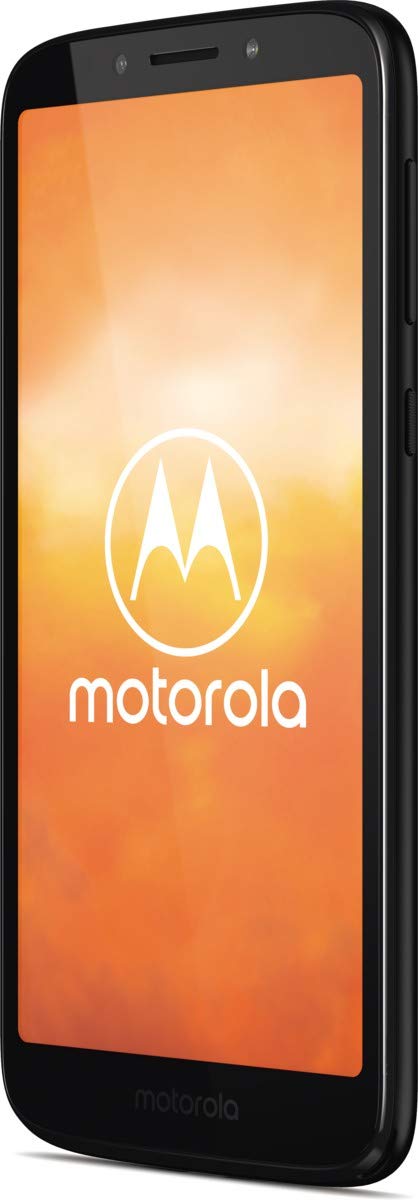
Image: Front view of the Motorola Moto E5 Play smartphone.
- Front Camera: For selfies and video calls.
- Earpiece: For listening during calls.
- Display: 5.3-inch IPS LCD touchscreen.
- Volume Buttons: Adjust media and call volume.
- Power Button: Turn on/off, lock/unlock screen.
- USB Port: For charging and data transfer.
- Headphone Jack: For connecting wired headphones.
- Rear Camera: For taking photos and videos.
- Fingerprint Sensor: (If present on your model) For secure unlocking.
4. Setup
4.1. Inserting SIM and microSD Cards
- Locate the SIM/microSD card tray on the side of your phone.
- Insert the SIM ejector tool into the small hole next to the tray and push gently until the tray pops out.
- Place your Nano-SIM card(s) and/or microSD card into the designated slots on the tray, ensuring proper orientation.
- Carefully push the tray back into the phone until it clicks into place.
4.2. Inserting the Battery
The Moto E5 Play features a removable battery:
- Gently remove the back cover of the phone.
- Align the battery contacts with the phone's contacts and insert the battery into its compartment.
- Replace the back cover, pressing firmly around the edges until it snaps securely.
4.3. Powering On/Off
- To Power On: Press and hold the Power button until the Motorola logo appears.
- To Power Off: Press and hold the Power button until the power options appear, then tap Power off.
- To Restart: Press and hold the Power button until the power options appear, then tap Restart.
4.4. Initial Setup
Upon first power-on, follow the on-screen prompts to:
- Select your language.
- Connect to a Wi-Fi network.
- Sign in with your Google account or create a new one.
- Set up screen lock (PIN, pattern, password, or fingerprint).
5. Operating Your Device
5.1. Touchscreen Gestures
- Tap: Select an item or open an app.
- Touch & Hold: Access contextual menus or move items.
- Swipe: Scroll through lists or switch between screens.
- Pinch: Zoom in or out on photos and web pages.
5.2. Home Screen Navigation
The home screen is your central hub. You can:
- Add app shortcuts and widgets.
- Organize apps into folders.
- Access the app drawer by swiping up from the bottom of the screen.
5.3. Notifications and Quick Settings
- Notifications: Swipe down from the top of the screen to view notifications. Tap to open, swipe to dismiss.
- Quick Settings: Swipe down again from the notification panel to access quick toggles for Wi-Fi, Bluetooth, flashlight, etc.
6. Calls and Contacts
6.1. Making a Call
- Open the Phone app.
- Enter the number using the dial pad or select a contact from your contacts list.
- Tap the Call button.
6.2. Managing Contacts
Open the Contacts app to add, edit, or delete contacts. Contacts can be synced with your Google account.
7. Messaging
Use the Messages app to send and receive SMS (text) and MMS (multimedia) messages.
- Tap the + icon to start a new conversation.
- Enter the recipient's number or select from contacts.
- Type your message. To attach media (photos, videos), tap the paperclip icon.
- Tap the Send button.
8. Camera and Gallery
8.1. Taking Photos and Videos
- Open the Camera app.
- Tap the Shutter button to take a photo.
- Tap the Video icon to switch to video mode, then tap the Record button to start/stop recording.
- Tap the Switch Camera icon to toggle between front and rear cameras.
8.2. Viewing Media
All your photos and videos are stored in the Google Photos app (or Gallery app). Open it to view, edit, and share your media.
9. Connectivity
9.1. Wi-Fi Connection
- Go to Settings > Network & internet > Wi-Fi.
- Toggle Wi-Fi On.
- Select your desired network from the list and enter the password if prompted.
9.2. Bluetooth Pairing
- Go to Settings > Connected devices > Bluetooth.
- Toggle Bluetooth On.
- Select the device you wish to pair with from the list of available devices and follow the on-screen instructions.
9.3. Mobile Data
To enable or disable mobile data:
- Go to Settings > Network & internet > Mobile network.
- Toggle Mobile data On or Off.
10. Battery Management
10.1. Charging Your Device
Connect the USB cable to your phone's USB port and the other end to the charger. Plug the charger into a power outlet. The battery icon on the screen will indicate charging status.
10.2. Battery Saving Tips
- Reduce screen brightness.
- Turn off Wi-Fi, Bluetooth, and GPS when not in use.
- Close unused apps running in the background.
- Enable Battery Saver mode in Settings > Battery.
11. Maintenance and Care
- Cleaning: Use a soft, lint-free cloth to clean the screen and body. Avoid harsh chemicals.
- Software Updates: Regularly check for system updates in Settings > System > System updates to ensure optimal performance and security.
- Environmental Conditions: Avoid exposing your phone to extreme temperatures, direct sunlight, or excessive moisture.
- Safety: Do not attempt to disassemble or repair the phone yourself. Refer to authorized service centers for repairs.
12. Troubleshooting
Common Issues and Solutions:
- Phone not turning on: Ensure the battery is charged. Try holding the Power button for 10-15 seconds.
- Phone freezing/unresponsive: Press and hold the Power button for about 10 seconds to force a restart.
- Network issues (no signal/calls): Check if SIM card is properly inserted. Ensure Airplane mode is off. Restart the phone.
- Apps crashing: Clear the app's cache (Settings > Apps & notifications > App info > [App Name] > Storage & cache > Clear cache). If issue persists, clear data or reinstall the app.
- Battery draining quickly: Refer to Section 10.2 for battery saving tips.
For more complex issues, visit the official Motorola support website or contact customer service.
13. Specifications
Key technical specifications for the Motorola Moto E5 Play XT1920:
| Feature | Specification |
|---|---|
| Model Name | Moto E5 Play |
| Item Model Number | PACR0010DE |
| Operating System | Android 8.0 (Oreo) |
| Processor | 1.4 GHz Quad Core (Qualcomm Snapdragon 425) |
| RAM | 1 GB |
| Internal Storage | 16 GB (expandable up to 256GB via microSD) |
| Display Size | 5.3 Inches |
| Display Resolution | 720 x 1280 pixels |
| Battery Capacity | 4000 Milliamp Hours (Removable) |
| Dimensions | 5.82 x 2.8 x 0.36 inches |
| Item Weight | 5.1 ounces |
| Connectivity | Wi-Fi, Bluetooth, 4G LTE, 3G, 2G |
| SIM Type | Dual-SIM (Nano-SIM) |
Note: Specifications are subject to change without prior notice.
14. Warranty and Support
Your Motorola Moto E5 Play comes with a limited warranty. Please refer to the warranty card included in your product packaging or visit the official Motorola website for detailed warranty terms and conditions.
For technical support, software updates, or service inquiries, please visit the official Motorola support page or contact their customer service directly. Keep your proof of purchase for warranty claims.
Motorola Official Website: www.motorola.com
Documents and downloads
Ask a question about this manual
Ask about setup, troubleshooting, compatibility, parts, safety, or missing instructions. Manuals+ will review the question and use this page’s manual context to help answer it.