
TC Electronic DITTO JAM X2 LOOPER
TC Electronic Ditto JAM X2 Looper Pedal User Manual
Model: DITTO JAM X2 LOOPER
Brand: TC Electronic
Introduction
Welcome to the user manual for the TC Electronic Ditto JAM X2 Looper Pedal. This intuitive looper pedal is designed for musicians seeking intelligent loop synchronization that responds to their band's rhythm. It features innovative BeatSense technology, allowing for automatic adjustment of loop tracks to your beat, and offers both Record-then-Play and Record-then-Overdub functionalities with unlimited overdubs and undo/redo capabilities. This manual provides essential information for setting up, operating, maintaining, and troubleshooting your Ditto JAM X2 Looper.
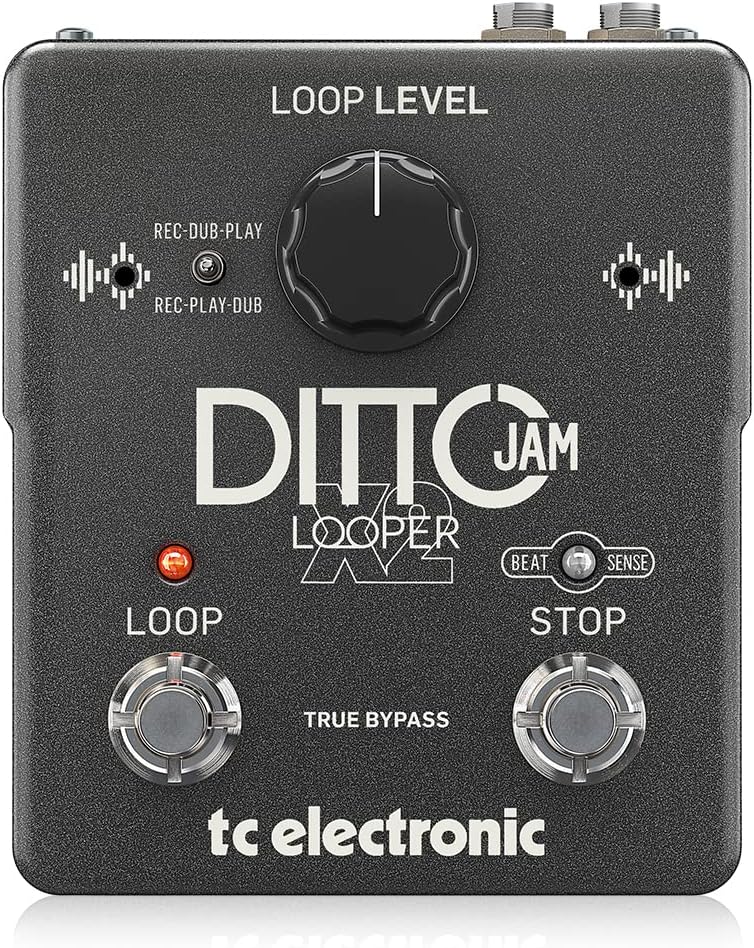
Image: Front view of the TC Electronic Ditto JAM X2 Looper Pedal, showcasing the 'LOOP LEVEL' knob, 'REC-DUB-PLAY' and 'REC-PLAY-DUB' switches, 'LOOP' and 'STOP' footswitches, and 'BEAT SENSE' indicator.
Key Features
- Intuitive looper pedal with intelligent loop synchronization that responds to your band.
- Innovative responsive BeatSense technology automatically adjusts loop tracks to your beat.
- Choose between Record-then-Play or Record-then-Overdub functionalities.
- Unlimited overdubs and undo/redo for total creative freedom.
- Dual built-in mics accurately track band tempo by focusing only on rhythmic elements.

Image: A close-up view of the "BEAT SENSE" indicator on the pedal, highlighting its function.

Image: An external microphone, likely used for the BeatSense technology, clipped onto a drum kit component.
Setup
Power Supply
The Ditto JAM X2 Looper requires a 9V power supply. Ensure you use a compatible power adapter (not included) to power the unit.
Connections
- Connect your instrument (e.g., guitar) to the INPUT jack using a standard 1/4-inch instrument cable.
- Connect the OUTPUT jack to your amplifier or next pedal in the signal chain using a standard 1/4-inch instrument cable.
- An EXT MIC input is available for connecting an external microphone to enhance BeatSense accuracy, particularly in complex rhythmic environments.

Image: Rear view of the Ditto JAM X2 pedal, clearly showing the INPUT, OUTPUT, EXT MIC jacks, and the power input.
Operating Instructions
Basic Looping
- Recording: Press the LOOP footswitch once to start recording your loop. The LED will illuminate red.
- Playback/Overdub: Press the LOOP footswitch again to stop recording and begin playback. If you press it again during playback, you will start overdubbing.
- Stop: Press the STOP footswitch once to stop playback.
- Undo/Redo: Press and hold the STOP footswitch to undo the last overdub. Press and hold again to redo it.
- Clear Loop: Press and hold the LOOP footswitch to clear the current loop.
Loop Level Control
The LOOP LEVEL knob adjusts the overall volume of your recorded loop. Turn clockwise to increase volume, counter-clockwise to decrease.
Record Modes (REC-DUB-PLAY / REC-PLAY-DUB)
The Ditto JAM X2 offers two recording modes, selectable via the small toggle switch:
- REC-DUB-PLAY: In this mode, the first press of the LOOP footswitch records, the second press starts overdubbing, and a third press initiates playback without further overdubbing.
- REC-PLAY-DUB: In this mode, the first press records, the second press starts playback, and a third press initiates overdubbing.

Image: A detailed view of the toggle switch for selecting between REC-DUB-PLAY and REC-PLAY-DUB modes.
BeatSense Technology
The innovative BeatSense technology uses dual built-in microphones to listen to your band's rhythmic elements (like drums) and automatically synchronize your loops to the detected tempo. This ensures your loops stay perfectly in time with the rest of the band.

Image: A musician's feet operating the Ditto JAM X2 pedal on a stage floor, demonstrating its use in a live setting.
Maintenance
- Keep the pedal clean and free from dust and debris. Use a soft, dry cloth for cleaning.
- Avoid exposing the pedal to extreme temperatures, humidity, or direct sunlight.
- Do not attempt to open the unit or perform repairs yourself, as this will void the warranty. Refer to qualified service personnel for any issues.
- Ensure proper ventilation around the pedal during use.

Image: The bottom label of the Ditto JAM X2 pedal, displaying compliance information, manufacturer details, and power requirements.
Troubleshooting
No Sound Output
- Check all cable connections (input, output, power).
- Ensure the pedal is receiving power.
- Verify the LOOP LEVEL knob is not set to minimum.
- Test with different cables and amplifier/instrument to isolate the issue.
Loop Not Synchronizing
- Ensure the BeatSense microphones are not obstructed.
- Verify the external microphone (if used) is properly connected and functioning.
- The BeatSense technology works best with clear, consistent rhythmic input (e.g., drums). Complex or irregular rhythms may affect synchronization accuracy.
- Ensure the pedal is placed in an optimal position to pick up rhythmic sounds from the band.
Footswitches Not Responding
- Check power supply.
- If the issue persists, contact customer support.
Specifications
| Feature | Specification |
|---|---|
| Model | DITTO JAM X2 LOOPER |
| Brand | TC Electronic |
| Item Weight | 1.26 pounds (570 Grams) |
| Product Dimensions | 4.45 x 5.31 x 2.13 inches (5.31"L x 4.45"W x 2.13"H) |
| Color | Black |
| Power Source | Battery Powered (9 Volts) |
| Hardware Interface | 1/4-inch Audio |
| Signal Format | Analog |
Warranty and Support
For warranty information and technical support, please refer to the official TC Electronic website or contact their customer service directly. Keep your proof of purchase for warranty claims.
Online Resources: Visit the TC Electronic Store on Amazon for additional product information and resources.
Related documentsDITTO JAM X2 LOOPER


Ask a question about this manual
Ask about setup, troubleshooting, compatibility, parts, safety, or missing instructions. Manuals+ will review the question and use this page’s manual context to help answer it.