1. Introduction
This manual provides essential information for the proper use and care of your Acer Swift 3 SF315-41G-R6MP laptop. Please read this guide thoroughly before operating your device to ensure optimal performance and longevity. The Acer Swift 3 SF315-41G-R6MP is a high-performance laptop featuring an AMD Ryzen 7 2700U Quad-Core Processor, AMD Radeon RX 540 graphics, a 15.6" Full HD IPS display, 8GB DDR4 RAM, and a 256GB SSD.
Package Contents
- Acer Swift 3 SF315-41G-R6MP Laptop
- AC Adapter
- Power Cord
2. Setup
2.1 Initial Power-On and Charging
Before first use, ensure your laptop is fully charged. Connect the AC adapter to the laptop's power port and then to a power outlet. The charging indicator light will illuminate. Allow the battery to charge completely before disconnecting.

Image: The Acer Swift 3 laptop with the power adapter connected to the charging port on the side. This illustrates how to connect the power supply for initial charging.
2.2 Operating System Setup
Upon first power-on, the Windows 10 Home operating system will guide you through the initial setup process. Follow the on-screen instructions to configure language, region, network settings, and user accounts.
3. Operation
3.1 Keyboard and Touchpad
The laptop features a full-size keyboard and a precision touchpad. Familiarize yourself with the key layout and touchpad gestures for efficient navigation.
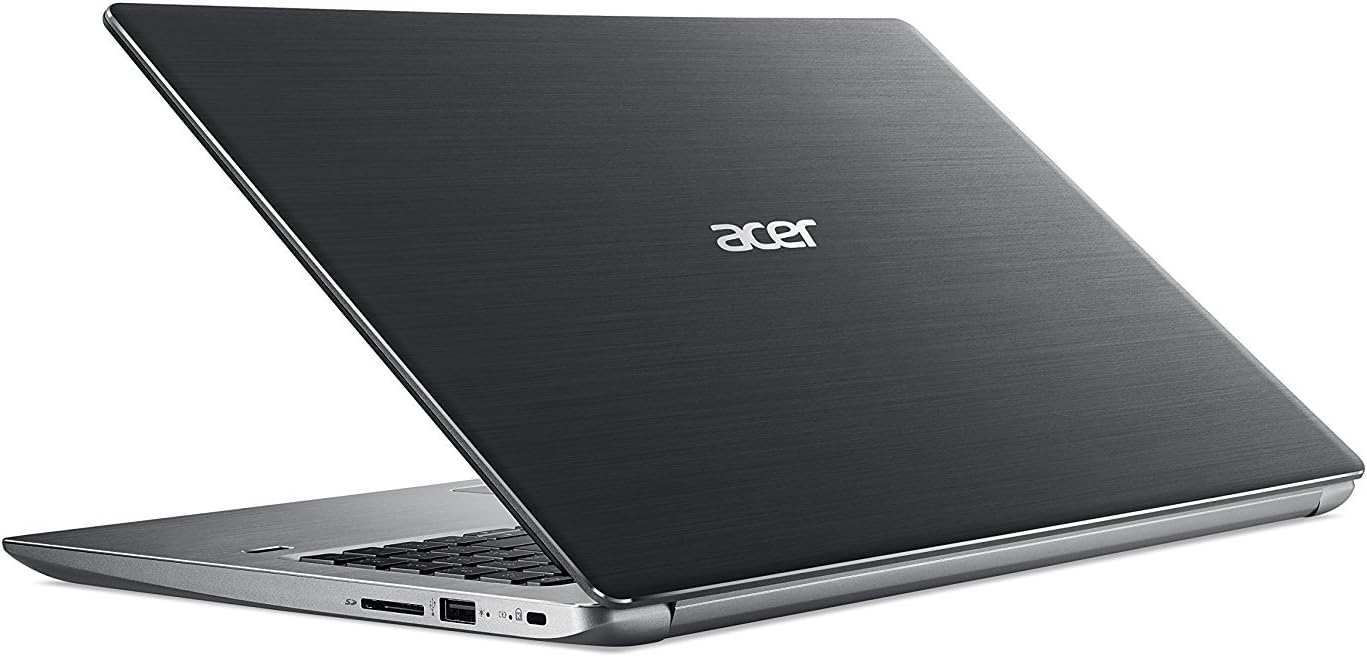
Image: A top-down view of the Acer Swift 3 laptop, showcasing the keyboard with a numeric keypad and the large precision touchpad. This view helps users identify key areas for input.
3.2 Connecting Peripherals
Your laptop is equipped with various ports for connecting external devices:
- USB 3.1 (Type-C) port (Gen 1 up to 5 Gbps): 1 port
- USB 3.0 ports: 2 ports (one with power-off charging)
- USB 2.0 port: 1 port
- HDMI Port: For connecting to external displays.
- SD Card Reader: For memory cards.
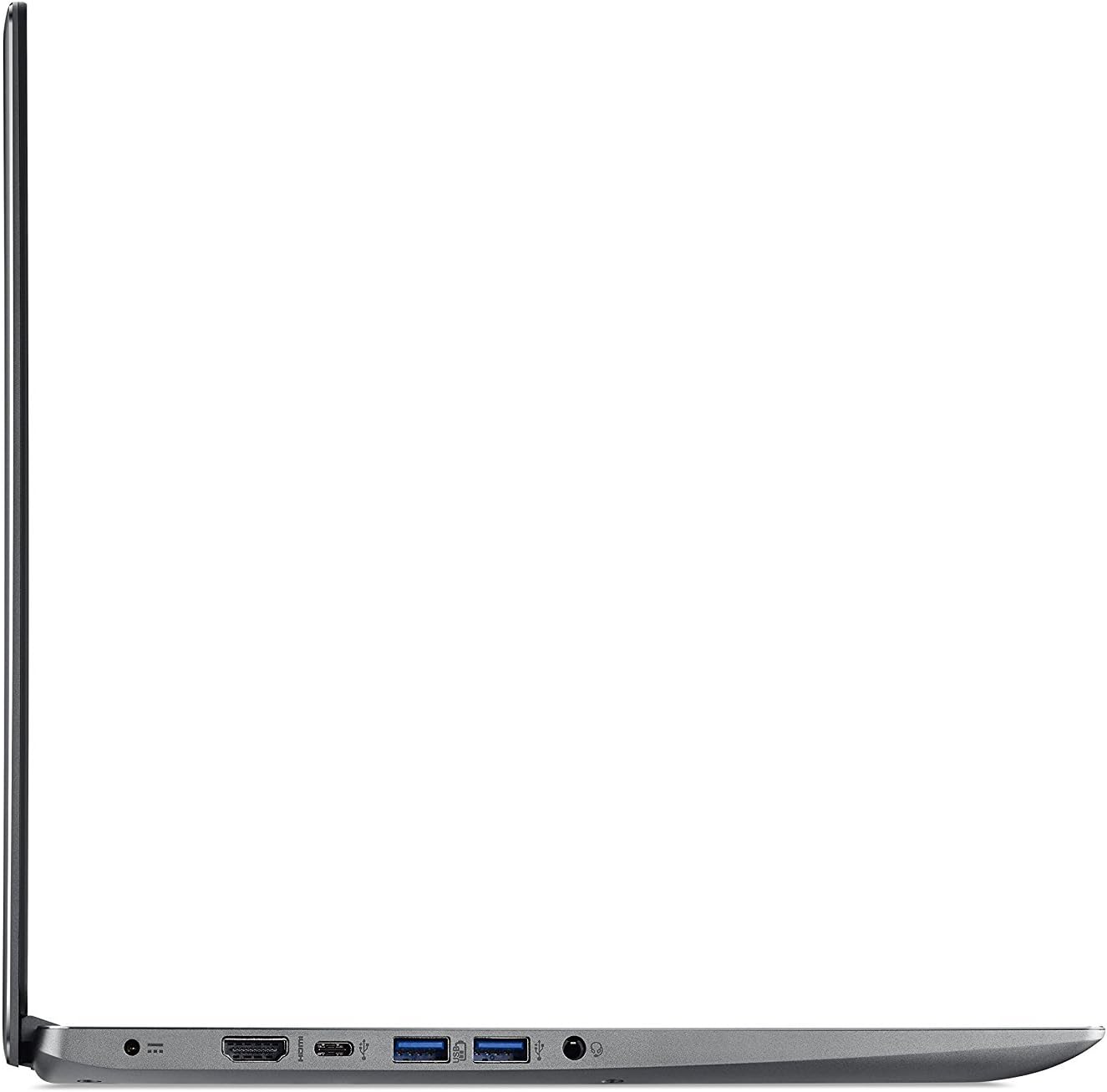
Image: A side view of the Acer Swift 3 laptop, showing the left-side ports including HDMI, USB-C, and two USB-A 3.0 ports. This helps users locate and identify connection points for peripherals.

Image: A side view of the Acer Swift 3 laptop, showing the right-side ports including a USB-A 2.0 port and an SD card reader. This helps users locate and identify additional connection points.
3.3 Wireless Connectivity
The laptop supports 802.11ac Wi-Fi with 2x2 MU-MIMO technology (Dual-Band 2.4GHz and 5GHz) and Bluetooth 4.1. Access network settings in Windows to connect to Wi-Fi networks or pair Bluetooth devices.
3.4 Using the Webcam
The integrated HD Webcam (1280 x 720) supports Super High Dynamic Range (SHDR) for clear video calls. Access it through applications like Camera or video conferencing software.
4. Maintenance
4.1 Cleaning Your Laptop
- Screen: Use a soft, lint-free cloth lightly dampened with water or a screen cleaner. Do not spray cleaner directly onto the screen.
- Keyboard and Chassis: Use a soft, dry cloth. For stubborn dirt, a slightly damp cloth can be used, ensuring no liquid enters openings.
- Vents: Periodically clean dust from the cooling vents using compressed air to maintain optimal airflow and prevent overheating.
4.2 Battery Care
To maximize battery life, avoid extreme temperatures and fully discharging the battery frequently. For long-term storage, charge the battery to about 50% and store the laptop in a cool, dry place.
4.3 Software Updates
Regularly update your Windows operating system and drivers to ensure security, stability, and performance. Access Windows Update through the Settings menu.
5. Troubleshooting
| Problem | Possible Solution |
|---|---|
| Laptop does not power on. | Ensure the AC adapter is securely connected and the power outlet is functional. Check if the battery is charged. Try holding the power button for 10-15 seconds for a hard reset. |
| Screen is blank or flickering. | Connect an external monitor to check if the issue is with the laptop's display. Update graphics drivers. Adjust screen brightness. |
| Wi-Fi connection issues. | Restart your router and modem. Check Wi-Fi settings on the laptop. Ensure Wi-Fi is enabled. Update wireless drivers. |
| Slow performance. | Close unnecessary applications. Check for malware. Ensure sufficient free space on the SSD. Update Windows and drivers. |
Note: If issues persist, refer to the Acer support website or contact customer service.
6. Specifications
| Feature | Detail |
|---|---|
| Processor | AMD Ryzen 7 2700U Quad-Core (2.2GHz up to 3.8GHz) |
| Graphics | AMD Radeon RX 540 with 2 GB GDDR5 VRAM |
| Display | 15.6" Full HD (1920 x 1080) IPS LED-backlit with Corning Gorilla Glass |
| RAM | 8GB DDR4 Onboard Memory |
| Storage | 256GB SSD |
| Operating System | Windows 10 Home |
| Wireless Connectivity | 802.11ac Wi-Fi (2x2 MU-MIMO), Bluetooth 4.1 |
| Ports | 1x USB 3.1 Type-C, 2x USB 3.0, 1x USB 2.0, 1x HDMI, SD Card Reader |
| Webcam | HD Webcam (1280 x 720) with SHDR |
| Battery Life | Up to 9 hours |
| Weight | 4.63 lbs (2.1 kg) |
| Dimensions (LxWxH) | 14.56 x 10.04 x 0.74 inches |
7. Warranty and Support
7.1 Warranty Information
Your Acer Swift 3 SF315-41G-R6MP laptop comes with a standard manufacturer's warranty. Please refer to the warranty card included with your product or visit the official Acer website for detailed terms and conditions regarding warranty coverage, duration, and service procedures.
7.2 Customer Support
For technical assistance, driver downloads, or further support, please visit the official Acer support website. You can find FAQs, troubleshooting guides, and contact information for customer service.
- Acer Support Website: www.acer.com/support


