1. Introduction
The Geeni Sentinel 720p Wireless Indoor Surveillance Camera provides comprehensive indoor monitoring with advanced features. This manual outlines the setup, operation, and maintenance of your Sentinel camera to ensure optimal performance and security. The camera offers remote pan, tilt, and zoom capabilities, two-way audio, night vision, and motion alerts, all controllable via the Geeni app.
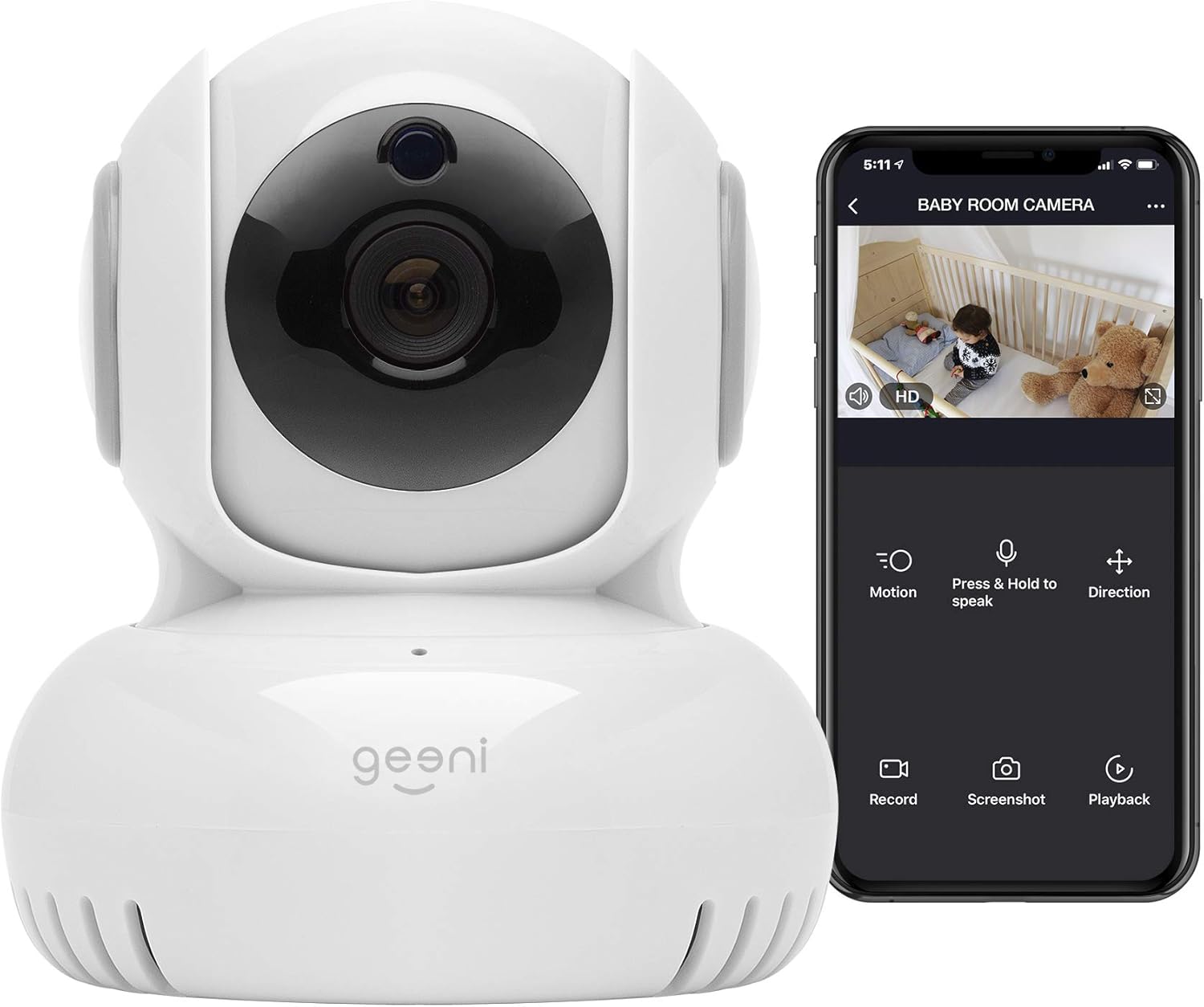
Image 1.1: The Geeni Sentinel 720p Wireless Indoor Surveillance Camera. This image displays the camera's compact design and its accompanying smartphone app interface, demonstrating live view and control options.
2. Product Overview & Key Features
The Geeni Sentinel camera is designed for indoor surveillance, offering a range of features for monitoring your home. It includes a pan/tilt/zoom function, two-way audio communication, night vision capabilities, and motion detection alerts. The camera connects wirelessly to your home's 2.4GHz Wi-Fi network and is controlled via the Geeni app on your smartphone.

Image 2.1: Key Features of the Geeni Sentinel Camera. This diagram illustrates the main components of the Geeni Sentinel camera, highlighting its microphone, speaker, pan and tilt mechanism, 5V power input, and microSD card slot for local storage. Dimensions are also provided: Width 3.34" (85 mm), Height 4.07" (103.5 mm), Depth 3.48" (88.5 mm).
Key Features:
- HD Live Video: Stream clear 720p video directly to your smartphone.
- Motion Sensor: Detects movement and sends alerts to your device.
- Night Vision: Automatic infrared night vision for monitoring in low-light conditions.
- Pan & Tilt: Remotely adjust the camera's viewing angle (270° horizontal, 120° vertical).
- 2-Way Talk: Built-in microphone and speaker for two-way audio communication.
- Local Storage: Supports microSD cards up to 64GB for recording footage.
- Voice Control: Compatible with Amazon Alexa and Google Assistant.
3. Setup Instructions
Follow these steps to set up your Geeni Sentinel camera and connect it to your home network.
- Download the Geeni App: Search for "Geeni" in the Apple App Store or Google Play Store and download the application to your smartphone.
- Create an Account: Open the Geeni app and register for a new account or log in if you already have one.
- Connect to Power: Plug the camera into a power outlet using the provided power adapter. The camera's indicator light should begin to blink red, indicating it is ready for setup.
- Connect to 2.4GHz Wi-Fi: Ensure your smartphone is connected to a 2.4GHz Wi-Fi network. The Geeni Sentinel camera does not support 5GHz Wi-Fi networks.
- Add Device in App: In the Geeni app, tap the "+" icon in the top right corner to add a new device. Select "WiFi Camera" from the product categories.
- Follow In-App Prompts: Confirm that the camera's indicator light is blinking red. Enter your 2.4GHz Wi-Fi network password when prompted. The app will guide you through the connection process, which may involve scanning a QR code displayed on your phone with the camera lens.
- Completion: Once connected, the indicator light will turn solid blue, and the camera will appear in your Geeni app. You can then name your camera and begin monitoring.

Image 3.1: Easy Connection Steps. This image demonstrates the three simple steps for connecting your Geeni Sentinel camera: First, plug the camera into a power outlet. Second, download the Geeni app and follow the in-app instructions to set up the device, ensuring your phone is connected to a 2.4 GHz Wi-Fi network. Third, once connected, you can control and monitor the camera from anywhere using your smartphone.
4. Operating Instructions
Once your Geeni Sentinel camera is set up, you can utilize its various features through the Geeni app.
4.1 Live View and Remote Access
Access real-time footage from your camera anytime, anywhere through the Geeni app. Simply open the app and select your Sentinel camera from the device list to view its live feed.
4.2 Pan, Tilt, and Zoom (PTZ)
Adjust the camera's viewing angle remotely using the pan and tilt controls within the Geeni app. The camera offers 270° horizontal rotation and 120° vertical rotation, allowing you to cover a wide area.

Image 4.1: Pan, Tilt, & Zoom Capabilities. This diagram illustrates the camera's pan and tilt capabilities, showing a 270° horizontal rotation and a 120° vertical rotation, allowing for comprehensive coverage of the monitored area.
4.3 Two-Way Talk
Utilize the built-in microphone and speaker to communicate with individuals near the camera. Tap the microphone icon in the live view interface of the Geeni app to speak, and release to listen.

Image 4.2: Listen & Talk Feature. This image shows the Geeni app interface on a smartphone, highlighting the 'Press & Hold to speak' button, which enables two-way audio communication through the camera. The background depicts a living room scene with a dog, illustrating a common use case for this feature.
4.4 Night Vision
The camera automatically activates infrared night vision in low-light conditions, providing clear video footage even in complete darkness. This feature ensures continuous monitoring 24/7.

Image 4.3: Night Vision Camera. This image demonstrates the camera's night vision capability, showing a clear, grayscale view of a baby in a crib on a smartphone screen, even in a darkened room.
4.5 Motion Detection & Alerts
Receive instant notifications on your smartphone when motion is detected by the camera. You can customize motion detection zones and adjust sensitivity settings within the Geeni app to minimize false alerts.
4.6 Recording & Storage
The camera supports continuous recording or event-triggered recording to a local microSD card (up to 64GB, sold separately). Footage can be reviewed and downloaded directly via the Geeni app's playback function.

Image 4.4: Check In + Save Footage. This image illustrates the ability to view live HD streams and access saved footage directly from a smartphone. The camera supports microSD cards up to 64GB for local storage.
4.7 Voice Control
Integrate your Geeni Sentinel camera with Amazon Alexa or Google Assistant for convenient voice commands. You can ask your smart assistant to display the camera feed on compatible smart displays (e.g., Echo Show, Google Nest Hub).

Image 4.5: Voice Control. This image demonstrates the voice control feature, showing a smart display activated by an Alexa command to show the camera feed of a baby's room. The camera is compatible with both Amazon Alexa and Google Assistant.
5. Maintenance
Regular maintenance ensures the longevity and optimal performance of your Geeni Sentinel camera.
- Cleaning: Gently wipe the camera lens and body with a soft, dry cloth. Avoid using harsh chemicals or abrasive cleaners, as these can damage the camera's components.
- Software Updates: Ensure your Geeni app and camera firmware are up to date. The app will typically notify you of available updates. Installing updates can improve performance, add new features, and enhance security.
- Placement: Position the camera in a location where it is protected from extreme temperatures, direct sunlight, and moisture. Avoid placing it near strong electromagnetic fields.
- Power Cycle: If the camera becomes unresponsive, unplug it from the power source for 10-15 seconds, then plug it back in to perform a power cycle.
6. Troubleshooting
If you encounter issues with your Geeni Sentinel camera, refer to the following common solutions.
- Camera Not Connecting to Wi-Fi:
- Ensure your Wi-Fi network is 2.4GHz. The camera does not support 5GHz networks.
- Verify your Wi-Fi password is correct.
- Move the camera closer to your Wi-Fi router to improve signal strength.
- Restart your Wi-Fi router and the camera.
- Ensure your smartphone is connected to the same 2.4GHz Wi-Fi network during the setup process.
- Poor Video Quality:
- Check your internet connection speed. A stable and sufficient bandwidth connection is required for clear streaming.
- Ensure the camera lens is clean and free from obstructions.
- Motion Alerts Not Working:
- Verify motion detection is enabled in the Geeni app settings for your camera.
- Adjust motion sensitivity settings to an appropriate level.
- Check app notification settings on your smartphone to ensure Geeni notifications are allowed.
- Two-Way Audio Issues:
- Ensure microphone and speaker permissions are granted to the Geeni app on your smartphone.
- Check the volume settings on your smartphone and within the Geeni app.
- Camera Offline:
- Check if the camera is powered on and connected to a working power outlet.
- Verify your Wi-Fi network is active and stable.
- Restart the camera and your router.
7. Specifications
Technical specifications for the Geeni Sentinel 720p Wireless Indoor Surveillance Camera.
| Feature | Detail |
|---|---|
| Brand | Geeni |
| Model Name | Sentinel 720p |
| Item Model Number | 3216555829 |
| Video Capture Resolution | 720p |
| Connectivity Technology | Wireless (Wi-Fi) |
| Connectivity Protocol | Wi-Fi (2.4 GHz only) |
| Special Features | Motion Sensor, Night Vision, Pan/Tilt/Zoom, 2-Way Talk |
| Indoor/Outdoor Usage | Indoor |
| Compatible Devices | Desktop, Laptop, Smartphone, Tablet |
| Controller Type | Amazon Alexa, Google Assistant |
| Power Source | Corded Electric (3 watts) |
| Material | Metal |
| Colour | White |
| Item Dimensions (L x W x H) | 8.9 x 8.9 x 12.4 Centimetres |
| Item Weight | 226 g |
| Mounting Type | Surface Mount |
| Recommended Uses | Baby Monitoring, Home Security, Motion Detection, Night Vision |
8. Warranty and Support
For warranty information, technical assistance, or further inquiries regarding your Geeni Sentinel 720p Wireless Indoor Surveillance Camera, please contact Geeni customer support. Support details, including contact numbers and online resources, can typically be found on the official Geeni website (www.geeni.com) or within the Geeni app's settings or help section.
Please retain your proof of purchase for warranty claims.


