
GoPro CHDHX-701
GoPro Hero7 Black Instruction Manual
Model: CHDHX-701
Overview & Key Features
The GoPro Hero7 Black is engineered to capture your adventures with unparalleled stability and clarity. Its robust design makes it ready for any environment, from underwater explorations to high-speed action.
- HyperSmooth Stabilization: Get gimbal-like stabilization without the gimbal. HERO7 Black corrects for camera shake to deliver insanely smooth footage.
- 4K60 Video + 12MP Photos: Shoots stunning 4K60 video and vibrant 12MP photos.
- TimeWarp Video: Capture super stabilized time lapse videos while you move about a scene. Increase the speed up to 30x for shareable moments.
- Live Streaming in 720p: Share your experiences live on social media with HyperSmooth stabilization.
- Rugged + Waterproof: Built tough and waterproof without a housing to 33 feet (10m).
- SuperPhoto: Intelligently applies HDR, local tone mapping, or noise reduction for optimized shots.
- Voice Control: Go hands-free with 16 voice commands.
What's in the Box
- HERO7 Black Camera
- Rechargeable Battery
- The Frame (HERO7 Black)
- Curved Adhesive Mount
- Flat Adhesive Mount
- Mounting Buckle
- USB-C Cable
Setup
Before using your GoPro Hero7 Black, ensure it is properly set up and charged.
1. Charging the Battery
Connect the included USB-C cable to the camera's USB-C port and a USB power adapter. The status lights will indicate charging status and turn off when fully charged.
2. Inserting the SD Card
Open the side door of the camera. Insert a compatible microSD card (Class 10 or UHS-1 rating recommended, up to 128GB) with the label facing the battery compartment. Gently push until it clicks into place.

GoPro Hero7 Black with the side door open, revealing the battery and microSD card slot.
3. Connecting to the GoPro App
Download the GoPro app on your smartphone. Turn on your GoPro by pressing the Mode button. Follow the in-app instructions to connect your camera via Bluetooth and Wi-Fi. This allows for remote control, media transfer, and firmware updates.

Front view of the GoPro Hero7 Black, showing the lens and front display.
Operating the Camera
Familiarize yourself with the camera's controls and touch screen interface for optimal use.
Basic Controls
- Shutter Button (Top): Press to start/stop recording video or take photos.
- Mode Button (Side): Press to cycle through video, photo, and time lapse modes. Hold to power on/off.

Diagram showing the main components and buttons of the GoPro Hero7 Black.
Touch Screen Navigation
The rear touch screen allows for intuitive control and settings adjustments.
- Swipe Down: Access preferences and settings.
- Swipe Up: View captured media.
- Swipe Left/Right: Switch between video, photo, and time lapse modes.

Rear view of the GoPro Hero7 Black, highlighting the touch screen interface.
Shooting Modes
The Hero7 Black offers various modes to suit different capture needs:
- Video: Capture smooth, stabilized video in resolutions up to 4K60.
- Photo: Take high-quality 12MP photos with SuperPhoto intelligent optimization.
- TimeWarp Video: Create hyper-stabilized time-lapse videos while moving.
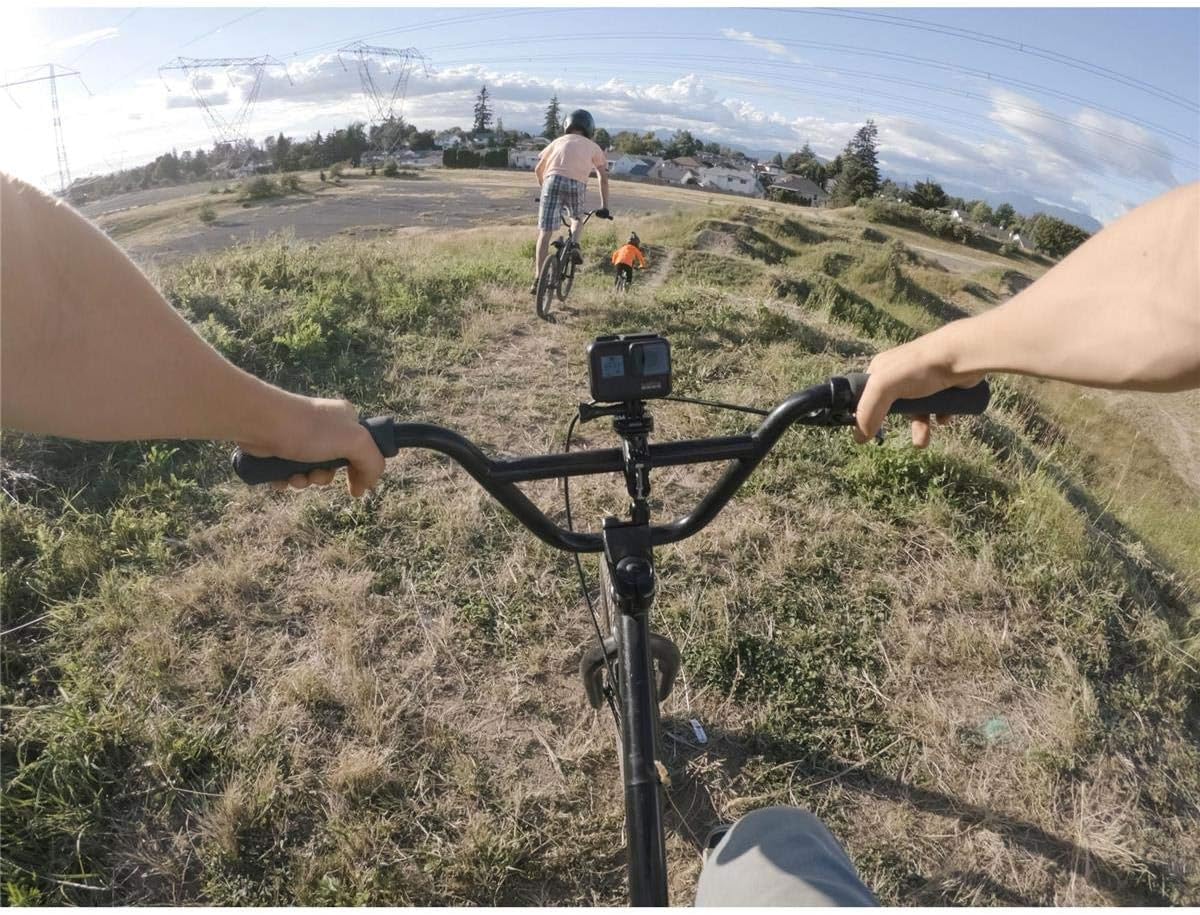
Point-of-view shot captured with a GoPro Hero7 Black.
Voice Control
Control your camera hands-free with simple voice commands. For example, say "GoPro, take a photo" or "GoPro, start recording."
Maintenance
Proper maintenance ensures the longevity and optimal performance of your GoPro Hero7 Black.
Cleaning
- Lens: Use a soft, lint-free cloth to clean the lens. For stubborn spots, use a lens cleaning solution.
- Body: Wipe the camera body with a damp cloth. Ensure all ports are closed before cleaning.
- Water Exposure: After saltwater use, rinse the camera with fresh water and dry thoroughly.
Battery & SD Card Care
- Store batteries in a cool, dry place. Avoid extreme temperatures.
- Regularly format your SD card using the camera's settings to prevent data corruption and ensure optimal recording performance.
Troubleshooting
Here are solutions for common issues you might encounter with your GoPro Hero7 Black.
Camera Freezing/Unresponsive
- Remove and reinsert the battery.
- Ensure firmware is up to date via the GoPro app.
Connectivity Issues (Wi-Fi/Bluetooth)
- Reset Wi-Fi connections in the camera's settings.
- Ensure your smartphone's Bluetooth and Wi-Fi are enabled.
- Try restarting both the camera and your smartphone.
Poor Video Quality
- Ensure the lens is clean and free of smudges.
- Check your resolution and frame rate settings. Higher settings (e.g., 4K60) provide better quality.
- Use a recommended SD card with sufficient write speed.
Specifications
| Product Dimensions | 1.75 x 2.44 x 1.26 inches |
| Item Weight | 4.2 ounces |
| Item Model Number | CHDHX-701 |
| Batteries | 1 Lithium Metal batteries required (included) |
| Photo Sensor Technology | CCD |
| Video Capture Resolution | 1080p, 720p, 4K |
| Flash Memory Type | SD |
| Screen Size | 2 Inches |
| Connectivity Technology | USB |
| Color | Black |
Warranty and Support
GoPro products typically come with a limited manufacturer's warranty. For detailed warranty information, product registration, and technical support, please visit the official GoPro website or contact their customer service directly.
Keep your proof of purchase for any warranty claims.
Related documentsCHDHX-701


Ask a question about this manual
Ask about setup, troubleshooting, compatibility, parts, safety, or missing instructions. Manuals+ will review the question and use this page’s manual context to help answer it.