
1. Introduction
This manual provides detailed instructions for the setup, operation, and maintenance of your GL.iNet GL-AR750S-Ext Slate Gigabit Travel AC VPN Router. This device offers dual-band Wi-Fi (300Mbps 2.4GHz + 433Mbps 5GHz), 128MB RAM, MicroSD support, and comes with OpenWrt/LEDE pre-installed, featuring VPN client/server capabilities and Cloudflare DNS support. It is designed for secure and flexible internet access while traveling or at home.
2. Product Overview
2.1 Physical Components
Familiarize yourself with the ports, buttons, and indicators on your GL-AR750S-Ext router.

Figure 1: Physical components of the GL.iNet GL-AR750S-Ext Slate router.
- USB 2.0 Port: For connecting USB storage devices or 3G/4G/5G USB modems.
- Power Port: Micro USB for power input (5V/2A).
- WAN Ethernet Port: Connects to an existing wired network for internet access.
- LAN Ethernet Ports (x2): For connecting wired devices to the router's local network.
- TF Card Slot: Supports MicroSD cards up to 128GB for storage.
- Reset Button: Used to reset the router to factory defaults.
- Mode Switch: Configurable button for various functions (e.g., VPN toggle).
- LED Lights: Indicators for Power, 2.4GHz Wi-Fi, and 5GHz Wi-Fi status.
2.2 Product Dimensions

Figure 2: Dimensions of the GL.iNet GL-AR750S-Ext Slate router.
The router measures 3.94 x 2.68 x 0.94 inches (100 x 68 x 24 mm) and weighs approximately 3.04 ounces (86g), making it highly portable.
3. Setup
3.1 Initial Setup
To begin, connect the router to a power source using the provided USB cable and power adapter. The LED lights will indicate the power-on status.
Video 1: Initial setup guide for the GL-AR750S-Ext Slate travel router.
For detailed configuration, access the router's administration panel via a web browser. Connect your device (computer or smartphone) to the router's Wi-Fi network (SSID and password are printed on the router's label) or via an Ethernet cable to a LAN port. Then, open a web browser and navigate to the default IP address (usually 192.168.8.1) to set up a new password and configure your internet connection.
Video 2: Instructions on how to access the router's Admin Panel.
4. Operating Modes
The GL-AR750S-Ext supports various operating modes to provide flexible internet access.

Figure 3: Various internet access methods supported by the router.
4.1 Wired Connection (Cable)
Connect the WAN port of the router to an Ethernet cable from a modem or existing network. The router will then broadcast a private Wi-Fi network.
4.2 Repeater Mode
The router can connect to an existing public Wi-Fi network (e.g., hotel Wi-Fi) and convert it into a private, secure Wi-Fi network for your devices. This is particularly useful for bypassing captive portals.
Video 3: Guide on how to connect to public/hotel Wi-Fi using Repeater mode.
4.3 USB Modem Mode
Plug a 3G/4G/5G USB modem into the USB 2.0 port to use cellular data as the internet source. The router will then distribute this connection via Wi-Fi.
4.4 Tethering Mode
Connect your smartphone to the USB 2.0 port to use your phone's cellular data as the internet source. The router will create a private Wi-Fi network from this connection.
Video 4: Instructions on how to set up Tethering mode.
5. Advanced Features
5.1 VPN Client & Server
The router comes with OpenVPN and WireGuard pre-installed, supporting over 30 VPN service providers. You can configure it as a VPN client to encrypt your network traffic or as a VPN server to access your home network remotely.
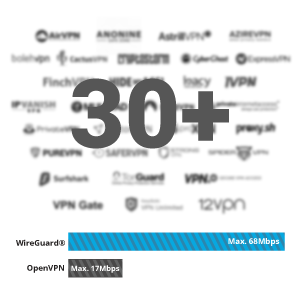
Figure 4: VPN dashboard interface.
Video 5: How to set up OpenVPN client on the router.
5.2 AdGuard Home & Cloudflare DNS
Enhance your online privacy and security with AdGuard Home for blocking ads and trackers, and Cloudflare DNS for faster and more secure domain name resolution.
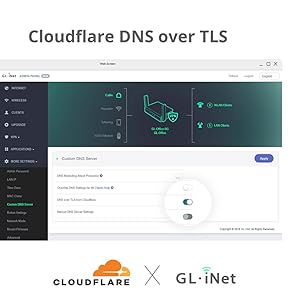
Figure 5: DNS over TLS for enhanced privacy.
5.3 Quality of Service (QoS)
Prioritize network traffic for specific applications or devices to ensure optimal performance for gaming, streaming, or other critical tasks.
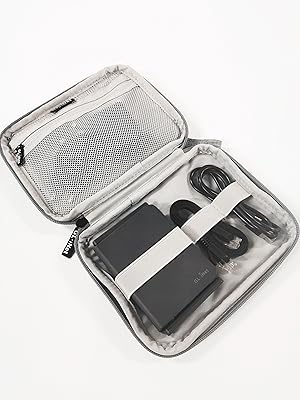
Figure 6: Quality of Service (QoS) configuration.
6. Specifications
| Feature | Specification |
|---|---|
| Model Number | GL-AR750S |
| Wi-Fi Speed | 300Mbps (2.4GHz) + 433Mbps (5GHz) |
| RAM | 128MB |
| Flash Memory | 16MB NOR Flash and 128MB NAND Flash |
| MicroSD Slot | Up to 128GB |
| USB Port | USB 2.0 |
| Ethernet Ports | 3 Gigabit Ethernet ports (1 WAN, 2 LAN) |
| Product Dimensions | 3.94 x 2.68 x 0.94 inches |
| Item Weight | 3.04 ounces |
| Operating System | OpenWrt/LEDE pre-installed |
| VPN Support | OpenVPN, WireGuard (compatible with 30+ providers) |
| Special Feature | Access Point Mode, Repeater Bridge, Cloudflare DNS |
7. Troubleshooting
If you encounter issues with your GL.iNet GL-AR750S-Ext router, consider the following:
- No Internet Connection: Verify that the WAN cable is securely connected or that the Repeater mode is correctly configured to an active Wi-Fi network. Check the internet status in the Admin Panel.
- Slow Speeds: Ensure your internet service provider is delivering expected speeds. Check QoS settings in the Admin Panel to ensure no unnecessary traffic prioritization is slowing down other devices.
- Device Not Connecting: Ensure the correct Wi-Fi password is being used. Try restarting the router and the client device.
- Firmware Update: Regularly check for and install firmware updates from the GL.iNet official website to ensure optimal performance and security.
- Factory Reset: If problems persist, perform a factory reset by pressing and holding the Reset button for 5-10 seconds until the LED lights change. Note that this will erase all custom configurations.
8. Package Contents
The GL.iNet GL-AR750S-Ext package includes:
- GL-AR750S-Ext (Slate) router
- Power adapter (US Plug)
- USB cable
- Ethernet cable
- User manual
9. Warranty and Support
The GL.iNet GL-AR750S-Ext (Slate) router comes with a 1-year limited warranty. For further assistance, technical support, or to access official documentation, please visit the GL.iNet official website or contact their customer service.