1. Introduction
This manual provides essential information for the setup, operation, maintenance, and troubleshooting of your HP LaserJet 4240N printer. Please read these instructions carefully to ensure proper use and optimal performance of your device.
2. Product Overview
The HP LaserJet 4240N is a monochrome laser printer designed for efficient document creation in small business environments. It features standard networking capabilities for shared use and supports various paper handling options.
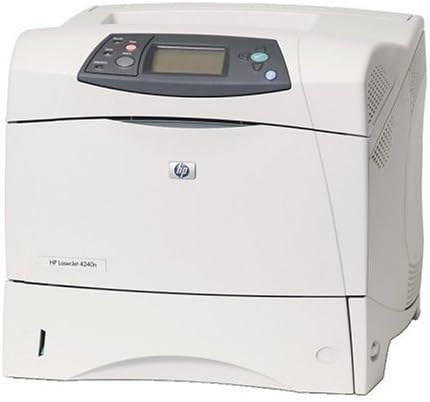
Figure 2.1: Front view of the HP LaserJet 4240N Printer, showing the control panel and paper trays.
Key Features:
- Print speeds of up to 40 pages per minute (ppm) for letter-sized documents.
- High-resolution printing at 1200 dpi.
- Equipped with a 460 MHz processor and 64 MB RAM, expandable up to 512 MB.
- Integrated HP Jetdirect Fast Ethernet embedded print server for network connectivity.
- Hi-Speed USB 2.0 and IEEE 1284-B parallel port for flexible connectivity.
- Automatic two-sided (duplex) printing capability.
- Expandable input capacity with optional trays.
3. Setup
3.1 Unpacking the Printer
- Carefully remove the printer from its packaging.
- Remove all packing materials, tapes, and protective films from the printer exterior and interior.
- Place the printer on a stable, level surface with adequate ventilation.
3.2 Connecting Power
Connect the power cord to the printer's power input and then to a grounded electrical outlet. Do not power on the printer until all other connections are made.
3.3 Connecting to a Computer or Network
- USB Connection: Connect a USB cable from the printer's USB port to an available USB port on your computer.
- Network (Ethernet) Connection: Connect an Ethernet cable from the printer's network port to an available port on your network router or switch.
- Parallel Connection: For legacy systems, connect a parallel cable from the printer's parallel port to the computer's parallel port.
3.4 Installing the Toner Cartridge
- Open the front access door of the printer.
- Remove the new toner cartridge from its packaging and gently shake it to distribute the toner.
- Insert the toner cartridge into the designated slot until it clicks into place.
- Close the front access door.
3.5 Loading Paper
Open the paper tray and adjust the paper guides to fit the size of the paper you are loading. Load the paper stack into the tray, ensuring it is flat and below the maximum fill line. Close the paper tray.
3.6 Driver Installation
After connecting the printer, power it on. Your operating system may automatically detect and install the necessary drivers. If not, download the latest drivers from the official HP support website for the LaserJet 4240N model and follow the on-screen installation instructions.
4. Operating the Printer
4.1 Control Panel Overview
The control panel on the top of the printer features an LCD display for status messages and menu navigation, along with buttons for job cancellation, menu access, and selection. Refer to the on-screen prompts for specific functions.
4.2 Basic Printing
- Ensure the printer is powered on and connected to your computer or network.
- Open the document you wish to print on your computer.
- Select 'Print' from the application's menu (e.g., File > Print).
- Choose the HP LaserJet 4240N from the list of available printers.
- Adjust print settings as needed (e.g., number of copies, paper size, duplex printing).
- Click 'Print'.
4.3 Duplex Printing (Two-Sided)
The HP LaserJet 4240N supports automatic two-sided printing. To enable this feature, select the duplex printing option in your printer's driver settings or application print dialog before sending the print job.
4.4 Paper Handling
The printer accommodates various paper types and sizes. Ensure that the paper loaded in the tray matches the settings selected in your print driver to prevent errors. Optional input trays can be added to increase paper capacity and handle different media simultaneously.
5. Maintenance
5.1 Replacing the Toner Cartridge
When the toner level is low, the printer's control panel will display a message. To replace the cartridge, open the front access door, remove the old cartridge, and install a new HP-compatible toner cartridge as described in Section 3.4.
5.2 Cleaning the Printer
- Exterior: Wipe the exterior surfaces with a soft, lint-free cloth dampened with water. Avoid abrasive cleaners.
- Paper Path: If print quality issues persist, consult the printer's internal menus for options to clean the paper path or fuser.
5.3 Firmware Updates
Periodically check the HP support website for firmware updates. Updating the printer's firmware can improve performance, add new features, or resolve known issues. Follow the instructions provided with the firmware update package carefully.
6. Troubleshooting
6.1 Common Issues and Solutions
- Paper Jams: Follow the on-screen instructions or internal diagrams to locate and carefully remove any jammed paper. Ensure paper is loaded correctly.
- Poor Print Quality: Check toner levels, ensure the toner cartridge is properly installed, and consider performing a cleaning cycle. Verify that the correct paper type is selected in print settings.
- Connectivity Problems: Verify all cables (USB, Ethernet) are securely connected. For network issues, check network settings on the printer and computer. Restarting the printer and computer can often resolve temporary connectivity glitches.
- Printer Not Responding: Ensure the printer is powered on and not in an error state. Check for pending print jobs on your computer and clear them if necessary.
6.2 Error Messages
The printer's control panel display will show error codes or messages if a problem occurs. Consult the HP support website or the printer's internal help system for specific interpretations and recommended actions for each error message.
7. Specifications
| Feature | Specification |
|---|---|
| Model Number | Q7785A#ABA |
| Printing Technology | Monochrome Laser |
| Print Speed (Monochrome) | Up to 40 ppm (Letter) |
| Print Resolution | Up to 1200 x 1200 dpi |
| Processor Speed | 460 MHz |
| Standard Memory | 64 MB RAM |
| Maximum Memory | 512 MB RAM (via two 100-pin DDR DIMM slots) |
| Duplex Printing | Automatic |
| Connectivity | Ethernet, USB 2.0, Parallel (IEEE 1284-B) |
| Max Input Sheet Capacity | 100 sheets (standard), expandable to 3,100 sheets with optional trays |
| Max Media Size | Super/A3 |
| Printer Ink Type | Toner (Black) |
| Product Dimensions (W x D x H) | 19.7 x 21.3 x 23.6 inches |
8. Warranty and Support
This HP LaserJet 4240N printer, if purchased as a Certified Refurbished product, typically comes with a minimum 90-day limited warranty. For specific warranty details, refer to your purchase documentation. For technical support, driver downloads, or further assistance, visit the official HP support website and search for your printer model.