
Amazon Echo Studio
Amazon Echo Studio User Manual
Model: Echo Studio
Introduction
The Amazon Echo Studio is a high-fidelity smart speaker designed to deliver immersive audio experiences with integrated Alexa voice control. This manual provides essential information for setting up, operating, maintaining, and troubleshooting your Echo Studio device.
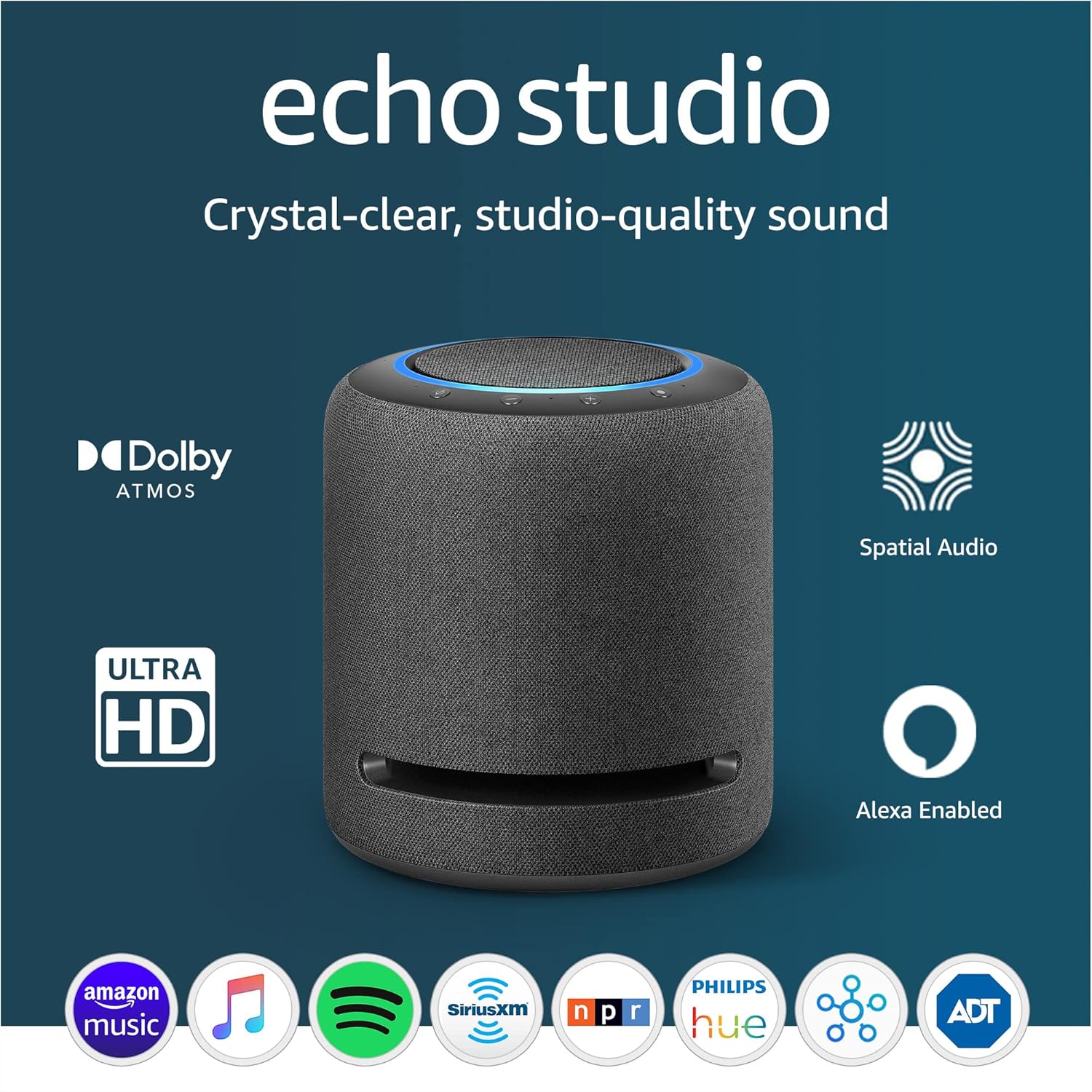
Figure 1: Amazon Echo Studio - Front View with Key Features Highlighted.
Setup Guide
Follow these steps to set up your Amazon Echo Studio for the first time.
- Unpack the Device: Carefully remove the Echo Studio and its power cable from the packaging.
- Power On: Connect the power cable to the Echo Studio and plug it into a wall outlet. The light ring on top of the device will turn blue, then orange, indicating it's ready for setup.
- Download the Alexa App: On your smartphone or tablet, download the Amazon Alexa app from your device's app store (available for Fire OS, Android, and iOS).
- Add Device in App: Open the Alexa app, sign in with your Amazon account, and navigate to the "Devices" tab. Tap the '+' icon in the top right corner, then select "Add Device" > "Amazon Echo" > "Echo Studio".
- Connect to Wi-Fi: Follow the on-screen instructions in the Alexa app to connect your Echo Studio to your Wi-Fi network. The Echo Studio supports dual-band Wi-Fi (2.4 GHz and 5 GHz). For simplified setup, the device supports Amazon Wi-Fi simple setup technology.
- Room Adaptation: Once connected, the Echo Studio will automatically analyze the acoustics of your room and fine-tune its audio output for optimal sound. Ensure the device is not muted during this process.
Note on Network Configuration: If you experience issues with multi-room music or device connectivity, ensure that "Wireless Isolation" or "AP Isolation" is disabled on your Wi-Fi router. This setting can prevent devices on your network from communicating with each other.
Operating Your Echo Studio
Voice Control with Alexa
The Echo Studio is primarily controlled using your voice with Alexa. Simply say "Alexa" followed by your command.
- Music Playback: "Alexa, play jazz music." "Alexa, play my Discover Weekly playlist on Spotify."
- Information: "Alexa, what's the weather today?" "Alexa, tell me a fun fact."
- Smart Home Control: "Alexa, turn on the living room lights." (Requires compatible smart home devices and setup).
- Communication: "Alexa, drop in on the kitchen Echo." "Alexa, make an announcement: Dinner is ready!"

Figure 2: Interacting with Alexa for voice commands.
Audio Features
The Echo Studio is engineered for superior sound quality.
- Speaker Configuration: Features three 2-inch midrange speakers, one 20mm tweeter, and one 5.25-inch woofer with a bass aperture for powerful bass.
- Spatial Audio Processing: This technology creates a wider and more immersive soundstage, enhancing clarity and presence.
- Dolby Atmos & Sony 360 Reality Audio: Supports these spatial audio formats for a multi-dimensional listening experience.
- High-Resolution Audio: Supports FLAC, MP3, AAC, Opus, Vorbis, Dolby Digital, Dolby Digital Plus, and includes support for CD Quality (16-bit) and Hi-Res (up to 24-bit) audio.
- Automatic Room Adaptation: The device continuously adjusts audio filters based on your room's acoustics for optimal sound, regardless of placement.
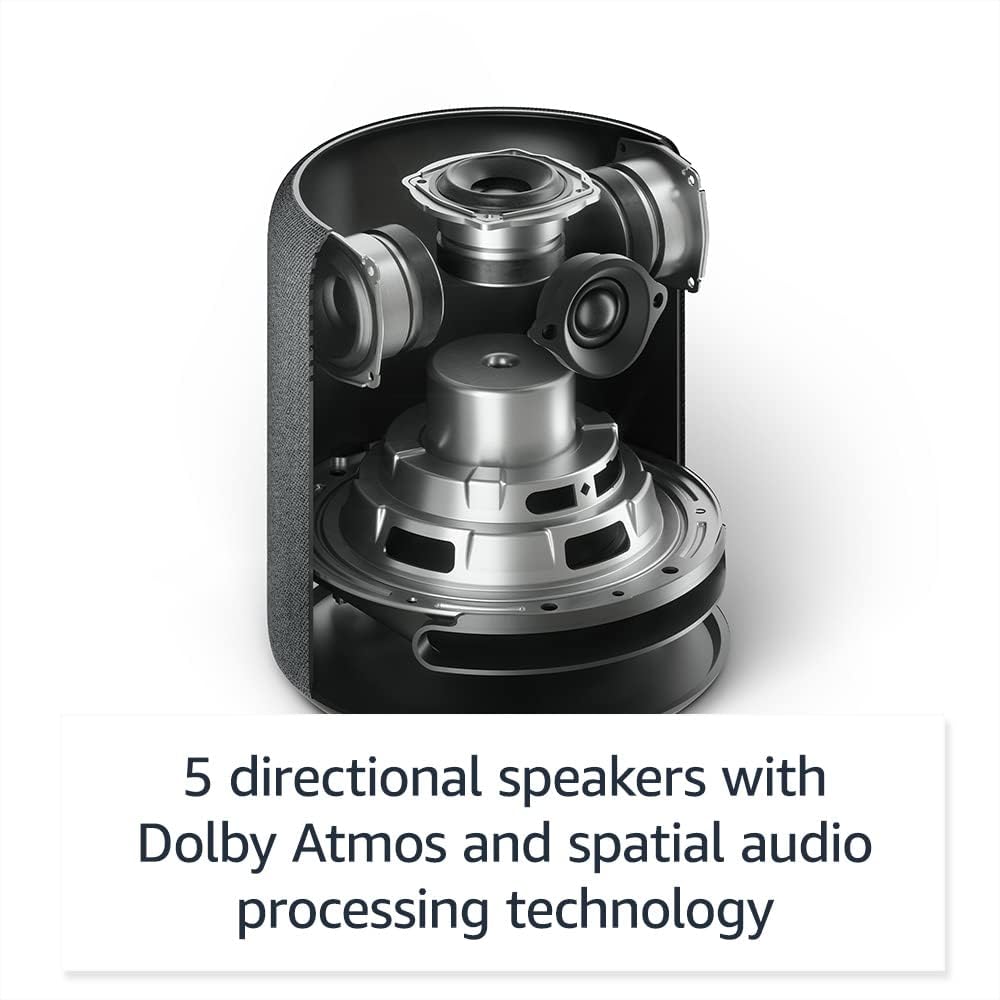
Figure 3: Internal speaker configuration of the Echo Studio.
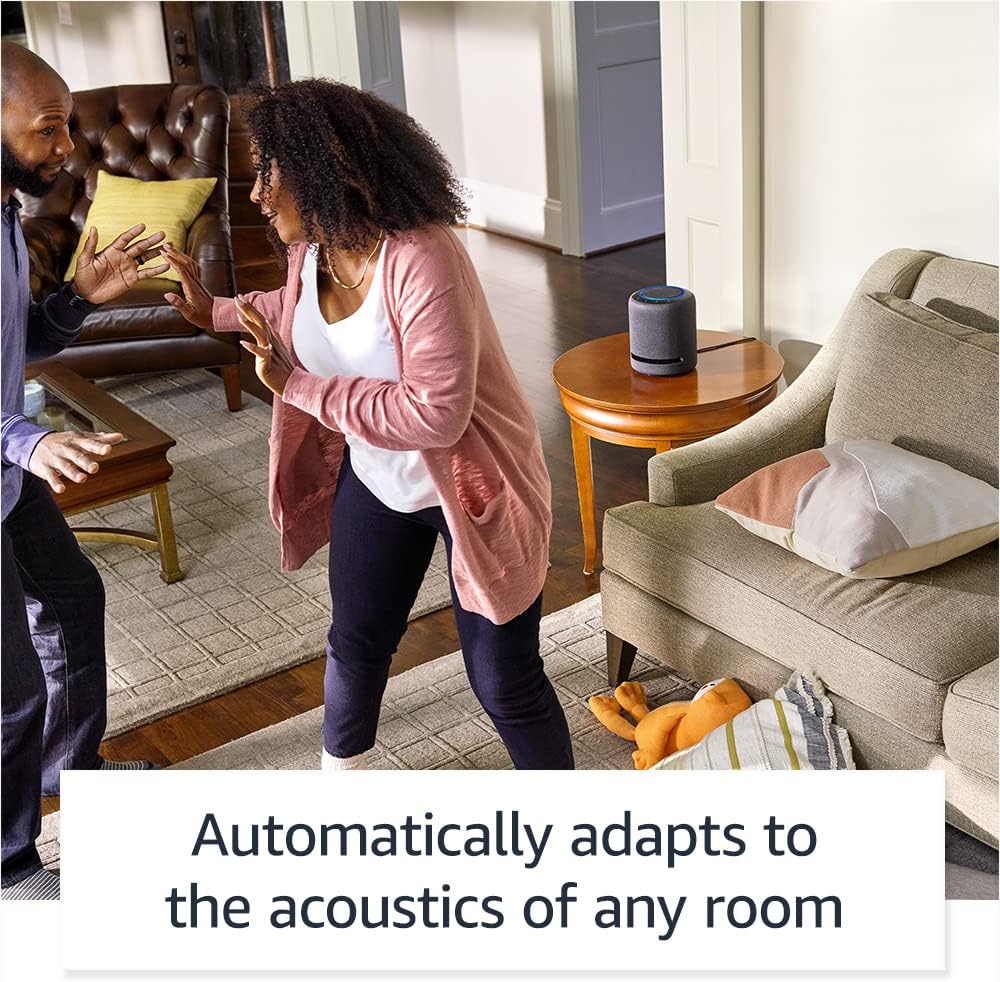
Figure 4: Echo Studio's automatic room adaptation feature in action.
Connectivity
- Wi-Fi: Dual-band 802.11 a/b/g/n/ac (2.4 and 5 GHz) for reliable streaming. Does not support ad-hoc networks.
- Bluetooth: Supports A2DP for audio streaming to/from mobile devices and AVRCP for voice control. Bluetooth speakers requiring PIN codes are not supported.
- Audio Input: Combination 3.5mm analog or mini-TOSLINK optical line-in for connecting external audio sources.
- Fire TV Compatibility: Can wirelessly connect as audio output for compatible Fire TV devices (e.g., Fire TV Cube, Fire TV Stick 4K, Fire TV Omni Series). Setup via the Alexa app.
Smart Home Hub
The Echo Studio includes a built-in smart home hub, supporting Zigbee, Sidewalk, and Matter protocols. This allows you to directly connect and control compatible smart home devices using Alexa voice commands.
Amazon Sidewalk: Utilizes Echo and Ring devices to securely keep other devices connected and help locate lost items. It uses a small portion of your internet bandwidth. You can manage Sidewalk settings in the Alexa app.
Privacy Features
Amazon Echo devices are designed with multiple layers of privacy controls.
- Microphone Off Button: Press the microphone off button on top of the device to electronically disconnect the microphones. The light ring will turn red when the microphones are off.
- Wake Word Technology: Alexa devices only begin recording and sending audio to the cloud after detecting the wake word ("Alexa").
- Voice Recording Management: You have the ability to view and delete your voice recordings through the Alexa app.

Figure 5: Microphone off button and indicator light.
Accessibility Features
The Alexa app offers various accessibility settings to personalize your experience:
- Adaptive Listening: Provides more time for you to finish speaking before Alexa responds.
- Preferred Speaking Rate: Control how fast or slow Alexa speaks (e.g., "Alexa, speak slower").
- Request Sound: Plays an audible tone in addition to the visual indicator when you speak to Alexa.
- Kindle Read Aloud: Have Alexa read your Kindle books aloud.
- Notify When Nearby: Plays notification sounds when you are detected near your Echo device.
- Additional settings for vision, hearing, mobility, and speech are available in the Alexa app under Settings > Accessibility.
Maintenance
To ensure the longevity and optimal performance of your Echo Studio, follow these simple maintenance guidelines:
- Cleaning: Use a soft, dry, lint-free cloth to clean the exterior of the device. Do not use abrasive cleaners or sprays.
- Placement: Place the Echo Studio on a stable, flat surface away from direct sunlight, heat sources, and moisture. Ensure adequate ventilation around the device.
- Software Updates: Your Echo Studio automatically receives software security updates. Ensure your device is connected to Wi-Fi to receive these updates.
Troubleshooting
If you encounter issues with your Echo Studio, try the following troubleshooting steps:
- No Power/No Response:
- Ensure the power cable is securely connected to both the device and the wall outlet.
- Try plugging the device into a different power outlet.
- Wi-Fi Connectivity Issues:
- Verify your Wi-Fi network is active and within range.
- Restart your Wi-Fi router and modem.
- In the Alexa app, go to Device Settings for your Echo Studio and attempt to reconnect to Wi-Fi.
- Important: Check your router settings to ensure "Wireless Isolation" or "AP Isolation" is disabled. This setting can prevent your Echo Studio from connecting or functioning correctly with other devices (e.g., for multi-room music).
- Alexa Not Responding:
- Ensure the microphone is not muted (red light ring indicates mute). Press the microphone off button to unmute.
- Speak clearly and ensure you are within hearing range of the device.
- Check your internet connection.
- Audio Quality Issues:
- Ensure the device is not placed in an enclosed space that might obstruct sound.
- Verify the room adaptation process completed successfully.
- Check audio settings in the Alexa app.
- Multi-Room Music Not Working:
- Ensure all devices are on the same Wi-Fi network.
- Confirm "Wireless Isolation" is disabled on your router.
- Verify multi-room music groups are correctly configured in the Alexa app.
For further assistance, refer to the help section within the Amazon Alexa app or visit the Amazon support website.
Specifications
| Feature | Description |
|---|---|
| Size | 8.1” height x 6.9” diameter (206 mm x 175 mm) |
| Weight | 7.7 lb (3.5 kg) |
| Audio | Three 2” (51 mm) midrange speakers, one 20 mm tweeter, one 5.25” (133 mm) woofer with bass aperture |
| Amplifier | 24-bit DAC; 100 kHz bandwidth |
| Supported Audio Formats | FLAC, MP3, AAC, Opus, Vorbis, Dolby Digital, Dolby Digital Plus, Dolby Atmos, Sony 360 Reality Audio/MPEG-H; includes support for CD Quality (16-bit) and Hi-Res (up to 24-bit) |
| Supported Music Streaming Services | Amazon Music, Apple Music, Spotify, Tidal, Deezer, Pandora, SiriusXM, iHeartRadio, TuneIn |
| Automatic Room Adaptation | Analyzes room acoustics and adjusts audio filters for optimal sound |
| Spatial Audio Processing Technology | Produces a wider, clearer, and more enveloping soundstage |
| Audio Input | Combination 3.5mm (analog) or mini-TOSLINK (optical) line in |
| Wi-Fi Connectivity | Dual-band 802.11 a/b/g/n/ac (2.4 and 5 GHz) |
| Smart Home Hub | Zigbee + Sidewalk + Matter |
| Bluetooth Connectivity | A2DP support for audio streaming, AVRCP for voice control |
| Alexa App Compatibility | Fire OS, Android, and iOS devices |
| Language | Alexa speaks English and Spanish |
Warranty and Support
Your Amazon Echo Studio comes with a 1-year limited warranty and service included. Optional extended warranties (1-year, 2-year, and 3-year) are available for U.S. customers and sold separately.
For detailed warranty terms, please refer to the documentation provided with your device or visit the official Amazon support website.
Software Security Updates
This device receives guaranteed software security updates for at least four years after its last availability for purchase as a new unit on Amazon websites. For information specific to your device, visit Manage Your Content and Devices.
Customer Support
For additional support, troubleshooting, or to manage your device settings, please use the Amazon Alexa app. You can also find comprehensive help resources and contact customer service through the Amazon support website.
Related documentsEcho Studio


Ask a question about this manual
Ask about setup, troubleshooting, compatibility, parts, safety, or missing instructions. Manuals+ will review the question and use this page’s manual context to help answer it.