
ZAGG 103002112
ZAGG Messenger Folio - User Manual
Model: 103002112
Introduction
The ZAGG Messenger Folio is a versatile tablet keyboard and case designed to enhance your Apple iPad Pro 11" experience. It combines a protective case with a full-featured Bluetooth keyboard, offering a comfortable typing experience and multiple viewing angles. This manual provides essential information for setting up, operating, maintaining, and troubleshooting your Messenger Folio.

Image: The ZAGG Messenger Folio case open with an iPad Pro 11-inch inserted, displaying the keyboard and the tablet screen propped up by the built-in stand. The case is black, and an Apple Pencil is visible along the top edge of the iPad.
Setup
1. Installing Your iPad
- Gently align your Apple iPad Pro 11" with the case's frame.
- Press the iPad firmly into the case until it is securely seated. Ensure all corners are properly protected.
- Verify that the camera cutout and ports align correctly with your iPad.

Image: A direct front view of the ZAGG Messenger Folio with an iPad Pro 11-inch securely installed. The keyboard is visible at the bottom, and the iPad screen displays a digital clock and date. The overall appearance is sleek and integrated.
2. Charging the Keyboard
Before initial use, fully charge your Messenger Folio keyboard. Use the provided charging cable and connect it to a USB power source. The charging indicator light will show the charging status. A full charge can last up to three months with regular use.
3. Bluetooth Pairing
- Turn on the Messenger Folio keyboard by sliding the power switch.
- Press and hold the Bluetooth pairing button (usually indicated by a Bluetooth icon) on the keyboard until the Bluetooth indicator light begins to flash.
- On your iPad, go to Settings > Bluetooth.
- Ensure Bluetooth is turned On.
- Select "ZAGG Messenger Folio" from the list of available devices.
- Follow any on-screen prompts to complete the pairing process. The Bluetooth indicator light on the keyboard will turn solid when successfully paired.
Operating Instructions
1. Using the Keyboard
The Messenger Folio features laptop-style keys designed for a fast and natural typing experience. All standard keyboard functions, including function keys for iPad-specific shortcuts (e.g., volume, media control, home screen), are accessible.
2. Utilizing the Built-in Stand
The integrated stand allows you to secure your iPad at an ideal viewing angle for typing, watching videos, or making video calls. Simply unfold the stand portion of the case to prop up your iPad.
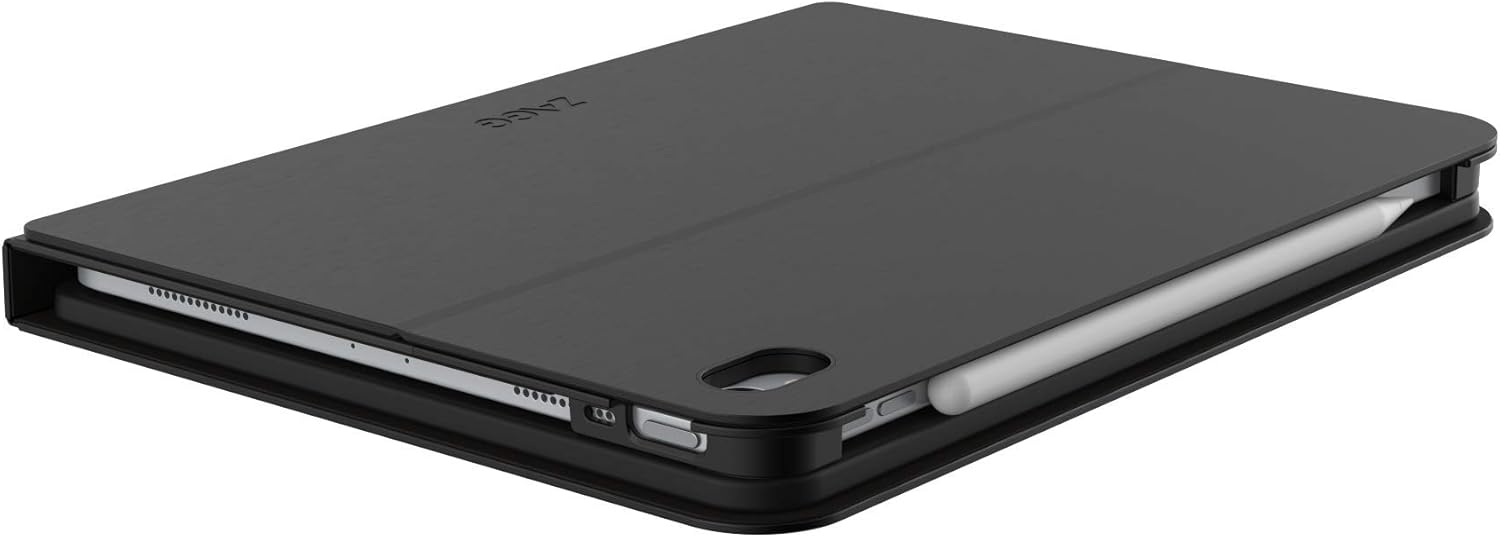
Image: A side-angle view of the ZAGG Messenger Folio with an iPad Pro 11-inch, clearly showing the built-in stand extended to hold the tablet at an ergonomic viewing angle. The keyboard is in the foreground.
3. Apple Pencil Holder
The Messenger Folio includes a dedicated tab or slot for your Apple Pencil, keeping it securely stored and readily accessible when you need it.

Image: The ZAGG Messenger Folio case in a closed position, with an Apple Pencil visibly stored in a dedicated slot along the side of the case, demonstrating its secure storage feature.
Maintenance
- Cleaning: Use a soft, damp cloth to clean the exterior of the case. For the keyboard, use a dry, lint-free cloth. Avoid harsh chemicals or abrasive cleaners.
- Storage: When not in use, keep the Messenger Folio closed to protect both the iPad and the keyboard. The magnetic closure provides added protection.
- Battery Care: To maximize battery life, avoid fully discharging the keyboard frequently. Recharge when the battery low indicator appears.
Troubleshooting
Keyboard Not Responding
- Ensure the keyboard is turned on.
- Check the battery level and recharge if necessary.
- Verify that Bluetooth is enabled on your iPad and the keyboard is paired. Try unpairing and re-pairing the keyboard.
- Restart your iPad and the keyboard.
Connectivity Issues
- Move the iPad and keyboard closer together to ensure they are within Bluetooth range.
- Ensure there are no other strong wireless signals interfering with the Bluetooth connection.
Keys Not Functioning Correctly
- Ensure the keyboard is fully charged.
- Check for any debris under the keys.
- If specific keys are not working, a factory reset (if available for this model) or contacting support may be necessary.
Specifications
| Feature | Detail |
|---|---|
| Brand | ZAGG |
| Model Number | 103002112 |
| Compatible Devices | Apple iPad Pro 11" |
| Connectivity Technology | Wireless (Bluetooth) |
| Battery Life | Up to 3 months (rechargeable) |
| Item Weight | 1.3 pounds |
| Product Dimensions (LxWxH) | 10.32 x 0.87 x 7.76 inches |
| Color | Black |
| Material | Plastic |
| Included Batteries | 1 Lithium Ion battery (included) |
Warranty and Support
The ZAGG Messenger Folio comes with a manufacturer's warranty. Please refer to the warranty card included in your product packaging or visit the official ZAGG website for detailed warranty terms and conditions.
For further assistance, technical support, or to inquire about replacement parts, please visit the ZAGG support website or contact their customer service directly. Contact information can typically be found on the ZAGG official website.
Online Support: www.zagg.com/support
Related documents103002112


Ask a question about this manual
Ask about setup, troubleshooting, compatibility, parts, safety, or missing instructions. Manuals+ will review the question and use this page’s manual context to help answer it.