
1. Getting Started
1.1 What's in the Box
- Motorola e5 Play Smartphone
- Charger
1.2 SIM Card and Battery Installation
Before first use, ensure the SIM card is properly inserted and the battery is installed. The Motorola e5 Play uses an interchangeable 2,800 mAh battery.
To install the SIM card and battery:
- Carefully remove the back cover of the phone.
- Insert your SIM card into the designated slot. Ensure it is correctly oriented.
- If using, insert a microSD card (up to 256 GB) into its slot for expanded storage.
- Place the 2,800 mAh battery into its compartment, aligning the contacts.
- Replace the back cover, pressing firmly until it clicks into place.
1.3 Charging the Battery
Connect the provided 10W rapid charger to the micro-USB port on your phone. Plug the charger into a power outlet. The phone will indicate that it is charging. For optimal battery life, fully charge the device before first use.
1.4 Initial Setup
Press and hold the power button to turn on your Motorola e5 Play. Follow the on-screen prompts to complete the initial setup, including selecting your language, connecting to Wi-Fi, and signing in to your Google account. The device runs on Android 8.0.
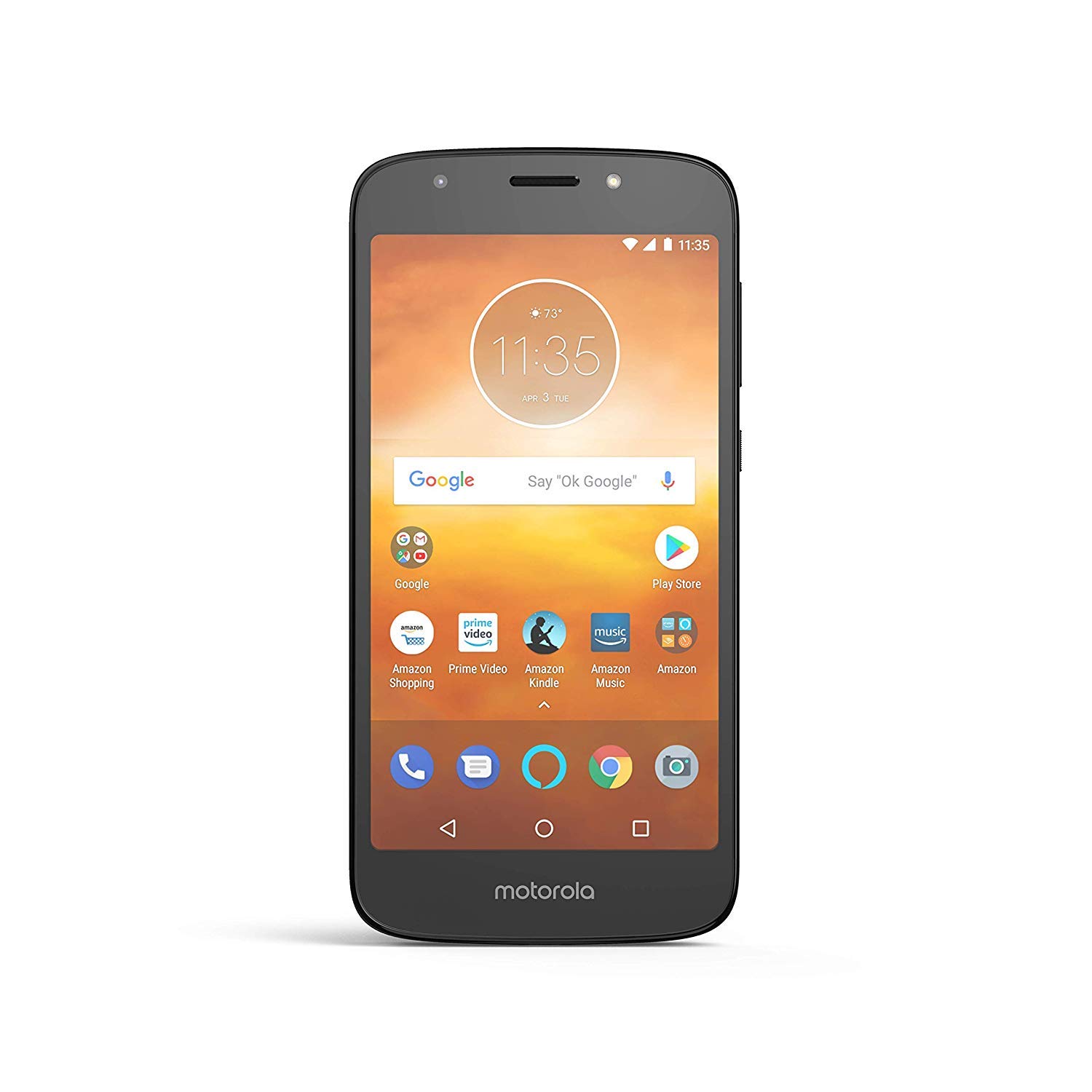
This image displays the front of the Motorola e5 Play smartphone, featuring its 5.2-inch HD display. The screen shows the time, weather, Google search bar, and various application icons including Google, Play Store, Amazon Shopping, Prime Video, Amazon Kindle, Amazon Music, and Amazon. The bottom of the phone has the Motorola logo.
2. Operating Your Device
2.1 Basic Navigation
The Motorola e5 Play features a 5.2-inch HD touchscreen display. Navigate by tapping, swiping, and pinching. Use the physical buttons on the side for power and volume control. The bottom of the screen features on-screen navigation buttons for Back, Home, and Recent Apps.
2.2 Making Calls and Sending Messages
To make a call, open the Phone app and dial the number or select a contact. To send a text message, open the Messages app, start a new conversation, and type your message.
2.3 Using the Camera
The phone is equipped with an 8 MP rear camera with LED flash and a 5 MP front-facing camera with flash. Open the Camera app to capture photos and videos. Tap the screen to focus and press the shutter button to take a picture.
2.4 Storage and Connectivity
The device comes with 16 GB of internal storage, expandable up to 256 GB via a microSD card. It supports fast 4G LTE speeds for cellular data. Connectivity options include USB for charging and data transfer, and a 3.5 mm audio jack for headphones.
2.5 Applications and Google Services
Your Motorola e5 Play comes with pre-installed Google applications and access to the Google Play Store for downloading additional apps. Utilize features like Google Assistant by saying "Ok Google" or tapping the microphone icon on the search bar.
3. Maintenance
3.1 Cleaning Your Device
To clean your phone, gently wipe the screen and body with a soft, lint-free cloth. Avoid using harsh chemicals or abrasive materials, as these can damage the display and finish. Ensure no liquid enters the ports.
3.2 Software Updates
Regularly check for and install software updates to ensure your device has the latest features, security patches, and performance improvements. Updates are typically found in the phone's Settings menu under "System" or "About phone."
3.3 Battery Care
To prolong the life of your 2,800 mAh battery, avoid extreme temperatures. It is recommended to keep the battery charge between 20% and 80% for optimal longevity. Use only the provided charger or a compatible 10W rapid charger.
3.4 Water-Repellent Design
The Motorola e5 Play features a water-repellent design, which helps protect it against moderate exposure to water, such as accidental spills, splashes, or light rain. It is not designed to be submerged in water or exposed to pressurized water or liquids other than fresh water. Water damage is not covered under warranty.
4. Troubleshooting
4.1 Common Issues and Solutions
| Issue | Possible Solution |
|---|---|
| Phone not turning on | Ensure the battery is charged. Press and hold the power button for at least 10-15 seconds. |
| Poor signal or no service | Check SIM card insertion. Restart the phone. Verify network settings with your carrier. Move to an area with better coverage. |
| Apps crashing or freezing | Close and reopen the app. Clear the app's cache and data in Settings. Restart the phone. Ensure apps are updated. |
| Battery draining quickly | Reduce screen brightness. Close unused apps. Disable Wi-Fi/Bluetooth when not in use. Check battery usage in Settings to identify power-hungry apps. |
| Audio issues (e.g., people can't hear you) | Ensure microphone is not blocked. Restart the phone. Test with another app or call. Check for software updates. |
4.2 Factory Reset
If issues persist, a factory reset may be necessary. This will erase all data on your phone, so ensure you back up important information first. Navigate to Settings > System > Reset options > Erase all data (factory reset).
5. Specifications
- Model Name: Moto E5 Play
- Model Number: PAA90004US
- Operating System: Android 8.0
- Display: 5.2 Inches HD (1280 x 720 pixels)
- Processor: Qualcomm Snapdragon 425 1.4 GHz quad-core
- Internal Storage: 16 GB (expandable up to 256 GB with microSD)
- Rear Camera: 8 MP with LED flash
- Front Camera: 5 MP with flash
- Battery: 2800 Milliamp Hours (interchangeable)
- Dimensions: 5.95 x 0.35 x 2.91 inches
- Weight: 9.6 ounces
- Connectivity: 4G LTE, USB, 3.5 mm Audio Jack
- Color: Black
6. Warranty and Support
6.1 Product Warranty
For detailed information regarding the warranty coverage for your Motorola e5 Play smartphone, please refer to the warranty card included with your product or visit the official Motorola support website. Warranty terms and conditions may vary by region and purchase location.
6.2 Customer Support
If you require further assistance, technical support, or have questions not covered in this manual, please contact Motorola customer support through their official website or designated support channels. Have your model number (PAA90004US) and serial number ready when contacting support.
You can visit the Motorola Store for more information: Motorola Official Store
