1. Product Overview
The Tenveo VHD3U USB PTZ Video Conference Camera is designed for high-definition video conferencing, live streaming, and various communication needs. It features 3X optical zoom, 1080P Full HD video output, and a 1/2.9'' SONY CMOS Sensor for clear image quality. Its pan/tilt capabilities and preset functions offer flexible control for diverse environments.

Video 1: A general overview of the Tenveo VHD USB camera, highlighting its features and applications.
2. Package Contents
Verify that all items are present in the package:
- FHD Conference Camera
- IR Remote Control
- Power Supply
- USB Cable
- User Manual
- Wall mount
- Mounting screws

3. Key Features
- 1080P Full HD Video: Equipped with a 3x optical zoom wide-angle lens and a 1/2.9'' SONY CMOS Sensor for 1080P FHD video output.
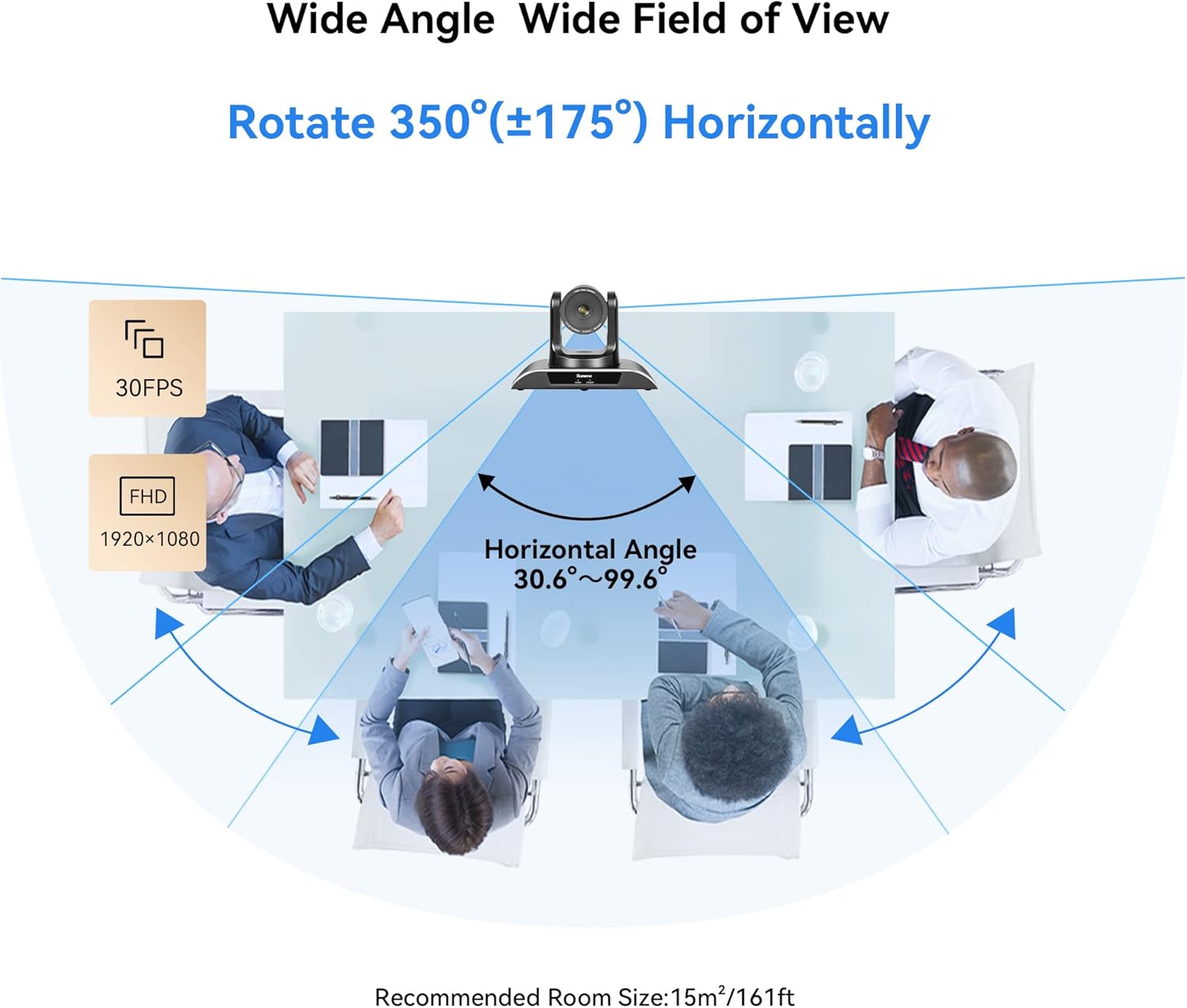
- Smooth Pan/Tilt Movement: Remotely controllable with 350° horizontal rotation (±175°) and 180° vertical rotation (±90°).
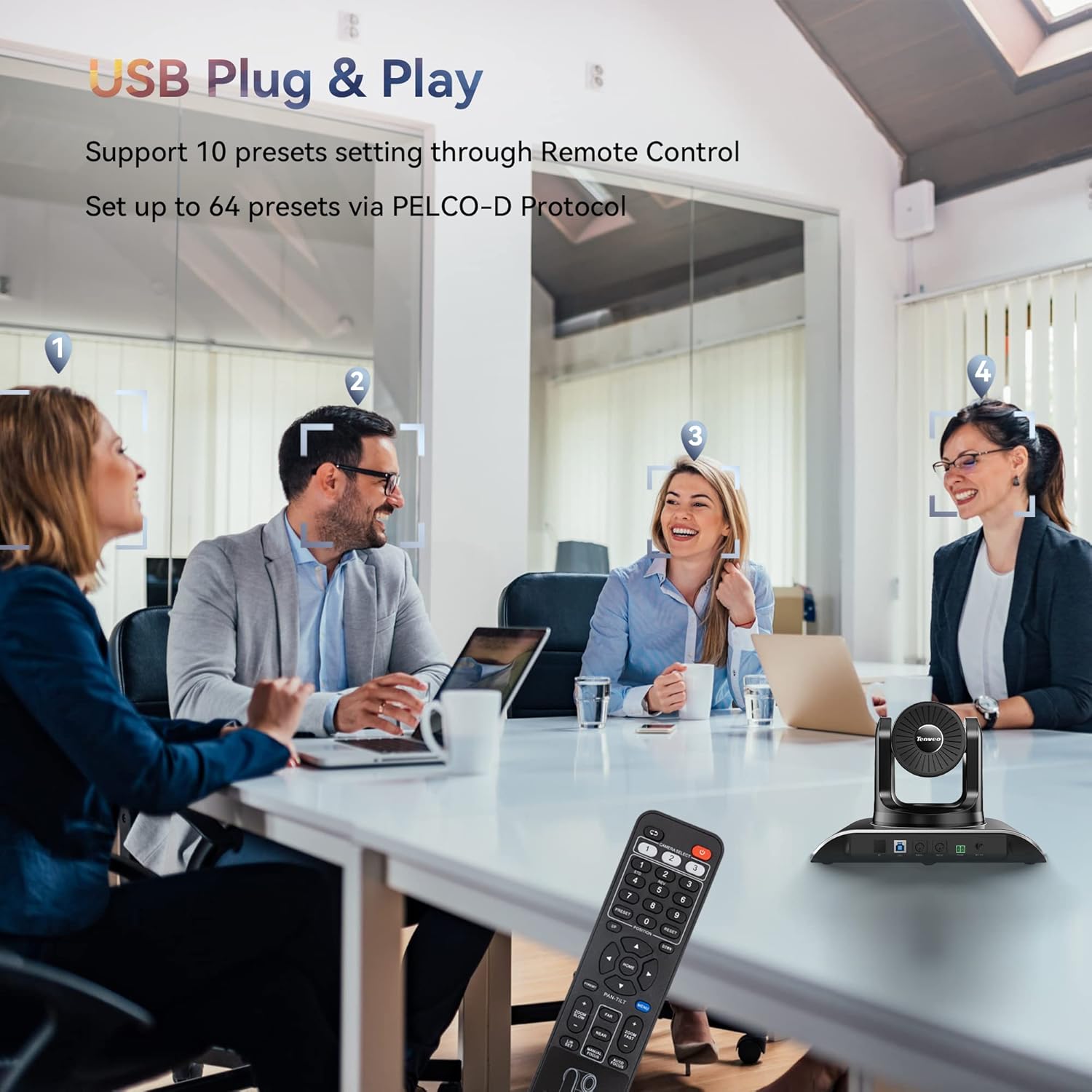
- Preset Positions: Supports 10 presets via IR Remote Control and up to 64 presets via RS232 and RS485 interfaces.
- USB Plug and Play: No additional drivers required for quick setup with laptops, desktops, or Smart TVs.
- Universal Compatibility: Compatible with popular video conferencing software including Zoom, Skype, YouTube, Microsoft Teams, and more. Supports Windows, Mac, Linux, and Android.
- Multiple Installation Options: Supports desktop, monitor, tripod, wall, or ceiling mounting.


4. Setup and Installation
4.1 Basic USB Connection
Connect the camera to your computer using the provided USB cable. Ensure the power adapter is connected to the camera and a power outlet. The camera is plug-and-play, requiring no additional drivers for basic functionality.
4.2 Mounting Options
The camera offers versatile mounting options to suit your conference room or streaming setup:
- Desktop placement
- Monitor mounting
- Tripod mounting
- Wall mounting (hardware included)
- Ceiling mounting

4.3 Multi-Camera Connection via PTZ Controller
For setups requiring multiple cameras, the VHD3U can be integrated with a PTZ controller using RS485 protocol. This allows for centralized control of multiple units.
Video 2: Demonstrates how to connect multiple cameras using a PTZ controller via RS485 protocol for expanded conference setups.
5. Operating Instructions
5.1 Using the IR Remote Control
The included IR remote control allows for easy adjustment of pan, tilt, and zoom functions. You can also set and recall up to 10 preset camera positions for quick scene changes.
5.2 Advanced Control with Joystick/Keyboard Controller
For professional installations, the camera can be controlled via a dedicated joystick or keyboard controller using RS232 or RS485 protocols. This enables precise control and management of up to 64 preset positions.
Video 3: Illustrates controlling the Tenveo PTZ camera using a joystick controller, demonstrating pan, tilt, and zoom functions.
Video 4: Shows how to control Tenveo PTZ cameras using a keyboard controller via RS485, including setting DIP switches for camera addresses.
6. Maintenance
To ensure optimal performance and longevity of your Tenveo VHD3U camera, follow these maintenance guidelines:
- Cleaning: Use a soft, dry cloth to clean the camera body. For the lens, use a lens cleaning cloth and specialized lens cleaning solution. Avoid abrasive cleaners or solvents.
- Storage: When not in use for extended periods, store the camera in a cool, dry place away from direct sunlight and excessive dust.
- Cable Management: Ensure all cables are neatly organized and not under strain to prevent damage to connectors or ports.
- Firmware Updates: Periodically check the Tenveo website for firmware updates to enhance performance and add new features.
7. Troubleshooting
If you encounter issues with your Tenveo VHD3U camera, refer to the following common troubleshooting steps:
- No Power: Ensure the power adapter is securely connected to both the camera and a working power outlet. Check the power indicator light on the camera.
- No Video Output: Verify the USB cable connection to your computer. Ensure the correct camera is selected in your video conferencing software. Try a different USB port or cable.
- Image Quality Issues: Check for proper lighting in the room. Ensure the lens is clean and free from smudges. Adjust focus settings if available.
- Remote Control Not Responding: Check the batteries in the remote control. Ensure there are no obstructions between the remote and the camera's IR receiver.
- PTZ Movement Issues: Confirm that the camera is powered on and connected. If using a controller, ensure it is properly configured and connected to the camera(s).
For further assistance, please contact Tenveo customer support.
8. Specifications
| Feature | Detail |
|---|---|
| Product Dimensions | 6.5 x 9.72 x 6.73 inches |
| Item Weight | 4.18 pounds |
| Item Model Number | VHD3U |
| Photo Sensor Technology | CMOS |
| Video Capture Resolution | 1080p, 720p |
| Maximum Focal Length | 10.05 Millimeters |
| Maximum Aperture | 1.7 f |
| Video Capture Format | MJPEG/YUY2/H.264 |
| Supported Audio Format | AAC, PCM |
| Connectivity Technology | Infrared, USB |
9. Warranty and Support
Tenveo offers comprehensive support for your VHD3U camera:
- 3-Year Warranty: Enjoy peace of mind with a 3-year product warranty.
- Lifetime Technical Support: Access lifetime technical support services, including firmware upgrades.
- 30-Day Money Back Guarantee: A 30-day money-back guarantee is provided for your satisfaction.
- Customer Service: Contact Tenveo customer service for any questions or assistance; responses are typically provided within 12 hours.


