
1. Introduction
Thank you for purchasing the DBPOWER RD810 Portable Mini Projector. This manual provides essential information for the safe and optimal use of your projector. Please read it thoroughly before operating the device and retain it for future reference.
This projector is designed for home entertainment, offering a portable solution for displaying videos, photos, and presentations. Ensure all safety guidelines are followed to prevent damage to the device or personal injury.
2. Package Contents
Please verify that all components are present in your package. If any items are missing or damaged, contact DBPOWER customer support.
- DBPOWER RD810 Portable Mini Projector
- Remote Control
- Power Cable
- HDMI Cable
- AV Cable
- User Manual
3. Product Overview
Familiarize yourself with the various parts of your DBPOWER RD810 projector.

Figure 3.1: Front view of the DBPOWER RD810 Projector, showing the lens and ventilation.
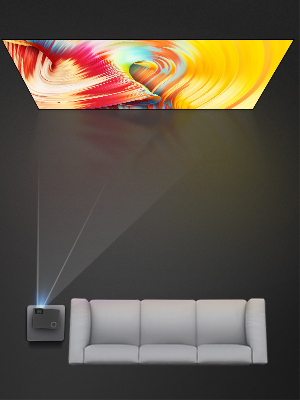
Figure 3.2: Side view of the projector, illustrating input ports such as HDMI, USB, and VGA.
Key Components:
- Lens: Projects the image onto the screen.
- Focus Ring: Adjusts image clarity.
- Keystone Correction Knob: Corrects trapezoidal image distortion.
- Control Panel: On-device buttons for basic navigation and settings.
- Input Ports: HDMI, USB, VGA for connecting various devices.
- Power Port: For connecting the power cable.
- Ventilation Grilles: Essential for heat dissipation. Do not block.
4. Setup
4.1 Placement
- Place the projector on a stable, flat surface (Tabletop Mount).
- Ensure there is adequate space around the projector for proper ventilation.
- Position the projector perpendicular to the projection surface for the best image quality.
4.2 Power Connection
- Connect the power cable to the projector's power port.
- Plug the other end of the power cable into a power outlet.
- The power indicator light on the projector should illuminate.
4.3 Connecting Input Devices
The projector supports HDMI, USB, and VGA connectivity.
- HDMI: Connect an HDMI cable from your source device (e.g., laptop, DVD player, game console) to the HDMI port on the projector.
- USB: Insert a USB drive into the USB port to play media files directly. Note: The USB port is primarily for media playback and charging, not for direct computer connection for display.
- VGA: Connect a VGA cable from your computer to the VGA port on the projector.
- Audio Output: If desired, connect external speakers to the projector's audio output port for enhanced sound.
5. Operating Instructions
5.1 Powering On/Off
- Power On: Press the power button on the projector or the remote control. The projector lamp will turn on.
- Power Off: Press the power button again. The projector will initiate a shutdown sequence. Do not unplug the power cable until the fan has stopped and the projector has fully cooled down.
5.2 Focus and Keystone Adjustment
- Focus: Rotate the focus ring located around the lens until the projected image appears sharp and clear.
- Keystone Correction: If the image appears trapezoidal (wider at the top or bottom), adjust the keystone correction knob until the image is rectangular.
5.3 Selecting Input Source
After connecting your input device, you need to select the correct source:
- Press the 'Source' button on the remote control or the projector's control panel.
- Use the arrow keys to navigate through the input options (HDMI, USB, VGA).
- Press 'OK' or 'Enter' to confirm your selection.
5.4 Menu Navigation
Use the 'Menu' button on the remote or projector to access settings. Navigate with arrow keys and confirm with 'OK' or 'Enter'. Common settings include Picture Mode, Aspect Ratio, Sound Settings, and Time Settings.
6. Maintenance
6.1 Lens Cleaning
Use a soft, lint-free cloth or lens cleaning paper to gently wipe the lens. Avoid using abrasive cleaners or excessive force, which can scratch the lens surface.
6.2 Ventilation Cleaning
Regularly check and clean the ventilation grilles to prevent dust buildup, which can lead to overheating. Use a soft brush or a vacuum cleaner with a brush attachment to remove dust from the vents.
6.3 Storage
When not in use for extended periods, store the projector in a cool, dry, and dust-free environment. Use the original packaging or a protective case to prevent damage.
7. Troubleshooting
| Problem | Possible Cause | Solution |
|---|---|---|
| No Power | Power cable not connected; Power outlet faulty; Projector overheated. | Ensure power cable is securely connected; Test power outlet; Allow projector to cool down. |
| No Image | Incorrect input source selected; Input cable loose or faulty; Source device not outputting signal. | Select correct input source; Check cable connections; Ensure source device is on and configured to output. |
| Blurry Image | Focus not adjusted; Keystone not adjusted; Projector too far/close to screen. | Adjust focus ring; Adjust keystone correction knob; Reposition projector. |
| No Sound | Volume too low; Mute enabled; External speakers not connected/configured; Source device audio settings. | Increase volume; Disable mute; Connect external speakers if desired; Check audio settings on source device. |
| Remote Control Not Working | Batteries depleted; Obstruction between remote and projector; Remote sensor blocked. | Replace batteries; Remove obstructions; Ensure remote sensor on projector is clear. |
8. Specifications
| Feature | Specification |
|---|---|
| Brand | DBPOWER |
| Model Name | RD810 |
| Model Number | 810X |
| Connectivity Technology | HDMI, USB, VGA |
| Native Display Resolution | 800 x 480 |
| Maximum Display Resolution | 1920 x 1080 |
| Display Type | LCD |
| Contrast Ratio | 1000:1 |
| Light Source Operating Life | 30,000 Hours |
| Wattage | 24 watts |
| Control Method | Remote, Button Control |
| Mounting Type | Tabletop Mount |
| Form Factor | Portable |
9. Warranty and Support
DBPOWER products are designed and manufactured to the highest quality standards. For information regarding warranty coverage, technical support, or service inquiries, please refer to the warranty card included with your product or visit the official DBPOWER website. Please have your model number (RD810 / 810X) and purchase details ready when contacting support.


