
Introduction
This manual provides essential information for the safe and efficient use of your Samsung UA-40J5200 40" Full HD Multi-System Smart Wi-Fi LED TV. Please read these instructions thoroughly before operating the device and retain them for future reference.
The Samsung UA-40J5200 is designed to display content in Full HD resolution across NTSC, PAL, and SECAM color systems. It features a 40-inch LED-lit LCD panel with Motion Rate 50 technology for smooth motion. Built-in Wi-Fi and Ethernet connectivity enable access to smart features, applications, and content sharing with compatible devices. The TV includes two HDMI inputs and one USB port for connecting various multimedia peripherals.
Important Safety Information
- Do not expose this apparatus to rain or moisture.
- Do not block any ventilation openings. Install in accordance with the manufacturer's instructions.
- Protect the power cord from being walked on or pinched.
- Only use attachments/accessories specified by the manufacturer.
- Refer all servicing to qualified service personnel.
Package Contents
Verify that all the following items are included in your product package:
- Samsung UA-40J5200 TV Unit
- TV Stand Components
- Remote Control (with batteries)
- Power Cable
- User Manual (this document)
Setup
Installing the TV Stand
To install the TV stand, carefully place the TV screen-down on a soft, flat surface to prevent damage. Align the stand components with the designated slots on the bottom of the TV. Secure the stand using the provided screws. Ensure the stand is firmly attached before placing the TV upright.
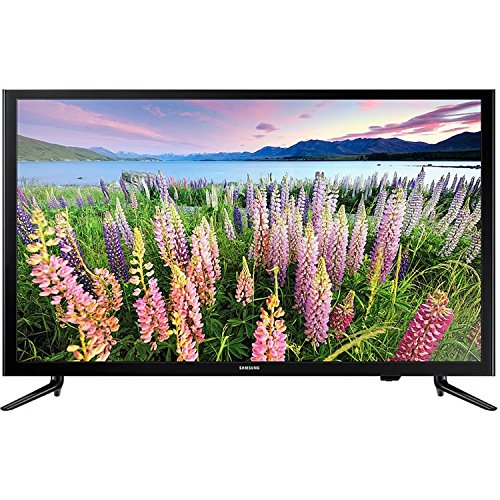
Image: The Samsung UA-40J5200 TV with its stand attached, ready for placement on a table or entertainment unit.
Connecting Power
After the stand is securely attached, place the TV in its desired location. Connect the power cable to the TV's power input port and then plug the other end into a suitable electrical outlet (100-240V AC, 50/60Hz). The TV is designed to operate within a wide voltage range.
Operating the TV
Power On/Off
Press the Power button on the remote control or on the TV itself to turn the TV on or off.
Initial Setup
Upon first power-on, the TV will guide you through an initial setup process. This includes selecting your language, country, and connecting to a network.
Network Connection (Smart TV Features)
Your TV supports both Wi-Fi and Ethernet connections for accessing Smart TV features and internet content.
- Wi-Fi: Navigate to the TV's settings menu, select 'Network', then 'Network Settings'. Choose 'Wireless' and select your home Wi-Fi network from the list. Enter the password if prompted.
- Ethernet: Connect an Ethernet cable from your router or modem to the LAN port on the back of the TV. The TV should automatically detect the wired connection.
Once connected, you can access various streaming applications and online services available on the Tizen operating system.
Input Selection
To switch between connected devices (e.g., Blu-ray player, game console), press the Source button on your remote control. Select the desired input (HDMI1, HDMI2, USB, etc.) from the on-screen menu.
Connections
The Samsung UA-40J5200 offers several ports for connecting external devices:
- HDMI Ports (x2): For high-definition audio and video connections from devices like Blu-ray players, game consoles, or set-top boxes.
- USB Port (x1): For connecting USB storage devices to play media files (photos, videos, music) or for firmware updates.
- Ethernet (LAN) Port: For a wired internet connection.
- Antenna/Cable Input: For connecting an antenna or cable TV signal.
Maintenance
Cleaning the TV
- Always unplug the TV from the power outlet before cleaning.
- Use a soft, dry, lint-free cloth to gently wipe the screen and cabinet.
- For stubborn marks, lightly dampen the cloth with water or a specialized screen cleaner. Never spray cleaner directly onto the screen.
- Avoid using abrasive cleaners, waxes, or solvents.
General Care
- Do not place heavy objects on the TV.
- Keep the TV away from direct sunlight, heat sources, and excessive dust.
- Ensure adequate ventilation around the TV to prevent overheating.
Troubleshooting
If you encounter issues with your TV, refer to the following common problems and solutions:
| Problem | Possible Solution |
|---|---|
| TV does not turn on | Ensure the power cable is securely plugged into both the TV and the electrical outlet. Test the outlet with another device. |
| No picture, but sound is present | Check the input source. Press the Source button on the remote and select the correct input. Verify external device connections. |
| No sound, but picture is present | Check the volume level and ensure the TV is not muted. Verify audio cable connections for external devices. |
| Cannot connect to Wi-Fi | Ensure your Wi-Fi router is on and functioning. Re-enter the Wi-Fi password carefully. Try restarting both the TV and the router. |
| Remote control not working | Check and replace the batteries. Ensure there are no obstructions between the remote and the TV's IR sensor. |
Specifications
Detailed technical specifications for the Samsung UA-40J5200 TV:
- Model Name: J5200
- Model Number: UA-40J5200
- Screen Size: 40 Inches
- Display Technology: LCD, LED-lit
- Resolution: 1080p (Full HD)
- Aspect Ratio: 16:9
- Special Feature: Flat Screen
- Connectivity Technology: HDMI, Wi-Fi, Ethernet
- Hardware Interface: Ethernet, HDMI, USB
- Total USB Ports: 1
- Audio Input: HDMI, USB
- Signal Format: Analog
- Voltage: 100-240 VAC, 50-60 Hz
- Mounting Type: Table Mount
- Color: Black
- Compatible Devices: Smartphone
- Tuner Type: NTSC, PAL
- Operating System: Tizen
- Control Method: App, Remote Control
- Manufacturer: Samsung
- Model Year: 2018
Warranty and Support
For warranty information and technical support, please refer to the warranty card included with your product or visit the official Samsung support website. You may also contact Samsung customer service directly for assistance with product registration, troubleshooting, or service requests.


