
1. Introduction
This manual provides detailed instructions for the Wuloo WL666 Wireless Intercom System. Please read this manual thoroughly before operating the device to ensure proper use and to maximize its functionality. The Wuloo WL666 is designed for reliable, clear communication within homes, offices, and businesses, offering a wireless solution without the need for Wi-Fi.

Figure 1: Wuloo WL666 Wireless Intercom System (3-pack)
2. Product Features
- Wireless Communication: Operates on FM wireless technology, eliminating the need for Wi-Fi or complex wiring.
- Extended Range: Offers a communication range of up to 5280 feet (approximately 1 mile) in open areas, ensuring clear sound quality over long distances.
- Multi-Channel & Code System: Features 10 channels and 3 digital codes (A/B/C) to enhance privacy and prevent interference from other intercoms.
- Versatile Functions: Includes Monitor, Talk, VOX (Voice Operated Exchange), Group, and Calling functions for various communication needs.
- Portable Power Option: Compatible with 5V 1A power banks for outdoor or mobile use (power bank not included).
- Easy Installation: Designed with a back hole for convenient wall mounting.
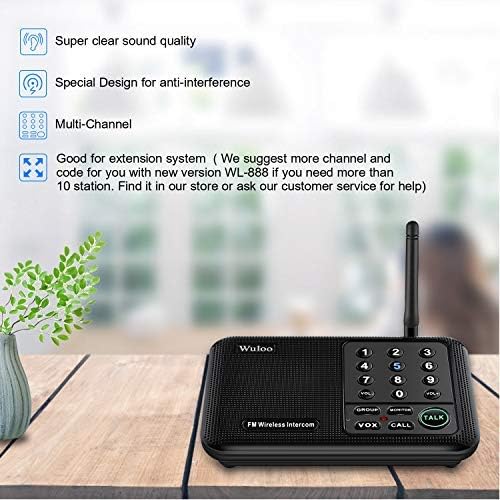
Figure 2: Key features of the Wuloo WL666 Intercom System.
Video 1: Overview of the features of the Wuloo WL666 intercom system.
3. Package Contents
The Wuloo WL666 Wireless Intercom System (3-pack) includes the following items:
- 3 x Wuloo WL666 Intercom Units
- 3 x Power Cords (USB to DC 5V)
- 3 x AC Adapters (5V 1A)
- 1 x User Manual (this document)

Figure 3: Contents of the Wuloo WL666 3-station package.
4. Setup Instructions
Follow these steps to set up your Wuloo WL666 Wireless Intercom System:
4.1. Connect AC Power
- Connect the provided USB power cord to the DC 5V port on the back of each intercom unit.
- Plug the AC adapter into a standard wall outlet.
- Ensure all units are powered on.
Note: This intercom system does not support batteries. It requires continuous AC power or a compatible power bank (DC 5V 1A) for operation.
Video 2: Step-by-step guide on how to use the Wuloo WL666 intercom, including power connection.
4.2. Code Setting (A/B/C)
Each intercom unit has a switch near the power port to select a digital code (A, B, or C). For secure communication, ensure all intercoms intended to communicate with each other are set to the same code.
- Locate the A/B/C switch on the side of each intercom unit.
- Slide the switch to select your desired code (A, B, or C). All units in your system should use the same code.

Figure 4: Intercom unit layout with digital code switch highlighted.
4.3. Channel Setting
Each intercom unit can be assigned a unique channel number (0-9). This allows for direct communication between specific units within your system.
- On each intercom unit, press and hold any channel number key (0-9) for 3 seconds to set its channel. The display will show the selected channel.
- Assign a different channel number to each unit for individual calling.
- It is recommended to set all stations to the same code (A, B, or C) but with different channel numbers. This allows you to simply adjust the channel to make calls without needing to set a new code each time.

Figure 5: Visual guide for code and channel settings.
4.4. Address List (Optional for Large Systems)
For larger intercom systems with many units, creating an address list can help you remember which intercoms belong to which users or locations. Record the channel number for each user.
Example: Member A: Code A Channel 1, Member B: Code A Channel 2, etc.
5. Operating Instructions
5.1. Basic Communication (Call & Talk)
- To Call Another Unit: Short press the channel number key (0-9) of the intercom unit you wish to communicate with. The receiving unit will ring.
- To Talk: After the call rings, press and hold the TALK button to speak. Release the button to listen.
- Volume Adjustment: Use the VOL+ and VOL- buttons to adjust the speaker volume.
5.2. VOX (Voice Operated Exchange) Mode
VOX mode allows for hands-free communication without continuously pressing the TALK button. It activates when it detects a voice within a close speaking range.
- Activate VOX: Press the VOX button on your unit. The channel number key will flash blue.
- Speaking in VOX: Speak close to the microphone to activate VOX mode. The indicator light will turn red, and the number key will stop flashing. You can then speak, and the other unit will receive your voice message.
- Listening in VOX: The other user can press and hold the TALK button to reply.
Note: VOX mode has a 24-hour time limit. If there are no manual changes to other channels, VOX mode will automatically exit after 24 hours. You need to reset it again every 24 hours for continuous use. Communication in VOX mode may have a slight delay, and it's recommended to speak one by one.
Video 3: Explanation and demonstration of the VOX function on the Wuloo WL666 intercom system.
5.3. Monitor Mode
Monitor mode allows you to listen to audio from a specific room (e.g., a baby's room) without needing voice activation.
- Activate Monitor: Place the intercom unit you wish to monitor in the desired room. Press the MONITOR button on this unit. The light on the device will turn red, indicating it's in monitored state.
- Listening: On your listening unit, press and hold the Channel number key for 3 seconds to set the same channel as the monitored unit. You will then receive audio from the monitored room.
Note: The monitored unit will stay in transmit mode and cannot receive any information unless you exit this mode. Keep the device as close as possible to the person being monitored to pick up voice clearly. Monitor mode has a 10-hour time limit. If you need to monitor for a longer period, please reset it every 10 hours.
Video 4: Demonstration of the MONITOR function of the Wuloo WL666 intercom system.
5.4. Group Mode
Group mode allows you to broadcast your voice to all intercom stations simultaneously within your system, even if they are on different channels but the same code.
- Activate Group Call: Press and hold the GROUP button.
- Speaking in Group: While holding the GROUP button, speak into your unit. Your message will be transmitted to all other units in the system.
Note: To confirm if an intercom station is part of your system, check its frequency and code using the frequency table in the detailed manual.
Video 5: Explanation of the GROUP function of the Wuloo WL666 intercom system.
6. Maintenance
- Cleaning: Use a soft, dry cloth to clean the exterior of the intercom units. Do not use liquid cleaners or aerosols.
- Storage: Store the units in a cool, dry place away from direct sunlight and extreme temperatures when not in use for extended periods.
- Power Supply: Always use the original power adapters provided with the system. Using incompatible adapters may damage the device.
- Antenna Care: Handle the antenna gently to avoid bending or breaking it, which could affect signal quality.
7. Troubleshooting
| Problem | Possible Cause | Solution |
|---|---|---|
| No power to the unit. | Power cord not properly connected or power outlet is not working. | Ensure the power cord is securely plugged into the unit and the AC adapter. Test the outlet with another device. |
| Cannot communicate between units. | Units are on different digital codes or channels. | Verify that all units are set to the same digital code (A, B, or C). Ensure you are calling the correct channel number for the desired unit. |
| Poor sound quality or static. | Interference from other devices, units are too far apart, or obstructions. | Move units away from other electronic devices. Ensure units are within the effective range. Reduce physical obstructions between units. |
| VOX mode not activating. | Not speaking close enough to the microphone or VOX mode timed out. | Speak directly into the microphone. If VOX mode has been active for 24 hours, reset it by briefly changing the channel and then re-activating VOX. |
| Monitor mode not working. | Monitored unit is not in monitor mode or monitor mode timed out. | Ensure the monitored unit has its MONITOR button pressed (red light). If monitor mode has been active for 10 hours, reset it. |
If you encounter issues not listed here or if the suggested solutions do not resolve the problem, please contact Wuloo customer support for assistance.
8. Specifications
| Feature | Detail |
|---|---|
| Model Number | WL666 |
| Brand | Wuloo |
| Product Dimensions | 6.4 x 4.3 x 1.6 inches |
| Item Weight | 2.31 pounds |
| Number of Channels | 10 |
| Digital Codes | 3 (A, B, C) |
| Talking Range Maximum | 1 Mile (5280 feet) |
| Voltage | 5 Volts |
| Power Compatibility | AC 100-240V (via adapter), DC 5V 1A (via power bank) |
| Water Resistance Level | Water Resistant |
| Included Components | Power Cord |
9. Warranty and Support
9.1. Warranty Information
Wuloo products are designed for durability and reliability. For specific warranty details, please refer to the warranty card included with your product or visit the official Wuloo website. Keep your purchase receipt as proof of purchase for warranty claims.
9.2. Customer Support
For technical assistance, troubleshooting, or any questions regarding your Wuloo WL666 Wireless Intercom System, please contact Wuloo customer support:
- Online Support: Visit the Wuloo Store on Amazon for FAQs and contact options.
- Email: Refer to your product packaging or the Wuloo website for the most current email contact information.
Please have your model number (WL666) and purchase date ready when contacting support.


