
EasySMX ESM-9101-EU
EasySMX Wireless Game Controller ESM-9101-EU Instruction Manual
Model: ESM-9101-EU
Introduction
This manual provides detailed instructions for the setup, operation, maintenance, and troubleshooting of your EasySMX Wireless Game Controller, model ESM-9101-EU. Please read this manual thoroughly before using the product to ensure proper function and longevity.
Product Overview
The EasySMX ESM-9101-EU is a versatile wireless game controller designed for a wide range of platforms, including Windows PC, PS3, TV boxes, and Android devices. It features dual vibration motors, programmable buttons, turbo function, and a built-in rechargeable battery for extended gameplay.
Controller Components

Image: Front view of the EasySMX Wireless Game Controller. This image highlights the main controls including the dual analog joysticks, D-pad, ABXY action buttons, and shoulder buttons. It also indicates the responsive triggers.
- Dual Analog Joysticks: For precise 360-degree movement.
- D-Pad: Pressure-sensitive directional pad for accurate input.
- ABXY Buttons: Standard action buttons.
- Shoulder Buttons (L1/R1) & Triggers (L2/R2): For additional in-game actions.
- HOME Button: Central button for system functions.
- START/BACK Buttons: For in-game menu and system navigation.
- LED Indicators: To show connection status and battery level.

Image: Back view of the EasySMX Wireless Game Controller. This image shows the ergonomic design and the textured grip on the back of the controller for comfortable handling.
Setup
Package Contents
- EasySMX Wireless Game Controller
- 2.4G USB Receiver
- USB Charging Cable
- User Manual (this document)
Charging the Controller
Before first use, fully charge the controller. Connect the small end of the USB charging cable to the controller's charging port and the other end to a USB power source (e.g., PC USB port, USB wall adapter).

Image: The EasySMX Wireless Game Controller illustrating its high-capacity battery. The image shows charging time of 2-3 hours and a working time of 12-16 hours, with the controller automatically entering sleep mode after 5 minutes of inactivity.
- Charging Time: Approximately 2-3 hours.
- Working Time: Approximately 12-16 hours on a full charge.
- The controller will automatically switch to sleep mode after 5 minutes of inactivity to conserve battery.
Connecting to Devices (2.4GHz Wireless)
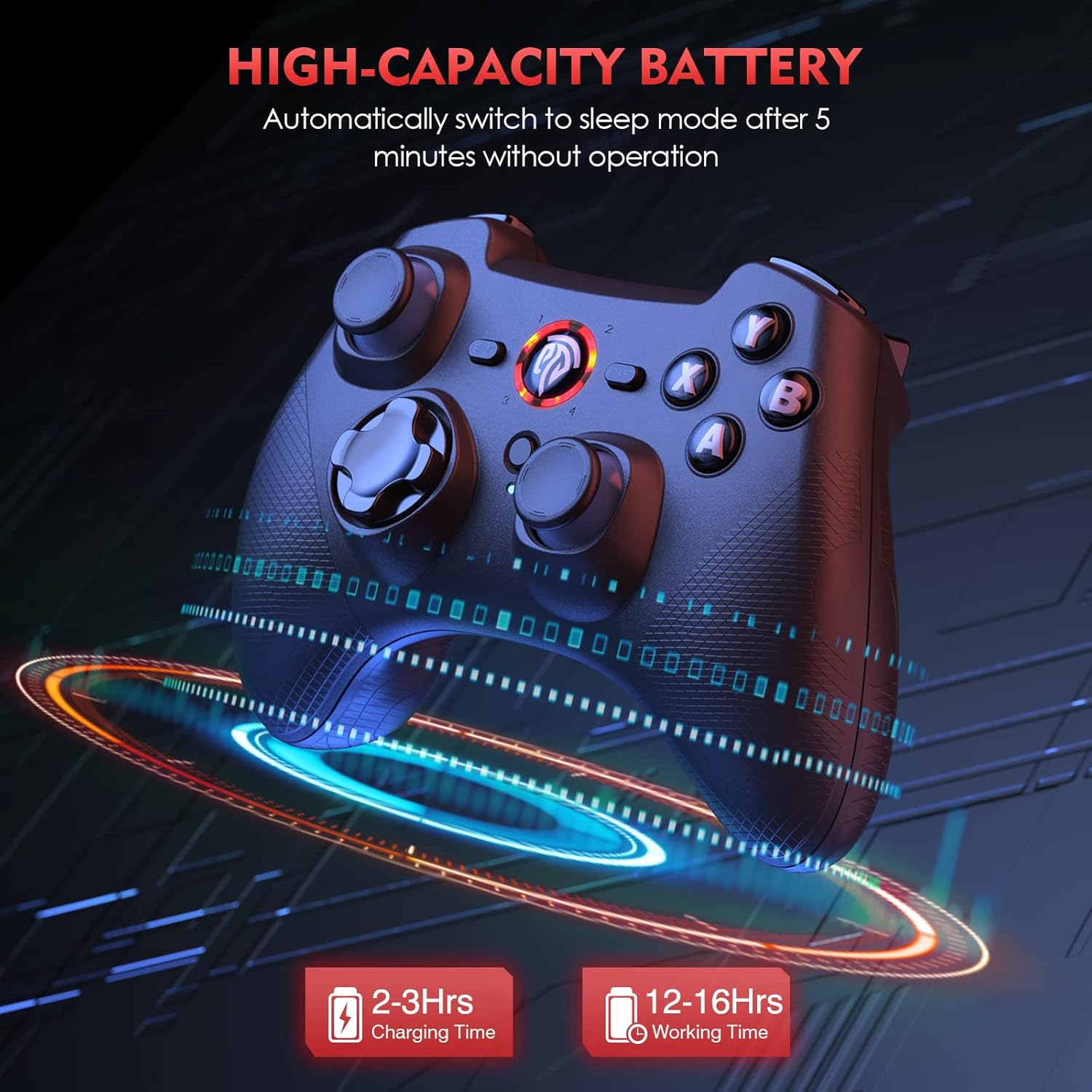
Image: The EasySMX Wireless Game Controller highlighting its multi-platform compatibility. The image displays the controller connected to various devices including Windows PC, PS3, Android TV, Android Box, Nintendo Switch (with adapter), Android Phone, and Android Tablet, also showing the 2.4G USB receiver.
- Insert the 2.4G USB receiver into an available USB port on your PC, PS3, TV box, or Android device.
- Turn on the controller by pressing the HOME button.
- The controller will automatically connect to the receiver. The LED indicator on the controller will become solid when connected.
- For Android devices, an OTG adapter (not provided) may be required if your device does not have a standard USB-A port.
Note: Compatibility with Nintendo Switch requires an additional adapter (not included). For PC, it supports Windows XP/7/8/8.1/10/11 (Xinput & Dinput modes).
Operating Instructions
Basic Controls
- HOME Button: Power on/off, access system menus.
- Analog Joysticks: Directional control, camera movement.
- D-Pad: Menu navigation, precise directional input.
- ABXY Buttons: Primary action buttons (functions vary by game).
- L1/R1 Buttons: Secondary actions.
- L2/R2 Triggers: Analog input for acceleration, braking, or other actions.
Dual Vibration Motors
The controller features dual vibration motors that provide realistic feedback during gameplay, enhancing immersion. Vibration intensity is typically controlled by the game itself.

Image: The EasySMX Wireless Game Controller illustrating its dual vibration motors. The image shows the controller being held, with visual cues indicating vibration feedback, enhancing the game experience.
Turbo Function
The Turbo function allows for rapid, continuous input of a button press without repeatedly pressing the button. This can be useful in games requiring fast button mashing.

Image: The EasySMX Wireless Game Controller showcasing its Turbo function. The image depicts the controller in a gaming scenario, with an overlay showing "TURBO + X/Y/A/B" indicating how to activate the turbo feature for specific buttons.
- To Set Turbo: Press and hold the button you wish to set (e.g., A, B, X, Y), then press the TURBO button. The button will now continuously register input when held down.
- To Clear Turbo: Press and hold the button with Turbo function, then press the TURBO button again. The Turbo function will be deactivated for that specific button.
Programmable Buttons
The controller may feature programmable buttons (check specific model details for exact buttons). This allows you to assign complex sequences or specific button functions to a single press.
(Specific instructions for programming buttons are not detailed in the provided product information. Refer to the full product manual or manufacturer's website for advanced programming features if available.)
Maintenance
- Keep the controller clean by wiping it with a soft, dry cloth.
- Avoid exposing the controller to extreme temperatures, direct sunlight, or moisture.
- Do not use abrasive cleaners or solvents.
- Store the controller in a safe place when not in use to prevent damage.
- Charge the controller regularly, even if not used frequently, to maintain battery health.
Troubleshooting
| Problem | Possible Cause | Solution |
|---|---|---|
| Controller does not turn on. | Low battery. | Charge the controller fully using the provided USB cable. |
| Controller does not connect to device. | Receiver not properly inserted; controller out of range; interference. |
|
| Buttons or joysticks are unresponsive. | Software issue; physical damage; low battery. |
|
| Vibration function not working. | Game does not support vibration; vibration disabled in game settings. |
|
Specifications
- Model: ESM-9101-EU
- Connectivity: 2.4GHz Wireless
- Compatibility: Windows PC (XP/7/8/8.1/10/11), PS3, TV Box, Android (requires OTG adapter for some devices)
- Battery: 1 Lithium Polymer Battery
- Charging Time: 2-3 hours
- Working Time: 12-16 hours
- Operating Distance: Up to 10 meters
- Features: Dual Vibration Motors, Programmable Buttons, Turbo Function, LED Indicators, Anti-slip Grip
- Product Dimensions: 17.5 x 13.5 x 7.8 cm
- Weight: 215 g
Support
For further assistance, technical support, or warranty inquiries, please visit the official EasySMX website or contact their customer service. Keep your purchase receipt for warranty claims.
EasySMX Official Store: EasySMX Store on Amazon.co.jp
Related documentsESM-9101-EU


Ask a question about this manual
Ask about setup, troubleshooting, compatibility, parts, safety, or missing instructions. Manuals+ will review the question and use this page’s manual context to help answer it.